
Usage limits and scheduling
Three cards near the bottom of a discount page decide how often a discount can be used, what kind of purchase it applies to, and when it runs.
How it works
Section titled “How it works”Maximum discount usage caps a code — in total, per customer, or both. It is shown only for a discount code.
Purchase type decides whether the discount is for one-time purchases, subscription products, or both, and for subscriptions, how many payments it applies to.
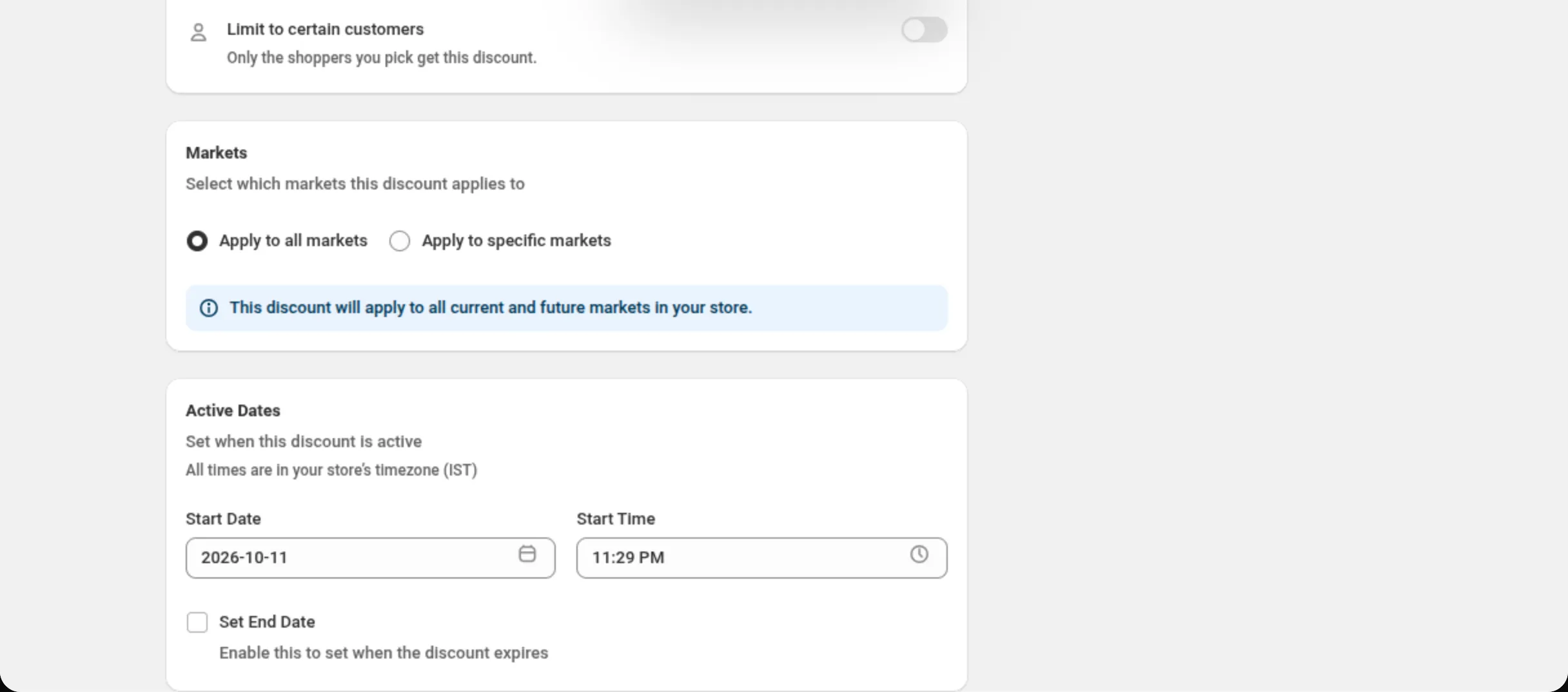
Active Dates sets the start and, optionally, the end. Every time on the card is in your store’s timezone, which the card names on screen.
From those dates Shopify works out a status — Active, Scheduled or Expired — and that is the badge the app shows.
Where it is
Section titled “Where it is”Active Dates is on every discount page. Purchase type is on Product, Order, Shipping, Price List, Buy X Get Y, Multi-offer, Custom Discount and Gift with Purchase — Bundle, Quantity Break and Spend More Save More do not have it. Maximum discount usage appears on a code discount of every type except Gift with Purchase, above Purchase type where that card exists.
Settings
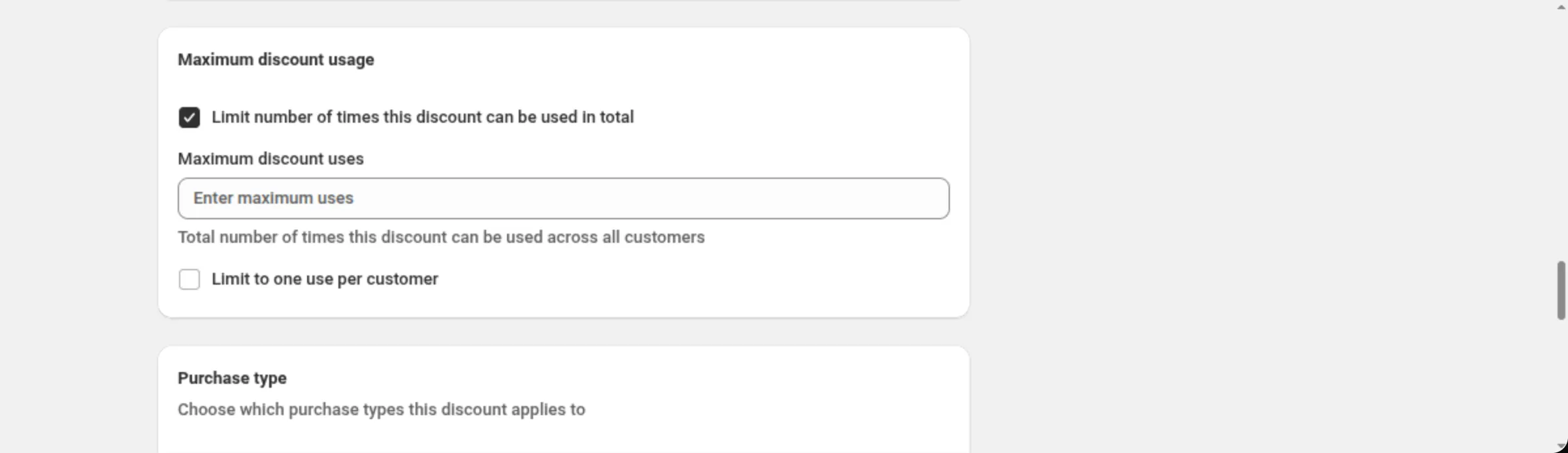
Section titled “Settings”Limit number of times this discount can be used in total
Section titled “Limit number of times this discount can be used in total”Adds a Maximum discount uses field: “Total number of times this discount can be used across all customers.” A whole number greater than 0 — anything else is refused at the field with “Enter a whole number greater than 0”.
Limit to one use per customer
Section titled “Limit to one use per customer”Caps the code at one use each. Independent of the total cap; you can use either or both.
One-time purchases
Section titled “One-time purchases”Applies the discount to ordinary purchases. Ticked when the page opens.
Subscription products
Section titled “Subscription products”Applies the discount to subscription items. At least one purchase type must be selected — untick both and the card shows “At least one purchase type must be selected”.
Apply to recurring payments
Section titled “Apply to recurring payments”Shown once Subscription products is ticked. Three choices:
- First payment only — the starting choice.
- Limited number of payments — reveals a Number of payments field, a whole number from 1 to 100. “Discount will apply to the first specified number of recurring payments.”
- All recurring payments.
Start Date / Start Time
Section titled “Start Date / Start Time”When the discount begins. Both are required. The calendar will not let you click a day before today in your store’s timezone, though a date already on the discount is kept.
Set End Date
Section titled “Set End Date”Off by default: “Enable this to set when the discount expires.” Turning it on fills in an end of the day after the later of the start date and today, at 23:59, and reveals End Date and End Time. The end must be after the start — the card says “End date must be after start date” or “End time must be after start time” otherwise.
Status
Section titled “Status”The badge on a discount comes from Shopify, not from the app’s own clock:
- Active — running now.
- Scheduled — the start date has not arrived.
- Expired — the end date has passed.
Deactivating a discount also takes it out of Active; the badge then shows whatever status Shopify reports for it.
Shopify sends no signal when a discount changes status purely because time passed. So when you open the app, it re-reads the real status from Shopify for the discounts that could have crossed a boundary and writes it back. A list that was open updates quietly, with no reload and no jump.
Examples
Section titled “Examples”A code good for 100 uses, one each
Discount method: Discount CodeDiscount Code: WELCOME10Limit number of times this discount can be used in total: tickedMaximum discount uses: 100Limit to one use per customer: tickedA weekend sale
Start Date: 2026-09-12Start Time: 00:00Set End Date: tickedEnd Date: 2026-09-14End Time: 23:59A subscription discount for the first three payments
One-time purchases: untickedSubscription products: tickedApply to recurring payments: Limited number of paymentsNumber of payments: 3Limits and notes
Section titled “Limits and notes”- Maximum discount uses: a whole number greater than 0. Codes only.
- Recurring payments: up to 100 when you choose a limited number.
- Purchase type: at least one of the two is required, on the pages that have the card.
- All times are in your store’s timezone, never the browser’s. The card names the zone.
- Start and end are both required once an end date is enabled, and the end must be later than the start.
- A past start date is allowed if it is typed or already saved; the calendar just will not offer one.
- Status is Shopify’s answer, not a guess. The app copies it and never computes it.
- The list page’s Used column shows how many times a discount has been used, as reported by Shopify. It updates within a few minutes of each order and counts the discount’s whole lifetime, across all its codes.
Related
Section titled “Related”- Where discounts show — why usage limits are a code-only card.
- Activate and deactivate — the other way a discount stops running.
- Discount list — the status tabs and the Used column.