
Price List
A price list drops the price of the products you choose once the cart reaches a tier — measured by the number of items or by the amount spent. Each tier can take a percentage off, take a fixed amount off, or set a price per item.
-
Open Discounts and click Create discount, then choose Price List.
Price List sits under Product page offers, with the example “Volume pricing — buy 5+, pay $8 each”.
-
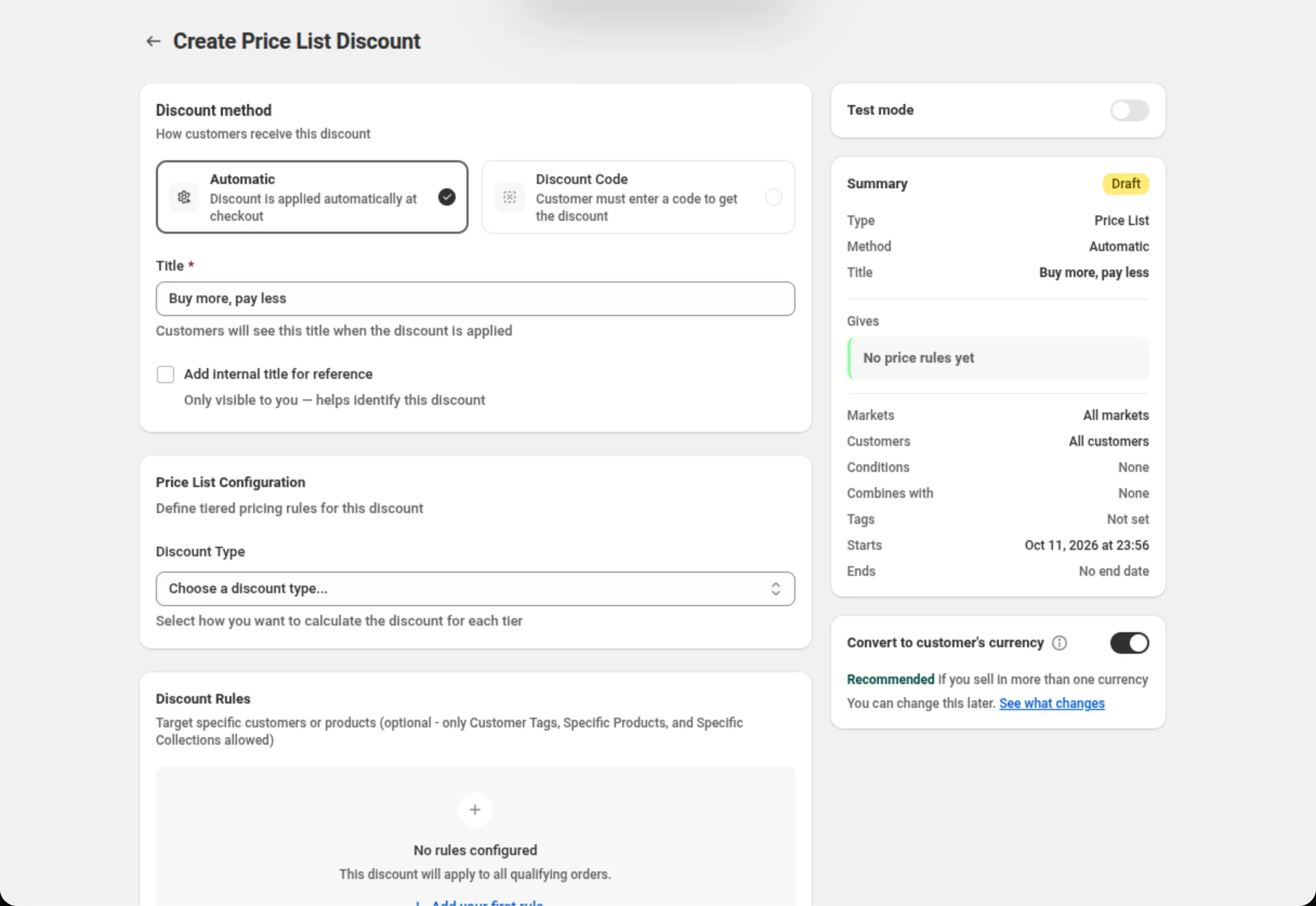
Choose the discount method and name the discount.
Pick Automatic or Discount Code, then fill in Title (automatic) or Discount Code (code). The Summary card on the right recaps the discount as you build it.
-
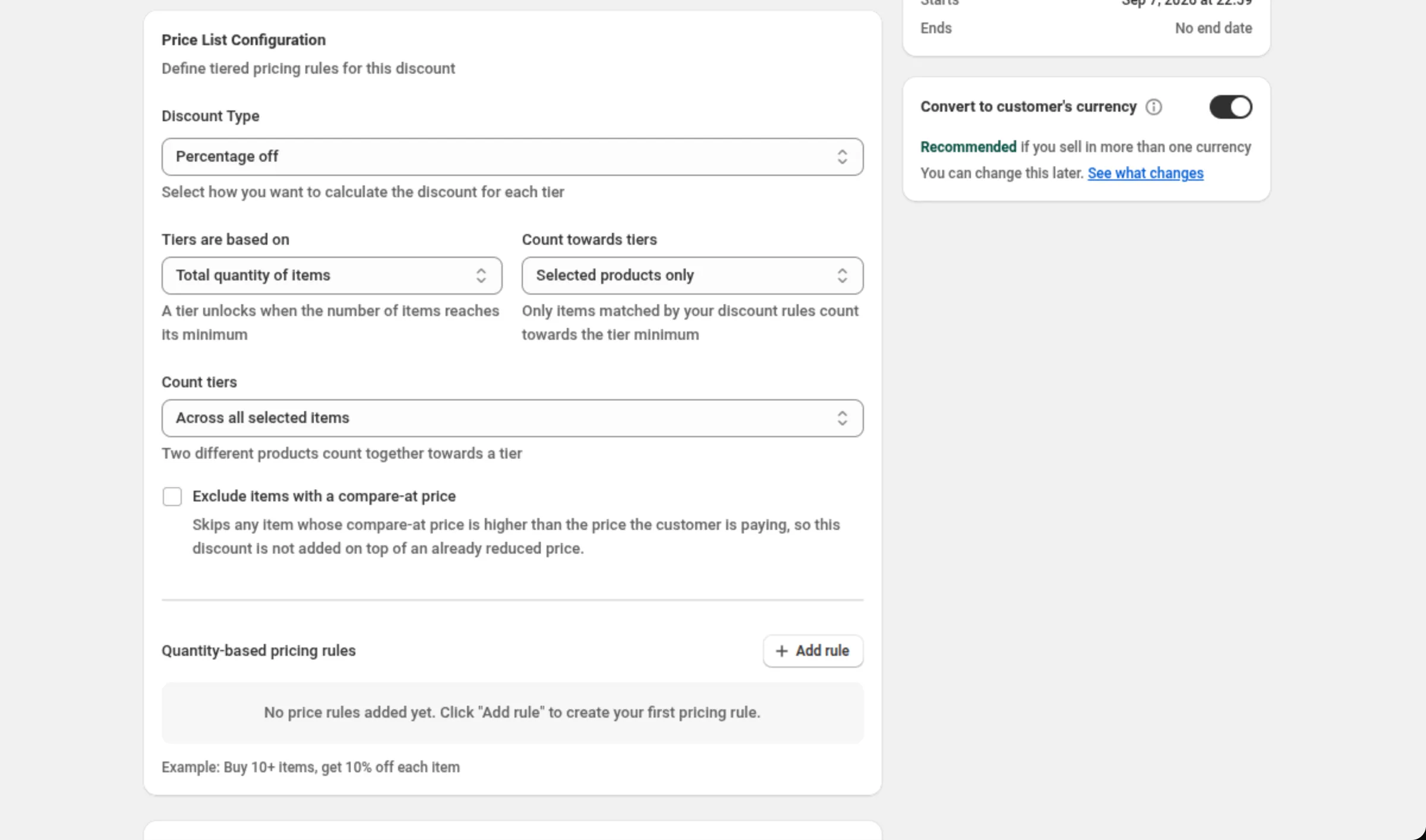
Choose the Discount Type and how the tiers are measured.
Set Discount Type to Percentage off, Fixed amount off or Fixed price per item. The rest of the card appears once you do: Tiers are based on (quantity or spend), Count towards tiers (the matched products or the whole cart), Count tiers (pooled, per product or per variant) and Exclude items with a compare-at price.
-
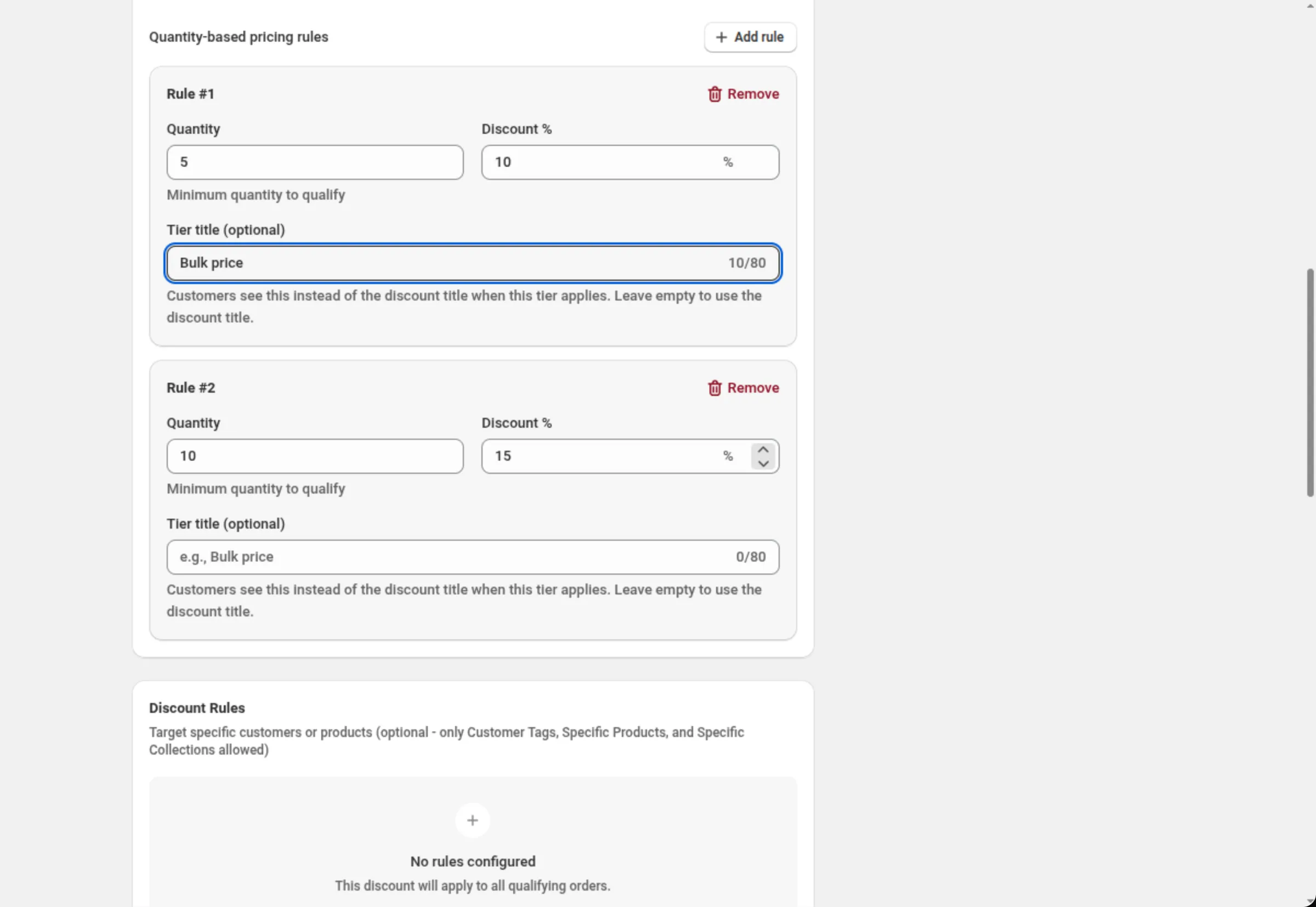
Add a pricing rule for each tier.
Click Add rule, then fill in Quantity (or Minimum amount on a spend basis) and the amount — Discount %, Discount Amount or Price Per Item, depending on the type you picked. Tier title (optional) names the discount line for that tier. Repeat for each rung of the ladder.
-
Narrow the products and customers the price list covers.
In Discount Rules, add Specific products, Specific collections or Customer tags. With no rules at all, the price list covers every product in the cart.
-
Set availability, customers, markets and dates, then save.
Use Availability to limit the price list to company (B2B) customers or to one currency, Customer eligibility to limit it to certain customers, Markets to choose where it runs, and Active Dates for the schedule. Save from the bar at the top of the page.
Settings
Section titled “Settings”Discount method
Section titled “Discount method”Automatic needs no code — Shopify applies the price list as soon as a cart matches. Discount Code means the shopper has to enter the code you set. The method is chosen when you create the discount; the chooser is disabled once the discount exists.
Title / Discount Code
Section titled “Title / Discount Code”On an automatic discount, Title is the name shoppers see when the discount is applied. On a code discount the field becomes Discount Code, and it accepts only letters, numbers, underscores and hyphens.
Add internal title for reference
Section titled “Add internal title for reference”Adds a second name only you see, to tell similar discounts apart in your own list.
Discount Type
Section titled “Discount Type”Percentage off takes a share off each qualifying item, Fixed amount off takes a set amount off it, and Fixed price per item sets what the item costs. Changing the type clears every tier’s amount, because the same number means something different under each type.
Tiers are based on
Section titled “Tiers are based on”Total quantity of items unlocks a tier when the number of items reaches its minimum; Total amount spent unlocks it when the amount spent reaches its minimum. The threshold field on each rule changes with it — Quantity or Minimum amount.
Count towards tiers
Section titled “Count towards tiers”Selected products only counts just the items your Discount Rules match. Entire cart counts every item in the cart towards the tier minimum, even items the discount does not apply to.
Count tiers
Section titled “Count tiers”Shown for quantity tiers counting selected products. Across all selected items pools them, so two different products count together. Per product and Per variant make each one reach the tier minimum on its own.
Exclude items with a compare-at price
Section titled “Exclude items with a compare-at price”Skips any item whose compare-at price is higher than the price the customer is paying, so the price list is not added on top of an already reduced price.
Quantity / Minimum amount
Section titled “Quantity / Minimum amount”The tier’s threshold. Quantity must be a whole number greater than 0; Minimum amount must be greater than 0. Two rules cannot use the same threshold.
Discount % / Discount Amount / Price Per Item
Section titled “Discount % / Discount Amount / Price Per Item”What the tier gives, named after the discount type you chose. It must be greater than 0, and a percentage can be at most 100. With Fixed price per item, items already priced at or below the target are not discounted — the price list never raises a price.
Tier title (optional)
Section titled “Tier title (optional)”Names the discount line while that tier applies, instead of the discount title. Up to 80 characters — non-Latin characters count as two or more. Leave it empty to use the discount title.
Discount Rules
Section titled “Discount Rules”Which items and customers the price list covers. A price list can use Specific products, Specific collections and Customer tags — no other conditions. Conditions inside a group join with the Between conditions AND/OR toggle; groups join with Match All Rule Groups or Match Any Rule Group. With no rules, every product in the cart qualifies.
Discount can be combined with:
Section titled “Discount can be combined with:”Ticks for Product discounts, Order discounts and Shipping discounts. Leave them off and this discount runs alone; tick a box and Shopify may apply that kind of discount alongside it.
Tags, in the same card, label the discount — up to 20. They are saved on the discount in Shopify. On Shopify Plus, ticking Product discounts also shows Stack with product discounts tagged. See Combinations.
Maximum discount usage
Section titled “Maximum discount usage”Only shown for a discount code. Limit number of times this discount can be used in total adds a Maximum discount uses field, and Limit to one use per customer caps it per shopper.
Purchase type
Section titled “Purchase type”One-time purchases, Subscription products, or both — at least one is required. Ticking subscriptions adds a choice of First payment only, Limited number of payments (up to 100) or All recurring payments.
Availability
Section titled “Availability”Two gates that decide whether the price list runs at all. Only for company (B2B) customers gives it to customers buying on behalf of a company and to nobody else. Only in one currency runs it only when the customer is paying in the currency you pick — it converts nothing.
Customer eligibility
Section titled “Customer eligibility”Limit to certain customers restricts the price list to the shoppers you pick. With it on, Match by chooses Customer segments (up to 5 on an automatic discount, up to 20 on a discount code) or Specific customers (up to 100). Shopify checks the shopper before the discount applies, in the cart as well. See Customer eligibility.
Markets
Section titled “Markets”Apply to all markets covers every current and future market. Apply to specific markets lets you pick up to 20.
Active Dates
Section titled “Active Dates”Start Date and Start Time say when the price list begins, and Set End Date adds an end. All times are in your store’s timezone, which the card names on screen.
Convert to customer’s currency
Section titled “Convert to customer’s currency”Sits under the Summary and is on for a new price list. On, Shopify converts each tier’s amount off or price per item, and the minimum spend that unlocks a tier, into the currency the customer pays in. Off, your numbers are used exactly as typed in every currency. Percentages and quantity thresholds are never converted.
Show on storefront
Section titled “Show on storefront”Off by default here. Turning it on makes this offer available to the storefront blocks on your product pages; the card states what shoppers will see, or why the offer cannot be shown. The switch on its own puts nothing on the storefront: the blocks are added from the Add to your theme panel on the same card. Quantity tiers offer Quantity Break Table and Quantity Break Picker; until one of them is in your theme, nothing shows. Spend tiers show no storefront blocks — the card says: “Spend-based price lists no longer show storefront widgets. Recreate the offer with the Spend more save more preset to get the table and goal bar — this discount still applies.” It is display only either way — the discount itself keeps working whether a block shows or not.
A price list with Limit to certain customers on shows no blocks, because the storefront can’t tell who is in a segment or on your customer list. The card says “Discounts for chosen customer segments or specific customers aren’t shown as widgets — the storefront can’t tell who is in them. The discount still applies to those customers.”
Test mode
Section titled “Test mode”A switch on its own card above the Summary. On, the discount applies only to a signed-in
customer whose account has the tag dos-test; everyone else shops as if it did not exist. On a new
discount the switch is saved with the discount. On a saved discount it takes effect at once, without
Save. See Test mode.
Examples
Section titled “Examples”Buy 10 or more, 10% off each
Discount method: AutomaticTitle: Buy more, pay lessDiscount Type: Percentage offTiers are based on: Total quantity of itemsCount towards tiers: Selected products onlyRule #1 → Quantity: 10Rule #1 → Discount %: 10Discount Rules → RULE GROUP #1 → Specific collections · is one of · Bulk suppliesSpend 600 or more, pay 3.00 per item
Discount method: AutomaticTitle: Volume pricingDiscount Type: Fixed price per itemTiers are based on: Total amount spentRule #1 → Minimum amount: 600Rule #1 → Price Per Item: 3.00A wholesale ladder for company customers only
Discount method: AutomaticTitle: Wholesale price listDiscount Type: Percentage offRule #1 → Quantity: 12 · Discount %: 10Rule #2 → Quantity: 24 · Discount %: 15Availability → Only for company (B2B) customers: onEach product must reach the tier on its own
Discount method: AutomaticTitle: Case pricingDiscount Type: Fixed amount offTiers are based on: Total quantity of itemsCount towards tiers: Selected products onlyCount tiers: Per productRule #1 → Quantity: 6 · Discount Amount: 2.00How it shows to the shopper
Section titled “How it shows to the shopper”An automatic price list needs nothing from the shopper: Shopify applies it in the cart as soon as the cart reaches a tier, and the line is named by that tier’s Tier title or, when there is none, by the discount Title. A code price list applies once the shopper enters the code.
With Show on storefront on and one of the blocks added to your theme, the tiers also appear on the product pages the offer covers, so shoppers can see the ladder before they add anything.
Limits and notes
Section titled “Limits and notes”- Tier amounts: greater than 0; a percentage is at most 100.
- Quantity thresholds: whole numbers greater than 0, and no two rules may share a threshold.
- Tier title: up to 80 characters, with non-Latin characters counting as two or more.
- At least one pricing rule is required to save.
- Customers: up to 5 customer segments on an automatic discount and up to 20 on a discount code, or up to 100 specific customers.
- Markets: up to 20 when you pick specific markets.
- Subscriptions: up to 100 recurring payments when you choose a limited number.
- Count tiers is offered only for quantity tiers counting selected products; per-product and per-variant counting is refused on any other combination, on the field and on the server.
- Fixed price per item never raises a price. Items already at or below the target price are left alone.
- Combinations are Shopify’s call. Ticking a box in Discount can be combined with tells Shopify this discount may run alongside that kind; Shopify decides what actually applies.
- Segments live in Shopify. If a segment is deleted there, Shopify stops enforcing that gate and the discount becomes available to all customers on Shopify’s side. The app shows the missing segment and refuses the save until you remove it or pick another one.
- The method is fixed after creation. Automatic and Discount Code cannot be swapped on an existing discount; duplicate it instead.
What is the difference between “Convert to customer’s currency” and “Only in one currency”? The first changes your amounts into the money the shopper is paying in. The second converts nothing — it decides whether the price list runs at all, and it runs only for shoppers paying in the currency you pick.
Can two tiers use the same quantity? No. The second rule with a repeated threshold shows “Another rule already uses this quantity” on the field, and the server refuses the save as well.
Why did my tier amounts clear when I changed the Discount Type? Because one number means three different things across the types — 10% off, 10 off, or a price of 10 per item. Clearing the amounts is what stops a percentage being saved as a price.
Do I lose my quantities if I switch “Tiers are based on”? Not while you are editing: Quantity and Minimum amount are separate fields, so switching back shows what you typed. Once you save, only the threshold for the basis in use is stored.
Related
Section titled “Related”- Quantity Break — the same quantity ladder as a short, percentage-only form.
- Spend More Save More — spend tiers that take a percentage off the whole order instead of the items.
- Product discount — one price change on chosen items, with no tiers.
- Where discounts show — automatic discounts and discount codes in the cart.