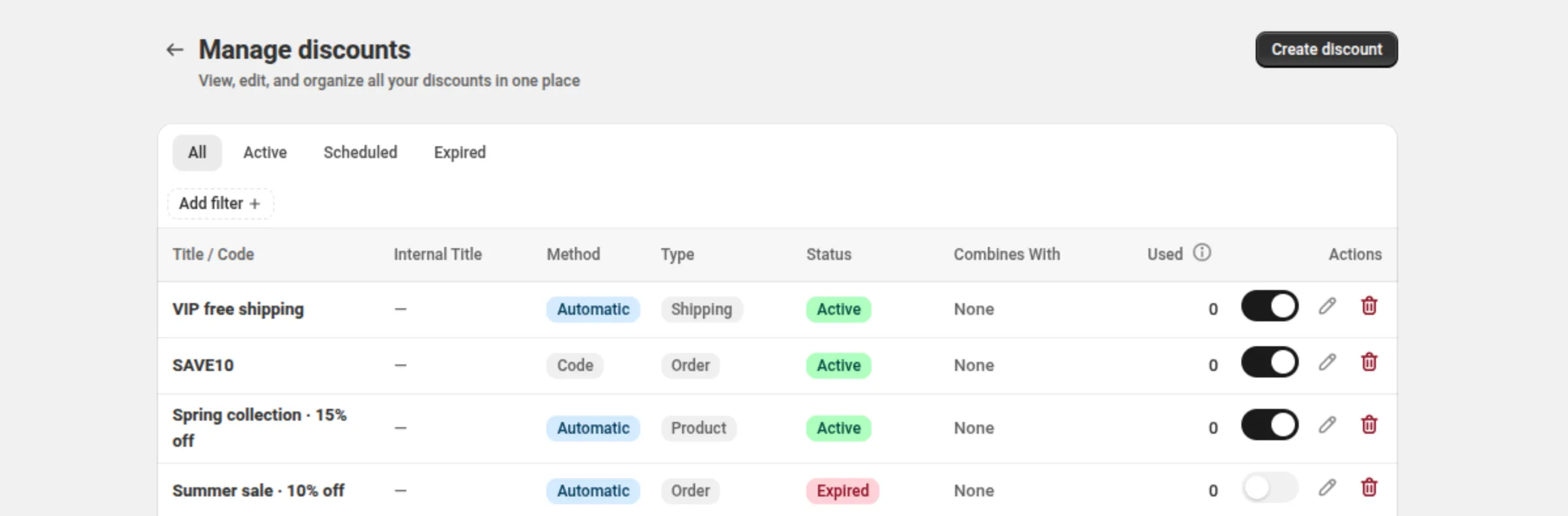
Discount list
Manage discounts is the one table for everything you have created — “View, edit, and organize all your discounts in one place”.
How it works
Section titled “How it works”The list holds every discount the app made, 20 rows to a page. Across the top are four status views; under them, filters for method and type. Each row carries the discount’s identity, its status, what it may combine with, how often it has been used, and its actions.
Where it is
Section titled “Where it is”Manage discounts — reached from the app home. Create discount sits in the page header.
Settings
Section titled “Settings”Status tabs
Section titled “Status tabs”All, Active, Scheduled, Expired. These are views, and they stay put when you clear the filter pills.
Method filter
Section titled “Method filter”Automatic or Code.
Type filter
Section titled “Type filter”Product, Order, Shipping, Bundle, Buy X Get Y, Price List, Quantity Break, Spend More Save More, Free Gift, Multi-offer, Custom. Every row’s badge matches the filter that finds it, so filtering by Price List does not return Quantity Break rows.
Title / Code
Section titled “Title / Code”The discount’s customer-facing name, or its code.
Internal Title
Section titled “Internal Title”Your own private label for the discount, or a dash when you have not set one. It is never shown to a shopper.
Method
Section titled “Method”Automatic or Code.
The discount type, as a badge. Presets show their own name — Quantity Break, Spend More Save More, Free Gift — rather than the type they are built on.
Status
Section titled “Status”Active, Scheduled or Expired. The badge comes from Shopify and corrects itself when the app re-reads it.
A discount in test mode shows a second badge, Test, under its status. Test mode does not change the status.
Combines With
Section titled “Combines With”Badges for Product, Order and Shipping — the kinds this discount may run alongside — or None.
How many times the discount has been used, as reported by Shopify. The (i) beside the heading says: it updates within a few minutes of each order, so it can be slightly behind, and it counts the discount’s whole lifetime, across all its codes. A dash means no count has arrived yet.
Actions
Section titled “Actions”Three controls on every row: the on/off switch, Edit, and Delete.
Examples
Section titled “Examples”Find every expired code
Tab: ExpiredFilters → Method: CodeFind your Quantity Break discounts
Tab: AllFilters → Type: Quantity BreakLimits and notes
Section titled “Limits and notes”- 20 rows per page. Pagination appears below the table once there is more than one page, and the footer reads “Showing 20 of 46 discounts”.
- No search field. Use the tabs and the two filters.
- Clear all clears the Method and Type pills only; the status tab stays.
- An empty store shows “Create your first discount” instead of the table. A filter that matches nothing keeps the filter bar and shows “No discounts match these filters” with a Clear filters button.
- Status is Shopify’s answer. Opening the app re-reads it for discounts that could have changed by the passage of time, and the badges update quietly.
Related
Section titled “Related”- Activate and deactivate — the switch on each row.
- Edit and delete — the other two row actions.
- Duplicate — copying a discount you already have.
- Usage limits and scheduling — where Active, Scheduled and Expired come from.