
Spend More Save More
Spend More Save More takes a percentage off the whole order, and the percentage grows as the order gets bigger. You set a ladder of spend amounts, each with its own percentage, and Shopify applies the highest one the cart reaches.
-
Open Discounts and click Create discount, then choose Spend More Save More.
It sits under Product page offers, with the example “Spend $100, save 15%”.
-
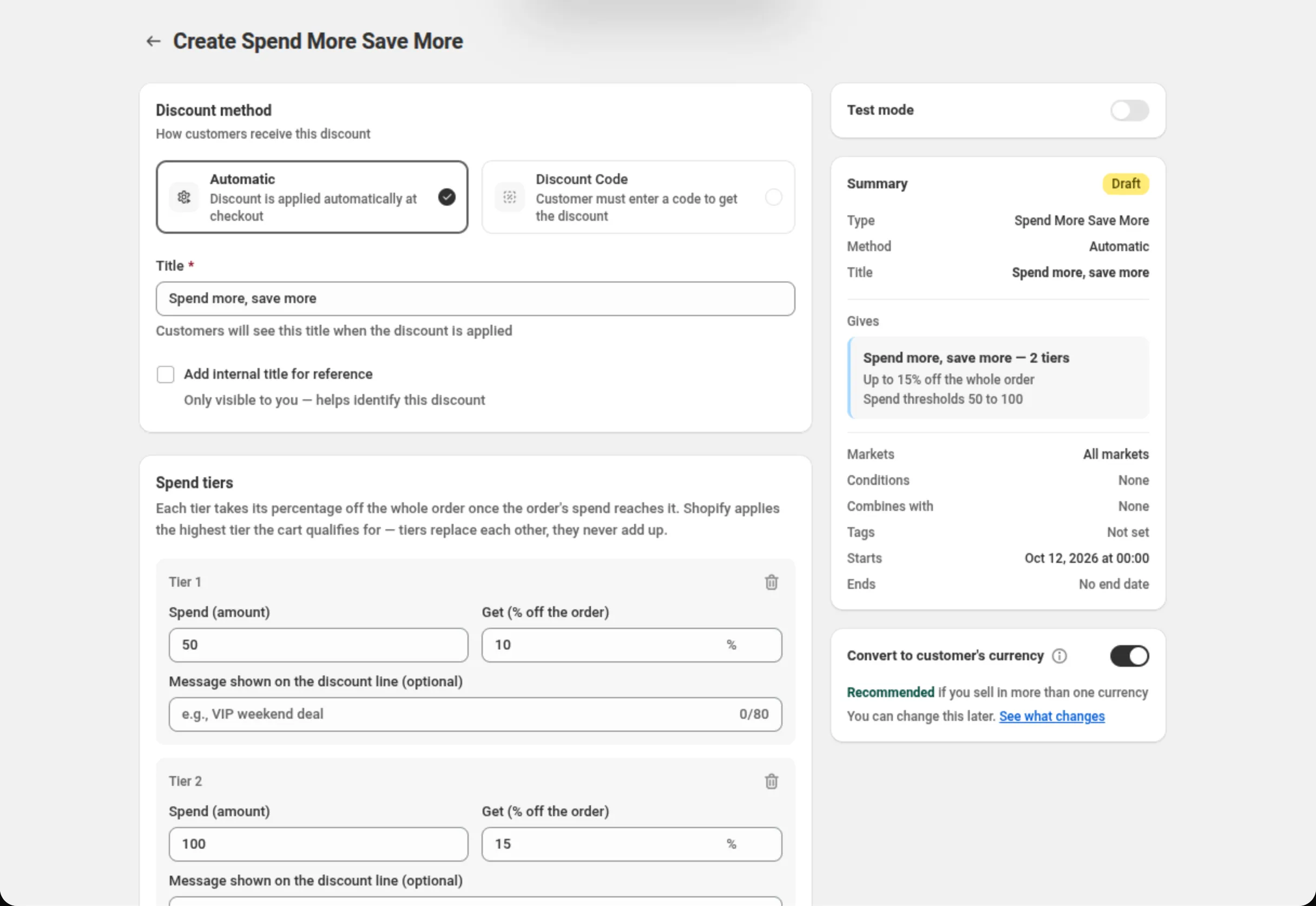
Choose the discount method and name the discount.
Pick Automatic or Discount Code, then fill in Title (automatic) or Discount Code (code).
-
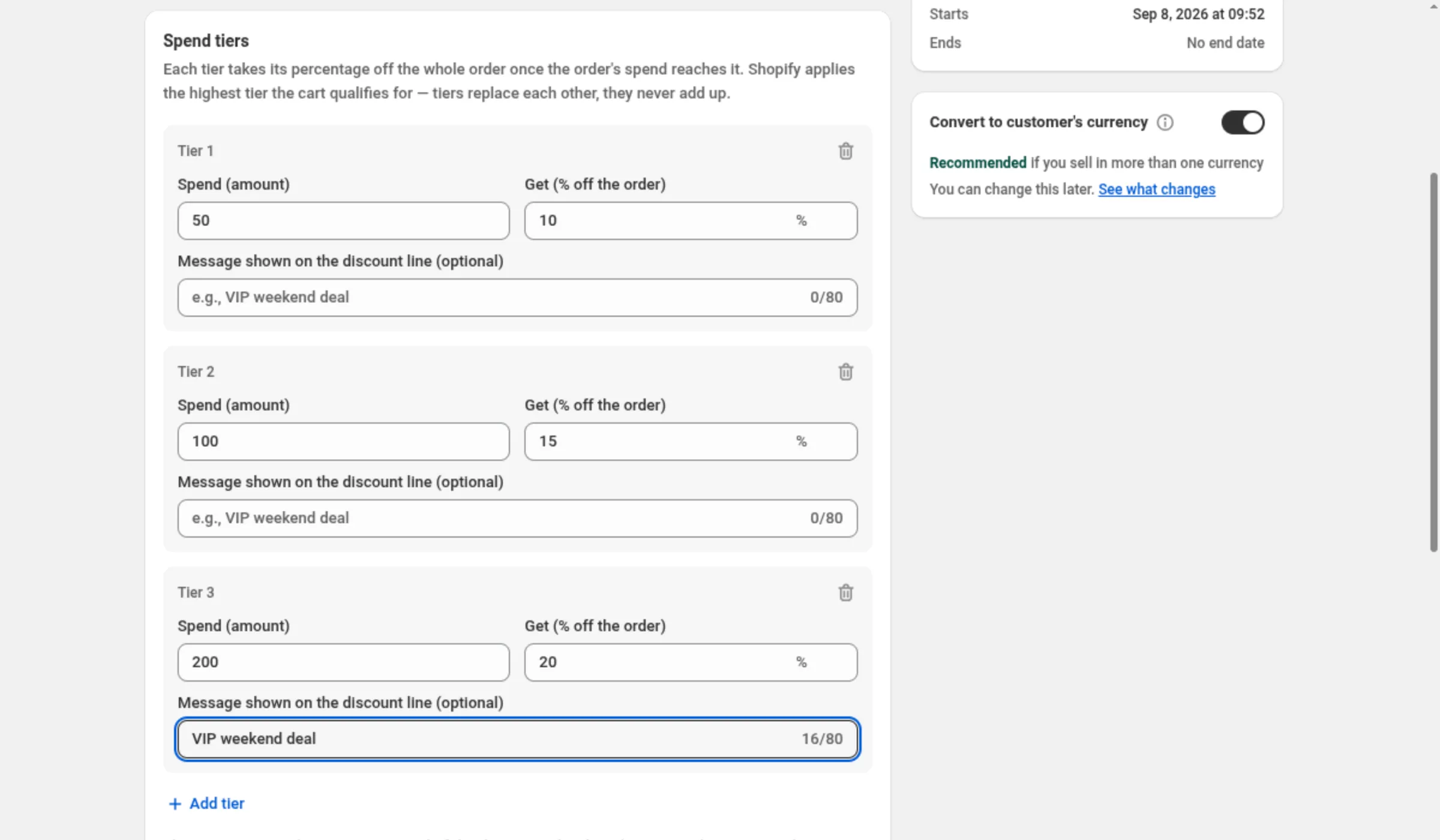
Set the spend tiers and their percentages.
A new discount starts with two tiers — spend 50 for 10% off, spend 100 for 15% off. Edit Spend (amount) and Get (% off the order) on each tier, add Message shown on the discount line (optional) if you want that tier named on the order, and use Add tier for another rung.
-
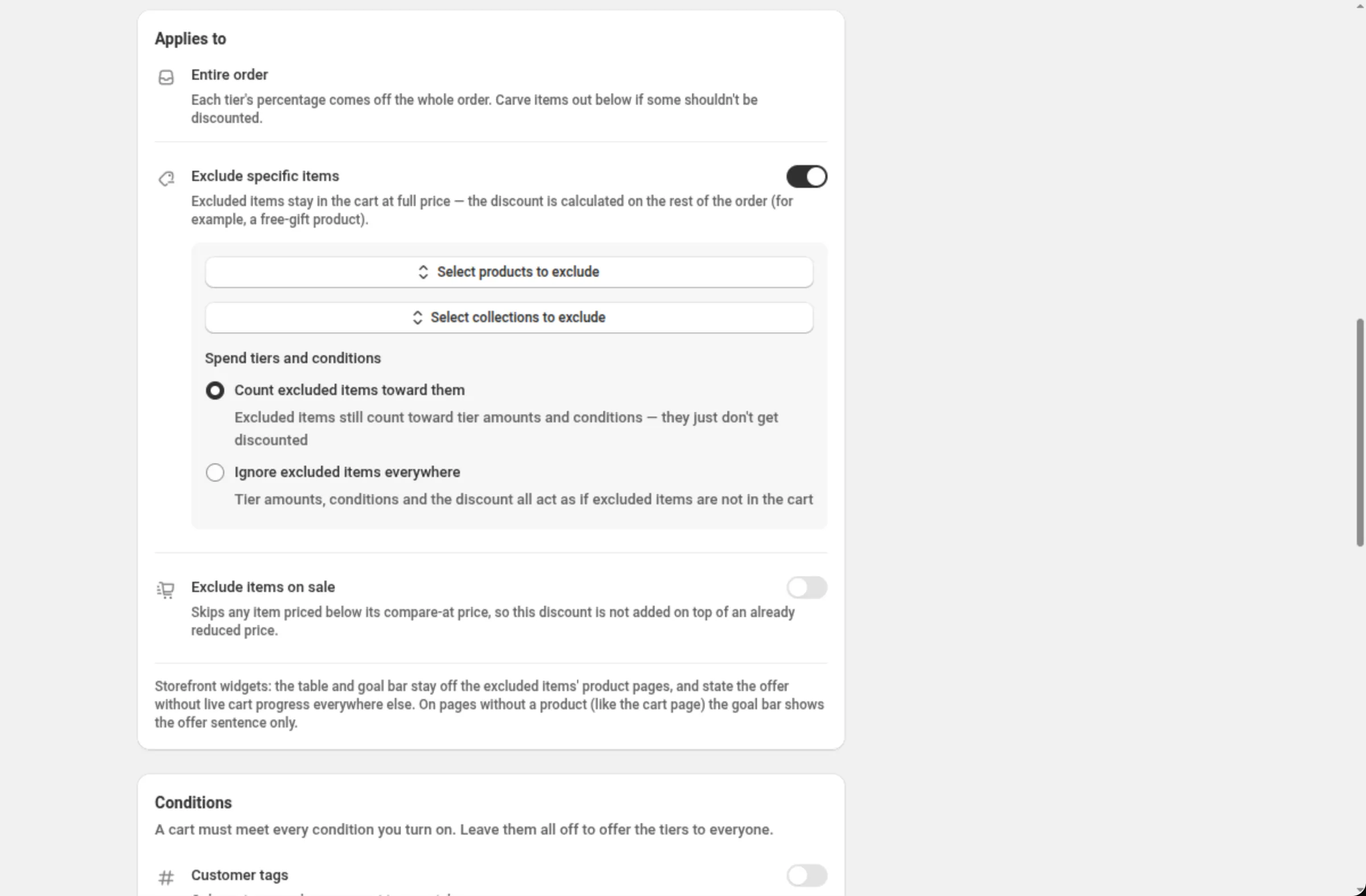
Carve out items that should not be discounted.
Applies to is fixed: each tier’s percentage comes off the entire order. Use Exclude specific items to keep chosen products or collections at full price, and Exclude items on sale to skip anything priced below its compare-at price.
-
Turn on any conditions the cart must meet.
The Conditions card has six rows — Customer tags, Account status, B2B customers, Past orders, Cart quantity and Cart contents. Leave them all off to offer the tiers to everyone. Every condition you turn on must pass.
-
Set the storefront display, combinations, markets and dates, then save.
Show on storefront is on for a new discount. Then choose which other discounts this one may combine with, which markets it runs in, and when it starts and ends. Save from the bar at the top of the page.
Settings
Section titled “Settings”Discount method
Section titled “Discount method”Automatic needs no code — Shopify applies the discount as soon as an order matches. Discount Code means the shopper has to enter the code you set. The method is chosen when you create the discount.
Title / Discount Code
Section titled “Title / Discount Code”On an automatic discount, Title is the name shoppers see when the discount is applied. On a code discount the field becomes Discount Code.
Add internal title for reference
Section titled “Add internal title for reference”Adds a second name only you see, to tell similar discounts apart in your own list.
Spend (amount)
Section titled “Spend (amount)”The order value that unlocks the tier, in your store’s currency. Greater than 0, up to 2 decimal places, and higher on every tier than the tier above it.
Get (% off the order)
Section titled “Get (% off the order)”The percentage taken off the whole order once that tier is reached. Greater than 0 and at most 100, up to 2 decimal places, and higher on every tier than the tier above it.
Message shown on the discount line (optional)
Section titled “Message shown on the discount line (optional)”Names the discount line while that tier applies, instead of the discount title. Up to 80 characters — non-Latin characters count as two or more. Very long messages can stop a tier from being offered, so keep it short.
Add tier
Section titled “Add tier”Adds another rung, up to 10 tiers. The new tier is pre-filled at twice the amount above as a suggestion; you can change it.
Applies to — Entire order
Section titled “Applies to — Entire order”Stated, not asked: each tier’s percentage comes off the whole order. What you control is what to carve out, below.
Exclude specific items
Section titled “Exclude specific items”Keeps chosen products (up to 20) and collections (up to 10) at full price — the discount is calculated on the rest of the order. Spend tiers and conditions then decides whether those items still count: Count excluded items toward them (the default) or Ignore excluded items everywhere.
Exclude items on sale
Section titled “Exclude items on sale”Skips any item priced below its compare-at price, so this discount is not added on top of an already reduced price.
Conditions
Section titled “Conditions”Six switch rows; a cart must meet every one you turn on.
- Customer tags — customers who have any of the tags you list, or none of them. Up to 20 tags.
- Account status — only signed-in customers, or only guests.
- B2B customers — only B2B customers, or exclude them.
- Past orders — a minimum, a maximum, or both, on how many orders the customer has placed before. Use 0 as the minimum to include first-time customers.
- Cart quantity — a minimum, a maximum, or both, on the number of items in the cart.
- Cart contents — the cart must contain one of the products, variants or collections you pick (up to 20), or must not contain any of them. In the “must contain” direction you can also ask for a minimum quantity of them, counted across all matching lines together.
Show on storefront
Section titled “Show on storefront”On for a new discount. It makes this offer available to the storefront blocks on the product pages it covers, and the card states what shoppers will see or why nothing is shown. The switch on its own puts nothing on the storefront: the blocks are added from the Add to your theme panel on the same card — Spend More Save More, which lists every spend tier on the product page, and Cart Goal Bar, which shows progress toward the next tier in the cart. Until one of them is in your theme, nothing shows. It is display only either way — turning the switch off leaves the discount running. While any condition is on, the table and goal bar stay hidden, because they cannot check an individual shopper; the page says so.
Discount can be combined with:
Section titled “Discount can be combined with:”Ticks for Product discounts, Order discounts and Shipping discounts. Leave them off and this discount runs alone; tick a box and Shopify may apply that kind of discount alongside it.
Tags, in the same card, label the discount — up to 20. They are saved on the discount in Shopify. On Shopify Plus, ticking Product discounts also shows Stack with product discounts tagged. See Combinations.
Maximum discount usage
Section titled “Maximum discount usage”Only shown for a discount code. Limit number of times this discount can be used in total adds a Maximum discount uses field, and Limit to one use per customer caps it per shopper. While either is set, the storefront widgets are hidden — the discount still applies.
Markets
Section titled “Markets”Apply to all markets covers every current and future market. Apply to specific markets lets you pick up to 20; at least one is required once you switch to it.
Active Dates
Section titled “Active Dates”Start Date and Start Time say when the offer begins, and Set End Date adds an end. All times are in your store’s timezone, which the card names on screen.
Convert to customer’s currency
Section titled “Convert to customer’s currency”Sits under the Summary. On, Shopify converts your spend tier amounts into the currency the customer pays in, so a “spend 100” tier asks for the same value everywhere. Off, your numbers are used exactly as typed in every currency. The percentage off is unchanged either way.
Test mode
Section titled “Test mode”A switch on its own card above the Summary. On, the discount applies only to a signed-in
customer whose account has the tag dos-test; everyone else shops as if it did not exist. On a new
discount the switch is saved with the discount. On a saved discount it takes effect at once, without
Save. See Test mode.
Examples
Section titled “Examples”Spend 50 save 10%, spend 100 save 15%
Discount method: AutomaticTitle: Spend more, save moreTier 1 → Spend (amount): 50 · Get (% off the order): 10Tier 2 → Spend (amount): 100 · Get (% off the order): 15A three-rung ladder that leaves gift cards and sale items alone
Discount method: AutomaticTitle: Autumn savingsTier 1 → Spend (amount): 75 · Get (% off the order): 5Tier 2 → Spend (amount): 150 · Get (% off the order): 10Tier 3 → Spend (amount): 250 · Get (% off the order): 15Exclude specific items: onSelect collections to exclude: Gift cardsSpend tiers and conditions: Count excluded items toward themExclude items on sale: onVIP-only tiers with a named discount line
Discount method: AutomaticTitle: VIP savingsTier 1 → Spend (amount): 100 · Get (% off the order): 15Tier 1 → Message shown on the discount line: VIP weekend dealConditions → Customer tags: onTag match: Customer has any of these tagsTags: VIPA returning-customer ladder
Discount method: AutomaticTitle: Thanks for coming backTier 1 → Spend (amount): 60 · Get (% off the order): 10Tier 2 → Spend (amount): 120 · Get (% off the order): 18Conditions → Past orders: onAt least (orders): 1How it shows to the shopper
Section titled “How it shows to the shopper”An automatic Spend More Save More needs nothing from the shopper: Shopify checks the cart, applies the highest tier it qualifies for, and takes that percentage off the order — in the cart, not only at the end. The line is named by that tier’s message or, when there is none, by the discount Title. A code discount applies once the shopper enters the code.
With Show on storefront on, no conditions set, and the blocks added to your theme, the offer also appears on the product pages it covers, and the cart goal bar can show how close the cart is to the next tier.
Limits and notes
Section titled “Limits and notes”- Tiers: up to 10.
- Spend (amount): greater than 0, up to 2 decimals, rising on every tier.
- Get (% off the order): greater than 0, at most 100, up to 2 decimals, rising on every tier.
- Per-tier message: up to 80 characters, with non-Latin characters counting as two or more.
- Excluded items: up to 20 products and up to 10 collections.
- Customer tags: up to 20. Cart contents: up to 20 products, variants or collections.
- Markets: up to 20 when you pick specific markets.
- Tiers never stack. Shopify applies the highest tier the cart qualifies for.
- Conditions hide the widgets. With any condition on, the storefront table and goal bar stay hidden; the discount is unaffected.
- Exclusions narrow where the widgets show. The table and goal bar stay off the excluded items’ and on-sale items’ product pages, and state the offer without live cart progress everywhere else. Excluding whole collections keeps them off all product pages.
- Combinations are Shopify’s call. Ticking a box tells Shopify this discount may run alongside that kind; Shopify decides what actually applies.
- The method is fixed after creation. Automatic and Discount Code cannot be swapped on an existing discount; duplicate it instead.
Do the tiers add up? No. Shopify applies the highest tier the cart qualifies for and takes that one percentage off the whole order.
Why did the storefront table and goal bar stop showing when I turned on a condition? While conditions are on, the widgets cannot check each shopper, so they stay hidden rather than promise a discount a particular shopper may not get. Shopify still applies the discount.
What does the per-tier message do? It names the discount line while that tier applies, instead of the discount title. Keep it short: a very long message can stop a tier from being offered.
Does converting currency change my percentages? No. Conversion moves the money amounts — your spend tiers. A percentage is worth the same in every currency.
Related
Section titled “Related”- Order discount — one percentage or fixed amount off the whole order, with no ladder.
- Quantity Break — tiers measured in items rather than money.
- Price List — spend or quantity tiers that change the item price instead of the order total.