
Price drop
A Price Drop shows your product’s price crossed out with the discounted price next to it, on product pages and product cards. By default the number comes from one of your discounts, so it matches what that discount takes off. You can also turn off Fill from a discount and type your own reduction — Reduce by Percentage or Fixed amount. The form then warns that this is not recommended: a Price Drop does not create a discount, and Shopify charges what your discounts say, not what the Price Drop shows.
-
Open Promotions, click Create promotion and pick Price Drop.
On the Promotions page, the Price Drops tab shows a Create a Price Drop button while it is still empty; once you have one, use the Create promotion button in the page header. The kind is chosen once and cannot be changed afterwards.
-
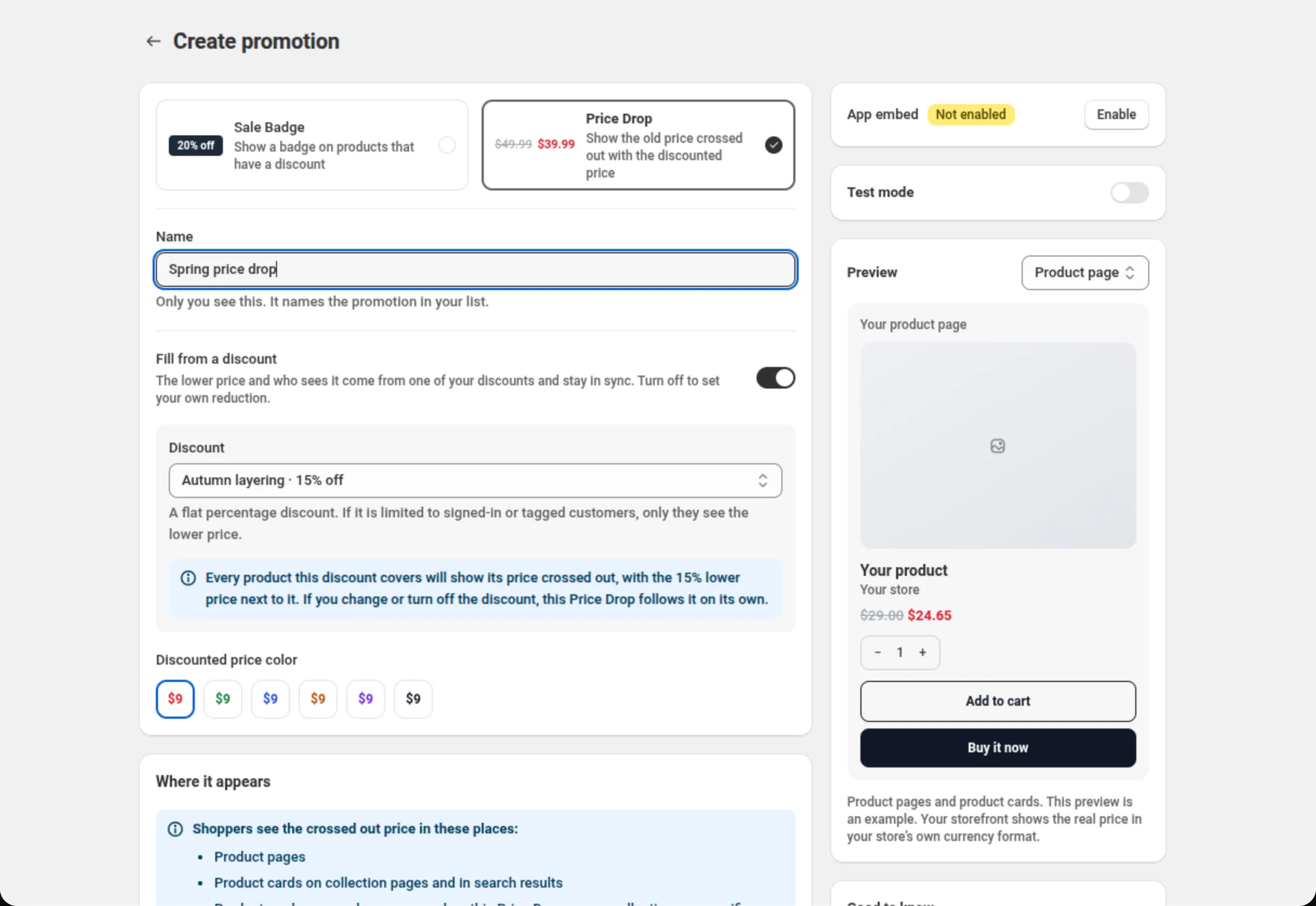
Name the promotion and choose the discount behind it.
Name is only yours. Discount lists the discounts a Price Drop can use. Pick one and the form states plainly what shoppers will see: every product that discount covers shows its price crossed out, with the lower price beside it.
-
Pick the discounted price color.
Discounted price color offers six presets for the new price. The first is the default.
-
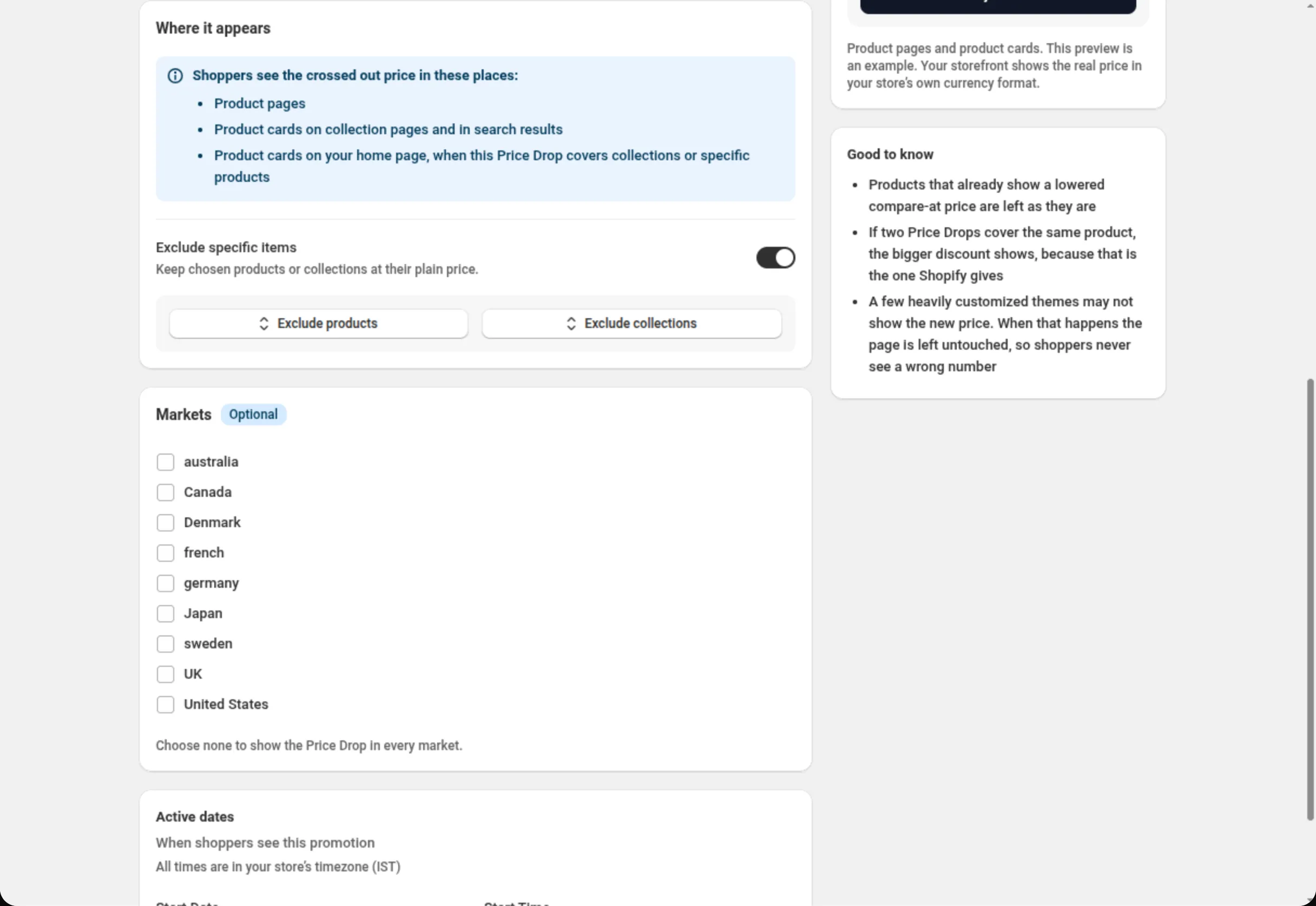
Exclude any items that should keep their plain price.
In Where it appears, turn on Exclude specific items and choose products or collections that should stay at their plain price.
-
Set markets and dates, then save.
Markets appears when your store has more than one market. Active dates sets when shoppers see it, in your store’s timezone. Save from the bar at the top.
Settings
Section titled “Settings”Promotion kind
Section titled “Promotion kind”Sale Badge or Price Drop. Shown only while creating — a promotion’s kind cannot change afterwards.
The name in your Promotions list. Only you see it. Up to 100 characters.
Discount
Section titled “Discount”The discount whose percentage the crossed-out price is worked out from. Its help text states the rule: A flat percentage discount. If it is limited to signed-in or tagged customers, only they see the lower price. A discount that is not flat (one with caps or tiers, for example), or one limited to customer segments or to specific customers, does not appear in the list; a disclosure under the field names each one with its reason and what to change.
Once you pick one, the form confirms what will happen and warns you about anything worth knowing first — including a rival discount that refuses to combine and could take the whole order, so the shopper would pay more than the price on the card. That is a warning, not a block: the choice stays yours.
Discounted price color
Section titled “Discounted price color”Six presets for the new price. The first is the storefront default.
Where it appears
Section titled “Where it appears”A statement, not a control. Shoppers see the crossed-out price on:
- Product pages
- Product cards on collection pages and in search results
- Product cards on your home page, whatever products the Price Drop covers. When it covers specific collections or products, the price is usually already in the page; any other card is filled in just after the page loads, for up to 60 products per page. That fill-in is skipped in the theme editor and when the shopper’s browser asks to save data or is on a very slow (2G) connection.
Exclude specific items
Section titled “Exclude specific items”Keeps chosen products or collections at their plain price: up to 20 products and up to 10 collections.
Markets
Section titled “Markets”Shown when your store has more than one market. Tick the markets that should see it; tick none to show it in every market.
Active dates
Section titled “Active dates”Start date and time, and an optional end, in your store’s timezone.
Test mode
Section titled “Test mode”A Test mode card sits in the right-hand column, both while you create the Price Drop and on
its own page. While it is on, only signed-in customers tagged dos-test see the lower price;
other shoppers see your plain price. A Price Drop is also in test mode while the discount behind
it is. See Test mode.
Examples
Section titled “Examples”A price drop for a seasonal discount
Promotion kind: Price DropName: Autumn price dropDiscount: Autumn sale · 20% offDiscounted price color: the defaultA price drop that skips one collection
Promotion kind: Price DropName: Storewide price dropDiscount: Storewide 15% offExclude specific items: onExclude collections: Gift cardsHow it shows to the shopper
Section titled “How it shows to the shopper”On the product page and on product cards, the theme’s own price is moved into a real crossed-out price and the discounted price is placed beside it, in the colour you picked. The maths mirrors the discount engine, so the price shown is the price the discount produces.
Products that already show a lowered compare-at price are left as they are.
The promotion follows its discount on its own: change the percentage and the shown price changes with it; pause or delete the discount and the Price Drop stops.
Limits and notes
Section titled “Limits and notes”- Name: up to 100 characters.
- Exclusions: up to 20 products and up to 10 collections.
- A Price Drop filled from a discount needs a flat percentage discount. The number has to be true for every shopper who sees the card. With Fill from a discount off, you type the reduction yourself — a Percentage or a Fixed amount.
- Two Price Drops on one product: the one with the larger saving is shown. Which discount the shopper actually gets is still decided by Shopify.
- Price Drops have no order. Unlike Sale Badges, there is nothing to rank.
- A few heavily customized themes may not show the new price. When that happens the page is left untouched, so shoppers never see a wrong number. Custom theme selectors can point the app at your theme’s own price element — see Storefront widgets.
- Your store carries up to 50 promotions, Sale Badges and Price Drops together.
- Turning it off pauses it; deleting removes it from your store.
- Changes usually reach your store within a minute; on some pages it can take longer, rarely over half an hour.
Related
Section titled “Related”- App embed — the switch a Price Drop needs.
- Sale badge — the other promotion kind.
- Product discount — a percentage discount that can drive a Price Drop.