
Where discounts show
How your discount reaches a shopper comes down to one choice you make on every create page: automatic, or a discount code.
The two methods
Section titled “The two methods”Every discount page opens with a Discount method card — “How customers receive this discount” — and two tiles: Automatic and Discount Code. Automatic is the one already selected when the page opens.
The method is fixed once the discount is created. On the edit page it is stated, not offered again, so a live code can never quietly become an automatic discount.
Automatic
Section titled “Automatic”No code, nothing for the shopper to do. Shopify checks the cart against your rules and applies the discount when the cart matches.
The field under the tiles is Title, and its help text says exactly who it is for: “Customers will see this title when the discount is applied”. Type it the way you want a shopper to read it:
Title: Summer sale · 10% off
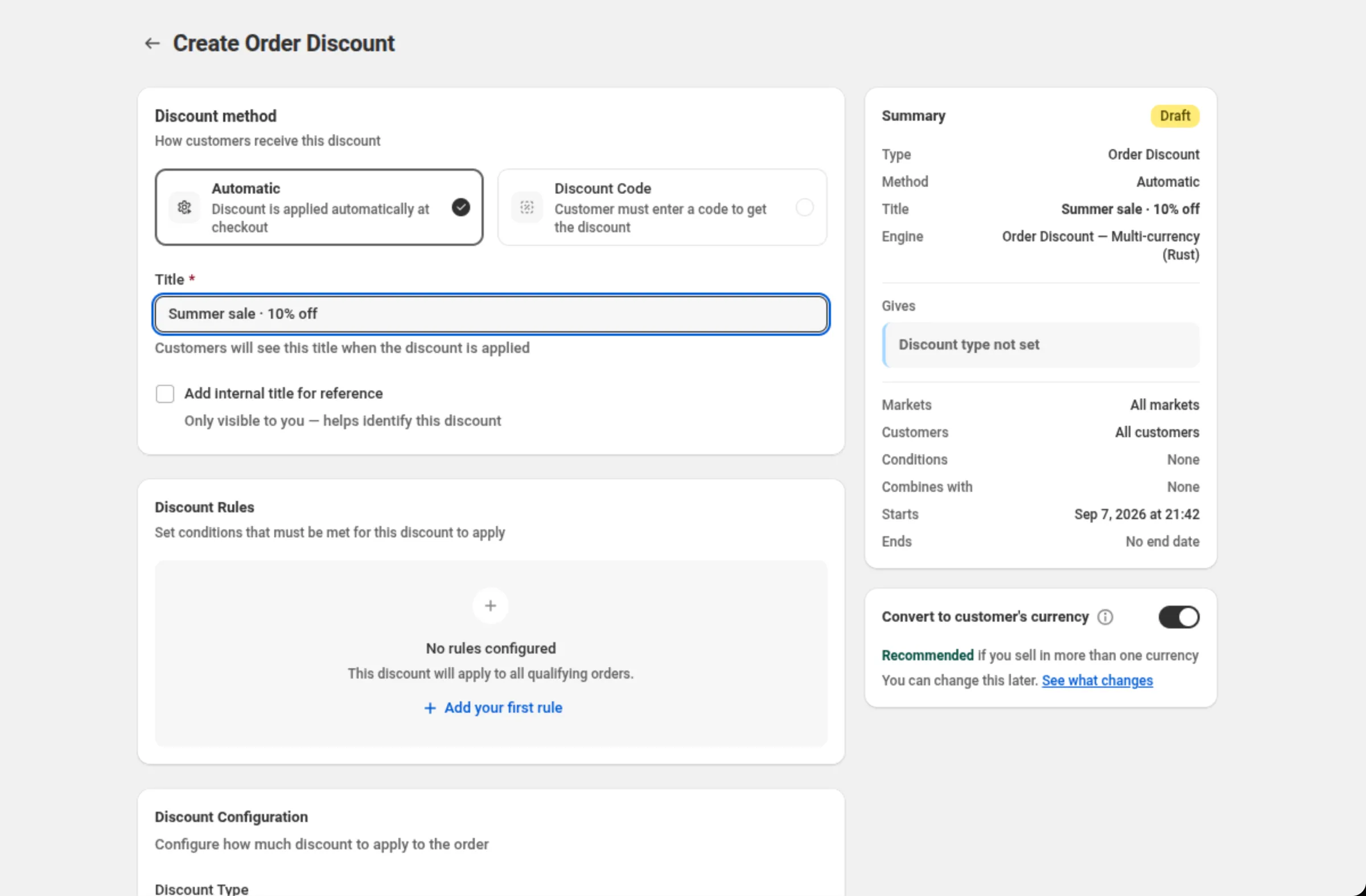
That is the string the shopper sees, character for character. If you also tick Add internal title for reference, that second name is “Only visible to you — helps identify this discount” and never reaches a shopper.
Discount Code
Section titled “Discount Code”Pick Discount Code and the same field becomes Discount Code. The shopper has to enter that code themselves before Shopify will apply the discount, so the code is the thing you put in your email, your banner or your influencer’s post.
Two things change when you pick this method:
- A Generate action appears next to the field label while you are creating the discount. It fills in an eight-character code for you.
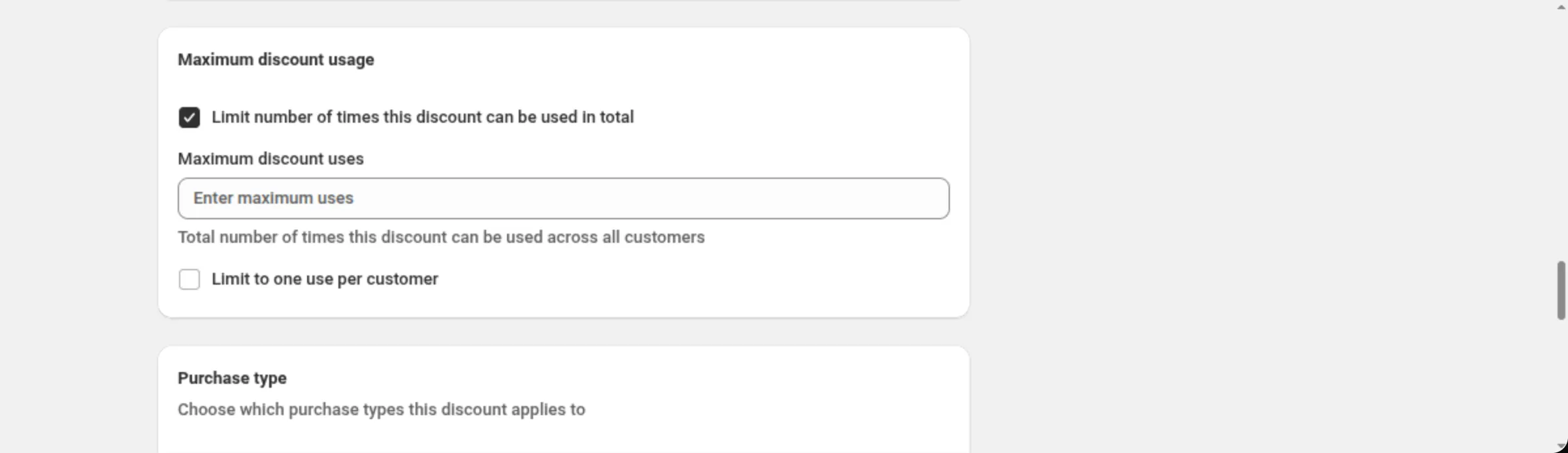
- A Maximum discount usage card appears further down the page, with Limit number of times this discount can be used in total (“Total number of times this discount can be used across all customers”) and Limit to one use per customer. Neither is available on an automatic discount.
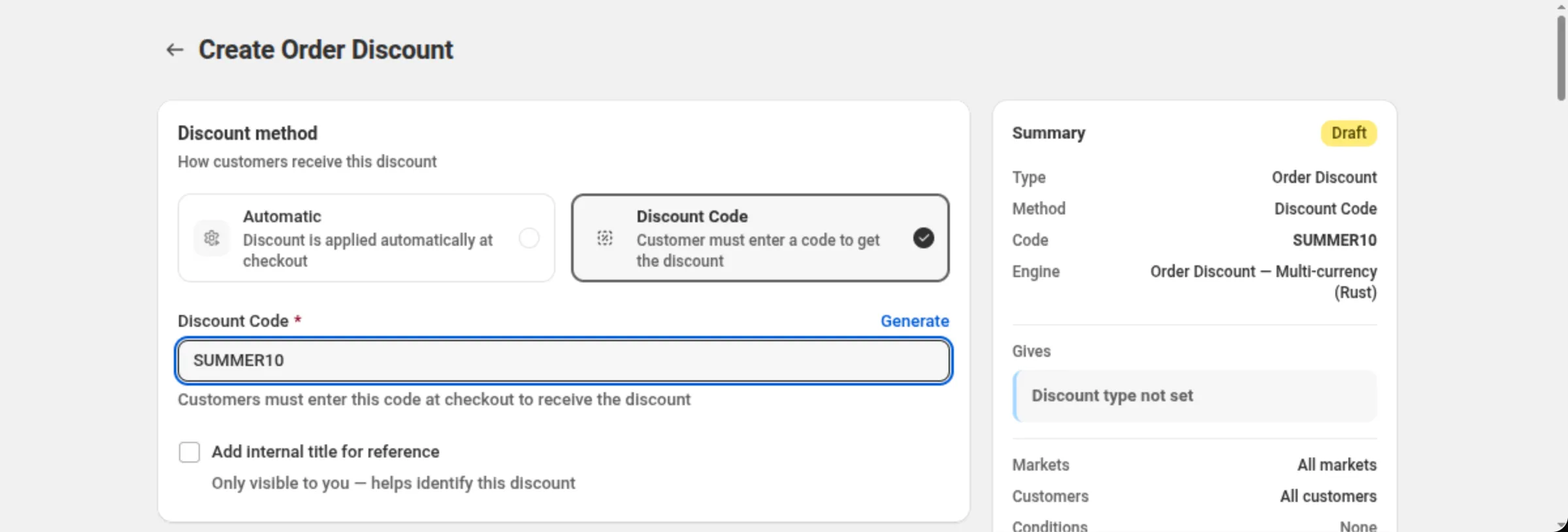
Codes accept letters, numbers, underscores and hyphens. Anything else is refused at the field with “Discount code must contain only letters, numbers, underscores, and hyphens”.
Who does what
Section titled “Who does what”DiscountOS builds the discount and hands it to Shopify. The discount that ends up on your store is a real Shopify discount, automatic or code, and Shopify is what runs it against each cart.
That split matters for one practical reason: working out the discount does not call the app’s server. Everything the discount needs in order to decide is already on your store before the shopper arrives.
Combining with other discounts
Section titled “Combining with other discounts”The Discount can be combined with: card has three checkboxes — Product discounts, Order discounts and Shipping discounts. Tick one and you are telling Shopify this discount may run alongside discounts of that kind.
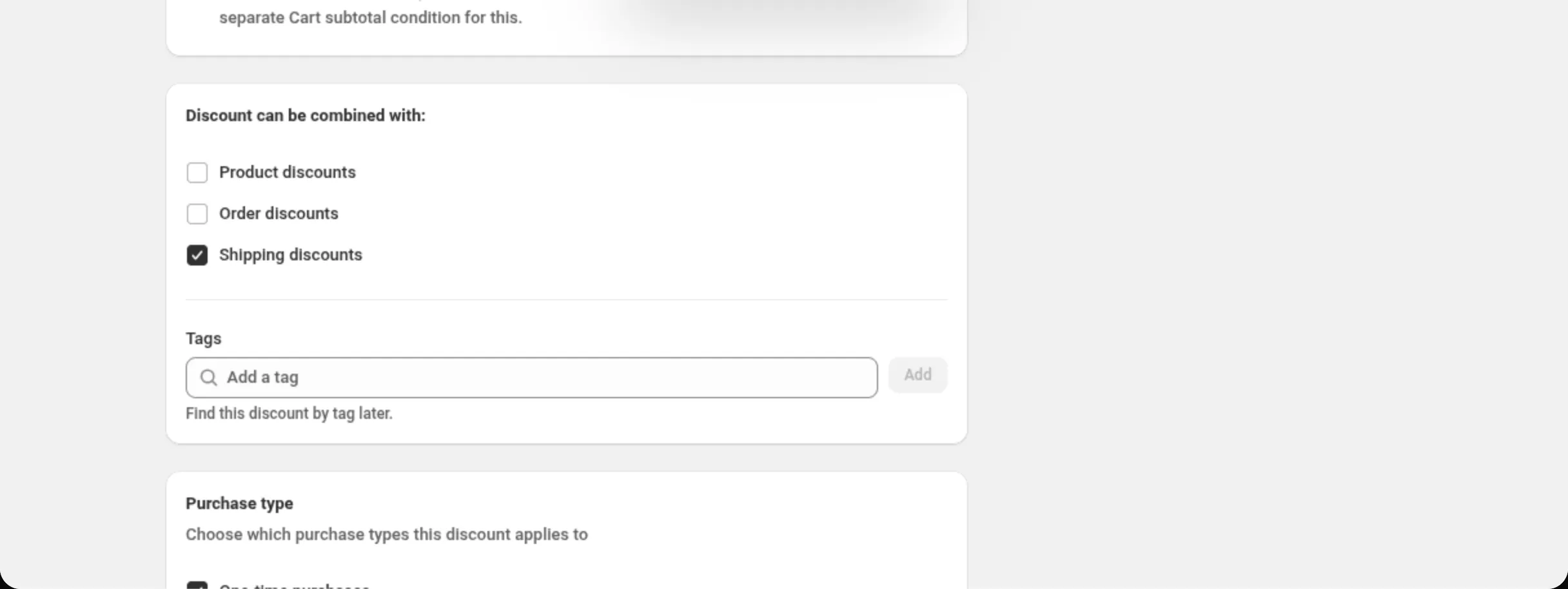
Tick more than one and the app shows a warning in the card:
Some combinations can result in large discounts. Test a few combinations. If the total discount is too large, adjust which discounts can combine.
Nothing here predicts a winner. When two discounts could both apply, Shopify decides, and the app does not guess on its behalf.
If a discount is not showing
Section titled “If a discount is not showing”Work down this list before anything else:
- The discount is Active, not Scheduled or Expired — the badge at the top of the Summary card says which.
- The cart really does match the conditions in Discount Rules. With no rules, the page says so itself: “This discount will apply to all qualifying orders.”
- On a code discount, the shopper entered the code. Nothing happens until they do.
- Combines with on the Summary card reflects what you intended. A discount that combines with nothing will not stack with another one that is also trying to apply.
Related
Section titled “Related”- Create your first discount — the automatic version, end to end.
- Install DiscountOS — what the app adds to your admin.