
Test mode
Test mode lets you try a discount on your live store before your customers see it. While it is on,
the discount applies only to a signed-in customer whose account has the tag dos-test. Everyone
else shops as if the discount did not exist.
How it works
Section titled “How it works”The check runs inside the discount itself, before markets, rules and amounts. A shopper who is not
signed in, or whose customer account does not have the tag dos-test, gets nothing from the
discount. Upper or lower case in the tag does not matter.
Test mode is not a status. The discount stays Active, Scheduled or Expired exactly as its dates say. Turning test mode on or off never changes the dates and never activates or deactivates the discount.
Where it is
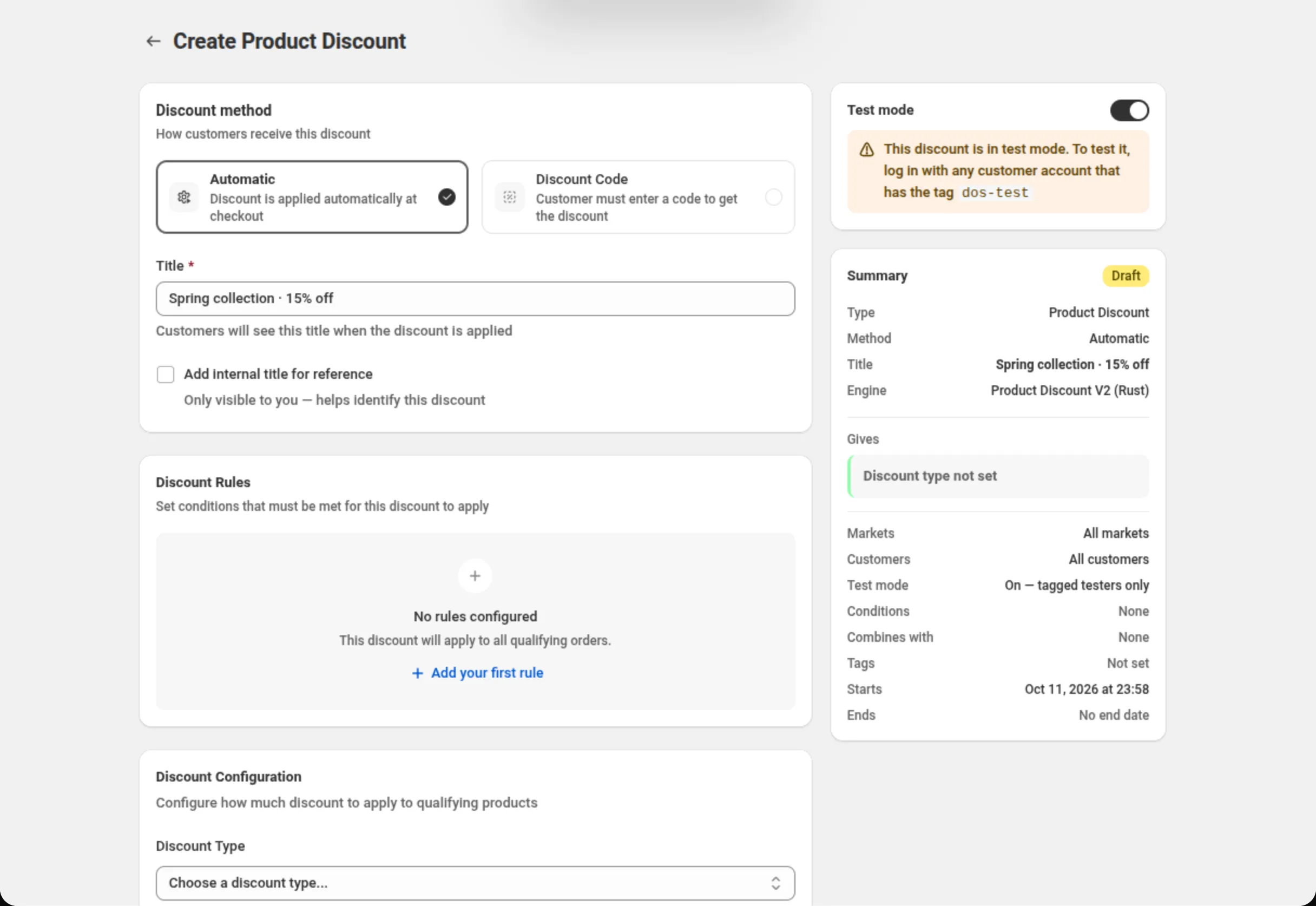
Section titled “Where it is”A Test mode card above the Summary, on the create and edit pages of every discount type: Product, Order, Shipping, Buy X Get Y, Bundle, Price List, Quantity Break, Spend More Save More, Gift with Purchase, Multi-offer and Custom Discount. Block codes have no test mode.
Some older discounts run on an earlier version of the app’s engine for their type. Their edit page has no Test mode card. Duplicate the discount to get a copy on the current engine.
Settings
Section titled “Settings”Test mode switch
Section titled “Test mode switch”- On a new discount, the switch is part of the form. It is saved with the discount when you press Save.
- On a saved discount, the switch takes effect at once. It does not wait for Save, and it does not light up the save bar. A message confirms it: “Test mode on — only tagged testers get this discount” or “Test mode off — live for everyone”.
While the switch is on, the card shows:
This discount is in test mode. To test it, log in with any customer account that has the tag
dos-test
Saving other changes on the page never turns test mode on or off. Only the switch does.
Without a plan
Section titled “Without a plan”On a store without a plan, test mode is how you use DiscountOS:
- A new discount is saved in test mode automatically.
- The switch is locked on. It shows a lock icon and a Pro badge, and a Subscribe to unlock link under it opens the plan page. Turning test mode off puts the discount in front of your customers, and that needs the Pro plan.
- If a plan ends, discounts and promotions switch to test mode and turn back on automatically when you choose a plan again.
Early users who installed DiscountOS before paid plans started, and Shopify development and staff stores, keep full access free, so their switch is never locked. See Plans and billing.
What you see in the app
Section titled “What you see in the app”- The Summary has a row Test mode reading “On — tagged testers only”. With test mode off the row is not shown.
- The discounts list shows a Test badge under the discount’s status.
- A duplicate of a discount in test mode is also in test mode.
How to test a discount
Section titled “How to test a discount”- Turn on Test mode on the discount, and save if it is a new discount.
- In Shopify admin, open Customers, open the customer account you will shop with, and add the
tag
dos-test. - On your storefront, sign in with that customer account.
- Add items to the cart and go to checkout. Shopify works the discount out again when the cart changes and at checkout; a plain page reload may still show the cart as it was.
- When you are happy with it, turn Test mode off. The discount is then live for every shopper it applies to. On a store without a plan the switch is locked until you choose a plan; see Without a plan.
On the storefront
Section titled “On the storefront”Widgets, badges, the cart goal bar and price cards that belong to a discount in test mode are shown
only to a signed-in customer tagged dos-test. Other shoppers do not see them.
Promotions (Sale Badge and Price Drop) have their own Test mode card. A promotion is in test mode when its own switch is on, or when the discount it is linked to is in test mode. In the second case the card says so: “This sale badge is in test mode because the discount “…” is in test mode.” A promotion in test mode only hides what the storefront shows. If its discount is live, the discount still applies in the cart for everyone.
Errors
Section titled “Errors”- “Couldn’t turn test mode on. Try again.” or “Couldn’t turn test mode off. Try again.” — Shopify did not accept the change. Nothing changed; flip the switch again.
- “Test mode was turned on on the store, but this page couldn’t save it. Reload the page and check the switch.” — the discount changed, but the app’s record did not. Reload the page; flipping the switch again brings the two back in line.
- “Test mode isn’t available for this discount yet.” — the discount runs on an older engine. See Where it is.
Limits and notes
Section titled “Limits and notes”- Signed-in customers only. A guest never gets a discount in test mode.
- The tag is
dos-test. Another tag, such astest, does not count. - Codes. A shopper who is not a tester and enters the code gets no discount. Shopify’s checkout shows its own message, “CODE is valid but not applicable. Check discount terms.”, with your code in place of CODE.
- Markets and customer eligibility still apply. A tester outside the discount’s markets, or outside its customer segments, does not get it.
- Other discounts can hide it. If another live discount does not combine with this one, Shopify may apply only one of the two to your test cart. Turn the other discount off while you test, or allow the two to combine.
- The theme editor has no signed-in customer, so storefront widgets for a discount in test mode show nothing there.
Who gets a discount that is in test mode?
Only a signed-in customer whose customer account has the tag dos-test. Guests and every other
customer shop as if the discount did not exist. Upper or lower case in the tag does not matter.
Does test mode change the discount’s status or dates?
No. The discount stays Active, Scheduled or Expired as before. Test mode only decides who gets it.
Why is there no Test mode card on one of my discounts?
Older discounts that run on an earlier version of the app’s engine for their type do not support test mode, so their page has no card. Duplicate the discount; the copy runs on the current engine and has the card.
Why is the Test mode switch locked with a Pro badge?
Your store has no plan. Without a plan you can build and test discounts, and a new discount is saved in test mode automatically. Turning test mode off puts the discount in front of your customers, which needs the Pro plan. The Subscribe to unlock link opens the plan page.
Related
Section titled “Related”- Plans and billing — the Pro plan, and what works without one.
- Customer eligibility — limit a discount to segments or specific customers for good.
- Combinations — which discounts can apply together.
- Storefront data — test mode in the data your theme reads.