
Order discount
An order discount takes a percentage or a fixed amount off the whole order — with an optional cap on the discount, a cart value limit, items you exclude from the calculation, a minimum order amount measured after product discounts, and a switch that decides whether a percentage is calculated before or after product discounts.
-
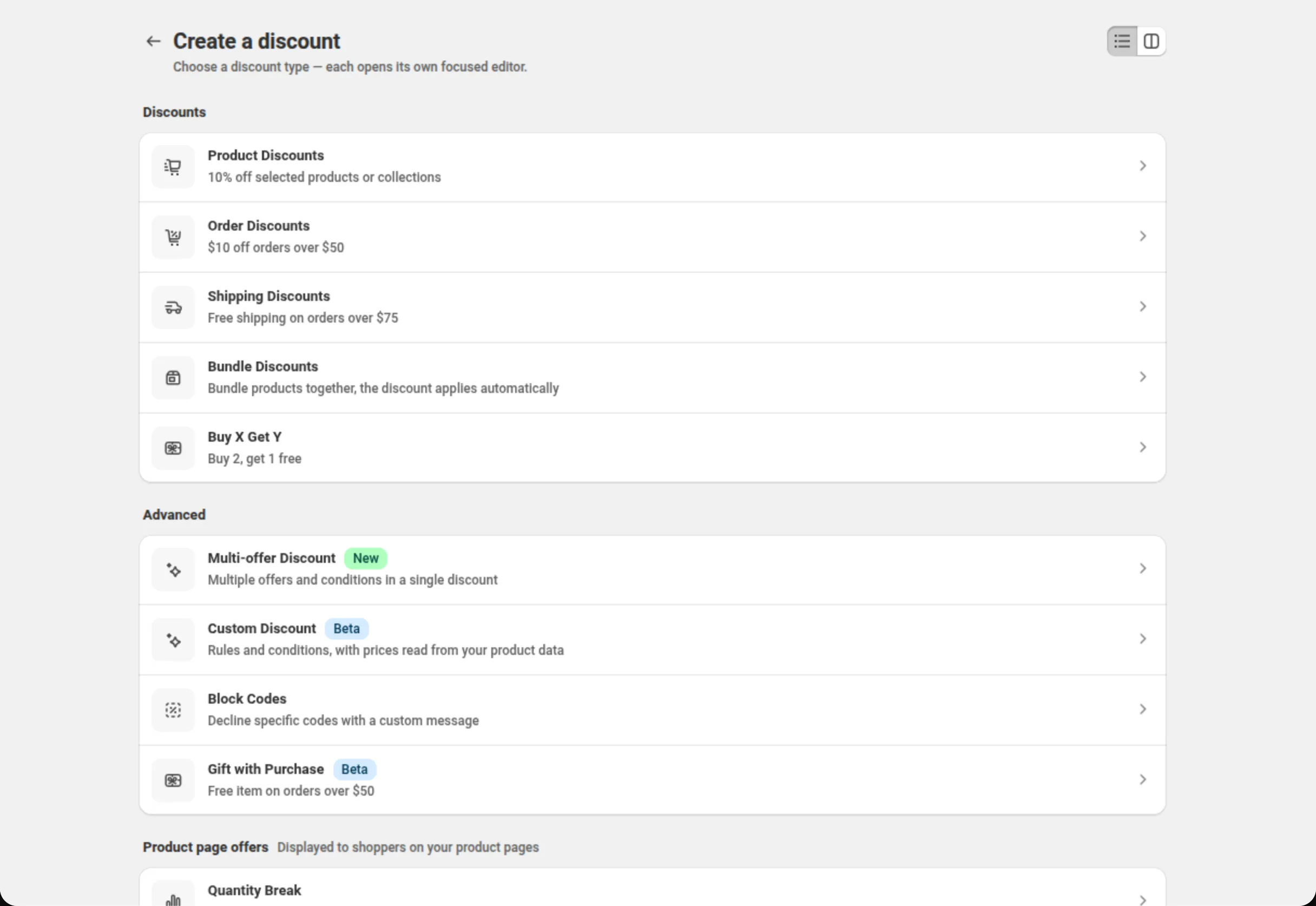
Open Discounts and click Create discount, then choose Order Discounts.
The create menu lists Order Discounts under Discounts, with the example “$10 off orders over $50”.
-
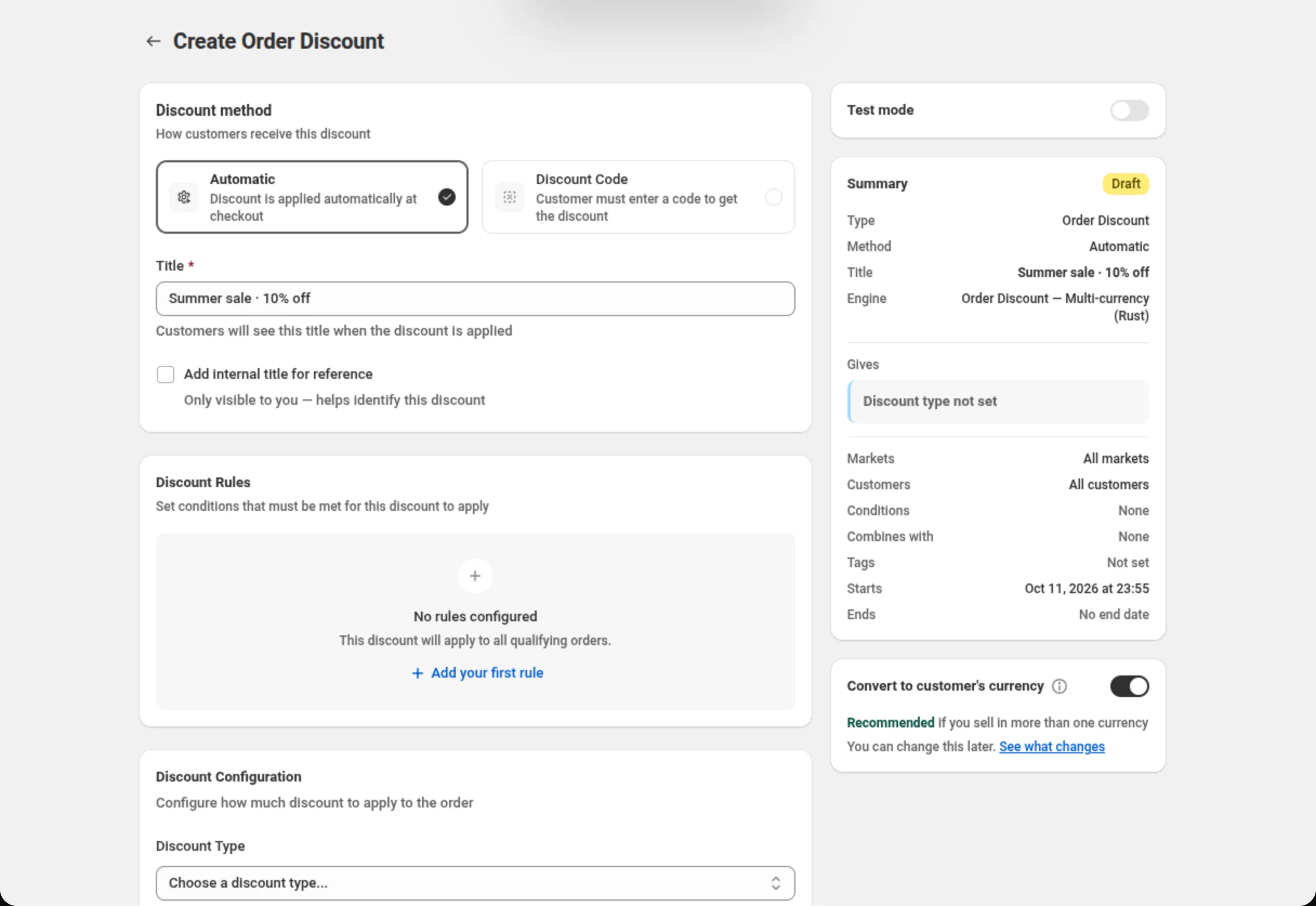
Choose the discount method and name the discount.
Pick Automatic or Discount Code, then fill in Title (automatic) or Discount Code (code). The summary on the right keeps a running recap of what you have set so far.
-
Add discount rules for when the discount should apply.
Click Add your first rule to create RULE GROUP #1, then pick a condition, an operator and a value — for example Cart subtotal · is greater than or equal to · 50. Use Add condition for more conditions in the same group and Add rule group for another group. With no rules at all, the discount applies to all qualifying orders.
-
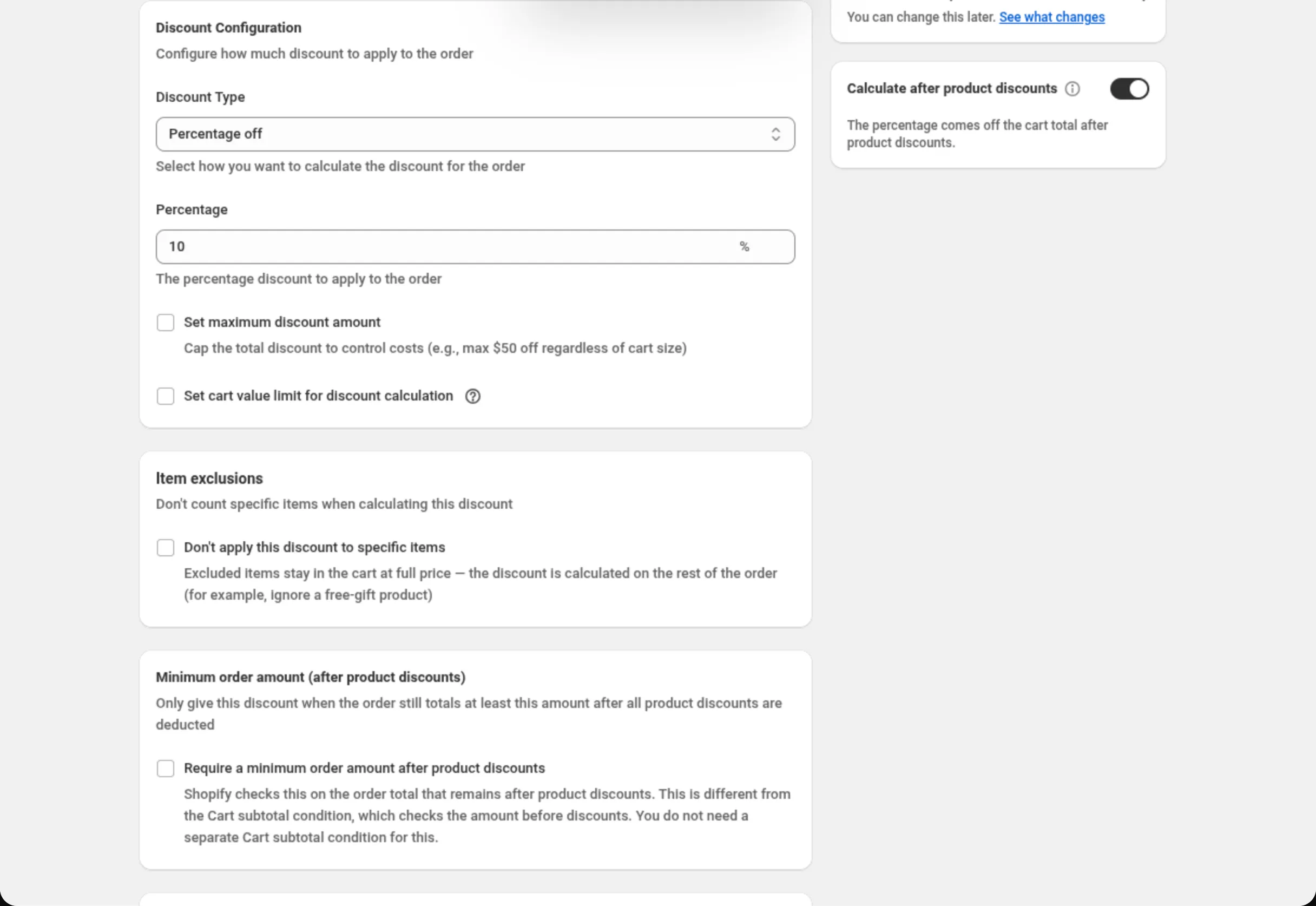
Choose the discount type and enter the amount.
Set Discount Type to Percentage off or Fixed amount off, then enter the value. For a percentage you can also tick Set maximum discount amount and Set cart value limit for discount calculation. Choosing Percentage off also shows the Calculate after product discounts card in the right-hand column, under the Summary. It is on by default for a new discount (how it changes the amount).
-
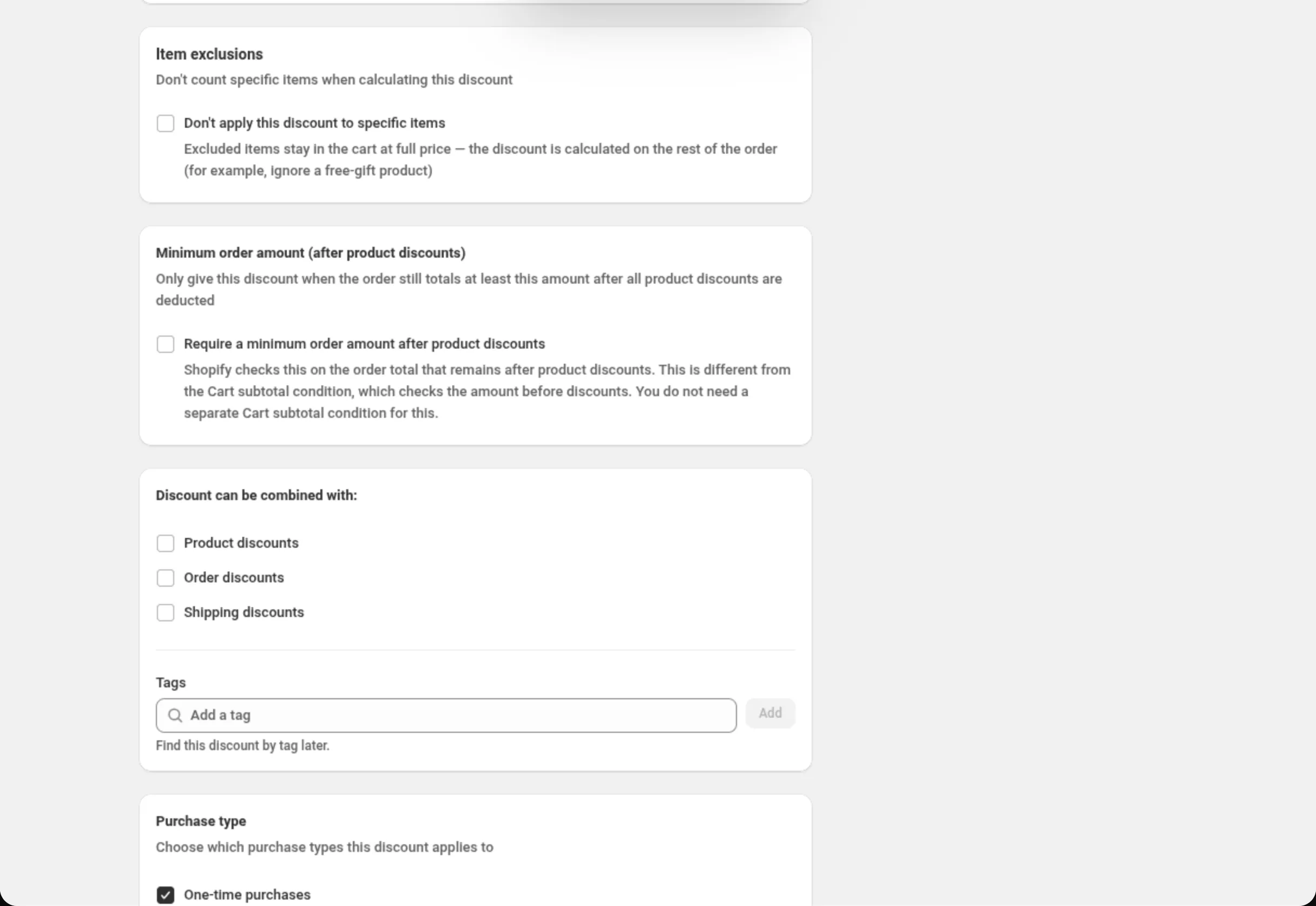
Set item exclusions and the minimum order amount after product discounts.
Tick Don’t apply this discount to specific items to keep chosen products or collections out of the calculation, and Require a minimum order amount after product discounts to ask for a floor Shopify measures once product discounts are deducted. Both are optional.
-
Set combinations, customers, markets and dates, then save.
Choose which other discounts this one may combine with, whether to limit it to certain customers, which markets it runs in, and when it starts and ends. Save from the bar at the top of the page.
Settings
Section titled “Settings”Discount method
Section titled “Discount method”Automatic needs no code — Shopify applies the discount as soon as an order matches. Discount Code means the shopper has to enter the code you set. Choose the method when you create the discount: the chooser is disabled once the discount exists.
Title / Discount Code
Section titled “Title / Discount Code”On an automatic discount, Title is the name shoppers see when the discount is applied. On a code discount the field becomes Discount Code, and it accepts only letters, numbers, underscores and hyphens.
Add internal title for reference
Section titled “Add internal title for reference”Adds a second name that is only visible to you, to tell similar discounts apart. Use it when the customer-facing title is not specific enough for your own list.
Discount Rules
Section titled “Discount Rules”The conditions an order must meet. An order discount can use Cart subtotal, Cart quantity, Cart attribute, Customer tags, Customer logged in, Customer is B2B, Customer orders count, Specific products, Specific variants, Specific collections, Product tags, Line quantity, Line subtotal, Line attribute and Has selling plan. Conditions inside a group join with the Between conditions AND/OR toggle; groups join with Match All Rule Groups or Match Any Rule Group.
Discount Type
Section titled “Discount Type”Percentage off takes a share of the order total; Fixed amount off takes a set amount off it. Changing the type clears the values you had entered for the previous one.
Percentage
Section titled “Percentage”The share taken off the order total. It must be greater than 0 and no more than 100 — the field and the server both refuse anything outside that. Whether the share is taken from the total before or after product discounts is set by Calculate after product discounts (below).
Set maximum discount amount
Section titled “Set maximum discount amount”Caps the total discount in money, whatever the order is worth: a 20% discount with a maximum of 50 never gives more than 50 off. Use it to keep a percentage discount predictable on large orders.
Set cart value limit for discount calculation
Section titled “Set cart value limit for discount calculation”Applies the percentage only up to the cart value you enter. With a limit of 500 and 10% off, an 800 cart is discounted 50 (10% of 500) and a 300 cart is discounted 30.
Calculate after product discounts
Section titled “Calculate after product discounts”A switch on its own card in the right-hand column, below Convert to customer’s currency. It appears only when Discount Type is Percentage off; a fixed amount has no switch.
- On: “The percentage comes off the cart total after product discounts.” This is how Shopify’s own order discounts work.
- Off: “The percentage comes off the full cart total, even when a product discount also applies.”
New order discounts start with the switch on. Order discounts created before 9 October 2026 open with it off and keep calculating exactly as they did before; nothing changes until you turn it on and save. A duplicate copies the switch from the discount you duplicate. Some older order discounts run on an earlier version of the app’s order engine: their page has no switch, and they keep calculating the percentage on the full cart total.
On a discount that is already saved, flipping the switch opens a confirmation first — “Calculate this discount after product discounts?” (Turn on) or “Calculate this discount on the full cart total?” (Turn off) — starting with “This is a live discount. The change takes effect for customers as soon as you save.” Cancel leaves it as it was.
The switch cannot be on together with Set maximum discount amount or Set cart value limit for discount calculation. With the switch on, Shopify calculates the percentage, and Shopify has no way to cap a percentage it calculates. The card shows:
“Calculate after product discounts” can’t be on with “Set maximum discount amount” or “Set cart value limit for discount calculation”. Shopify can’t cap a percentage it calculates. Turn off the switch, or untick those boxes, to save.
and Save is blocked until you choose one or the other. The full explanation, with an example, is in How is the order percentage calculated when a product discount also applies?
Discount Amount
Section titled “Discount Amount”The fixed amount taken off the order total, entered in your store’s currency. It must be greater than 0.
Set exact amounts for specific currencies
Section titled “Set exact amounts for specific currencies”Only shown on discounts that convert currency. Lets you type the exact amount customers paying in a listed currency get — useful when a converted amount lands on an awkward number, like ¥1,655 in a store priced in multiples of ¥100. Up to 20 currencies; every other currency uses the amount above, and if you leave that blank only the listed currencies get the discount.
Item exclusions
Section titled “Item exclusions”Don’t apply this discount to specific items keeps chosen products and collections out of the calculation — they stay in the cart at full price. Up to 20 products and 10 collections. The choice below it decides whether those items still count toward your minimums: Count excluded items toward requirements (the default) or Ignore excluded items everywhere.
Minimum order amount (after product discounts)
Section titled “Minimum order amount (after product discounts)”Requires the order to still total at least the amount you enter once all product discounts are deducted. Shopify checks this on the remaining total, which is what makes it different from a Cart subtotal condition. It cannot be combined with a maximum discount amount or a cart value limit. With the minimum turned on, a percentage is already calculated after product discounts, whatever the Calculate after product discounts switch says.
Discount can be combined with:
Section titled “Discount can be combined with:”Ticks for Product discounts, Order discounts and Shipping discounts. Leave them off and this discount runs alone; tick a box and Shopify may apply that kind of discount alongside it.
Tags, in the same card, label the discount — up to 20. They are saved on the discount in Shopify. On Shopify Plus, ticking Product discounts also shows Stack with product discounts tagged. See Combinations.
Maximum discount usage
Section titled “Maximum discount usage”Only shown for a discount code. Limit number of times this discount can be used in total adds a Maximum discount uses field (a whole number greater than 0), and Limit to one use per customer caps it per shopper.
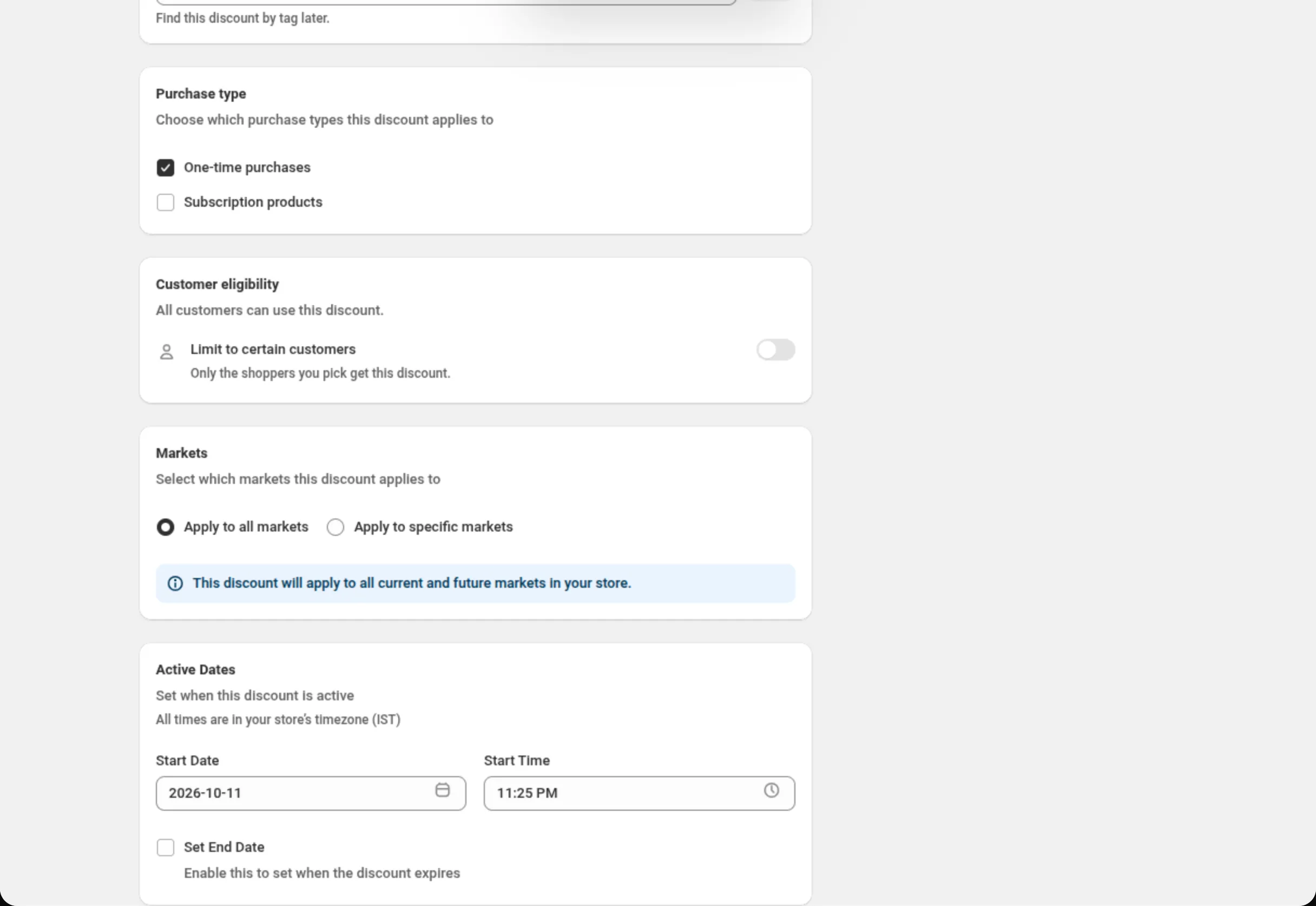
Purchase type
Section titled “Purchase type”One-time purchases, Subscription products, or both — at least one is required. Ticking subscriptions adds a choice of First payment only, Limited number of payments (up to 100) or All recurring payments.
Customer eligibility
Section titled “Customer eligibility”Limit to certain customers restricts the discount to the shoppers you pick. With it on, Match by chooses Customer segments (up to 5 on an automatic discount, up to 20 on a discount code) or Specific customers (up to 100). Shopify checks the shopper before the discount applies, in the cart as well. See Customer eligibility.
Markets
Section titled “Markets”Apply to all markets covers every current and future market. Apply to specific markets lets you pick up to 20; at least one is required once you switch to it.
Active Dates
Section titled “Active Dates”Start Date and Start Time say when the discount begins, and Set End Date adds an end. All times are in your store’s timezone, which the card names on screen.
Convert to customer’s currency
Section titled “Convert to customer’s currency”Sits under the Summary. On, the amounts you type are changed into the currency the customer pays in, so 10 off is worth 10 to them; off, your number is used as typed in every currency. It also moves your money conditions, such as a cart subtotal rule. Percentages and item counts never change either way, and on a single-currency store the setting makes no difference. Whether it can still be changed after the discount exists depends on the discount — the card either shows the switch or states the value with “Can’t be changed after the discount is created.”
How is the order percentage calculated when a product discount also applies?
Section titled “How is the order percentage calculated when a product discount also applies?”When a cart gets both a product discount and your order percentage, the result depends on the Calculate after product discounts switch.
Switch on (the default for new discounts): the percentage comes off what the cart costs once product discounts are taken off. Shopify’s own order discounts work this way; Shopify’s Help Center says “Order discounts apply to the revised subtotal after product discounts.”
Switch off: the percentage is calculated on the full cart total, before product discounts. On a cart that also gets a product discount, the customer saves more than the percentage you set. This is how every order percentage worked before the switch existed.
Worked example. A cart totals 111.00. A product discount brings it down to 99.80. Your order discount is 15% off.
Switch on: 15% of 99.80 = 14.97 off → customer pays 84.83Switch off: 15% of 111.00 = 16.65 off → customer pays 83.15Carts without a product discount get the same amount either way. The only difference is rounding: with the switch on Shopify rounds the amount, with it off the app does, so the two can differ by at most 1 cent.
Excluded items. Item exclusions work with the switch on: the percentage comes off the items that are not excluded, at their price after product discounts.
What you see in the app:
- The Summary always shows one line for an order percentage: “Calculated after product discounts” or “Calculated before product discounts”.
- With the switch off, the minimum order amount after product discounts off, and Product discounts ticked under Discount can be combined with:, a blue note under Percentage says, for 15%: “15% is calculated on the cart total before product discounts are applied.” Its tooltip shows how to change that. On an older discount without the switch, the tooltip says instead: “To avoid this, untick “Product discounts” under “Discount can be combined with”. Shopify then applies only one of the two discounts to those carts.”
When to turn it off: when you want a discount to keep giving exactly the amounts it gave before, or when you need Set maximum discount amount or Set cart value limit for discount calculation, which can only be saved with the switch off.
Changing it on a live discount. Turning the switch on means customers whose cart also gets a product discount save a little less than before (in the example, 14.97 instead of 16.65). Turning it off means they save more than the percentage you set. The confirmation on the edit page says this before you save.
Test mode
Section titled “Test mode”A switch on its own card above the Summary. On, the discount applies only to a signed-in
customer whose account has the tag dos-test; everyone else shops as if it did not exist. On a new
discount the switch is saved with the discount. On a saved discount it takes effect at once, without
Save. See Test mode.
Examples
Section titled “Examples”10% off every order, capped at 50
Discount method: AutomaticTitle: Summer sale · 10% offDiscount Type: Percentage offPercentage: 10Set maximum discount amount: tickedMaximum Discount Amount: 50Calculate after product discounts: offThe switch has to be off here because the percentage has a maximum discount amount.
10 off orders over 50, as a code
Discount method: Discount CodeDiscount Code: SAVE10Discount Rules → RULE GROUP #1 → Cart subtotal · is greater than or equal to · 50Discount Type: Fixed amount offDiscount Amount: 10Limit to one use per customer: ticked15% off the order, but never on the gift-wrap collection
Discount method: AutomaticTitle: Autumn 15% offDiscount Type: Percentage offPercentage: 15Don't apply this discount to specific items: tickedSelect collections to exclude: Gift wrapMinimum requirements (discount rules): Count excluded items toward requirements15% off what the cart costs after product discounts
Discount method: AutomaticTitle: Autumn sale · 15% offDiscount Type: Percentage offPercentage: 15Calculate after product discounts: onDiscount can be combined with: Product discounts ticked5% off, only if the order is still worth 100 after product discounts
Discount method: AutomaticTitle: Loyalty 5% offDiscount Type: Percentage offPercentage: 5Require a minimum order amount after product discounts: tickedMinimum amount: 100How it shows to the shopper
Section titled “How it shows to the shopper”An automatic order discount needs nothing from the shopper: Shopify applies it as soon as the order matches, and the Title you typed is the name shown next to the saving. A code discount applies once the shopper enters the code you set.
If Convert to customer’s currency is on, a shopper paying in another currency sees the converted saving next to that same title — so a title like “€10 off” reads oddly for them, while a name like “Summer sale” does not.
Limits and notes
Section titled “Limits and notes”- Percentage: greater than 0, at most 100.
- Excluded items: up to 20 products and up to 10 collections.
- Exact per-currency amounts: up to 20 currencies, and only on a discount that converts currency.
- Customers: up to 5 customer segments on an automatic discount and up to 20 on a discount code, or up to 100 specific customers.
- Markets: up to 20 when you pick specific markets.
- Subscriptions: up to 100 recurring payments when you choose a limited number.
- Blocked combination: the minimum order amount after product discounts cannot be used with Set maximum discount amount or Set cart value limit for discount calculation.
- Blocked combination: Calculate after product discounts cannot be on together with Set maximum discount amount or Set cart value limit for discount calculation.
- Calculate after product discounts is for Percentage off only. Older order discounts that run on an earlier version of the app’s order engine have no switch.
- Combinations are Shopify’s call. Ticking a box in Discount can be combined with tells Shopify this discount may run alongside that kind; Shopify decides what actually applies to an order. Combining several kinds can add up to a large total, so test a few carts.
- Segments live in Shopify. If a segment is deleted there, Shopify stops enforcing that gate and the discount becomes available to all customers on Shopify’s side. The app shows the missing segment and refuses the save until you remove it or pick another one.
- The method is fixed after creation. Automatic and Discount Code cannot be swapped on an existing discount; duplicate it instead.
What is the difference between a Cart subtotal condition and Minimum order amount (after product discounts)? A Cart subtotal condition checks the amount before discounts. The minimum order amount is checked by Shopify on the total that remains once all product discounts are deducted. You do not need both, and the card says so on screen.
Why can’t I use the minimum order amount together with a maximum discount cap? The app blocks that pair inline and again on save. A capped amount would have to be worked out from the after-discount total, which the discount cannot see while it is being calculated. Turn off either the minimum or the cap.
Can I change an automatic discount into a discount code later? No. The method is chosen at creation and the chooser is disabled on the edit page. Use Duplicate and pick the other method on the copy.
How many products and collections can I exclude? Up to 20 products and up to 10 collections on one order discount.
Is the order percentage calculated before or after product discounts? It depends on the Calculate after product discounts switch. On, the percentage comes off the cart total after product discounts, the same way Shopify’s own order discounts work. Off, it is calculated on the full cart total before product discounts. New order discounts start with the switch on; order discounts created before 9 October 2026 open with it off and keep working as before until you turn it on.
Why can’t I turn on Calculate after product discounts with a maximum discount amount? With the switch on, Shopify calculates the percentage itself, and Shopify can’t cap a percentage it calculates. The app shows an error on the switch card and blocks the save until you turn off the switch or untick Set maximum discount amount and Set cart value limit for discount calculation.
Related
Section titled “Related”- Product discount — take money off qualifying items rather than the order total.
- Shipping discount — take money off the delivery cost.
- Create your first discount — the same flow, walked end to end.