
Block codes
Block codes turns a working discount code into a refusal with your wording — for the codes you name, or for every code while one of your discounts is running.
-
Open Block codes and click Create rule.
The empty page reads “Control your discount codes”. Once you have rules, the button in the page header is Add rule.
-
Choose the rule type.
Block specific codes — “Choose codes to block. Shoppers who enter them see your message.”
Pause all codes during a discount — “Block all codes while a discount is active.”
The type is chosen when you create the rule; on the edit page it is stated, not offered again.
-
Add the codes or patterns to block.
Under Which codes to block, pick a match type and type the value. Press Enter after each entry; each one becomes a chip, grouped under its own heading.
-
Add conditions if the rule should only apply sometimes.
The Conditions card starts empty: “This rule always applies. Add a condition to limit when it refuses the code.” With two or more conditions, an all of these / any of these toggle appears in the card header.
-
Write the message shoppers see, then save.
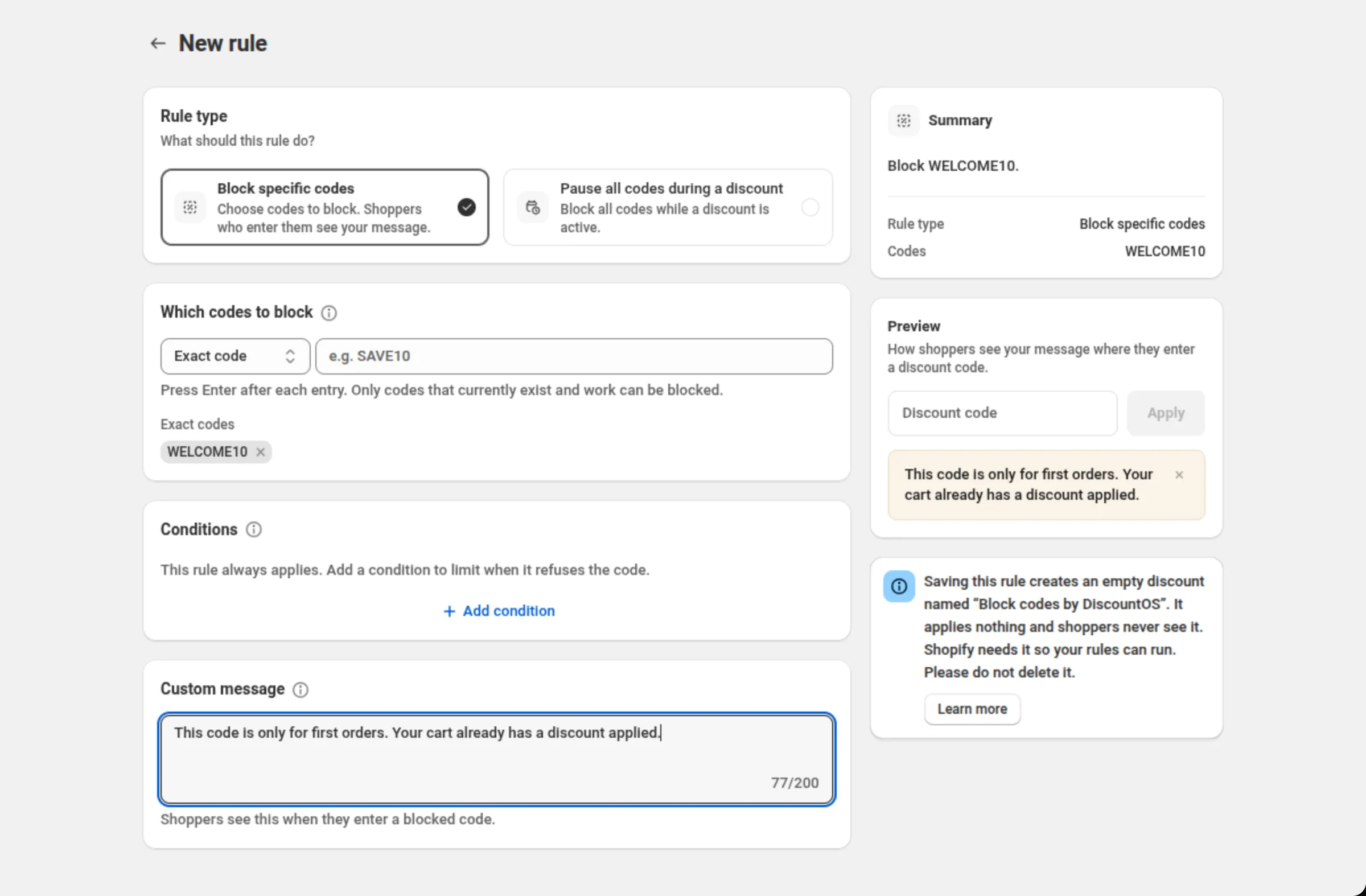
Custom message is required. The right column previews it exactly where a shopper enters a discount code, and the summary recaps the whole rule in a sentence.
Settings
Section titled “Settings”Rule type
Section titled “Rule type”Block specific codes blocks the codes and patterns you list. Pause all codes during a discount blocks every code for as long as a discount you choose is active — measured by that discount’s start and end dates, not by whether it is in the shopper’s cart. Codes work again once the discount ends.
Which codes to block
Section titled “Which codes to block”Four match types, chosen from the dropdown attached to the field:
- Exact code — for example
SAVE10. - Starts with — for example
EMP-, which blocksEMP-JANEandEMP-MIKE. - Ends with — for example
-VIP. - Contains — for example
TEST.
Entries accept letters, numbers, underscores and hyphens only; anything else is refused at the field with “Only letters, numbers, underscores, and hyphens”. Values are stored in upper case.
Which discount?
Section titled “Which discount?”Shown for Pause all codes during a discount. Pick the discount whose run should pause codes. It is required.
Conditions
Section titled “Conditions”Limits the rule to certain carts or shoppers — “block SAVE10 only when the cart total is under 50”. The available fields are cart total, item count, a cart detail, past orders, customer tag, logged-in status, B2B order, a collection, a product tag and a subscription item. See Conditions for what each one accepts.
A Cart attribute condition takes one key and value, and all active rules share one cart attribute key. A save that would add a second key is refused, and the message names the key already in use — use that key, or turn the other rule off first.
Custom message
Section titled “Custom message”What the shopper reads when they enter a blocked code. Required, and no longer than 120 characters — the field counts them for you. The preview on the right shows it in place.
On / off switch
Section titled “On / off switch”Each rule on the list has its own switch. Off leaves the rule saved but not acting.
Order of rules
Section titled “Order of rules”The up and down arrows on each row set the order. “Rules check top to bottom. The first match decides the message.”
Capacity
Section titled “Capacity”A Capacity card above the list shows how full your rules are. It reads out a single line — whichever of the four limits (rules, codes, patterns, shared space) is tightest — with the shared space in brackets after it, unless space is already the line being reported. A word above the bar says Room to grow, Filling up or Nearly full, and near the top it adds “Delete or combine rules to add more.”
The shared space is 10,000 bytes for all active rules together — the most Shopify passes to the code check — and the card shows it as 9.8 KB. A save, or switching a rule on, that would go over it is refused with “These rules are too large for Shopify to read, so codes would stop being blocked. Remove some codes or patterns, or shorten a message, then save.”
What the preview shows
Section titled “What the preview shows”The Preview card beside the form is subtitled “How shoppers see your message where they enter a discount code.” It is a static, non-interactive mock: a discount-code field with an Apply button, and your message beneath it as a dismissible notice. The field, the button and the close control do nothing.
A code already added to an open cart is not affected.
Examples
Section titled “Examples”Block one code
Rule type: Block specific codesMatch type: Exact codeValue: WELCOME10Custom message: This code is only for first orders. Your cart already has a discount applied.Block a whole family of staff codes
Rule type: Block specific codesMatch type: Starts withValue: EMP-Custom message: Staff codes can't be used on this order.Block a code only on small carts
Rule type: Block specific codesMatch type: Exact codeValue: FREESHIPConditions → Cart subtotal · is less than or equal to · 50Custom message: FREESHIP applies to orders over 50.Pause every code during a sale
Rule type: Pause all codes during a discountWhich discount? Summer sale · 10% offCustom message: Codes are paused right now.Limits and notes
Section titled “Limits and notes”- Rules: up to 50 per store.
- Codes: up to 200 per rule and 1,000 across all rules.
- Patterns: up to 20 per rule and 100 across all rules.
- Conditions: up to 5 per rule.
- Pause-all rules: up to 4.
- Message: up to 120 characters, and required.
- Only a code that works in Shopify can be blocked — a code that doesn’t exist is already refused by Shopify. Codes are checked when the shopper enters them, so a pattern also blocks matching codes you create later.
- Keep the discount “Block codes by DiscountOS”. Saving your first rule creates that empty automatic discount. It holds no value and shoppers never see it, but the rules stop working without it. If it is removed or deactivated, the list shows “Code blocking is off” with a Turn back on button; your rules are safe in the meantime.
- Deleting a rule frees the codes immediately: “Codes it blocked will work again right away.”
- All rules share one space. The Capacity card is the honest picture of how much is left.
- Shared space: 10,000 bytes across all active rules; a save that would go over it is refused.
- Cart attribute: one key and value per condition, and one key across all active rules.
Related
Section titled “Related”- Conditions — the condition fields, operators and values.
- Where discounts show — how a code discount reaches a shopper in the first place.
- Discount list — where your own discounts are managed.