
Customer eligibility
There are two ways to say who a discount is for: conditions you build yourself in the rule builder, and a customer limit Shopify checks for you — the customer segments you already keep in Shopify, or specific customers you pick.
How it works
Section titled “How it works”Customer conditions are part of your Discount Rules. You write them, DiscountOS puts them in the discount, and Shopify checks them against the cart along with everything else.
Limit to certain customers is different. The segments or customers you pick are attached to the discount in Shopify itself, and Shopify checks the shopper before the discount runs at all. Nothing about a segment is worked out by the app.
Both can be used at once. The customer limit decides whether the discount is offered to that shopper; your conditions then apply on top.
Eligibility follows the customer Shopify can identify. A shopper is identified when they are signed in, or when they check out with a valid email address or phone number that belongs to that customer. A shopper Shopify cannot identify does not get a discount limited to customer segments or specific customers.
Where it is
Section titled “Where it is”Customer conditions live in the Discount Rules card (on Bundle, in Customer Eligibility (Discount Rules); on Multi-offer and Custom Discount, in Who can use this discount).
The Limit to certain customers switch is on eight discount types:
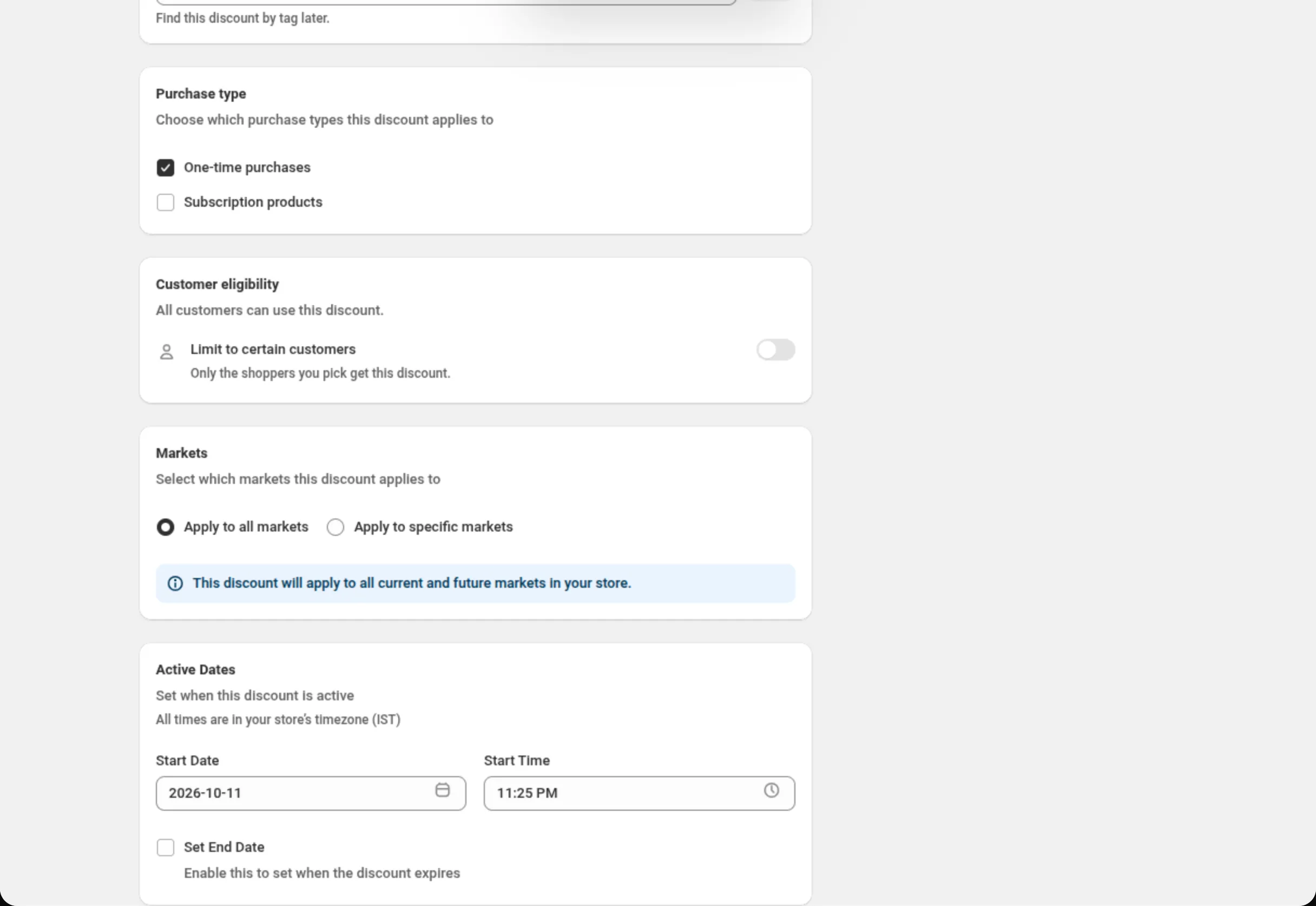
- Product, Order, Shipping, Price List and Buy X Get Y — on its own Customer eligibility card, directly above Markets.
- Bundle — inside Customer Eligibility (Discount Rules).
- Multi-offer and Custom Discount — inside Who can use this discount.
Settings
Section titled “Settings”Customer tags
Section titled “Customer tags”Tags on the customer record. Operators: is one of, is not one of. Up to 20 tags. Use it when you already tag customers “VIP” or “Wholesale” and want the discount to follow that tag.
Customer orders count
Section titled “Customer orders count”How many orders the shopper has placed. Operators: equals, is greater than or equal to, is less than or equal to. A whole number, 0 or more — equals 0 is a first-order discount, is greater than or equal to 5 rewards repeat buyers.
Customer logged in
Section titled “Customer logged in”equals True limits the discount to shoppers signed in to their account; equals False limits it to guests.
Customer is B2B
Section titled “Customer is B2B”equals True limits the discount to business customers; equals False excludes them.
Limit to certain customers
Section titled “Limit to certain customers”The switch on the Customer eligibility card. Off, the card reads “All customers can use this discount.” On, it reads “Shopify checks who the shopper is before they pay.”, and Match by appears with two choices: Customer segments or Specific customers. A discount holds one kind at a time. Turning the switch off clears what you picked.
Customer segments
Section titled “Customer segments”One button — Select customer segments, then Add or remove segments once you have picked some. It opens a list of the segments in your store with a search box, and a count line such as “2 of 5 selected”. Done applies your picks; Cancel leaves them unchanged.
Picked segments show as a list under the button, one row each with a remove ✕. The list shows up to 50 segments at a time; when there are more it says Type to narrow the list, and the search box finds the rest.
Specific customers
Section titled “Specific customers”One button — Select customers, then Add or remove customers. Search by name or email, tick the customers, and press Done. Each picked customer shows as a row with the name, the email underneath, and a remove ✕.
Examples
Section titled “Examples”VIP customers only, by tag
Discount Rules → RULE GROUP #1Condition 1: Customer tags · is one of · VIPA first-order welcome discount
Discount Rules → RULE GROUP #1Condition 1: Customer orders count · equals · 0A segment-gated automatic discount
Customer eligibility → Limit to certain customers: onMatch by: Customer segmentsSelect customer segments: Customers who haven't purchasedA code for three named wholesale buyers
Discount method: Discount CodeCustomer eligibility → Limit to certain customers: onMatch by: Specific customersSelect customers: the three buyersA code for wholesale, checked two ways
Discount method: Discount CodeCustomer eligibility → Limit to certain customers: onMatch by: Customer segmentsSelect customer segments: WholesaleDiscount Rules → RULE GROUP #1 → Customer is B2B · equals · TrueLimits and notes
Section titled “Limits and notes”- Segments: up to 5 on an automatic discount, up to 20 on a discount code.
- Specific customers: up to 100, on automatic discounts and codes.
- At least one segment or customer is required once the switch is on, and the same one cannot be picked twice.
- Available on eight discount types: Product, Order, Shipping, Price List, Buy X Get Y, Bundle, Multi-offer and Custom Discount.
- The segments live in Shopify. Create and edit them under Customers › Segments; the app only picks from what is there.
- A deleted segment turns the gate off. Shopify drops the segment from the discount, and on Shopify’s side the discount becomes available to all customers. In the app the row then reads “(no longer exists)” and a save is refused until you remove it or pick another segment. Check the card after deleting any segment.
- A new segment gate may take a while to take effect. After you first gate a live discount on a segment, it has been seen taking up to about an hour before Shopify honours the membership. Give it time before assuming the gate is broken.
- Permission. Both pickers need the app’s customer permission. If it has not been approved yet, the card says so and offers Reload app and Retry.
- Conditions still apply on top. A segment gate never replaces your Discount Rules.
Related
Section titled “Related”- Conditions — the full field reference, including the customer fields.
- Markets and currency — the card directly below this one.
- Order discount — the card in place on a full page.