
Sale badge
A Sale Badge puts a short label — “20% off”, “Limited stock” — on your products: over the product photo, or as a line below the photo or, on product pages, above or below the title. The words can be filled from one of your discounts and kept in sync with it, or they can be entirely your own.
-
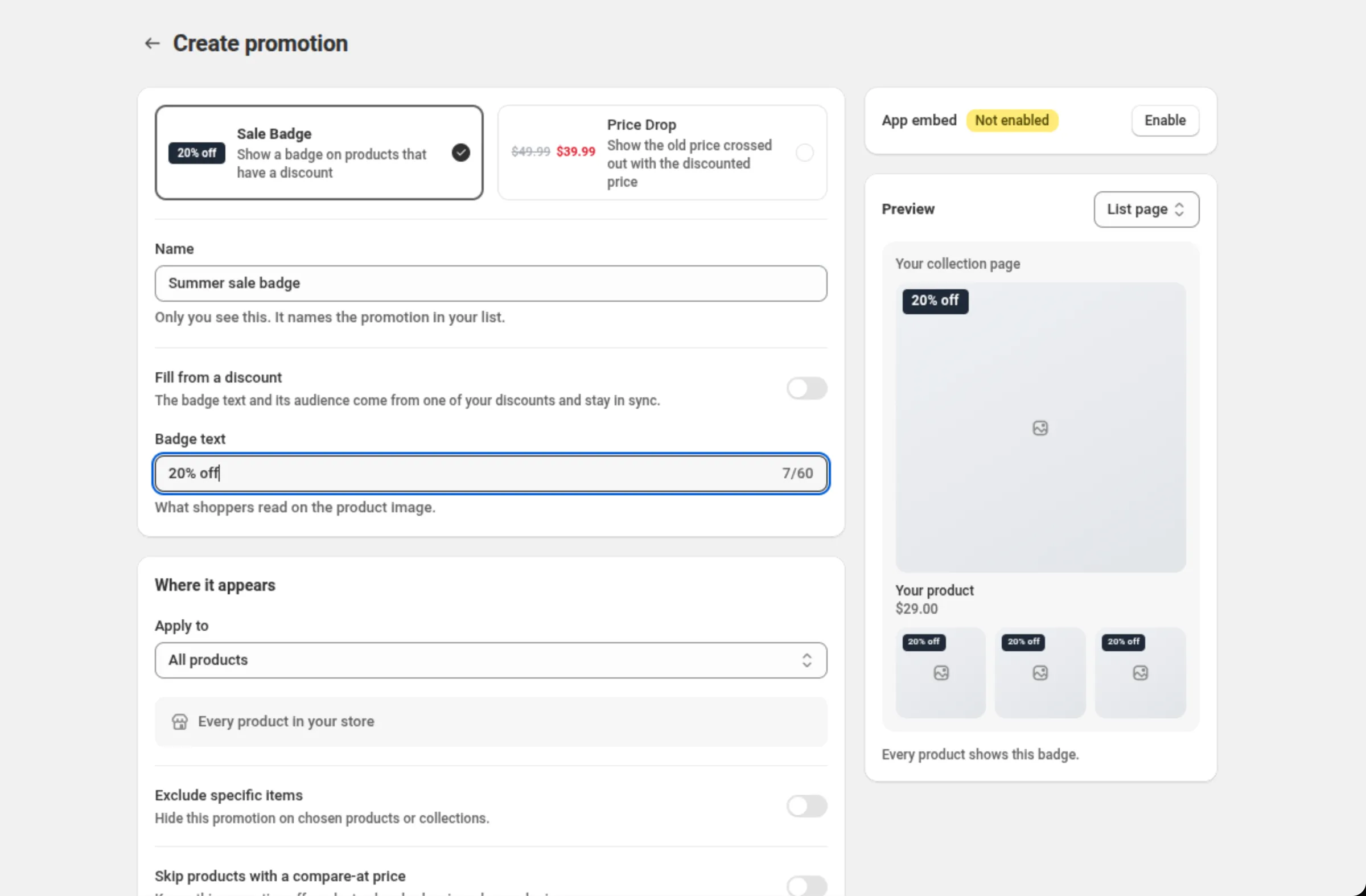
Open Promotions and click Create promotion, then pick Sale Badge.
The page opens on the Promotion kind tiles: Sale Badge (“Show a badge on products that have a discount”) and Price Drop. The kind is chosen once — it cannot be changed after the promotion exists.
-
Name the promotion and choose where its words come from.
Name is only yours — it names the promotion in your list. Then either leave Fill from a discount off and type your own Badge text, or turn it on and pick one of your discounts, which fills the text and keeps it in sync.
-
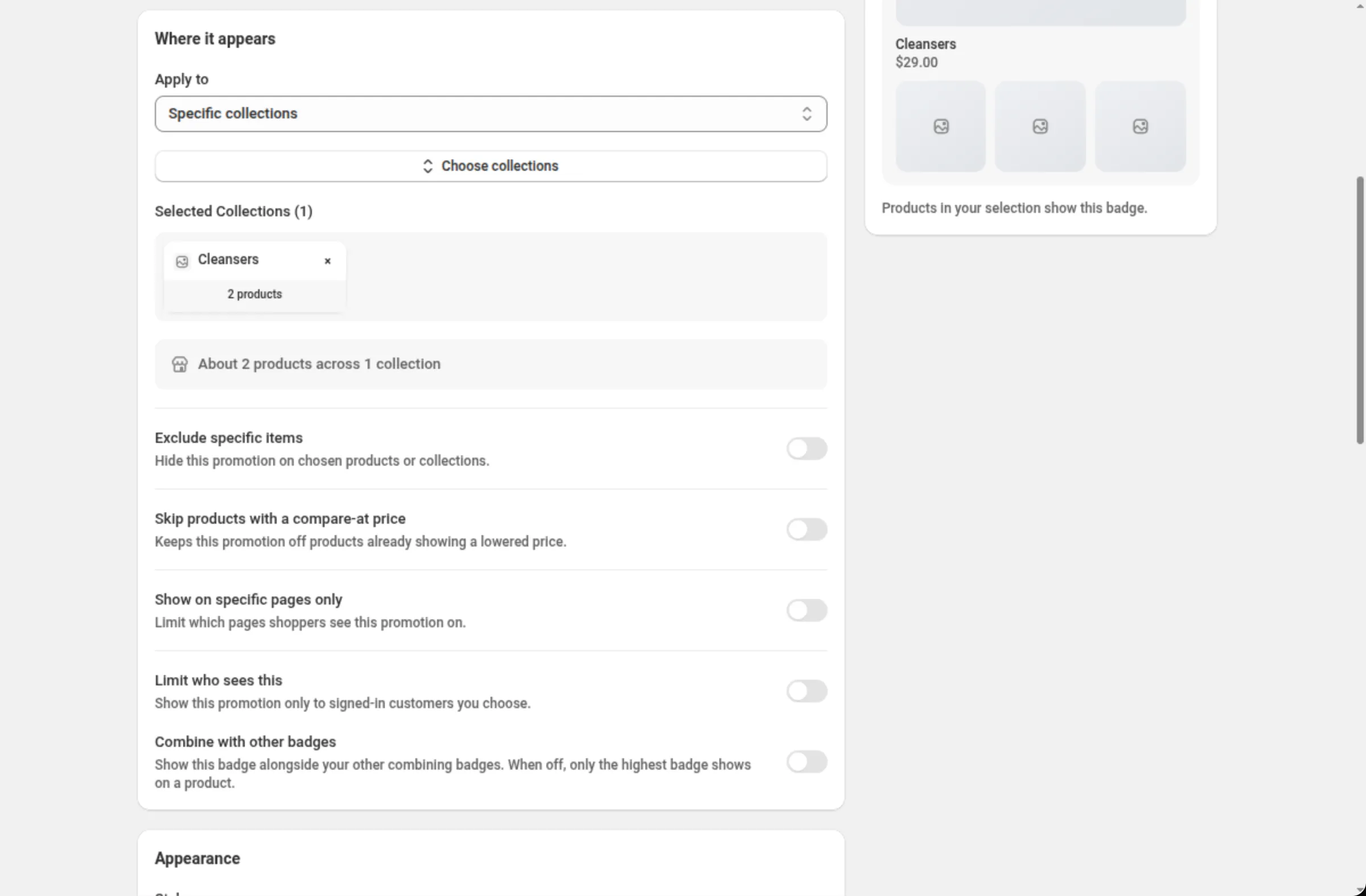
Choose which products show the badge.
In Where it appears, set Apply to — all products, specific collections, products with tags, or specific products. A line under the picker states the coverage you have chosen (“Every product in your store”, “About 34 products across 2 collections”). The same card holds the optional exclusions, the compare-at rule, the page restriction and the audience limit.
-
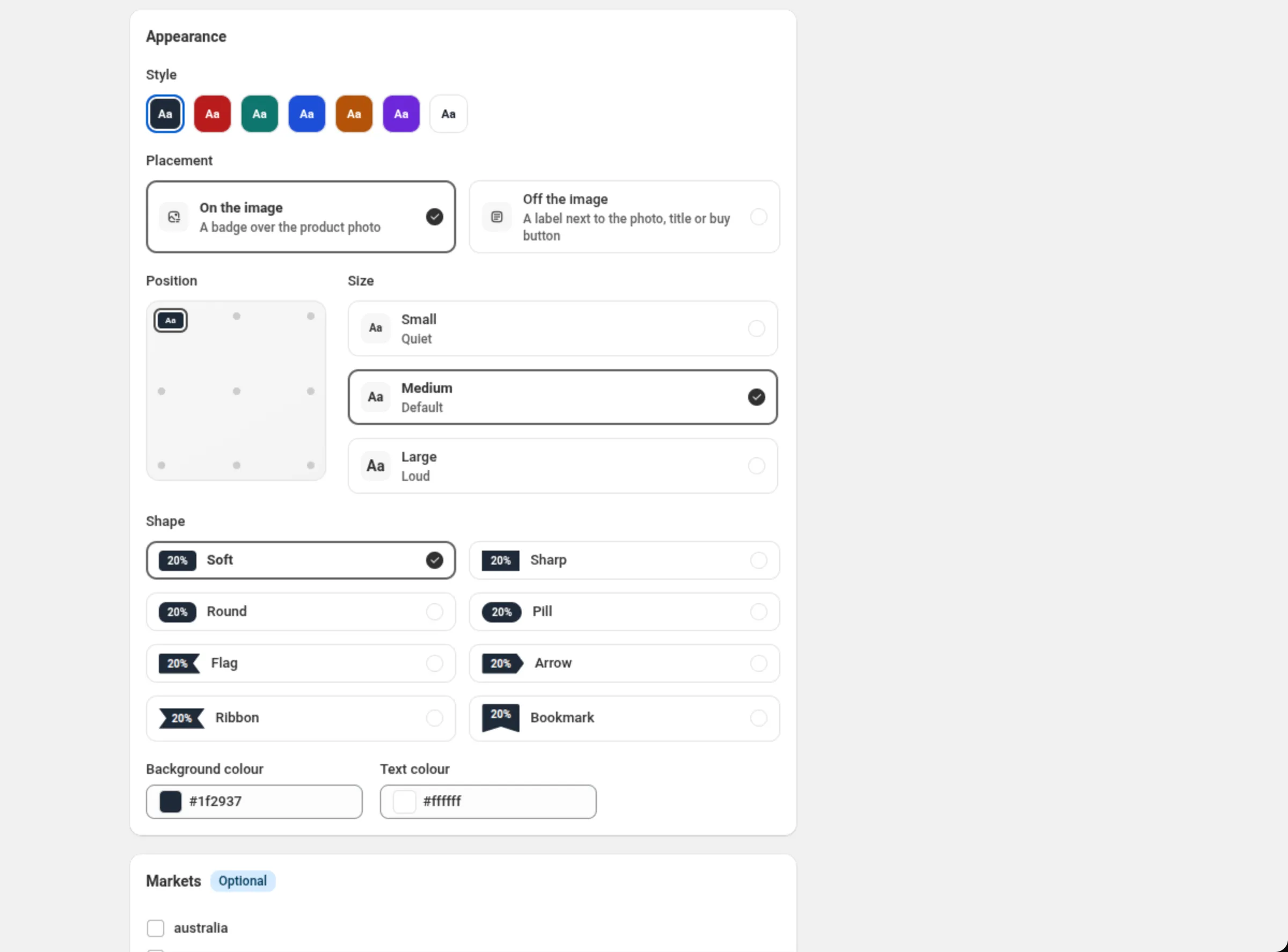
Set the appearance — style, placement, size, shape and colours.
The Appearance card is a live choice: preset styles, On the image or Off the image, then the position, size and shape. The preview beside the form shows the badge on a product card as you go.
-
Set markets and dates, then save.
Markets appears when your store has more than one market. Active dates sets when shoppers see the promotion, in your store’s timezone. Save from the bar at the top.
Settings
Section titled “Settings”Promotion kind
Section titled “Promotion kind”Sale Badge or Price Drop. Shown only while you are creating the promotion — a promotion’s kind cannot change afterwards, so make another one instead.
The name in your Promotions list. Only you see it. Up to 100 characters.
Fill from a discount
Section titled “Fill from a discount”Off, you write the badge yourself. On, the badge text and its audience come from one of your discounts and stay in sync with it: change or pause the discount and the badge follows.
Discount
Section titled “Discount”The discount the badge is filled from. The list offers only discounts whose number can be proven on a product card. Under it, a disclosure names every discount that cannot fill a badge, the reason, and what to change — with Use my own words instead as the way out.
Badge text
Section titled “Badge text”What shoppers read. Up to 60 characters. While the badge is filled from a discount the field is read-only and shows the derived text; Write my own text unlocks it (and stops it updating when the discount changes), and Reset to the discount’s text puts it back in sync.
Apply to
Section titled “Apply to”Which products carry the badge: All products, Specific collections, Products with tags, or Specific products. Up to 20 specific products, up to 50 collections, up to 50 tags. A badge filled from a discount has no Apply to — it shows on the products that discount covers, and the card says so.
Exclude specific items
Section titled “Exclude specific items”Hides the promotion on chosen products or collections: up to 20 products and up to 10 collections. Not offered when Apply to is already a hand-picked product list — remove the product from the list instead.
Skip products with a compare-at price
Section titled “Skip products with a compare-at price”Keeps the badge off products that already show a lowered price, so one product never carries two competing claims.
Show on specific pages only
Section titled “Show on specific pages only”Limits the promotion to the page types you tick: Home page, Collection pages, Search results, Product pages, Cart page. At least one has to stay ticked. Your list row then says where the promotion appears, so a deliberate restriction never looks like a fault.
Limit who sees this
Section titled “Limit who sees this”Shows the promotion only to signed-in customers you choose: Signed-in customers only, and customer tags (up to 10 tags, 1–255 characters each, no commas, quotes or backslashes). While either is set, shoppers who are not signed in do not see the promotion. Only on a badge you write yourself — one filled from a discount takes its audience from that discount.
Combine with other badges
Section titled “Combine with other badges”Off, only the highest badge shows on a product. On, this badge shows alongside your other badges that also combine — each in its own spot, and badges sharing a spot stack, higher first, up to 4 in total.
Seven preset background and text pairs. Picking one sets both colour fields below.
Placement
Section titled “Placement”On the image puts a badge over the product photo. Off the image puts a label below the photo or next to the title. Switching between them remembers the position you last used in each.
Position
Section titled “Position”The 3×3 grid of spots on the photo, from top-left to bottom-right. Shown for On the image.
Element position
Section titled “Element position”Shown for Off the image: Below the image, Above the title (product page), Below the title (product page). The two product-page options say so in their own label — cards on collection, search and home pages have no title heading, so nothing is painted there.
Alignment
Section titled “Alignment”Left, Center or Right, for off-the-image labels.
Small (quiet), Medium (default) or Large (loud). Each tile shows “Aa” at the size the storefront actually uses.
Soft (the default), Sharp, Round, Pill, Flag, Arrow, Ribbon or Bookmark. Each tile is the real shape at chip size.
Background colour / Text colour
Section titled “Background colour / Text colour”Hex colours, like #1f2937 and #ffffff. The field refuses anything that is not a hex colour.
Markets
Section titled “Markets”Shown when your store has more than one market. Tick the markets that should see the badge; tick none to show it in every market.
Active dates
Section titled “Active dates”Start Date and Start Time, and an optional end. Times are in your store’s timezone.
Test mode
Section titled “Test mode”A Test mode card sits in the right-hand column, both while you create the badge and on its own
page. While it is on, only signed-in customers tagged dos-test see the badge; other shoppers do
not. A badge filled from a discount is also in test mode while that discount is. See
Test mode.
Examples
Section titled “Examples”A badge on everything, in your own words
Promotion kind: Sale BadgeName: Limited stock badgeFill from a discount: offBadge text: Limited stockApply to: All productsPlacement: On the imagePosition: top-leftA badge that follows a discount
Promotion kind: Sale BadgeName: Summer sale badgeFill from a discount: onDiscount: Summer sale · 20% offBadge text: 20% off (filled from the discount)Skip products with a compare-at price: onA label under the photo, on collection and search pages only
Promotion kind: Sale BadgeName: Bundle deal labelFill from a discount: offBadge text: Buy 2 get 1 freeApply to: Specific collections → BundlesShow on specific pages only: Collection pages, Search resultsPlacement: Off the imageElement position: Below the imageAlignment: CenterHow it shows to the shopper
Section titled “How it shows to the shopper”The badge is painted onto the product image or next to it, on the page types you left ticked: home page, collection pages, search results, product pages and the cart page. It is a label — it changes nothing about the money. The discount behind it, if there is one, is applied by Shopify when it checks the cart.
Where two of your badges cover the same product, the one higher in your Sale Badges list shows, unless both have Combine with other badges on.
Limits and notes
Section titled “Limits and notes”- Name: up to 100 characters. Badge text: up to 60 characters.
- Apply to: up to 20 specific products, up to 50 collections, up to 50 tags.
- Exclusions: up to 20 products and up to 10 collections.
- Audience tags: up to 10, each 1–255 characters.
- Your store carries up to 50 promotions. Past that, the ones lowest in the list are held back and the page says so — move one up, or turn one off to make room.
- Big collections are covered in full. Past a collection’s first 50 products, the badge can show up a moment after the page loads.
- Tag promotions do not reach the home page. They resolve against the products on the page, and the home page does not offer products by tag. The form says so.
- Some rules can only be proven where product details are on the page. With a compare-at skip or collection exclusions on a wide promotion, the badge stays off places the theme does not share a card’s details — the home page, recommendation carousels — rather than risk showing it on a product it should skip. Naming the exact products removes that limit.
- Turning a promotion off pauses it. Your text survives, and you can bring it back. Deleting removes it from your store.
- Duplicating lands the copy turned off, at the end of the list, named “Copy of …”.
- Changes usually reach your store within a minute; on some pages it can take longer, rarely over half an hour.
Related
Section titled “Related”- App embed — the switch a Sale Badge needs.
- Price drop — the other promotion kind.
- Storefront widgets — the theme blocks that draw tier tables and pickers.