
Install DiscountOS
DiscountOS installs from the Shopify App Store and runs inside your Shopify admin. Installing it, building discounts and testing them is free. To turn discounts on for your customers you need the Pro plan ($14.90 every 30 days, 7-day free trial) — see Plans and billing.
-
Open the DiscountOS listing on the Shopify App Store.
-
Install it on the store you want to run discounts on.
-
Open DiscountOS from the Apps section of your Shopify admin.
The app runs inside the admin, so you never leave Shopify to build a discount.
-
Work through the setup guide on the app home page.
It has two steps. The first one completes on its own once you have created a discount.
What the app adds to your admin
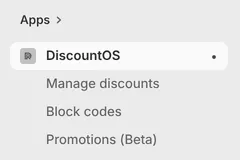
Section titled “What the app adds to your admin”DiscountOS adds its own menu to the Shopify admin sidebar with three plain entries — Manage discounts, Block codes and Promotions (Beta) — followed by Billing. Each of the first three opens a page that carries its own subtitle in the header:
- Manage discounts — every discount you have built with the app, in one list. The page is subtitled “View, edit, and organize all your discounts in one place”, and the Create discount button at the top opens the discount chooser.
- Block codes — subtitled “Block discount codes and show your own message”. Codes you list here are declined with the message you write.
- Promotions (Beta) — subtitled “Show badges and discounted prices on your products”. This is the storefront side of the app: Sale Badges and Price Drops.
- Billing — your plan, and the button that opens Shopify’s plan page. See Plans and billing.
The app’s home page is titled Welcome to DiscountOS. Under the setup guide it shows four counts — Active, Total discounts, Scheduled and Expired — and a Recent discounts list with a View all link.

The setup guide
Section titled “The setup guide”On a fresh install the home page opens with a card headed Get started with DiscountOS, a progress line reading “0 of 2 tasks complete”, and two steps:
- Create your first discount — completes by itself as soon as you have one discount in the app. There is nothing to tick. Its button, Create discount, opens the chooser.
- Enable app embed — marked Optional. Its own words: “Needed only for Sale Badges and Price Drops (Promotions). The rest of the app works without it.” The button, Enable in theme editor, opens your theme editor on the app embeds panel.
Dismiss guide removes the card. Your counts and your discount list stay.
What the app changes on your store
Section titled “What the app changes on your store”Nothing in your theme, unless you turn on the app embed for Promotions. Every discount type works without any theme change.
A discount you build in DiscountOS is created on your store as a real Shopify discount — automatic or code, depending on the method you pick. Shopify is the one that runs it.
Related
Section titled “Related”- Create your first discount — the full walk, end to end.
- Where discounts show — automatic discounts, discount codes, and what the shopper sees.
- Plans and billing — the Pro plan, the free trial, and what works without a plan.