
Markets and currency
Two settings decide where a discount reaches and what your numbers mean there: Markets, which picks the regions, and Convert to customer’s currency, which decides whether an amount you typed is converted for a shopper paying in another currency.
How it works
Section titled “How it works”Markets is a Shopify concept: each market has its own countries, currency and prices. A discount either runs in all of them or only in the ones you list.
Convert to customer’s currency decides what your typed amount means abroad. You type in your store’s currency. With conversion on, Shopify changes it into the currency the shopper pays in, so €10 off stays worth €10. With it off, €10 off becomes 10 of whatever they pay in. The money thresholds in your rules move with it — a “spend €100” rule converts too.
Percentages and item counts never change either way, and on a single-currency store the setting makes no difference at all.
Where it is
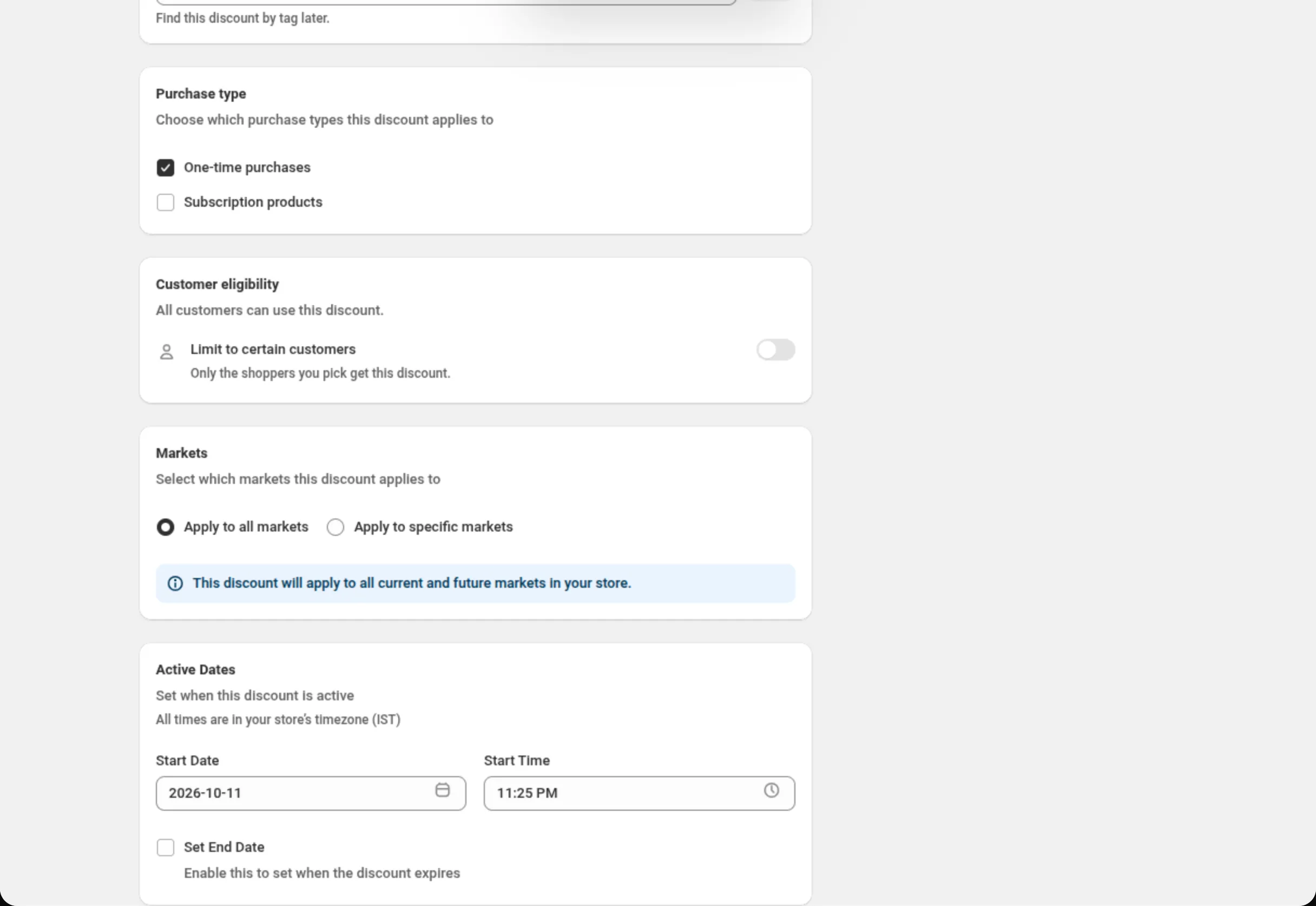
Section titled “Where it is”Markets is its own card near the bottom of every discount page, directly under Customer eligibility where that card exists.
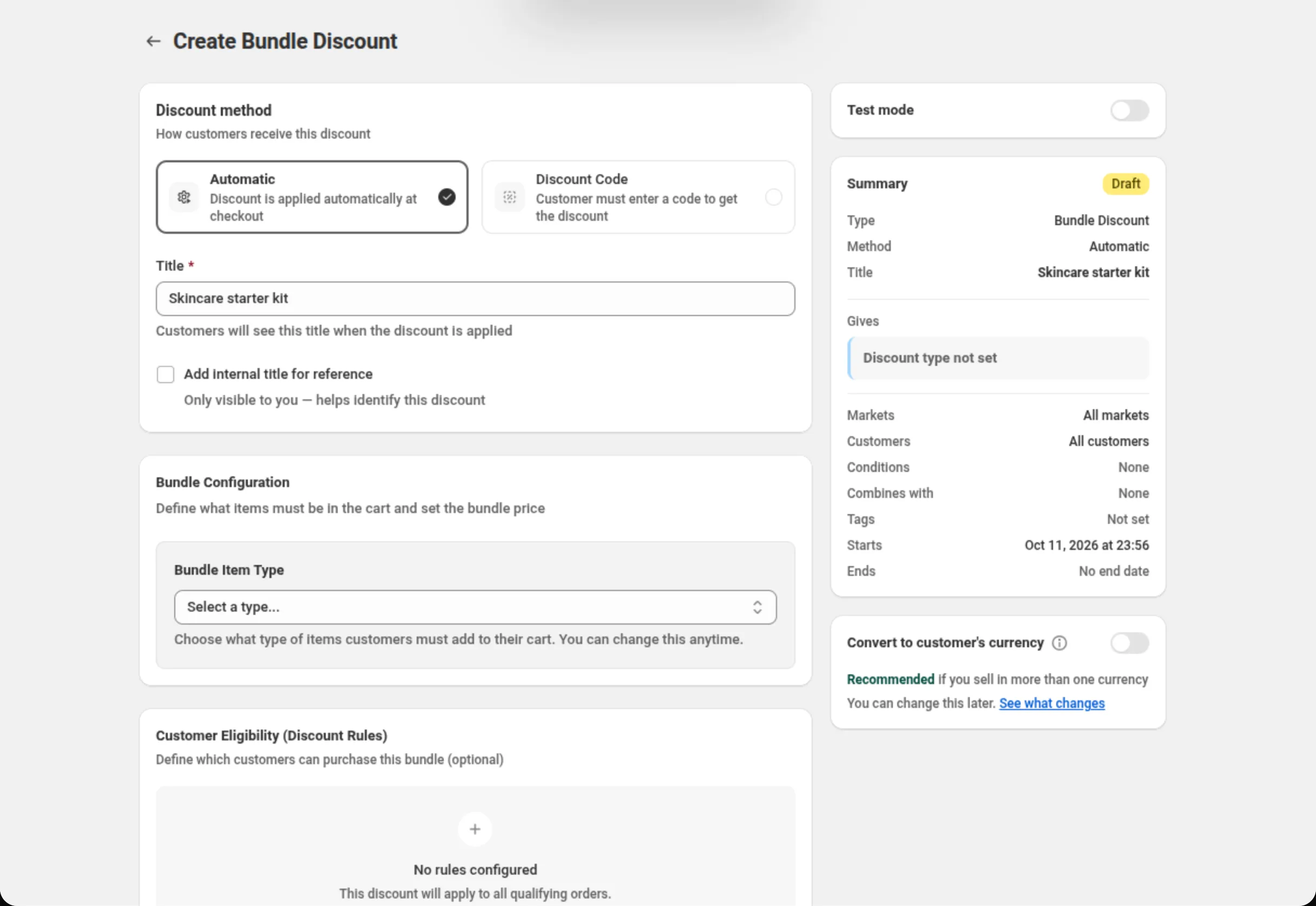
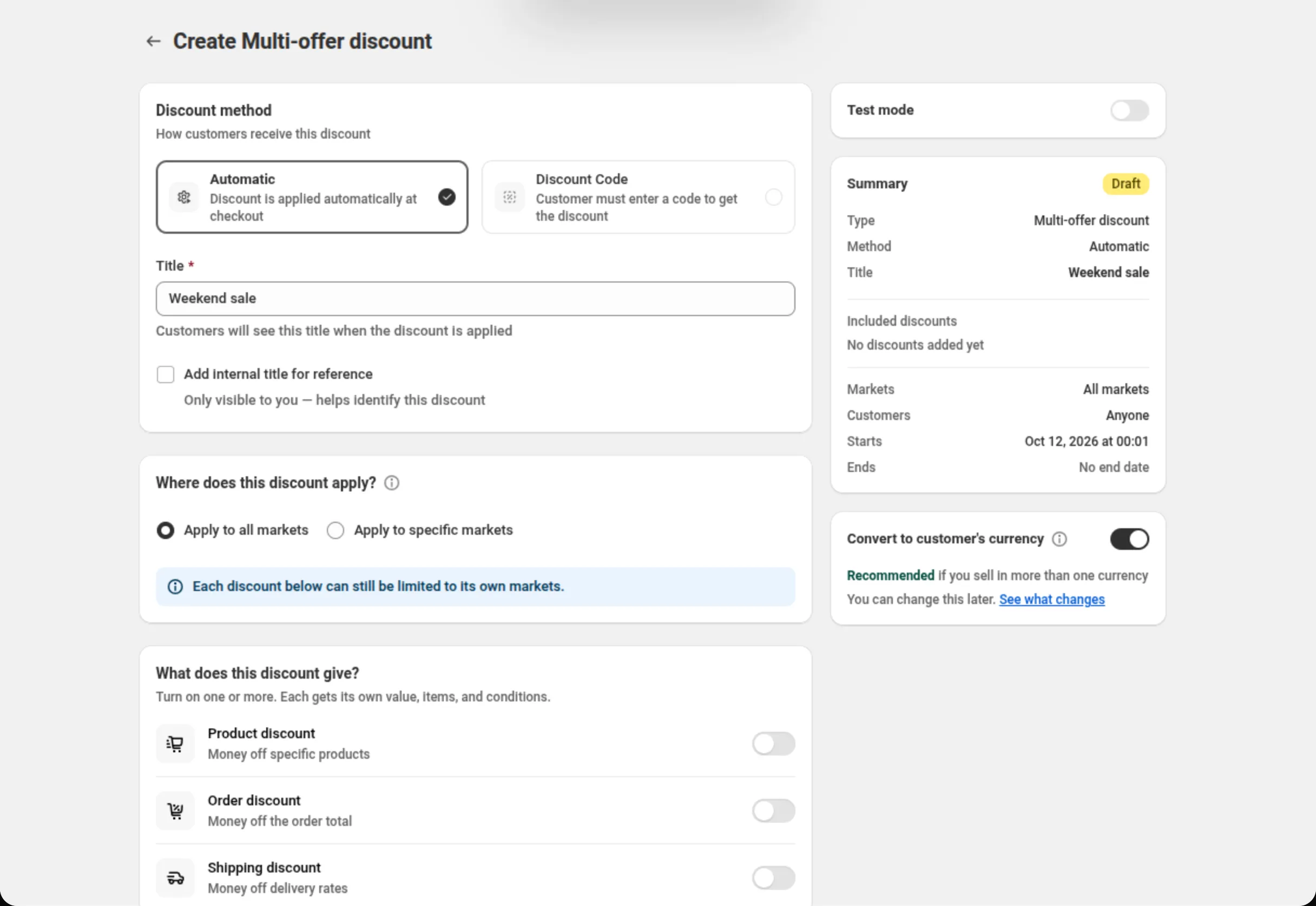
Convert to customer’s currency sits in the right column, under the Summary card, on the discount types that offer it.
Settings
Section titled “Settings”Apply to all markets
Section titled “Apply to all markets”The starting choice. The card shows: “This discount will apply to all current and future markets in your store.” Nothing to pick.
Apply to specific markets
Section titled “Apply to specific markets”Reveals a Select a market dropdown and an Add market button. Each market is listed with its currency, and your primary market is labelled “(Primary - USD)”. Added markets appear as cards you can remove, with a badge counting them: “3 markets selected”.
At least one market is required once you switch to this option — leaving it empty and saving shows “Please select at least one market, or apply to all markets”.
If none of your picks is the primary market, the card warns: “You haven’t selected your primary market. Consider including it to ensure the discount works in your main market.”
Convert to customer’s currency
Section titled “Convert to customer’s currency”A single switch, with an information icon that explains it and a See what changes link to a worked example. On a store that sells in more than one currency, a Recommended note appears under the switch while you are creating the discount.
What it moves depends on the discount type — the card names them:
- Order discount: the discount amount, the maximum discount, the maximum cart value, and any cart total or line total in your rules.
- Price List: each tier’s amount off or price per item, and the minimum spend that unlocks a tier.
- Bundle: the bundle price.
- Multi-offer: fixed amounts, caps, and money conditions on every offer in the discount.
- Custom Discount: fixed amounts, caps, and money conditions on every offer in the discount — and, when an offer reads its prices from product data, those prices too.
- Spend More Save More: your spend tier amounts and your minimum order amount.
On the edit page, flipping the switch opens a confirmation first — “This is a live discount. The change takes effect for customers as soon as you save.” — with the exact before-and-after in money. Where the switch cannot be changed after creation, the card states On or Off as a badge and offers Duplicate it with this on instead.
Set exact amounts for specific currencies
Section titled “Set exact amounts for specific currencies”Only on discounts that convert, and only where the discount type offers it (the Order discount does). Lets you type the exact amount customers paying in a listed currency get, for when a converted amount lands on an awkward number. Up to 20 currencies.
Conversion, per discount type
Section titled “Conversion, per discount type”| Discount type | Switch on the page | Starting value |
|---|---|---|
| Product | no | — |
| Order | yes | On |
| Shipping | no | — |
| Buy X Get Y | no | — |
| Bundle | yes | Off |
| Multi-offer | yes | On |
| Custom Discount | yes | On |
| Price List | yes | On |
| Quantity Break | no | — |
| Spend More Save More | yes | On |
| Gift with Purchase | no | — |
Quantity Break tiers are percentages, which are the same in every currency, so there is nothing to convert and no switch is shown.
Multi-offer and Custom Discount have markets twice
Section titled “Multi-offer and Custom Discount have markets twice”On a Multi-offer or Custom Discount the top card is Where does this discount apply? — the markets for the whole discount. Picking specific markets there states “These markets apply to every discount created below. Removing a market here also removes it from them.” (Custom Discount says “every offer created below”.) Each offer card below then has its own Available in setting, whose list only ever shows the markets picked at the top. Until an offer picks its own markets it runs in all of them.
An offer whose markets were later removed at the top is flagged in the card, because it can never apply.
Examples
Section titled “Examples”A discount for Canada and the US only
Markets: Apply to specific marketsAdd market: United States (Primary - USD)Add market: Canada (CAD)A fixed amount that keeps its value abroad
Discount Type: Fixed amount offDiscount Amount: 10Convert to customer's currency: onA euro bundle price meant only for Europe
Bundle price: 49Convert to customer's currency: offMarkets: Apply to specific marketsAdd market: Europe (EUR)Limits and notes
Section titled “Limits and notes”- Markets: up to 20 when you pick specific markets — on every discount type, and up to 20 per offer on Multi-offer.
- Exact per-currency amounts: up to 20 currencies, and only on a discount that converts.
- Apply to all markets means future markets too, so a market you add to Shopify later is covered without editing the discount.
- Scope each bundle to its market. Two bundles for the same items with no market scope both run everywhere, and Shopify decides which applies. If you have priced one bundle per region, set each one’s markets.
- Shopify’s own exchange rate is used — the same one that prices your products, including any currency fee on your markets.
- Some markets round prices up, for example to the nearest ¥100, which makes a cart slightly larger than a plain conversion. A spending rule can be met a little early, never late.
- Name your discount in words, not money. A discount called “€10 off” reads oddly next to a converted saving; “Spring sale” does not.
Related
Section titled “Related”- Customer eligibility — the card directly above Markets.
- Order discount — where the conversion card and per-currency amounts are set up in context.
- Bundle — the type whose conversion starts off.
- Multi-offer — markets at two levels.