
Bundle
A bundle discount sets one price for a group of items — or takes a percentage off that group — once the cart holds everything the bundle asks for. You describe the group as a list of requirements: how many items, and which products, collections, variants, tags or vendors they must come from.
-
Open Discounts, click Create discount, and choose Bundle Discounts.
It sits in the Discounts section of the create menu, with the example “Bundle products together, the discount applies automatically”.
-
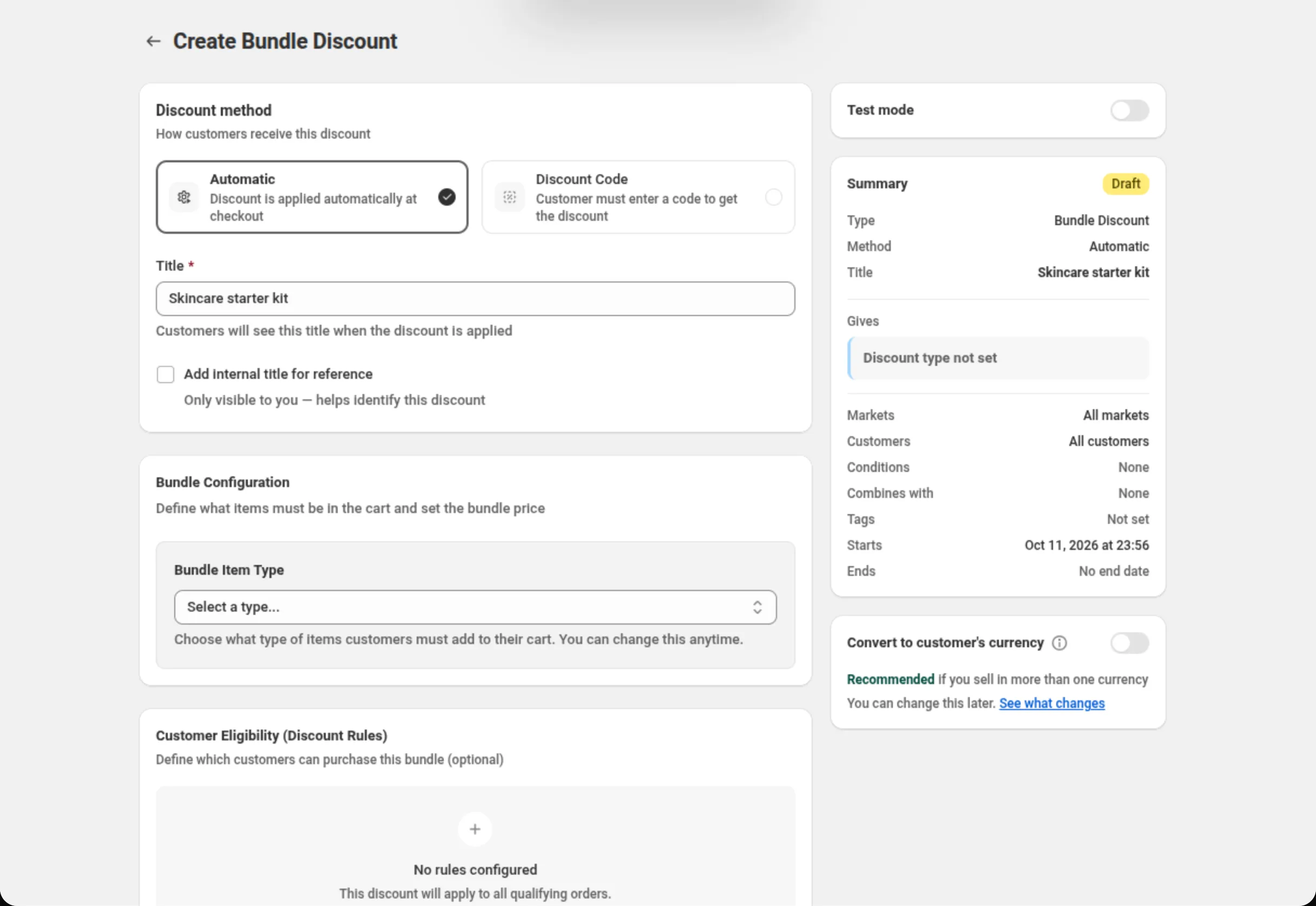
Choose the discount method and name the discount.
Pick Automatic or Discount Code, then fill in Title (automatic) or Discount Code (code). The Summary on the right keeps a running recap of what you have set.
-
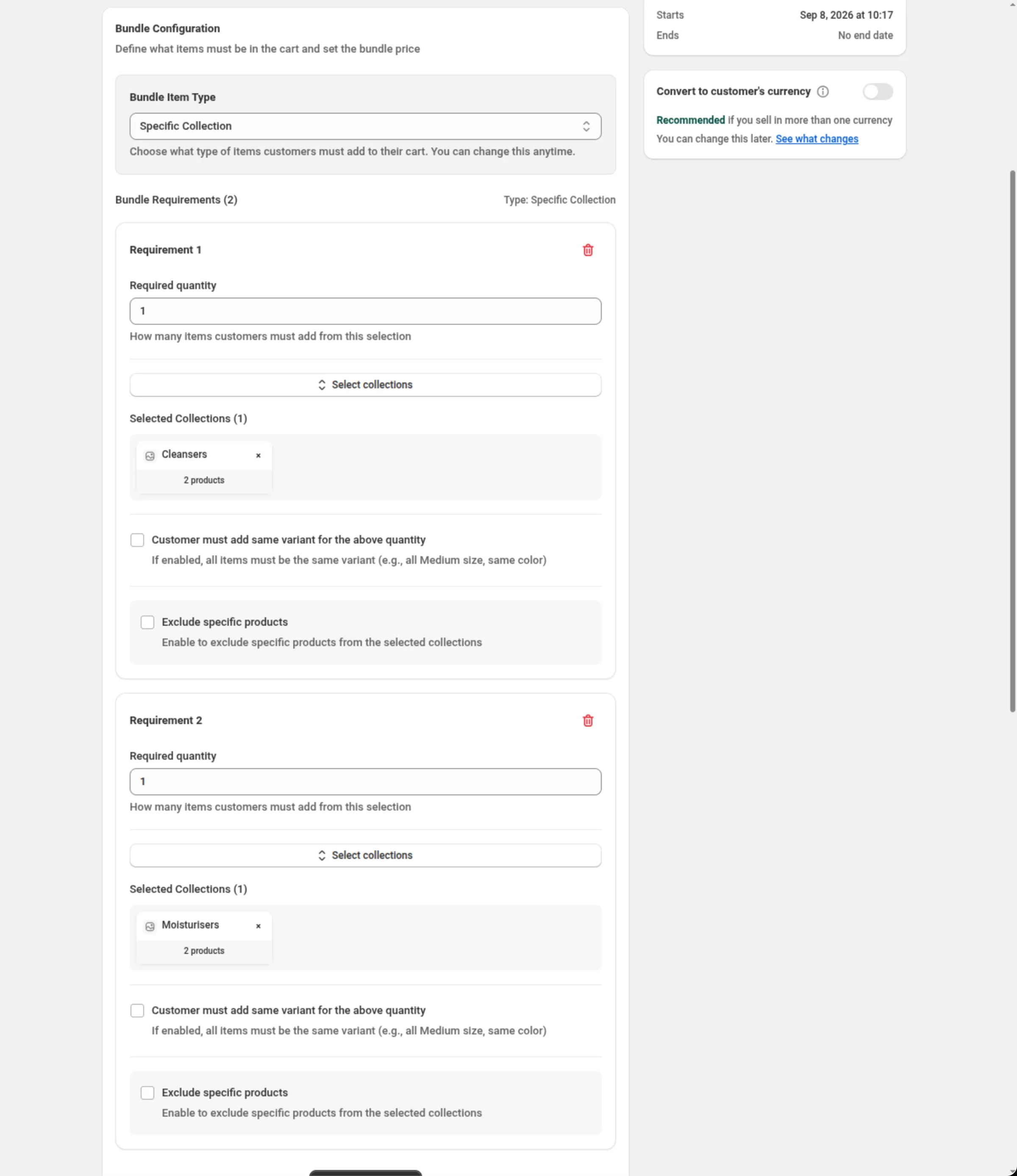
Pick the Bundle Item Type and add each requirement.
Choose one of Specific Product, Specific Collection, Specific Variant, Product Tag or Product Vendor. Requirement 1 appears: set Required quantity, then pick the items (or type the tags or vendors). Click Add Requirement for each further part of the bundle.
-
Choose the discount type and enter the bundle price or percentage.
Set Discount type to Fixed Bundle Price or Percentage Off, then fill in Bundle price or Percentage off.
-
Limit who can buy the bundle, if you need to.
Customer Eligibility (Discount Rules) is optional. Leave it empty and anyone can buy the bundle; add conditions to restrict it to certain customers.
-
Set combinations, markets, dates and currency handling, then save.
Choose which other discounts this one may combine with, which markets it runs in, when it starts and ends, and whether the bundle price converts into the customer’s currency. Save from the bar at the top of the page.
Settings
Section titled “Settings”Discount method
Section titled “Discount method”Automatic needs no code — Shopify applies the discount as soon as a cart holds the bundle. Discount Code means the shopper has to enter the code you set. Choose the method when you create the discount: the chooser is disabled once the discount exists.
Title / Discount Code
Section titled “Title / Discount Code”On an automatic discount, Title is the name shoppers see when the discount is applied. On a code discount the field becomes Discount Code.
Add internal title for reference
Section titled “Add internal title for reference”Adds a second name only you see, to tell similar discounts apart.
Bundle Item Type
Section titled “Bundle Item Type”What every requirement in this bundle is made of — Specific Product, Specific Collection, Specific Variant, Product Tag or Product Vendor. It is chosen once and applies to the whole bundle, so one bundle cannot mix products with collections. You can change it later, but changing it starts the requirements again.
Required quantity
Section titled “Required quantity”How many items the cart must hold from this requirement’s selection. A whole number greater than 0.
The item selection
Section titled “The item selection”Each requirement then names the items themselves: Select products, Select collections or Select variants opens the picker (up to 20 items per requirement), while Product Tag and Product Vendor take typed values (up to 20 per requirement). At least one is required.
Customer must add same variant for the above quantity
Section titled “Customer must add same variant for the above quantity”Requires the quantity to be a single variant rather than a mix — three of the same size and colour, not three different ones. Not shown when the Bundle Item Type is Specific Variant, where the variant is already fixed.
Exclude specific products
Section titled “Exclude specific products”Only shown for Specific Collection. Ticking it reveals Select products to exclude (up to 20 products), which keeps those products from counting toward this requirement even though they are in the collection. At least one product is required once the box is ticked.
Add Requirement
Section titled “Add Requirement”Adds another part to the bundle — the “two of these plus one of those” shape. Every requirement must be satisfied for the bundle to apply. The heading counts them as Bundle Requirements.
Discount type
Section titled “Discount type”Fixed Bundle Price charges one total for the bundle. Percentage Off takes a share off the bundle’s items instead. Changing the type clears the value you had entered.
Bundle price / Percentage off
Section titled “Bundle price / Percentage off”The value for the type you chose. It must be greater than 0, and a percentage may not go above 100.
Customer Eligibility (Discount Rules)
Section titled “Customer Eligibility (Discount Rules)”Optional conditions limiting who can buy the bundle. A bundle can use Customer tags, Customer logged in and Customer orders count — customer conditions only, no item or cart conditions. There is a single rule group, so conditions join with the Between conditions AND/OR toggle. Leave it empty and anyone can buy the bundle.
The same card has the Limit to certain customers switch. On, Match by chooses Customer segments (up to 5 on an automatic discount, up to 20 on a code) or Specific customers (up to 100), and Shopify checks the shopper before the discount applies. See Customer eligibility.
Discount can be combined with:
Section titled “Discount can be combined with:”Ticks for Product discounts, Order discounts and Shipping discounts. Leave them off and this discount runs alone; tick a box and Shopify may apply that kind of discount alongside it.
Tags, in the same card, label the discount — up to 20. They are saved on the discount in Shopify. On Shopify Plus, ticking Product discounts also shows Stack with product discounts tagged. See Combinations.
Maximum discount usage
Section titled “Maximum discount usage”Only shown for a discount code. Limit number of times this discount can be used in total adds a Maximum discount uses field (a whole number greater than 0), and Limit to one use per customer caps it per shopper.
Markets
Section titled “Markets”Apply to all markets covers every current and future market. Apply to specific markets lets you pick up to 20; at least one is required once you switch to it. Scoping matters here: two bundles that both cover a product and both run everywhere will compete.
Active Dates
Section titled “Active Dates”Start Date and Start Time say when the discount begins, and Set End Date adds an end. All times are in your store’s timezone, which the card names on screen.
Convert to customer’s currency
Section titled “Convert to customer’s currency”Sits under the Summary, and is off by default on a bundle. Off, the bundle price is used exactly as typed in every currency — a “150” bundle charges 150 of whatever the customer pays in. On, Shopify converts the bundle price into the currency the customer pays in, so it is worth the same everywhere. Only the bundle price converts; a Percentage Off bundle is unchanged either way, and on a single-currency store the setting makes no difference. You can change it later, and the card explains what changes before the flip takes effect.
Test mode
Section titled “Test mode”A switch on its own card above the Summary. On, the discount applies only to a signed-in
customer whose account has the tag dos-test; everyone else shops as if it did not exist. On a new
discount the switch is saved with the discount. On a saved discount it takes effect at once, without
Save. See Test mode.
Examples
Section titled “Examples”A skincare starter kit for one price
Discount method: AutomaticTitle: Skincare starter kitBundle Item Type: Specific CollectionRequirement 1 → Required quantity: 1 · Select collections: CleansersRequirement 2 → Required quantity: 1 · Select collections: MoisturisersDiscount type: Fixed Bundle PriceBundle price: 45Three of the same tee, 20% off
Discount method: AutomaticTitle: Three tees · 20% offBundle Item Type: Specific ProductRequirement 1 → Required quantity: 3 · Select products: Classic teeCustomer must add same variant for the above quantity: tickedDiscount type: Percentage OffPercentage off: 20A vendor bundle for logged-in customers only, as a code
Discount method: Discount CodeDiscount Code: NIKEKITBundle Item Type: Product VendorRequirement 1 → Required quantity: 2 · Vendors: NikeDiscount type: Fixed Bundle PriceBundle price: 120Customer Eligibility (Discount Rules) → Customer logged in · is · YesLimit to one use per customer: tickedA collection bundle that skips the new arrivals
Discount method: AutomaticTitle: Mix and match candlesBundle Item Type: Specific CollectionRequirement 1 → Required quantity: 3 · Select collections: CandlesExclude specific products: tickedSelect products to exclude: Limited edition candleDiscount type: Percentage OffPercentage off: 15How it shows to the shopper
Section titled “How it shows to the shopper”An automatic bundle needs nothing from the shopper: as soon as the cart holds every requirement, Shopify applies the discount in the cart and shows the Title you typed next to the saving. A code bundle applies once the shopper enters the code you set.
Nothing is added to the cart for the shopper — the items have to be there already, and every requirement has to be met before the discount applies.
If Convert to customer’s currency is off, a shopper paying in another currency is charged the bundle price as typed in their currency, which is usually not what you meant on a multi-currency store.
Limits and notes
Section titled “Limits and notes”- Percentage off: greater than 0, at most 100.
- Bundle price: greater than 0.
- Required quantity: a whole number greater than 0.
- Once per cart. The bundle price applies once per cart. Each requirement takes exactly its Required quantity, cheapest items first; with two sets in the cart, one set gets the bundle price.
- Items per requirement: up to 20 products, collections or variants; up to 20 tags or vendors.
- Excluded products: up to 20 per requirement.
- Customer conditions: one rule group, customer conditions only.
- Markets: up to 20 when you pick specific markets.
- One item type per bundle. Requirements cannot mix products with collections, tags or vendors.
- Scope competing bundles to their markets. Two bundles covering the same product with no market scope both run everywhere, and Shopify decides which applies.
- Combinations are Shopify’s call. Ticking a box in Discount can be combined with tells Shopify this discount may run alongside that kind; Shopify decides what actually applies.
- The method is fixed after creation. Automatic and Discount Code cannot be swapped on an existing discount; duplicate it instead.
Can one bundle mix products and collections? No. Bundle Item Type is chosen once and every requirement uses it. Changing the type clears the requirements you had added.
What does “Customer must add same variant for the above quantity” do? It requires the quantity to be one variant rather than a mix. It is not shown when the type is Specific Variant, where the variant is already fixed.
Two of my bundles cover the same product. Which one applies? If neither is scoped to a market, both run everywhere and Shopify decides which applies. Scope each bundle to its market to keep them apart.
Does the bundle price convert for customers paying in another currency? Only with Convert to customer’s currency on. It is off by default, so the number you type is used as typed in every currency. A percentage-off bundle is unaffected either way.
Related
Section titled “Related”- Buy X Get Y — a reward item for buying qualifying items, rather than one price for a group.
- Quantity break — cheaper per unit as the quantity of one product goes up.
- Multi-offer — several offers, with item and cart conditions, in one discount.
- Where discounts show — automatic discounts versus discount codes.