
Gift with Purchase
A gift with purchase gives a free item once the cart reaches a minimum spend or a minimum number of items. With the Promotions app embed on, the app puts the gift in the cart for the shopper as soon as they qualify — and takes it back out if they drop below the minimum.
-
Open Discounts and click Create discount, then choose Gift with Purchase.
It sits under Advanced, marked Beta, with the example “Free item on orders over $50”.
-
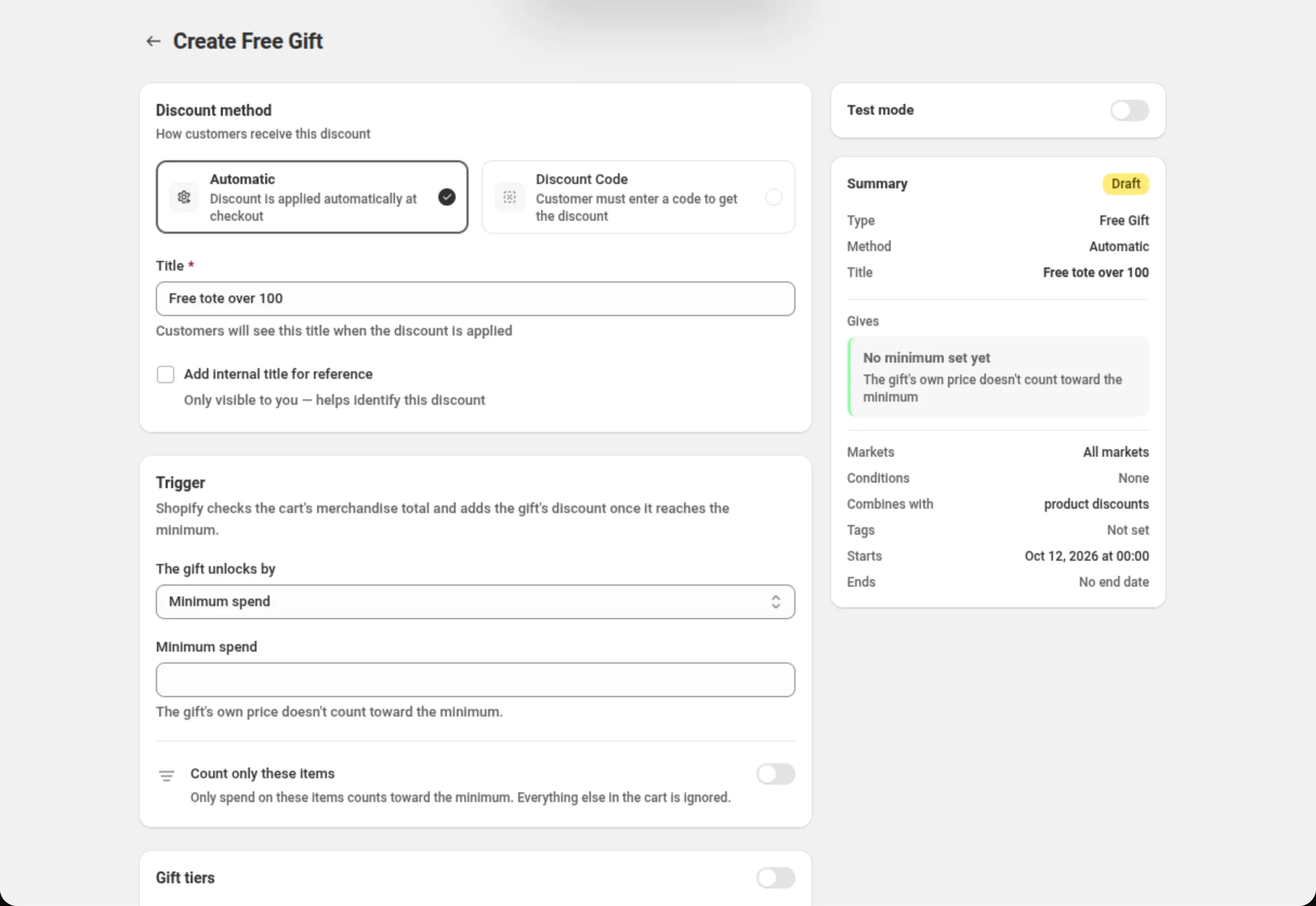
Name the discount.
Fill in Title — the name shoppers see when the discount is applied.
-
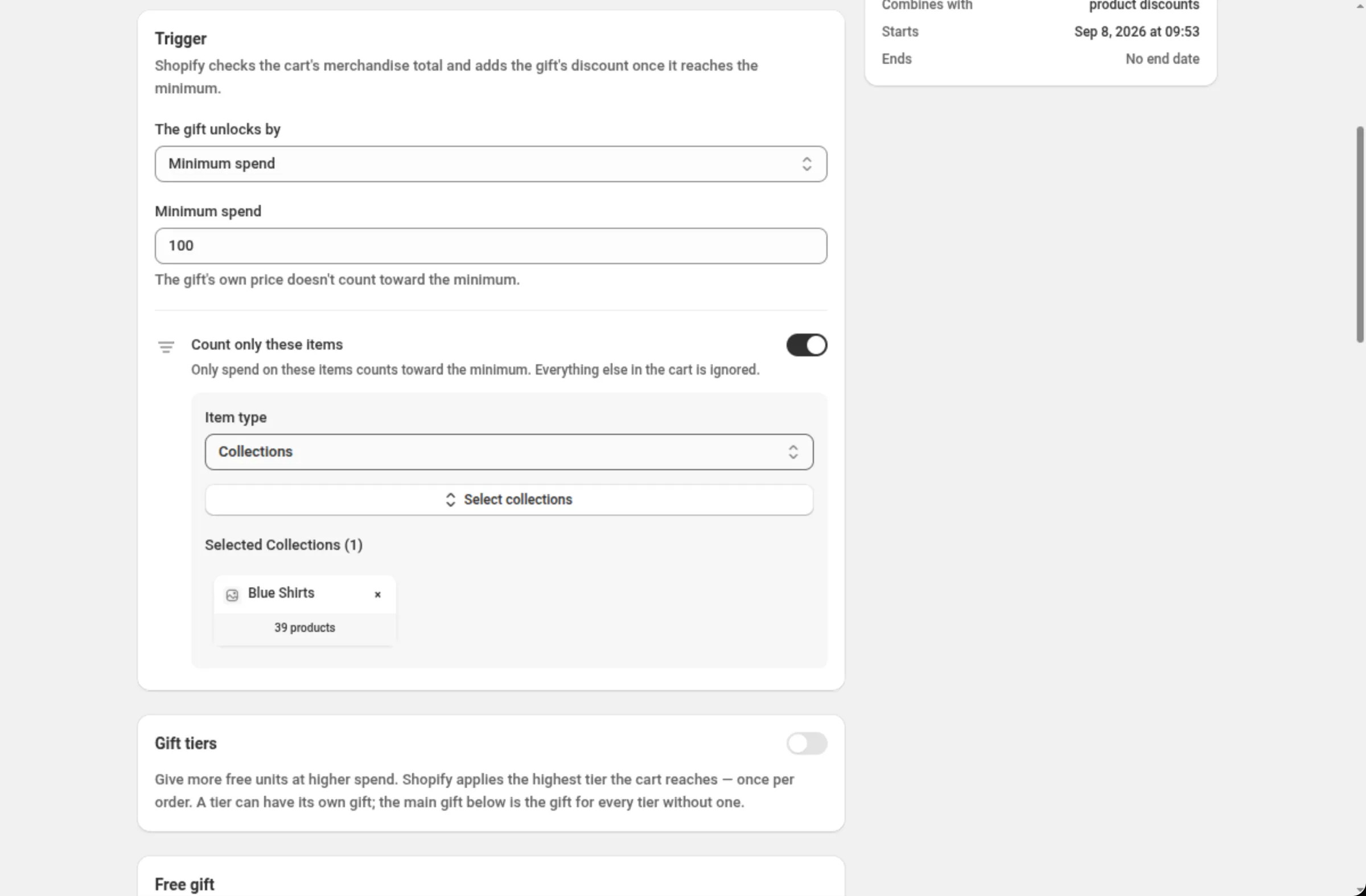
Choose what unlocks the gift and set the minimum.
The gift unlocks by offers Minimum spend or Minimum quantity. Fill in the Minimum spend or Minimum quantity field below it. Turn on Count only these items if just some products, product variants, collections or product tags should count towards the minimum.
-
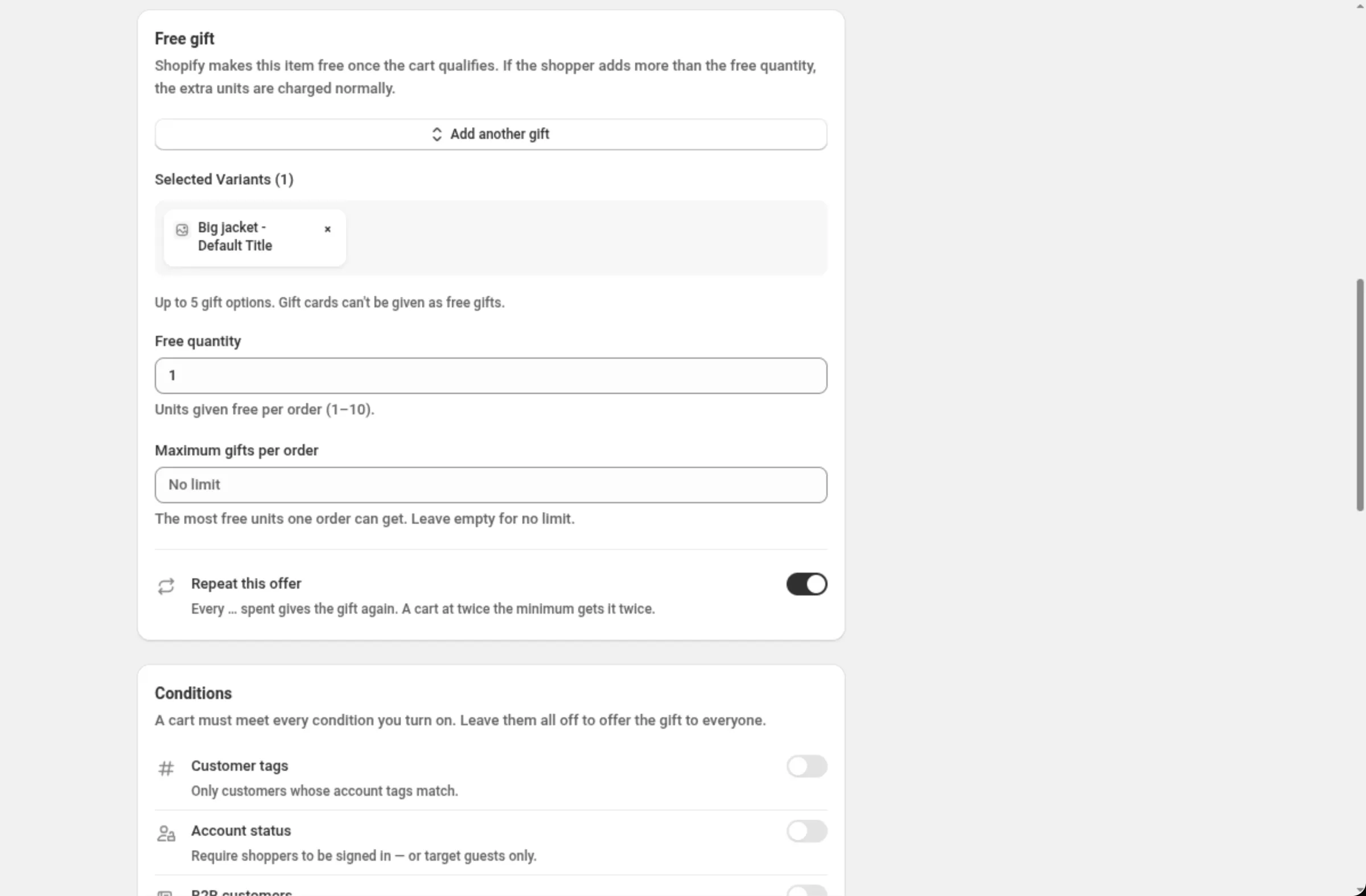
Pick the gift and how many units are free.
In Free gift, pick 1 to 5 product variants, then set Free quantity — the units given free per order — and, if you want a ceiling, Maximum gifts per order. Optionally turn on Gift tiers first to give more units at higher spend or quantity.
-
Turn on any conditions the cart must meet.
The Conditions card has five rows — Customer tags, Account status, B2B customers, Past orders and Cart attribute. Leave them all off to offer the gift to everyone. Every condition you turn on must pass.
-
Set the storefront behaviour, combinations, markets and dates, then save.
The Storefront card shows whether the app embed is on and holds Re-add removed gifts. Then check Discount can be combined with, Purchase type, Markets and Active Dates, and save from the bar at the top of the page.
Settings
Section titled “Settings”Discount method
Section titled “Discount method”Automatic applies the gift by itself once the cart qualifies. Discount Code asks the shopper to enter a code first; with a code the gift is not added to the cart automatically — the shopper adds the gift, enters the code, and Shopify makes it free. The page says so in a banner when you pick Discount Code.
The name shoppers see when the discount is applied.
Add internal title for reference
Section titled “Add internal title for reference”Adds a second name only you see, to tell similar discounts apart in your own list.
The gift unlocks by
Section titled “The gift unlocks by”Minimum spend measures the cart’s merchandise total; Minimum quantity counts the qualifying items. Switching between them clears any tier thresholds you had typed, because an amount ladder is not an items ladder.
Minimum spend / Minimum quantity
Section titled “Minimum spend / Minimum quantity”The threshold the cart must reach. A minimum spend must be 0.01 or more; a minimum quantity must be a whole number, 1 or more. The gift’s own price and units never count towards it. The field is hidden while Gift tiers is on — the ladder owns the thresholds then.
Count only these items
Section titled “Count only these items”Narrows what counts towards the minimum to the Products (up to 20), Product variants (up to 20), Collections (up to 10) or Product tags (up to 10) you pick. Everything else in the cart is ignored. Products counts whole products: if you tick only some variants inside a product, the whole product still counts. Pick Product variants when only certain variants should count, such as one size or one colour. The gift cannot also be a counted item — the cart could then never qualify, and the app says so on the field.
Gift tiers
Section titled “Gift tiers”Optional ladder: give more free units at higher spend or quantity, up to 5 tiers. Each tier has a Spend or Buy (quantity) threshold and a Get (units free) count, and can carry Different gift for this tier so shoppers who reach it get that gift instead of the main gift. Each order gets one tier’s worth of free units — tiers do not stack.
Free gift
Section titled “Free gift”The gift itself: 1 to 5 product variants. With more than one, the free quantity is shared across them rather than given per gift, and Shopify frees the qualifying units in the order you choose below. Gift cards cannot be given as free gifts. When every tier has its own gift, the main gift becomes optional.
Free quantity
Section titled “Free quantity”Units given free per order, from 1 to 10. With several gifts it is the total across all of them. Hidden while Gift tiers is on — each tier sets its own.
Maximum gifts per order
Section titled “Maximum gifts per order”The most free units one order can get, from 1 to 100. Leave it empty for no limit. It applies in every mode, including tiers.
Cheapest gift goes free first
Section titled “Cheapest gift goes free first”Shown once the offer holds more than one gift. Off, the priciest of the gifts in the cart is freed first and is the one the app adds automatically; on, the cheapest is.
Same item as the gift
Section titled “Same item as the gift”Shown for a minimum-quantity trigger without tiers. Turns the offer into “buy 2, get the 3rd free” on the same item: the gift is one of the qualifying items rather than a different product. While it is on, Count only these items is locked off — the gift pool is what counts — and the offer takes a single gift variant.
Repeat this offer
Section titled “Repeat this offer”On for a new gift, and shown when Gift tiers and Same item as the gift are both off. On, every further step past the minimum gives the gift again — a cart at twice the minimum gets it twice. Off, the gift is given once per order however much the shopper buys.
Conditions
Section titled “Conditions”Five switch rows; a cart must meet every one you turn on.
- Customer tags — customers who have any of the tags you list, or none of them. Up to 20 tags.
- Account status — only signed-in customers, or only guests.
- B2B customers — only B2B customers, or exclude them.
- Past orders — a minimum, a maximum, or both, on how many orders the customer has placed before. Use 0 as the minimum to include first-time customers.
- Cart attribute — matches an attribute set by your theme or another app, like
gift_wrap: yes. Up to 2 attributes; the cart qualifies when it carries any one of them.
Storefront
Section titled “Storefront”Shows whether the Promotions app embed is on. With the embed on, the app adds the gift to the cart automatically once the cart qualifies and removes it when it stops qualifying. Without it, shoppers add the gift themselves and it still becomes free. With more than one gift, the app adds one of them — the cheapest or priciest, per the setting above — and a shopper who wants a different one removes it and adds their own. Gifts must be published to your Online Store to be added.
Re-add removed gifts
Section titled “Re-add removed gifts”On for a new gift. On, a gift the shopper removes comes back while the cart still qualifies. Off, a removed gift stays removed for their visit.
Discount can be combined with:
Section titled “Discount can be combined with:”Product discounts is ticked for a new gift on purpose: if the gift cannot combine with product discounts, it disappears whenever a bigger product discount applies to the cart. Order discounts and Shipping discounts are off by default.
Tags, in the same card, label the discount — up to 20. They are saved on the discount in Shopify. On Shopify Plus, ticking Product discounts also shows Stack with product discounts tagged. See Combinations.
Purchase type
Section titled “Purchase type”One-time purchases, Subscription products, or both — at least one is required. Ticking subscriptions adds a choice of First payment only, Limited number of payments (up to 100) or All recurring payments.
Markets
Section titled “Markets”Apply to all markets covers every current and future market. Apply to specific markets lets you pick up to 20; at least one is required once you switch to it.
Active Dates
Section titled “Active Dates”Start Date and Start Time say when the offer begins, and Set End Date adds an end. All times are in your store’s timezone, which the card names on screen.
Test mode
Section titled “Test mode”A switch on its own card above the Summary. On, the discount applies only to a signed-in
customer whose account has the tag dos-test; everyone else shops as if it did not exist. On a new
discount the switch is saved with the discount. On a saved discount it takes effect at once, without
Save. See Test mode.
Examples
Section titled “Examples”Free tote on orders over 100
Title: Free tote over 100The gift unlocks by: Minimum spendMinimum spend: 100Free gift: Canvas tote — NaturalFree quantity: 1Repeat this offer: offFree sample once three items are in the cart, counted on one collection
Title: Free sample with 3 itemsThe gift unlocks by: Minimum quantityMinimum quantity: 3Count only these items: onItem type: CollectionsSelect collections: SkincareFree gift: Travel serum 10mlFree quantity: 1Free gift when one particular variant is bought
Title: Free wax with the Powder boardThe gift unlocks by: Minimum spendMinimum spend: 50Count only these items: onItem type: Product variantsSelect variants: Snowboard — PowderFree gift: Board waxFree quantity: 1Buy 2, get the 3rd free on the same item
Title: Buy 2 get 1 freeThe gift unlocks by: Minimum quantityMinimum quantity: 2Free gift: Cotton socks — BlackFree quantity: 1Same item as the gift: onA gift ladder that gets better as they spend
Title: Spend and get moreThe gift unlocks by: Minimum spendGift tiers: onTier 1 → Spend: 75 · Get (units free): 1Tier 2 → Spend: 150 · Get (units free): 2Free gift: Mini candleMaximum gifts per order: 2How it shows to the shopper
Section titled “How it shows to the shopper”Shopify checks the cart, and once it reaches the minimum the gift is free. With the Promotions app embed on, the app also puts the gift in the cart for the shopper, so they see the free line without doing anything — and it is removed again if the cart drops below the minimum. Without the embed, or on Shopify POS, the gift is not added automatically: the shopper (or your POS staff) adds it and it is discounted as usual.
When the offer holds several gifts, the app adds one of them and the shopper can swap it for another gift from the same offer; it still becomes free.
Limits and notes
Section titled “Limits and notes”- Gifts: 1 to 5 product variants. Across the main gift and every tier’s own gift: up to 10 variants from up to 5 products.
- Free quantity: 1 to 10 units per order.
- Maximum gifts per order: 1 to 100, or empty for no limit.
- Gift tiers: up to 5, each giving 1 to 10 free units, with rising thresholds.
- Count only these items: up to 20 products, 20 product variants, 10 collections, or 10 product tags.
- Discount codes do not auto-add. With Discount Code the shopper adds the gift and enters the code; Shopify then makes it free.
- Customer tags: up to 20. Cart attributes: up to 2.
- Markets: up to 20 when you pick specific markets.
- Subscriptions: up to 100 recurring payments when you choose a limited number.
- Gift cards can never be free gifts. The app checks every pick against Shopify and refuses them.
- The gift never counts towards its own trigger — not its price, not its units.
- The gift cannot also be a counted item. If it is, the cart can never qualify; use Same item as the gift or pick a different gift.
- Tiers do not stack. Each order gets one tier’s worth of free units.
- Auto-adding needs the app embed. With it off, the discount still works — only the automatic cart line is missing. On Shopify POS the gift is never added automatically.
- Combinations are Shopify’s call. Ticking a box tells Shopify this discount may run alongside that kind; Shopify decides what actually applies.
Does the shopper have to add the gift themselves? Not when the Promotions app embed is on — the app adds the gift as soon as the cart qualifies and removes it when it stops qualifying. Without the embed the shopper adds it themselves and it still becomes free.
Can I give a gift card as the gift? No. The app checks every pick against Shopify and refuses gift-card products.
Does the gift’s own price count towards the minimum? No. The gift is left out of both the total and the count, so adding it can never push a cart over the line on its own.
What happens on Shopify POS? The gift is not added to the cart automatically — POS has no theme and no app embed. Staff ring the gift up and it is discounted as usual.
Why does the free gift disappear when another discount applies? Because the gift is not set to combine with product discounts. Tick Product discounts in Discount can be combined with — it is on by default for a new gift.
Related
Section titled “Related”- Buy X Get Y — free or discounted items driven by what is bought, with full buy and get rules.
- Order discount — money off the order once it reaches a minimum.
- Where discounts show — how automatic discounts reach the shopper in the cart.