
Set up the price metafield
Dieser Inhalt ist noch nicht in deiner Sprache verfügbar.
A metafield is a box Shopify gives you to store your own information on a product, a variant or a customer. Custom Discount can read a price out of one, so the discount works from your data instead of from a number you type into the discount.
This page sets that up from nothing.
First: do you even need one?
Section titled “First: do you even need one?”Most discounts do not.
| What you want | Metafield needed? |
|---|---|
| 20% off a collection | No |
| £5 off each item | No |
| Everything at a fixed £9.99 | Not with Custom Discount. Use a Product discount with Specific price. |
| Buy 6, pay £8.50 each; buy 12, pay £7.50 each — the same for every product | No, and not with Custom Discount either. Use a Price list discount with Fixed price per item. |
| Every product has its own contract price, and those prices already live in your ERP or a spreadsheet | Yes |
| A few hundred products, each with its own price breaks | Yes |
The rule of thumb: if you would have to build one discount per product, a metafield turns it into one discount for all of them.
If you do not need one, stop here and go back to Custom Discount. Leave Read prices from a variant metafield switched off.
Step 1 — Create the definition in Shopify
Section titled “Step 1 — Create the definition in Shopify”A definition tells Shopify the field exists and what shape it has. You do this once, not per product.
-
In Shopify admin, open Settings → Metafields and metaobjects.
-
Click Variants.
Not Products. The discount reads the variant metafield, and these are two separate lists on the same screen.
-
Click Add definition, top right.
-
Type a Name.
Volume pricing, or whatever you want to see on the product page.As you type, Shopify writes the field’s real address in small grey text underneath — here
custom.volume_pricing. You do not type that yourself. Read it and remember it, because you will need both halves of it in step 3. -
Set Type to JSON.
Click Select type, type
JSONin the search box, and pick it. JSON is not in the recommended shortlist, so you have to search for it.Ignore the blue note about developer support. It is about showing the value in your theme, not about the discount.
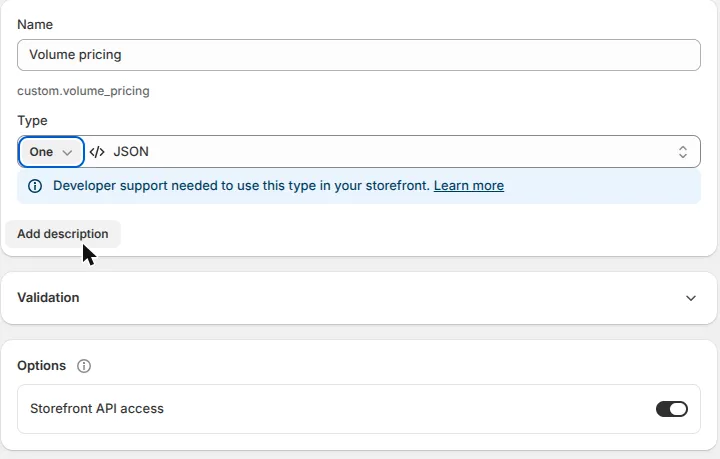
-
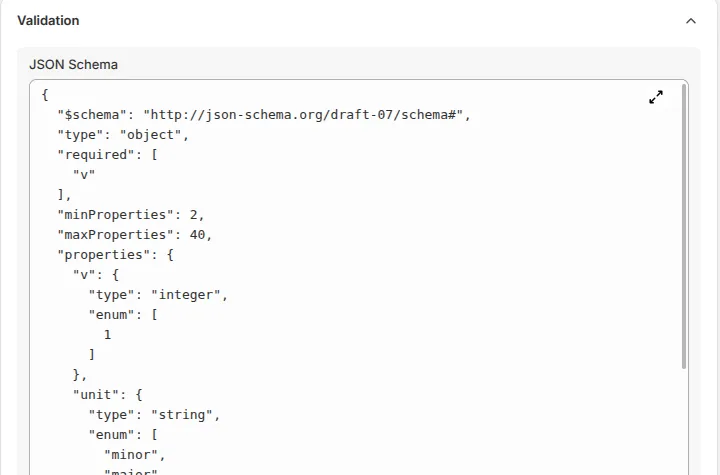
Open Validation and paste a schema.
Optional, and strongly worth doing. With it, Shopify refuses a broken value the moment anyone saves it, in the admin, in the bulk editor and through your ERP. Without it, a typo sits there silently and the discount just does not apply.
The schema is yours and you can change it whenever you like. The discount never reads it — it reads the value. The schema is only Shopify’s spell-check at save time. Values already saved are left alone if you tighten it later; the new rules apply the next time someone edits that variant. Skip it entirely and everything still works, you just lose the safety net.
{"$schema": "http://json-schema.org/draft-07/schema#","type": "object","required": ["v"],"minProperties": 2,"maxProperties": 40,"properties": {"v": { "type": "integer", "enum": [1] },"unit": { "type": "string", "enum": ["minor", "major"] },"label": { "type": "string", "maxLength": 40 }},"patternProperties": {"^(qty|price|wholesale|floor|cap|min|max)[0-9]*$": {"type": "number", "minimum": 0, "maximum": 100000000}},"additionalProperties": { "type": ["number", "string", "boolean"] }}Paste it into the JSON Schema box and click Format JSON underneath. If it reformats neatly, the schema is valid.
-
Save.
Step 2 — Put a value on a variant
Section titled “Step 2 — Put a value on a variant”Open any product. Scroll to the bottom. You will see two cards that look almost identical: Product metafields and Variant metafields.
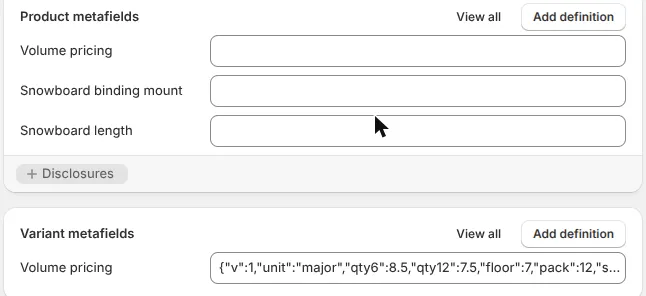
A value looks like this:
{ "v": 1, "qty6": 850, "qty12": 750 }That reads: this variant costs 8.50 each when six are bought, and 7.50 each when twelve are. See what you may put in it below for every rule.
Step 3 — Point the discount at it
Section titled “Step 3 — Point the discount at it”On the Custom Discount page, turn on Read prices from a variant metafield. Two boxes appear.
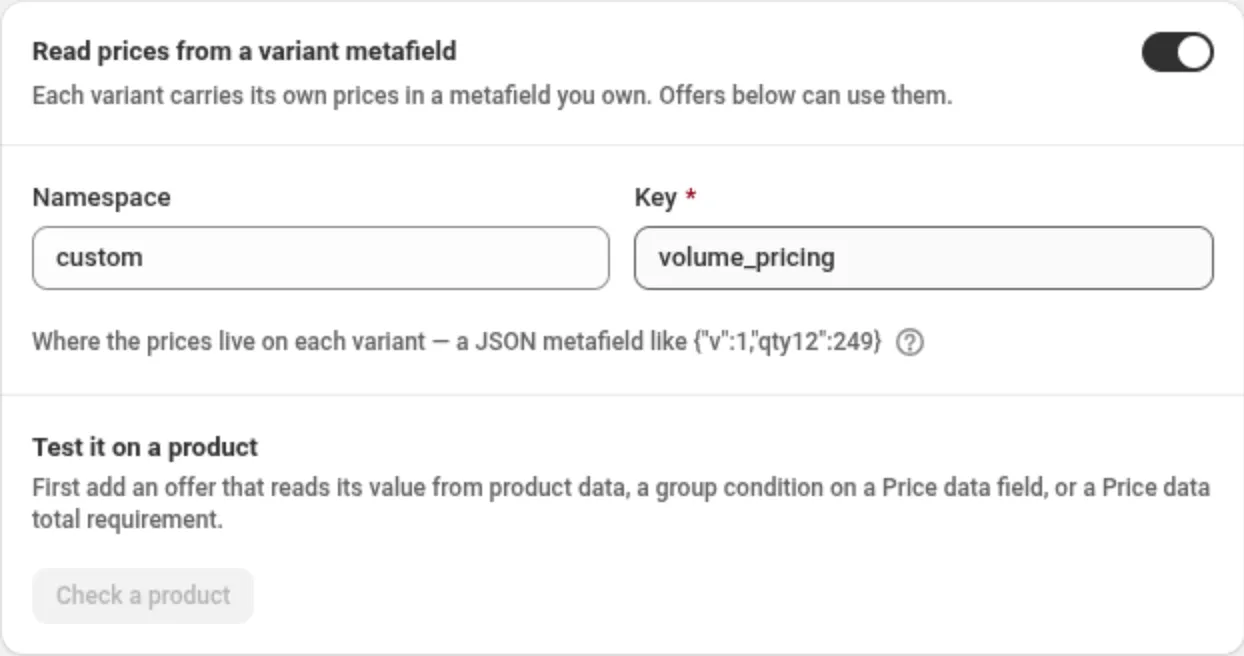
Here is the part that catches people out. Shopify showed you one address with a dot in it. The discount asks for it as two boxes, without the dot.
| Where | What you see or type |
|---|---|
| Shopify, under the definition Name | custom.volume_pricing — one line, with a dot, written for you |
| The discount, Namespace box | custom |
| The discount, Key box | volume_pricing |
Never type the dot on the discount page, and never put the whole custom.volume_pricing into the
Namespace box. Both boxes must match the definition exactly or no variant is found.
This address applies to the whole discount. One metafield per discount, read from every variant in the cart.
Then set a product offer’s Discount value to Price from product data and type the field
name — qty in the example above, with Tiered by line quantity switched on.
Use Check a product on the same card to confirm it before you save. It reads a real variant and shows the price at each quantity, or the reason there is none.
One metafield, three jobs
Section titled “One metafield, three jobs”This is the part that confuses people, so it is worth thirty seconds.
Think of a variant’s metafield as one row in your spreadsheet.
{ "v": 1, "qty6": 850, "floor": 700, "pack": 12, "season": "ss26" }The discount has three slots, and you write a field name into each one. The metafield does not know or care which slot its names end up in.
| Slot | Question it answers | Where you set it | Example |
|---|---|---|---|
| 1 | Which items are in this deal? | A condition in a cart group | pack, season |
| 2 | What is the price? | The offer’s Field box | qty |
| 3 | What is the limit? | The offer’s Floor field or Cap field | floor |
Slot 1 is a gate, not a price
Section titled “Slot 1 is a gate, not a price”It runs first and answers one question: is this item even in the deal? Nothing is discounted by this number, it only selects.
Cart: Mug A (has "pack": 12)   Bowl B (has no "pack")
Cart group "Case packs" = Price data number, pack is greater than or equal to 6    Mug A   passes  → the offer applies to it    Bowl B  fails   → untouched, full price
It works like a collection, except you never maintain a list. Put "pack": 12 on a new SKU and it
joins the deal by itself.
Use Price data number for a number and Price data field for text.
Slot 2 is the price itself
Section titled “Slot 2 is the price itself”The only slot that produces money. It reads one number and turns it into a fixed price, an amount off, or a percentage, depending on What the number means on the offer. With Tiered by line quantity on it reads a family of names instead of one — see below.
Slot 3 is a limit, not a price
Section titled “Slot 3 is a limit, not a price”There are two of them and they push in opposite directions.
| Setting | What it limits | Plain words |
|---|---|---|
| Floor field | The price, from below | Never sell below this |
| Cap field | The discount, from above | Never take more than this off one unit |
Floor, with "qty12": 600, "floor": 700:
the offer wants to charge 6.00the floor says 7.00 ────sells at 7.00 the price hit the wallCap, with "off": 500, "cap": 200:
the offer wants to take off 5.00the cap says at most 2.00 ────takes off 2.00 the discount hit the ceilingBoth are money and both follow the unit setting, the same as any other amount.
What you may put in the metafield
Section titled “What you may put in the metafield”The value is a flat JSON object. Names on the left, values on the right, nothing nested.
{ "v": 1, "unit": "major", "qty6": 8.50, "qty12": 7.50, "floor": 7, "pack": 12, "season": "ss26" }The two reserved names
Section titled “The two reserved names”| Name | Required | What it does |
|---|---|---|
v | Yes | The format version. Must be 1. If it is missing or anything else, the whole metafield is ignored for that variant. |
unit | No | Either minor or major. Says how to read the numbers. Anything else and the whole metafield is ignored. |
Every other name is yours. There is no fixed list, and qty6 is a convention in these examples,
not a requirement. wholesale, trade_price, band_a all work.
Your own names
Section titled “Your own names”| What you write | How it is read | Used for |
|---|---|---|
A number, e.g. "qty6": 850 | An amount, or a value to compare | Prices, amounts off, percentages, floors, caps, and Price data number conditions |
Text, e.g. "season": "ss26" | Text, never money | Price data field conditions, to select items |
true, false, a list, a nested object | Skipped | Nothing. The rest of the metafield still works. |
Rules for the names themselves:
- Start with a letter or
_, then letters, digits,_or-. Up to 64 characters. - Names are case-sensitive.
Qty6andqty6are different fields.
Numbers: whole minor units, or plain prices
Section titled “Numbers: whole minor units, or plain prices”By default a number is a whole minor unit of your store currency. 850 means 8.50, 249 means
2.49. This is what most ERP exports already produce.
Add "unit": "major" and the same numbers are read as prices you would say out loud:
{ "v": 1, "unit": "major", "qty6": 8.50, "qty12": 7.50 }- The setting applies to the whole metafield, not one field. Pick one style per variant.
- Under
major, an amount with more decimals than your currency allows is ignored.1.999in a two-decimal currency,15.5in yen. It is never rounded into money. - A percentage ignores this setting entirely.
10is 10% either way, and12.5is 12.5%.
How quantity tiers work
Section titled “How quantity tiers work”Turn on Tiered by line quantity and give the offer a base name, say qty. The app then looks
for that name with a number stuck on the end.
{ "v": 1, "qty1": 1000, "qty6": 850, "qty12": 750 }| Quantity in the line | Tier used | Each item costs |
|---|---|---|
| 1 to 5 | qty1 | 10.00 |
| 6 to 11 | qty6 | 8.50 |
| 12 or more | qty12 | 7.50 |
Three things worth knowing:
- Tiers are per line. Six of a variant in one cart line reaches tier 6. Three plus three in two separate lines does not.
- With tiers on, the bare name is not read. With Tiered by line quantity on and the field
set to
qty, a plain"qty": 800is ignored. Add"qty1": 800if you want a price below the first tier. - A base name must not end in a digit.
price_1with tiers on would readprice_12as tier 2. The app refuses that combination when you save.
Editing many variants at once
Section titled “Editing many variants at once”Shopify’s bulk editor shows metafields as columns, so you can paste a value down a whole list.
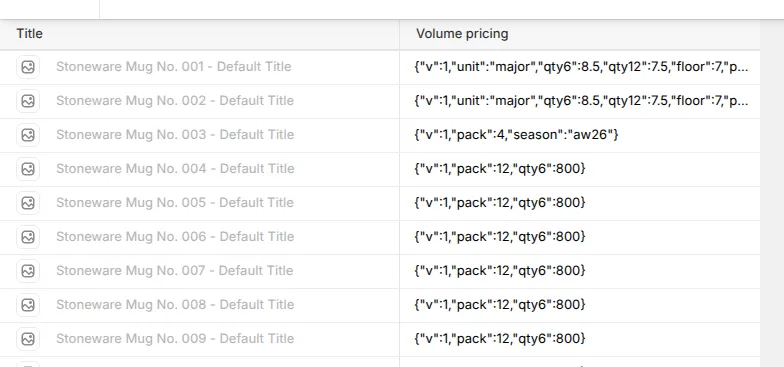
Open a product list, tick the variants, and click Bulk edit. Add the metafield as a column. For thousands of variants, write the same JSON through the Shopify API or your ERP integration. The value is just text, so anything that can set a metafield can set this.
When nothing applies, check these five
Section titled “When nothing applies, check these five”- Is the value under Variant metafields? Product metafields are never read.
- Is
"v": 1there? Without it the whole metafield is skipped. - Do the Namespace and Key boxes match the definition exactly? No dot, no typo, right case.
- Are the units right?
8.5without"unit": "major"means eight and a half minor units, not 8.50, and is refused because it is not a whole number. - Does the field name in the offer exist on that variant? Use Check a product. It names the reason.
A missing, zero, negative or unreadable number always means no discount on that item, never a guessed one. A discount that cannot be worked out exactly does not run.
- Custom Discount — the full reference for the discount itself.
- Custom Discount examples — complete setups you can copy.