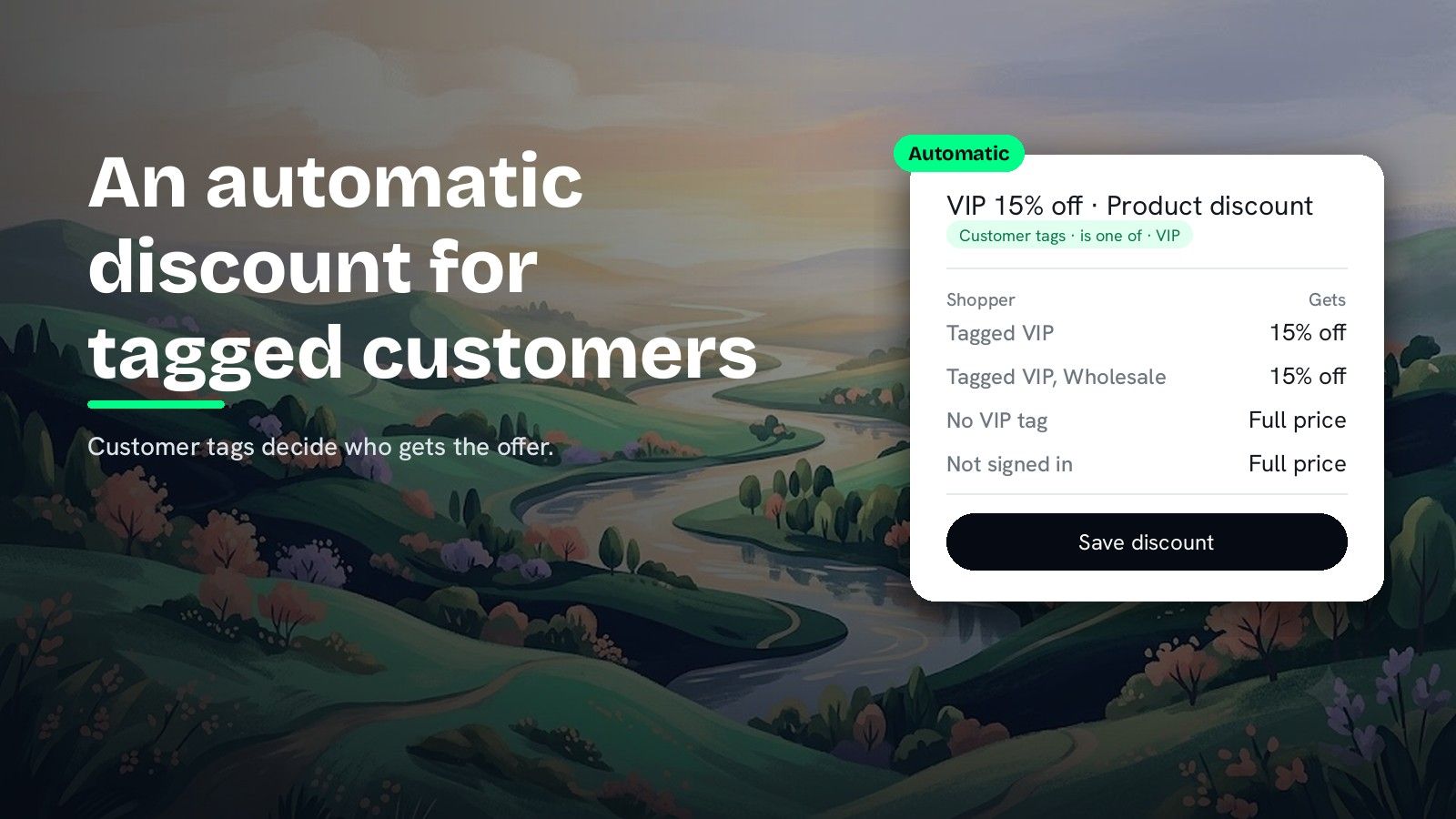
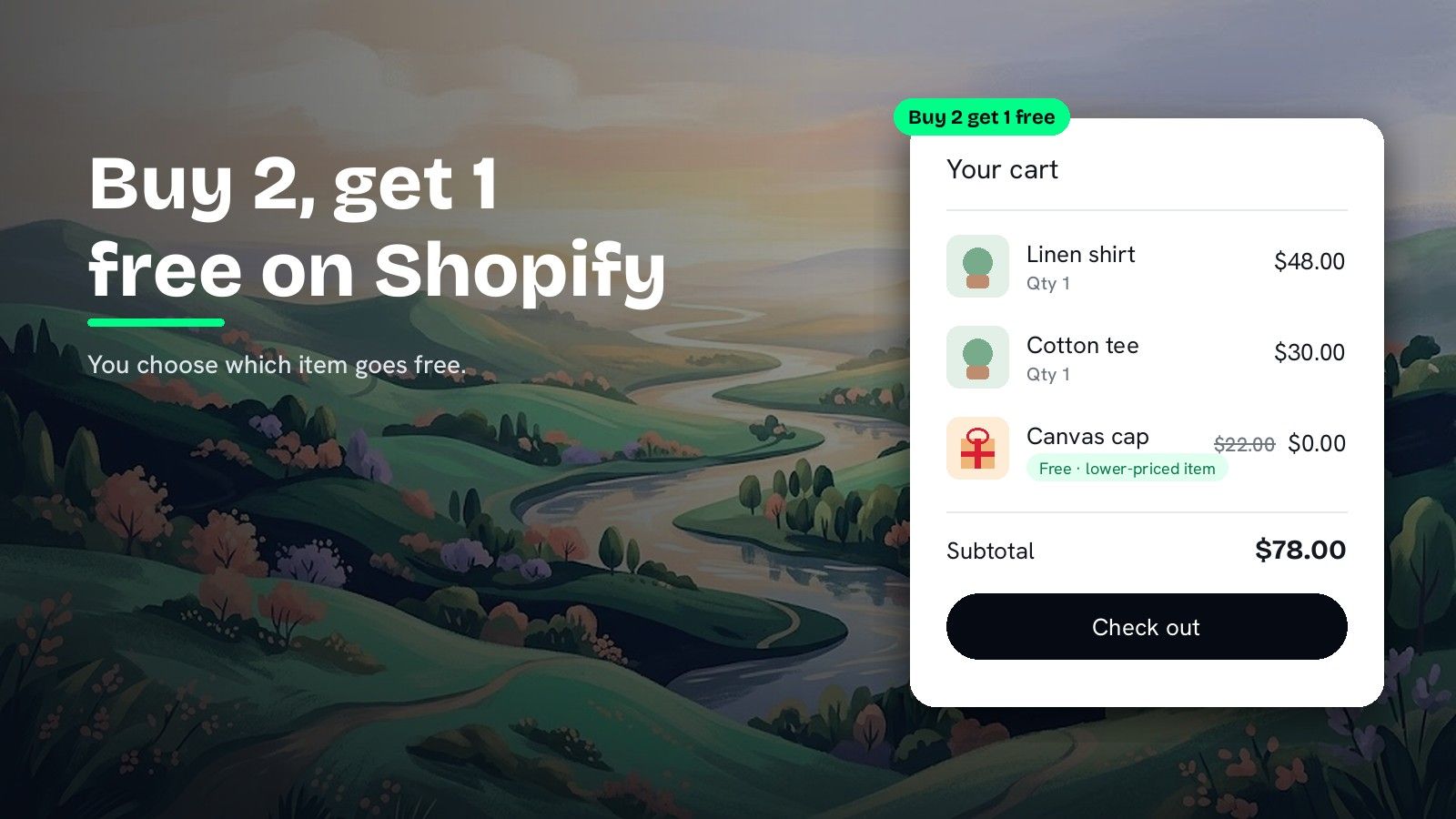
How to show the discount price on a Shopify product page
Shopify applies automatic discounts in the cart. How to show the discount price, old price struck through, on product pages and collection cards.
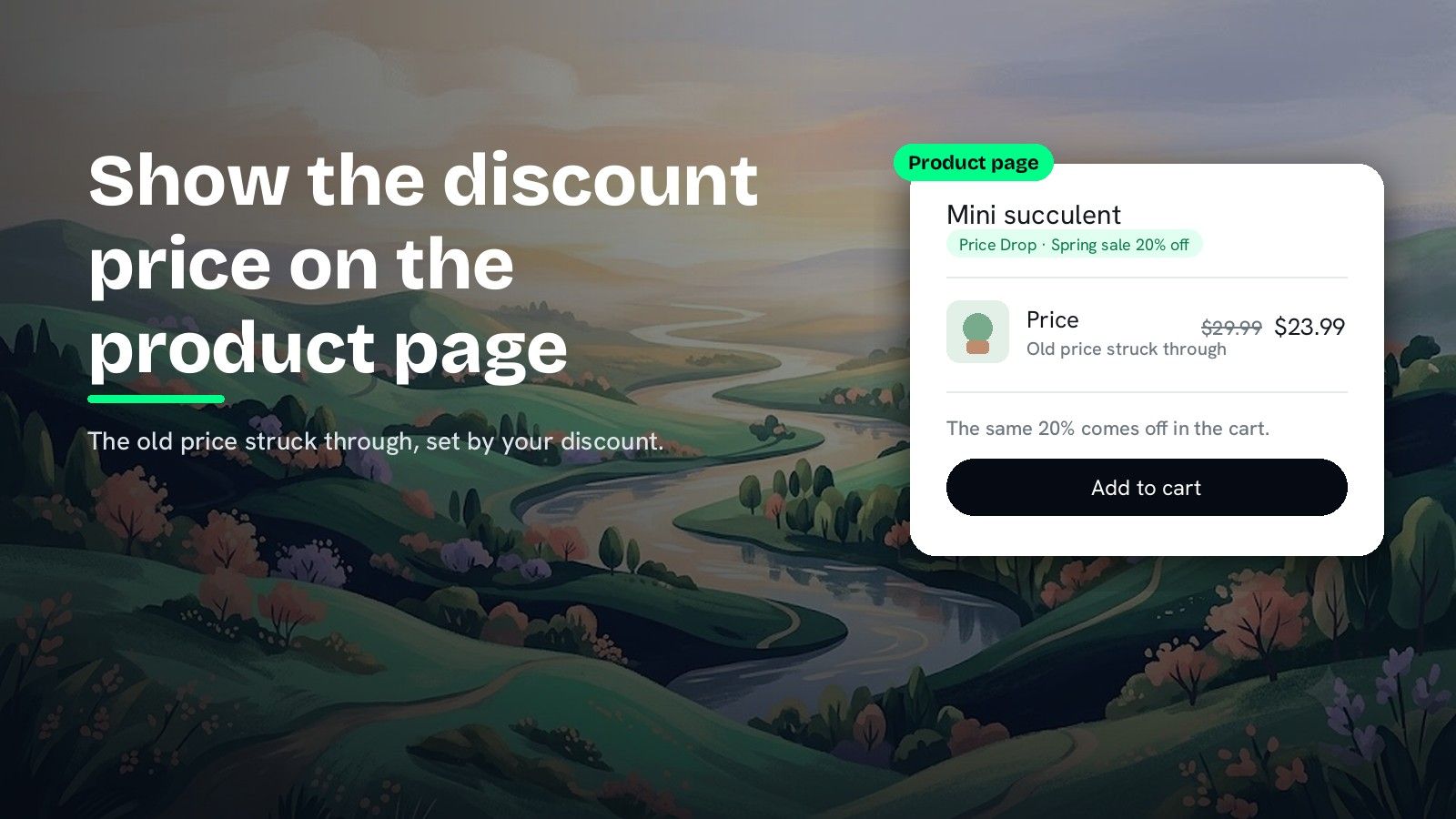
DiscountOS is a Built for Shopify discount app that runs multiple offers inside a single automatic discount, including market-specific and tiered discounts.
Does Shopify show automatic discounts on the product page?
No. The Shopify Help Center page on automatic discounts says they are “automatically applied in the cart and at checkout when eligibility conditions are met,” and it describes no display on the product page. The saving shows up once the item is in the cart. The native way to show a sale price before the cart is a compare-at price. The Help Center page on sale pricing says the compare-at price and the price “can be displayed on product pages and collection pages, but only the sale price is displayed at checkout.” That route means entering the sale price in the product’s Price field, so the product price itself changes. DiscountOS leaves the product price alone and displays the discount instead: it takes the percentage from one of your discounts, crosses out the regular price and prints the discounted price beside it, on product pages and product cards. Shopify still applies the discount in the cart, and pausing the discount removes the struck-through price.
What are the ways to display a discount price in Shopify?
| Way | Where shoppers see it | What you change |
|---|---|---|
| Native automatic discount | In the cart and at checkout | Nothing shows on the product page |
| Compare-at price | Product pages and collection pages; checkout shows only the sale price | The product’s Price |
| DiscountOS Price Drop | Product pages, product cards on collection pages and in search results, home page cards when the discount targets collections or specific products | Nothing; the display follows your discount |
| DiscountOS Sale Badge | The page types you tick: home, collection, search, product and cart pages | Nothing; a label such as “20% off” |
The first two rows come from the Shopify Help Center pages on automatic discounts and sale pricing. A Price Drop and a Sale Badge are display only: the money is always taken off by Shopify when it checks the cart.
What a Price Drop shows, in numbers
| Product price | Discount behind the Price Drop | Shown on the product page |
|---|---|---|
| $29.99 | 20% off | |
| $29.00 | 15% off | |
| $80.00 | 10% off |
DiscountOS works the price out the same way the discount engine does, so the shown price is the price the discount produces. Change the percentage and the shown price changes with it.
How do you show a sale price on the product page without changing the price?
In DiscountOS the struck-through price is called a Price Drop. Here is how to set one up:
- Create the discount first. Pick a percentage discount to drive the Price Drop, for example a DiscountOS Product discount with one percentage that every shopper gets.
- Turn on the app embed. In the Shopify admin sidebar under Apps, open DiscountOS Promotions and click Enable in theme editor. In the theme editor’s App embeds panel, switch Promotions on and click Save. Do this in your published theme.
- Create the Price Drop. On the Promotions page, click Create promotion (or Create a Price Drop on an empty Price Drops tab) and pick Price Drop.
- Name it and choose the discount. Name is only for you. Discount lists the discounts a Price Drop can use, and the form confirms what shoppers will see.
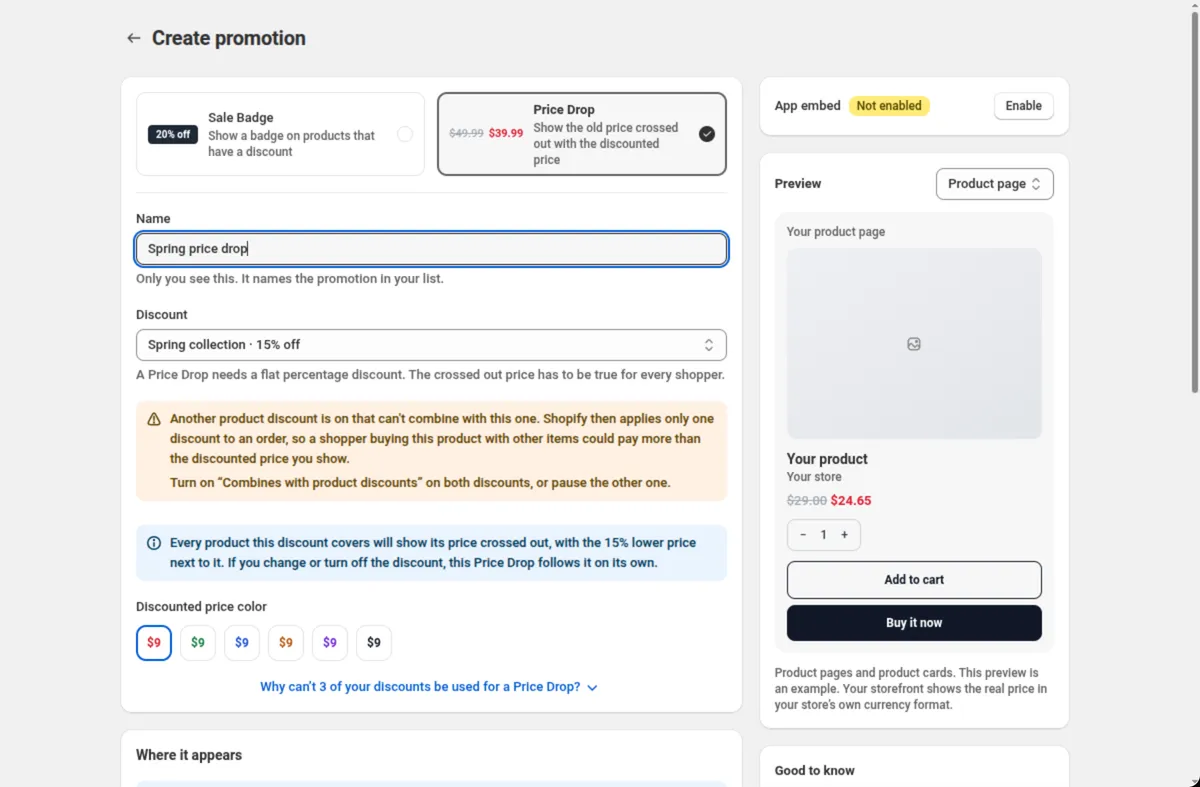
- Pick the discounted price color. Discounted price color offers six presets. The first is the default.
- Keep some items at their plain price. In Where it appears, turn on Exclude specific items and pick the products and collections that should keep their regular price.
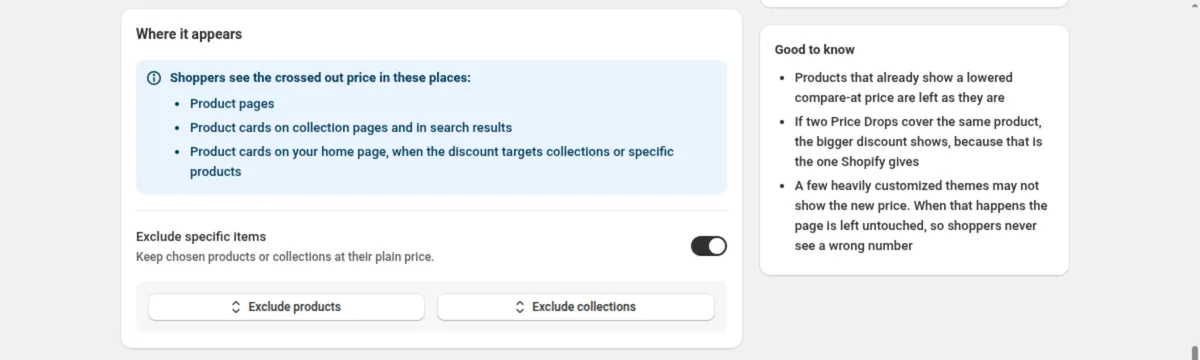
- Set markets and dates, then save. Markets appears when your store has more than one market; tick none to show the Price Drop in every market. Active dates uses your store’s timezone. Save from the bar at the top.
Every setting is explained in the Price Drop docs, and the switch it depends on in App embed.
Why is the discount not showing on the product page?
Work down this list:
- It is a native automatic discount. The Shopify Help Center page on automatic discounts places it in the cart and at checkout.
- The app embed is off. With the DiscountOS embed off, Price Drops and Sale Badges show nothing. Your discounts still apply, so shoppers still get the money.
- The embed is on in a draft theme. An app embed turned on only in an unpublished theme does not reach shoppers.
- The discount you want is missing from the list. The Discount list shows the discounts a Price Drop can use, and a disclosure under the field names any other discount and what to change so it can be picked.
- The product already shows a lowered compare-at price. DiscountOS leaves those products as they are.
- Your theme keeps its price in its own element. Theme selectors on the Promotions page points DiscountOS at your theme’s Price element on the product page and Price element in product cards.
- The discount is paused or deleted. The Price Drop follows its discount and stops with it.
How do you show tiered or member-only offers on the product page?
A struck-through price is the same for every shopper, so it suits one flat percentage. For a buy-more ladder, a spend ladder or an offer for some customers, DiscountOS has three other displays:
- A Sale Badge in your own words. Leave Fill from a discount off, type Badge text such as “Buy 2 get 1 free”, and choose where it shows with Apply to. See Sale badge.
- Tier tables on the product page. The Quantity Break Table, Quantity Break Picker and Spend More Save More blocks draw a tier ladder. See Storefront widgets, and the guides on quantity breaks and spend more, save more tiers.
- A cart goal bar. It shows how much more to spend for the next tier. See Cart goal bar.
Showing the discount price: settings at a glance
| Setting | What you get |
|---|---|
| Discount behind it | One of your percentage discounts, for example a Product discount with one percentage |
| Where it shows | Product pages, product cards on collection pages and in search results, and home page cards when the discount targets collections or specific products |
| Items left at their regular price | The products and collections you pick in Exclude specific items |
| Markets and dates | The markets you tick, and start and end dates in your store’s timezone |
| Discounted price color | Six presets |
| Two discounts on one product | One price is shown, and Shopify decides which discount applies in the cart |
Running many discounts at once? How to have more than 25 automatic discounts on Shopify covers the slot limit. Before picking a percentage to show on every product page, the break-even guide shows what it does to margin.
Questions merchants ask
Does Shopify show automatic discounts on the product page? The Shopify Help Center page on automatic discounts says they are “automatically applied in the cart and at checkout when eligibility conditions are met.” The page describes no display on the product page, so the saving shows up once the item is in the cart.
Why is my discount not showing on the product page? A native automatic discount applies in the cart and at checkout, according to the Shopify Help Center page on automatic discounts. With a DiscountOS Price Drop, check three things: the Promotions app embed is on in your published theme, the Price Drop is linked to a percentage discount that is running, and the product does not already show a lowered compare-at price.
Can I show a sale price without changing the product price? Yes. A DiscountOS Price Drop displays the old price struck through with the discounted price beside it, worked out from the percentage of one of your discounts. The product price stays as it is, and Shopify applies the discount in the cart.
Which discounts can drive a Price Drop? A percentage discount that gives every shopper the same saving, for example a DiscountOS Product discount with one percentage. The Discount list on the Price Drop form shows the discounts you can pick. For tiered offers, the DiscountOS tier table blocks and Sale Badges show the offer on the product page.
Does the Price Drop show on collection pages too? Yes. DiscountOS shows the struck-through price on product pages, on product cards on collection pages and in search results, and on product cards on your home page when the discount targets collections or specific products.
Sources
- Shopify Help Center, Automatic discounts: “Automatic discounts are discounts that are automatically applied in the cart and at checkout when eligibility conditions are met.” Read on 26 September 2026.
- Shopify Help Center, Setting sale prices for products: “Both these amounts can be displayed on product pages and collection pages, but only the sale price is displayed at checkout.” Read on 26 September 2026.
- Shopify Help Center, Discount combinations: “You can have a maximum of 25 active automatic discounts. This total includes app-based discounts.” Read on 26 September 2026.
- DiscountOS on the Shopify App Store, listed as DiscountOS ‑ Market Discount, read on 26 September 2026: Built for Shopify, free.
- DiscountOS documentation: Price drop, Sale badge, App embed, Storefront widgets.