How to set up tiered discounts on Shopify: spend more, save more
A native Shopify discount takes one minimum requirement. How to run a whole ladder of spend tiers in one automatic discount, with a cart goal bar.
DiscountOS is a Built for Shopify discount app that runs multiple offers inside a single automatic discount, including market-specific and tiered discounts.
Can Shopify do tiered discounts natively?
Not inside one discount. The Shopify Help Center page on amount off discounts gives each discount one minimum requirement: you select Minimum purchase amount or Minimum quantity of items, and the page describes no tiers. A spend ladder built natively is therefore one discount per tier, for example 10% off orders over $50 as one discount and 15% off orders over $100 as another. When discounts that cannot combine all match a cart, the Help Center page on discount combinations says “the best discount or combination of discounts automatically applies to the customer’s cart.” Every automatic discount in that ladder counts toward Shopify’s limit, which the Help Center states as “a maximum of 25 active automatic discounts,” app discounts included. DiscountOS turns that ladder into a single automatic discount that uses one slot: each spend tier carries its own percentage off the order, and a cart goal bar tells shoppers how much more to spend for the next tier.
How many discounts each setup needs
The same four tiers, set up two ways:
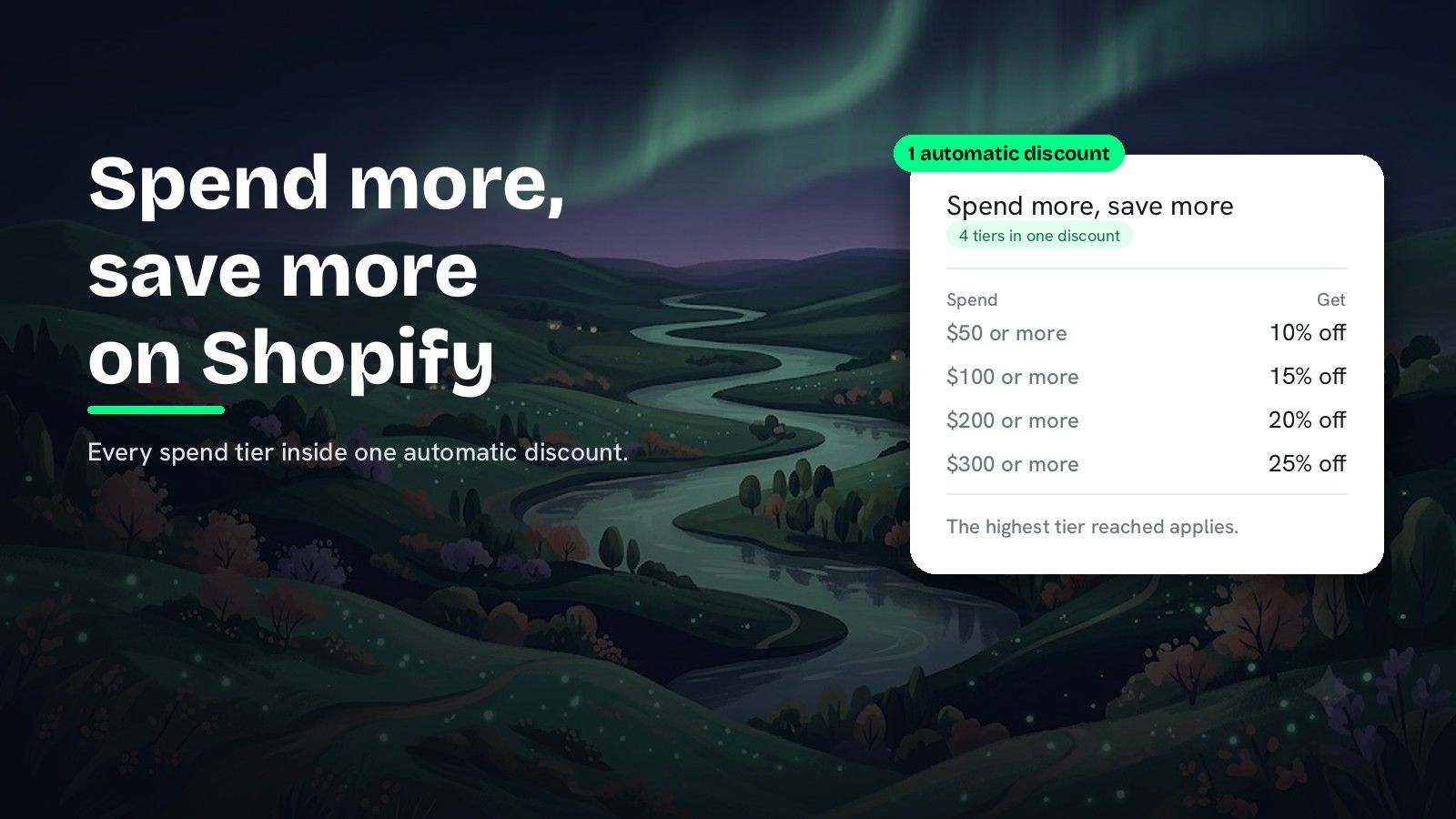
| Spend tier | Native Shopify discounts | DiscountOS Spend More Save More |
|---|---|---|
| Spend $50, get 10% off the order | Discount 1 | Tier 1 |
| Spend $100, get 15% off the order | Discount 2 | Tier 2 |
| Spend $200, get 20% off the order | Discount 3 | Tier 3 |
| Spend $300, get 25% off the order | Discount 4 | Tier 4 |
| Automatic slots used | 4 of 25 | 1 of 25 |
The DiscountOS discount keeps one start date, one end date, one set of exclusions and one set of combination rules for every tier, so the ladder is edited in one place.
What each rule does in a DiscountOS ladder
| Rule | How it works |
|---|---|
| Tiers | A full ladder in one discount, one rung per Add tier |
| Spend (amount) | A money amount above 0, higher on every tier |
| Get (% off the order) | Between 1 and 100, higher on every tier |
| Which tier applies | The highest tier the cart qualifies for; tiers never add up |
| Per-tier message | Your own message on the discount line while that tier applies |
| Excluded items | The products and collections you choose |
| Markets | Every market, or the specific markets you pick |
How do you set up tiered spend discounts on Shopify with DiscountOS?
- Open DiscountOS, click Create discount, and choose Spend More Save More. It sits under Product page offers, with the example “Spend $100, save 15%”.
- Choose the discount method and name it. Pick Automatic and type a Title, or pick Discount Code and type the code.
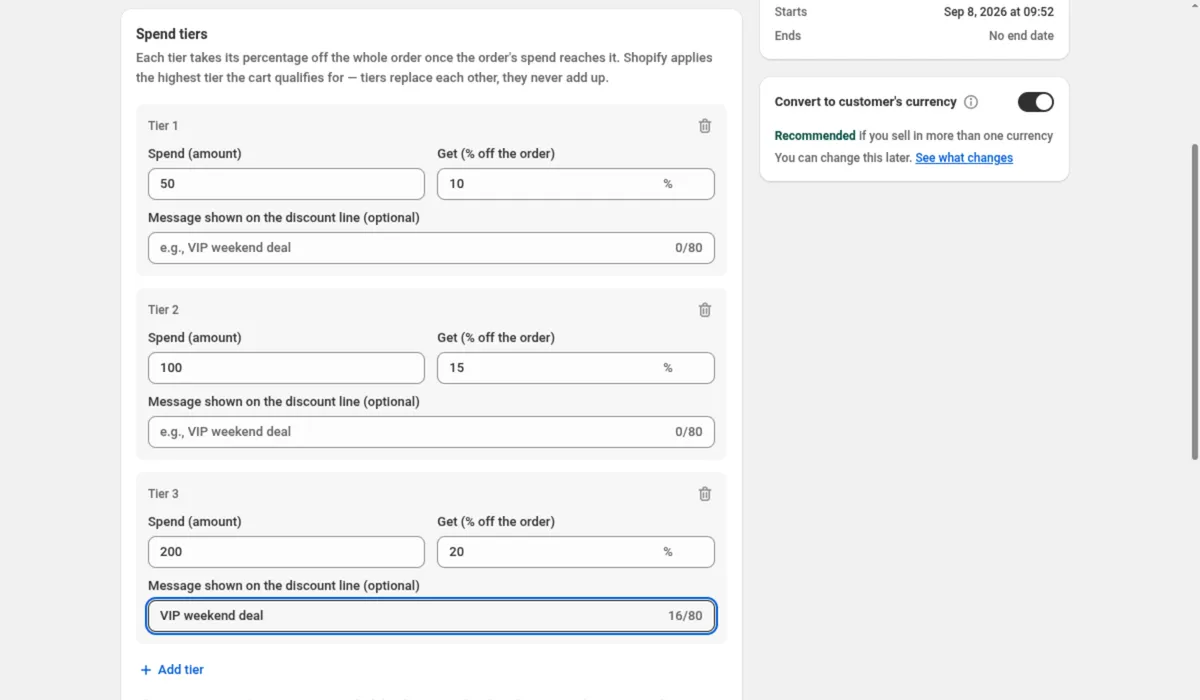
- Set the tiers. A new discount starts with two tiers: spend 50 for 10% off, and spend 100 for 15% off. Edit Spend (amount) and Get (% off the order) on each tier, and use Add tier for another rung. The new tier is pre-filled at twice the amount above as a suggestion.
- Name a tier on the order if you want. Message shown on the discount line (optional) replaces the discount title on the discount line while that tier applies. A short message reads best.
- Carve out items that should stay at full price. Applies to is the entire order. Turn on Exclude specific items to keep chosen products or collections at full price, then choose under Spend tiers and conditions whether they Count excluded items toward them or Ignore excluded items everywhere. Exclude items on sale skips anything priced below its compare-at price.
- Add conditions only if you need them. The Conditions card has Customer tags, Account status, B2B customers, Past orders, Cart quantity and Cart contents. A cart must meet every condition you turn on. Leave Conditions off if you want the tier table and cart goal bar on your storefront.
- Decide how amounts behave in other currencies. With Convert to customer’s currency on, Shopify converts your spend tier amounts into the currency the customer pays in. Off, your numbers are used as typed in every currency.
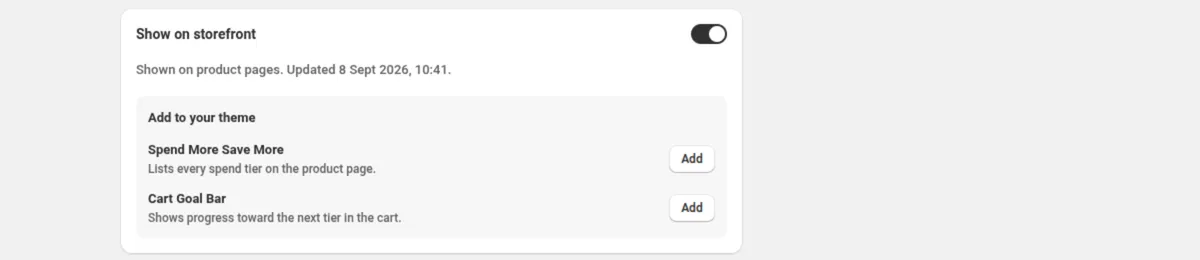
- Add the storefront blocks. Show on storefront is on for a new discount. In its Add to your theme panel, click Add next to Spend More Save More, which lists every spend tier on the product page, or Cart Goal Bar, which shows progress toward the next tier in the cart.
- Set combinations, markets and dates, then save. Use Discount can be combined with:, Markets and Active Dates, then save from the bar at the top of the page.
Every setting is explained in the Spend More Save More docs.
How do shoppers see how close they are to the next tier?
The DiscountOS Cart Goal Bar shows the shopper how close the cart is to the next tier, with a line of text and a progress bar. Its default Goal text reads Spend {amount} more to get {percent} off, and DiscountOS fills in the amount and percentage, for example “Spend $20 more to get 15% off”. Once a tier is reached and another remains, the line switches to the Tier reached text. At the top tier it switches to the Unlocked text, You’ve unlocked {percent} off!, and the bar takes the unlocked color.
A few rules decide what the bar and the tier table show:
- Leave Conditions off to show the ladder. The table and goal bar show the offer to every shopper, and Shopify applies the discount to every cart that reaches a tier.
- Excluded items stay clear. The table and goal bar stay off the excluded items’ product pages.
- Codes get a hint. On a code discount, the blocks show the Code hint prefix, “Use code” by default.
- No app embed needed. The blocks render on their own.
Can one discount code adjust with the cart value?
Yes. Create the Spend More Save More discount with Discount Code as the method, and the ladder applies once the shopper enters the code: the higher the cart, the higher the tier. A code discount shows a Maximum discount usage card with Limit number of times this discount can be used in total and Limit to one use per customer.
What if the tier should change item prices instead?
Spend More Save More takes a percentage off the whole order. When each tier should lower the price of chosen products instead, DiscountOS Price List with Tiers are based on set to Total amount spent takes a percentage off, a fixed amount off or sets a price per item once the spend reaches a tier. For tiers measured in items rather than money, read how to set up quantity breaks and volume discounts.
Tiered discounts are one way to fit more offers into Shopify’s 25 automatic slots; How to have more than 25 automatic discounts on Shopify covers the rest. To check what each tier costs you, the break-even guide works through the margin math.
Questions merchants ask
Can Shopify do tiered discounts without an app? The Shopify Help Center page on amount off discounts gives each discount one minimum requirement: a minimum purchase amount or a minimum quantity of items. It describes no tiers inside one discount, so a native ladder is one discount per tier, and each automatic one counts toward the 25 active automatic discounts a store can have.
Do spend tiers add up? No. In a DiscountOS Spend More Save More discount, Shopify applies the highest tier the cart qualifies for and takes that one percentage off the whole order. Tiers replace each other.
Can one discount have several spend tiers? Yes. A DiscountOS Spend More Save More discount holds the whole ladder: click Add tier for each rung. Each tier needs a higher spend amount and a higher percentage than the tier above it, and the whole ladder uses one of Shopify’s 25 automatic slots.
Can a tiered discount be one discount code? Yes. Choose Discount Code as the discount method, and the whole ladder applies once the shopper enters the code: the higher the cart, the higher the tier. Usage limits sit in the Maximum discount usage card.
Do spend tiers work in other currencies? With Convert to customer’s currency on, Shopify converts your spend tier amounts into the currency the customer pays in, so a spend 100 tier asks for the same value everywhere. The percentage off is unchanged either way.
Sources
- Shopify Help Center, Amount off discounts: in the Minimum requirements section, select Minimum purchase amount or Minimum quantity of items. Read on 26 September 2026.
- Shopify Help Center, Discount combinations: “You can have a maximum of 25 active automatic discounts. This total includes app-based discounts.” and “the best discount or combination of discounts automatically applies to the customer’s cart.” Read on 26 September 2026.
- DiscountOS on the Shopify App Store, listed as DiscountOS ‑ Market Discount, read on 26 September 2026: Built for Shopify, free.
- DiscountOS documentation: Spend More Save More, Cart goal bar, Storefront widgets, Price List.