How to create a mix and match bundle discount on Shopify (3 for $50)
How to create a mix and match bundle discount on Shopify, like 3 for $50 across products or collections with different prices, with no bundle product.
DiscountOS is a Built for Shopify discount app that runs multiple offers inside a single automatic discount, including market-specific and tiered discounts.
How do you create a mix and match bundle on Shopify?
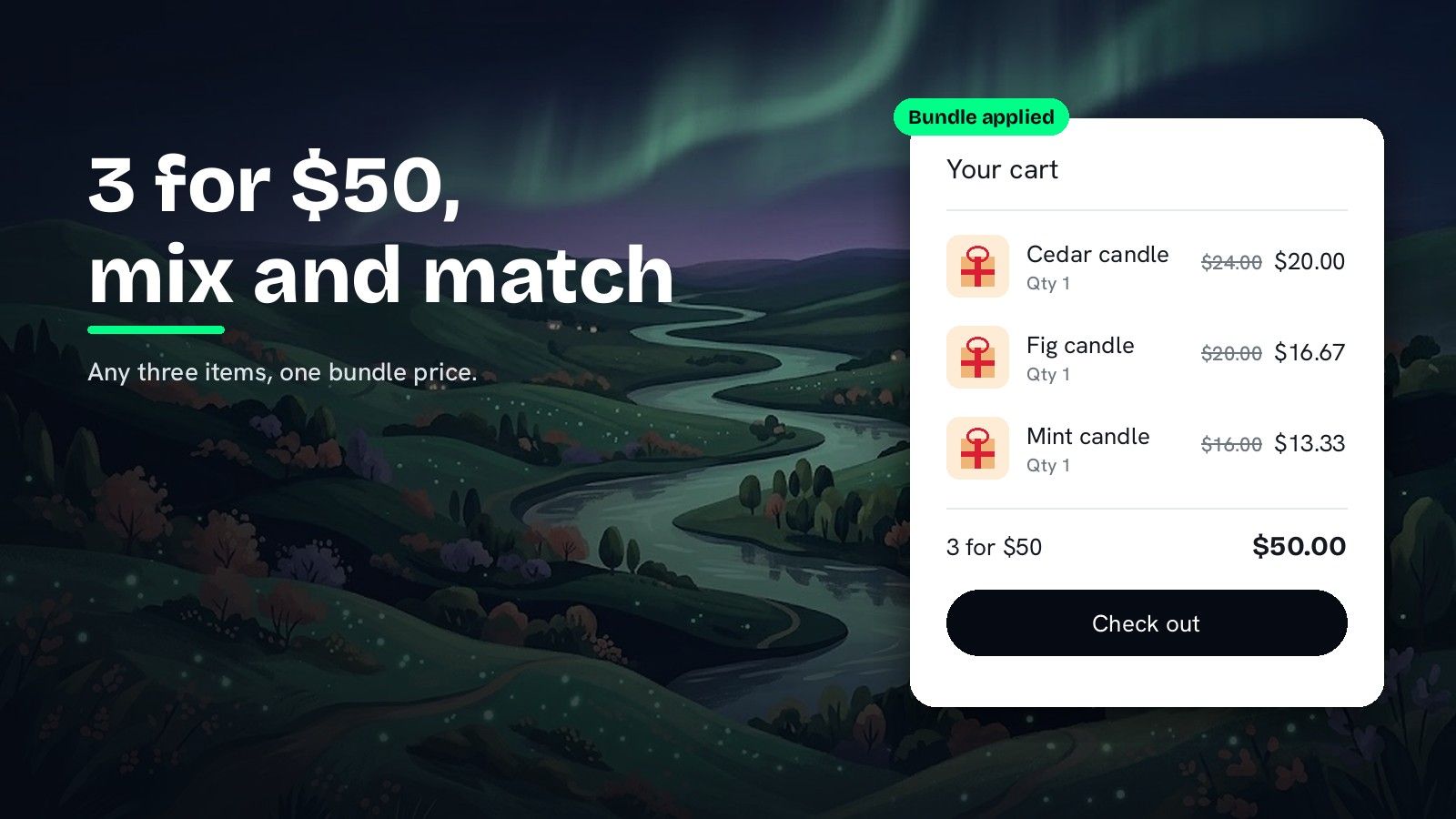
A 3 for $50 offer charges one total price for any three qualifying items, so a $24, a $20 and a $16 candle cost $50 together instead of $60. The Shopify Help Center says that to create product bundles, “you must have a bundles app installed on your Shopify store,” and it describes Shopify Bundles as an app to “create and edit fixed product bundles and multipacks.” A fixed bundle is one set of named products sold as a bundle product. A mix and match offer works differently: the shopper picks any three items from a collection, and a discount prices them as a set in the cart. The phrase mix and match does not appear on the Shopify Bundles Help Center page. DiscountOS builds the offer as a discount on the items already in the cart, so there is no bundle product to create: a Product discount with Specific price, set to Quantity 3 and Total Price 50, or a Bundle discount with a Fixed Bundle Price of 50.
Shopify bundle deals: which DiscountOS setup fits?
| Your offer | DiscountOS setup |
|---|---|
| Any 3 from one collection for $50, and 6 for $100 | Product discount · Specific price · Quantity 3 · Total Price 50 · Repeat this pricing: Unlimited |
| Any 3 from Candles or Diffusers for $50 | Product discount · Specific price · one Specific collections condition listing both |
| 3 for $50, 5 for $75 | Product discount · Specific price · Add Tiers To This Discount |
| 2 candles + 1 diffuser for $50 | Bundle · Specific Collection · two requirements · Fixed Bundle Price 50 |
| 3 of the same size and color for $50 | Bundle · Customer must add same variant for the above quantity |
| 20% off any 2 items from one vendor | Bundle · Product Vendor · Percentage Off 20 |
| A bundle price that keeps its value in other currencies | Bundle · Convert to customer’s currency on |
Why a Shopify amount off discount does not make 3 for $50
The Shopify Help Center page on amount off discounts describes a Minimum quantity of items requirement and a fixed amount that “is applied proportionally across all items in the cart.” A fixed $10 off matches 3 for $50 when every item costs $20. With a $24, a $20 and a $16 item in the cart, the same $10 off still lands on $50, but a cart of three $24 items would need $22 off. That page describes no setting for one total price for a set of items.
How to set up 3 for $50 with a DiscountOS Product discount
Use this when any three items from a collection, or several collections, should cost $50, and a second set of three should cost another $50.
- Open DiscountOS, click Create discount, and choose Product Discounts. It sits in the Discounts section of the create menu.
- Choose Automatic and type a Title, for example “Candles 3 for $50”. Shoppers see it next to the saving.
- Add the qualifying items. Click Add your first rule and pick Specific collections · is one of · Candles. To mix across collections, list them all in the same condition.
- Set Discount Type to Specific price. Enter 3 in Quantity and 50 in Total Price.
- Set Repeat this pricing. Unlimited lets the deal repeat as often as the cart allows, so 6 items are two sets. Limit to caps how many times it repeats in one order.
- Set Sort Products for Discount to Higher-priced items first. The next section shows why.
- Set combinations, markets and dates, then save. Save from the bar at the top of the page.
For a ladder like 3 for $50 and 5 for $75, tick Add Tiers To This Discount and give each tier its own quantity and price. Every field is explained in the Product discount docs.
Why the sort order matters with mixed prices
When the cart holds more qualifying items than one set, Sort Products for Discount decides which items form the set. The DiscountOS docs say the setting matters when more items qualify than the discount will cover. A set price takes money off; a set whose items already cost $50 or less stays at its own price.
Take a cart with three $10 items and one $40 item, on 3 for $50:
| Sort Products for Discount | Items in the set | Set total before | Cart total after |
|---|---|---|---|
| Lower-priced items first | $10 + $10 + $10 | $30 | $70 (nothing off) |
| Higher-priced items first | $40 + $10 + $10 | $60 | $60 |
For mix and match on items with different prices, Higher-priced items first is the setting that gives the shopper the deal they expect.
How to create a bundle discount with a DiscountOS Bundle
Use this when the set has parts, like “1 cleanser + 1 moisturizer for $45”, or when the bundle price should convert into other currencies.
- Open DiscountOS, click Create discount, and choose Bundle Discounts. It sits in the Discounts section of the create menu.
- Choose Automatic and type a Title, for example “Skincare starter kit”.
- Pick the Bundle Item Type. Choose Specific Product, Specific Collection, Specific Variant, Product Tag or Product Vendor. For a set built from several collections, pick Specific Collection; every requirement in the bundle then uses collections.
- Fill in Requirement 1. Set Required quantity, then Select collections (or products, variants, tags or vendors). For any 3 from one collection, enter 3 and pick that collection.
- Click Add Requirement for each further part. Every requirement must be in the cart for the bundle to apply.
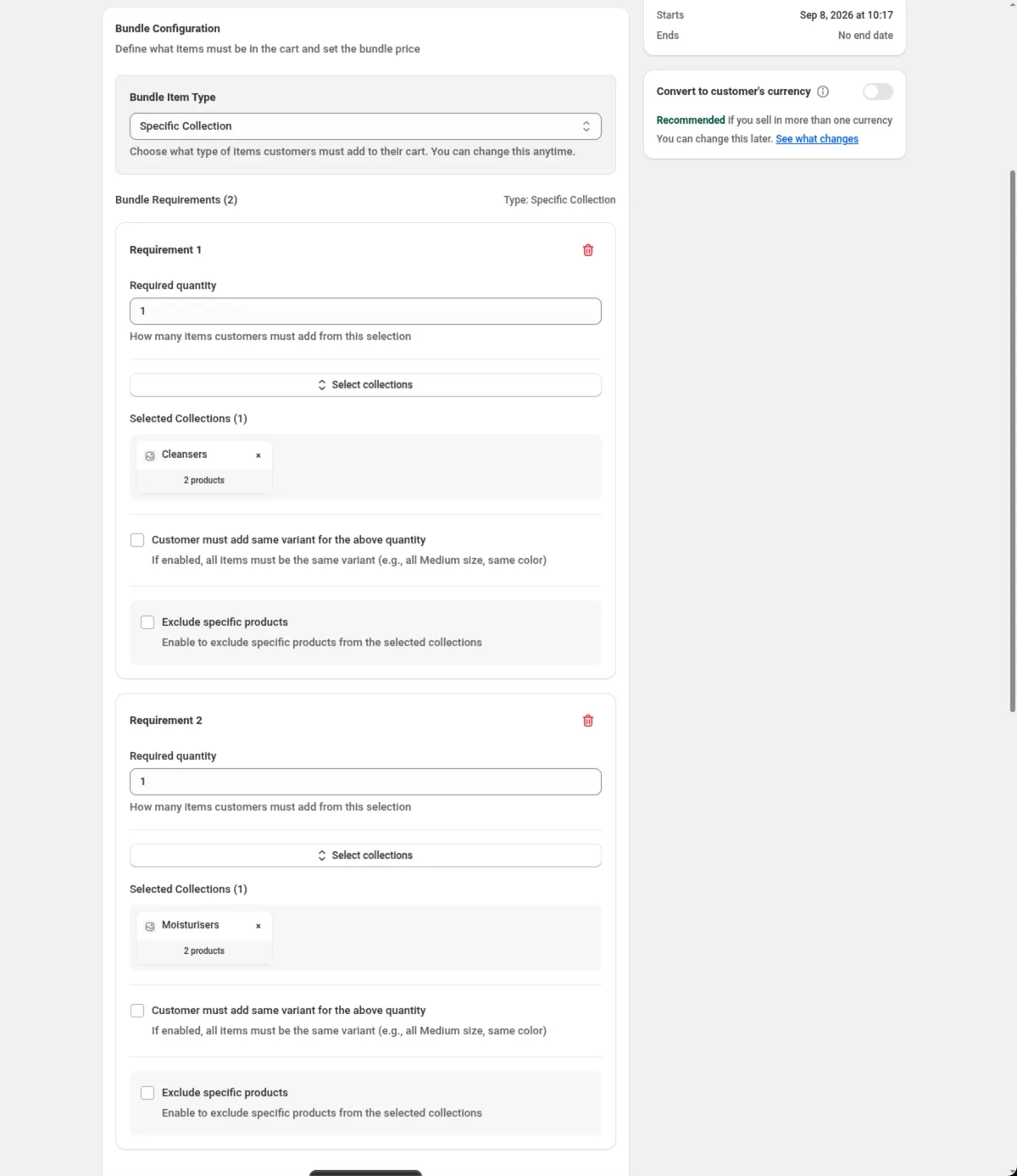
- Set Discount type to Fixed Bundle Price and enter the Bundle price, or choose Percentage Off and enter Percentage off.
- Keep specific products out, if needed. On Specific Collection, tick Exclude specific products and pick the products that should not count toward that requirement.
- Set markets, dates and currency handling, then save. Turn on Convert to customer’s currency, under the Summary, when the bundle price should keep its value for shoppers paying in another currency.
Every field is explained in the Bundle docs.
Tips for mix and match pricing
- Repeat with Specific price. For “3 for $50, 6 for $100” from the same collection, use the Product discount with Specific price and Repeat this pricing on Unlimited.
- Keep the set price below the items it covers. A set price is a discount, so a set of items that already costs less than the set price stays as it is.
- On a multi-currency store, set the currency on purpose. On a Bundle, turn on Convert to customer’s currency. For a Specific price discount, scope it to the market whose currency you typed the price in.
- Scope competing offers by market. Two bundles covering the same product with no market scope both run everywhere, and Shopify decides which applies. Different discounts for different countries covers market scoping.
- Test a cart with one extra item. Four items on a 3 for $50 offer show which three form the set.
- Check the margin on your cheapest mix. The break-even guide shows what a discount does to margin.
Running a buy-and-get offer instead of a set price? How to do buy 2 get 1 free on Shopify covers it, and how to discount the most expensive item in the cart covers price sorting in more detail.
Questions merchants ask
Can Shopify do a mix and match bundle discount without an app? The Shopify Help Center says that to create product bundles on your store, you must have a bundles app installed. It describes Shopify Bundles as an app for “fixed product bundles and multipacks”, and the phrase mix and match does not appear on its Shopify Bundles page. DiscountOS runs 3 for $50 as a discount on the items already in the cart, with no bundle product to build.
How do I make 3 for $50 work across different collections? In a DiscountOS Product discount with Specific price, add one Specific collections condition that lists every collection in the offer. In a DiscountOS Bundle, set Bundle Item Type to Specific Collection and add one requirement per collection, for example 2 from Candles and 1 from Diffusers.
What happens when a customer adds 6 items to a 3 for $50 offer? With a DiscountOS Product discount set to Specific price and Repeat this pricing on Unlimited, 6 items make 2 sets and the shopper pays $100. Use Specific price with Repeat this pricing whenever the set price should repeat, for example 3 for $50 and 6 for $100.
Which items go into the set when the prices are different? Sort Products for Discount decides. Higher-priced items first builds the set from the most expensive qualifying items, which is where a $50 set price takes money off. A set of items that already costs $50 or less stays at its own price.
Does the bundle price convert for customers paying in another currency? On a DiscountOS Bundle, the price converts when Convert to customer’s currency is on. The switch is off by default, so the bundle price is used as typed in every currency. DiscountOS is free.
Sources
- Shopify Help Center, Product bundles: “To create product bundles on your store, you must have a bundles app installed on your Shopify store.” Read on 26 September 2026.
- Shopify Help Center, Shopify Bundles: “Shopify Bundles is a free first-party bundles app that allows you to create and edit fixed product bundles and multipacks right from your Shopify admin, and is available on all Shopify plans.” The phrase mix and match does not appear on the page. Read on 26 September 2026.
- Shopify Help Center, Amount off discounts: the Minimum quantity of items requirement, and a fixed amount “applied proportionally across all items in the cart.” Read on 26 September 2026.
- DiscountOS on the Shopify App Store, listed as DiscountOS ‑ Market Discount, read on 26 September 2026: Built for Shopify, free.
- DiscountOS documentation: Product discount, Bundle, Markets and currency.