How to set different discounts for different countries on Shopify
Shopify can limit a discount to markets, but one discount gives one value. Here is how to set a different discount per country, all from one discount.
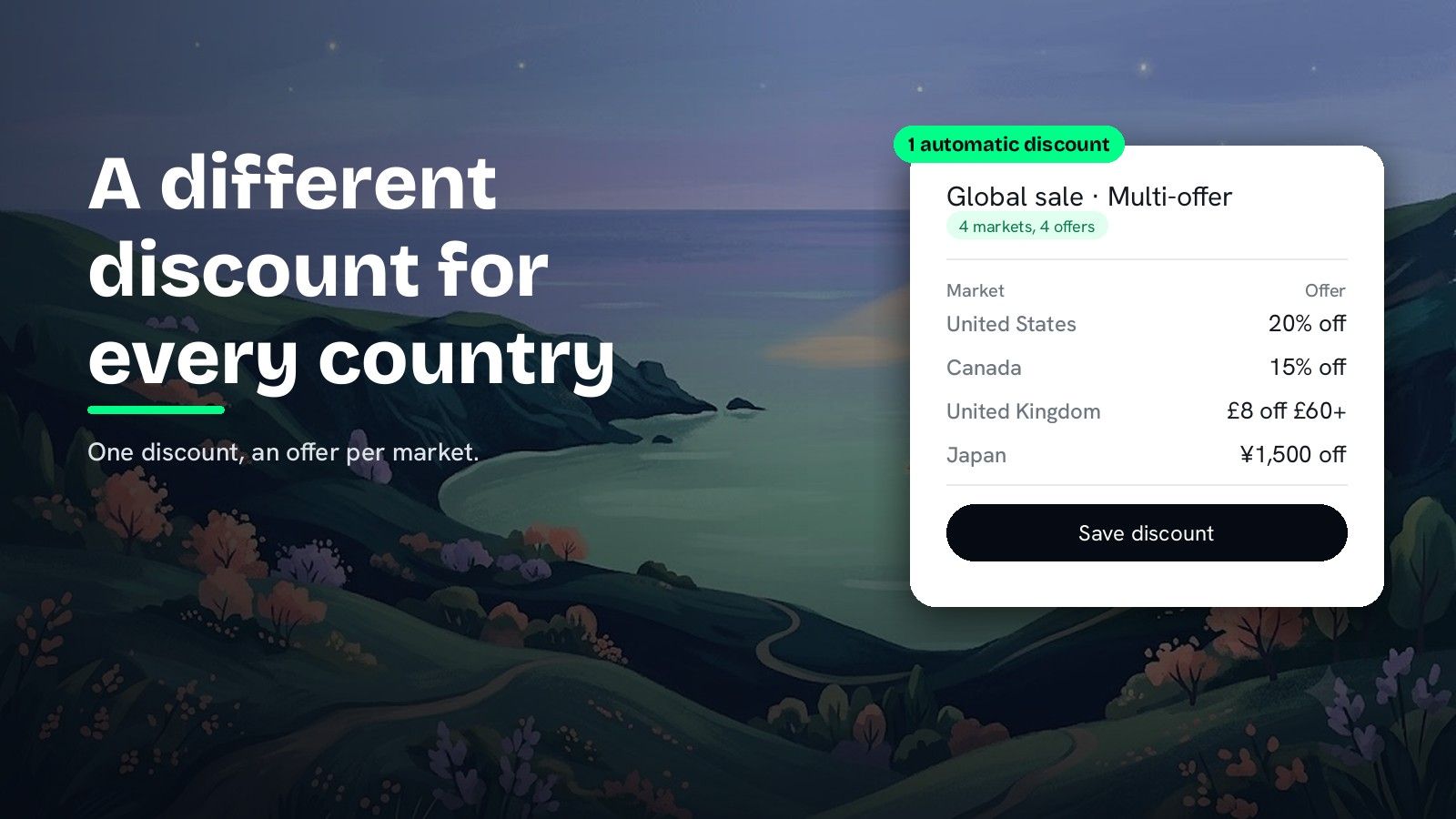
DiscountOS is a Built for Shopify discount app that runs multiple offers inside a single automatic discount, including market-specific and tiered discounts.
Can Shopify limit a discount to one country?
Yes. Shopify added markets to discounts, and the Shopify Help Center says that when you create or edit a discount, you can select which markets it applies to. A discount can be assigned to B2B, country or region, and retail markets, but not to channel markets, and automatic discounts run in every market until you assign them. Shopify’s developer changelog of 8 May 2026 lists Basic, Buy X Get Y, app and free shipping discounts, both automatic and code, as the types that take markets. The same changelog notes that markets and customer segments are separate eligibility choices on a native discount. Fixed amounts are set in the store’s default currency, and the Help Center explains that Shopify converts them into the customer’s local currency at the current exchange rate, so a 10 USD discount is worth whatever 10 USD is in euros that day. What a native discount does not change per market is its value: one discount gives the same percentage, or the same converted amount, everywhere it runs. So on native Shopify, a different offer per country means one discount per country, and each automatic one uses one of the 25 automatic discount slots. DiscountOS answers this with offers that each carry their own value and their own markets inside one discount, plus an exact amount per currency on the Order discount.
How many discounts each setup needs
Five countries with five different offers, set up two ways:
| Setup | Discounts to build | Automatic slots used |
|---|---|---|
| One native discount per country | 5 | 5 of 25 |
| One DiscountOS Multi-offer discount, one offer per market | 1 | 1 of 25 |
The DiscountOS discount keeps one start date, one end date and one set of combination rules for the whole campaign, so a global sale starts and stops everywhere at once.
What each market can get in DiscountOS
| Market need | DiscountOS setting |
|---|---|
| A different percentage per country | One product or order offer per market, each with Available in set to that market |
| Free shipping in one country only | A shipping offer with Available in set to that country |
| A fixed amount that keeps its value abroad | Convert to customer’s currency switched on |
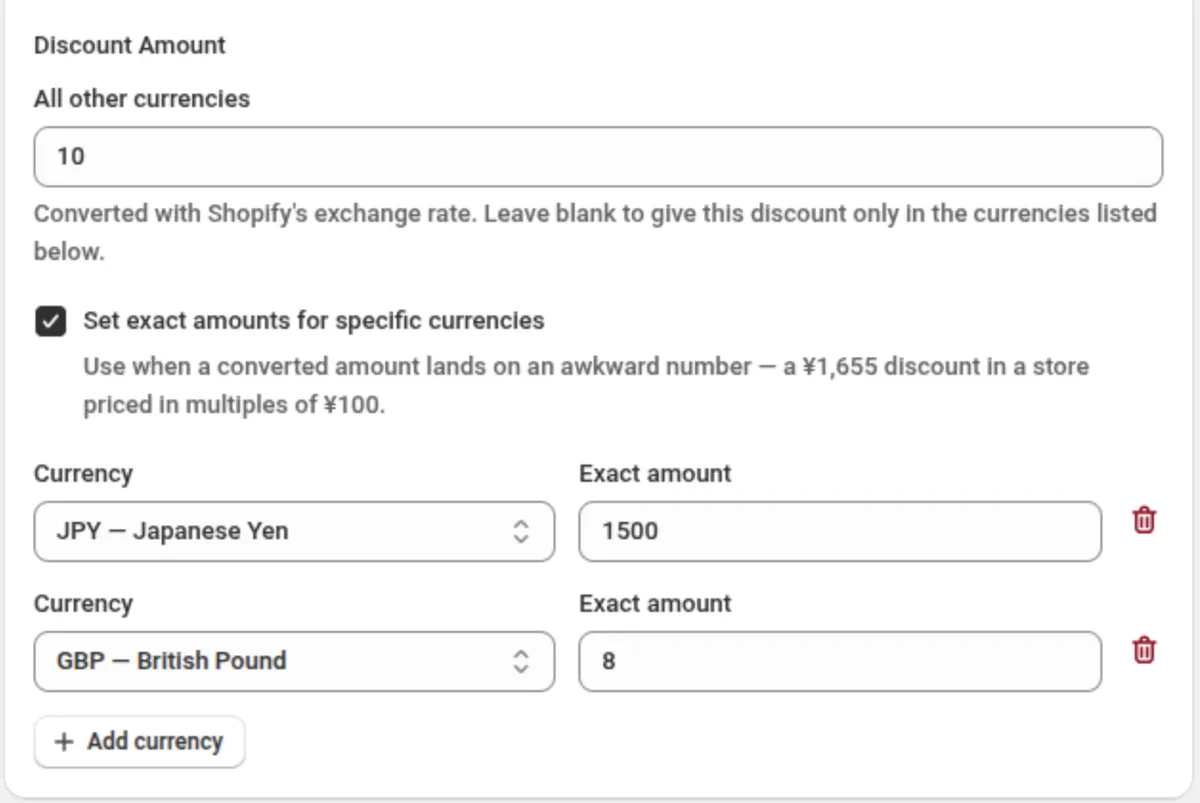
| A round number in each currency (¥1,500, not ¥1,655) | Set exact amounts for specific currencies on the Order discount, for each currency you choose |
| A spend threshold in each market’s currency | Money requirements on an offer convert with the switch, or stay as typed with it off |
How to set a different discount per country with DiscountOS
- Open DiscountOS, click Create discount, and choose Multi-offer Discount. It sits under Advanced in the create menu.
- Name the campaign. Choose Automatic and type a title that describes the promotion, like “Global sale”. Shoppers in every market see this title next to their saving.
- Pick the markets the whole discount runs in. Under Where does this discount apply?, keep Apply to all markets or choose Apply to specific markets and pick the markets you want. Every offer stays inside this selection.
- Add one offer per market. Turn on Product discount, Order discount or Shipping discount, then use Add another product discount and its equivalents until each market has its own offer.
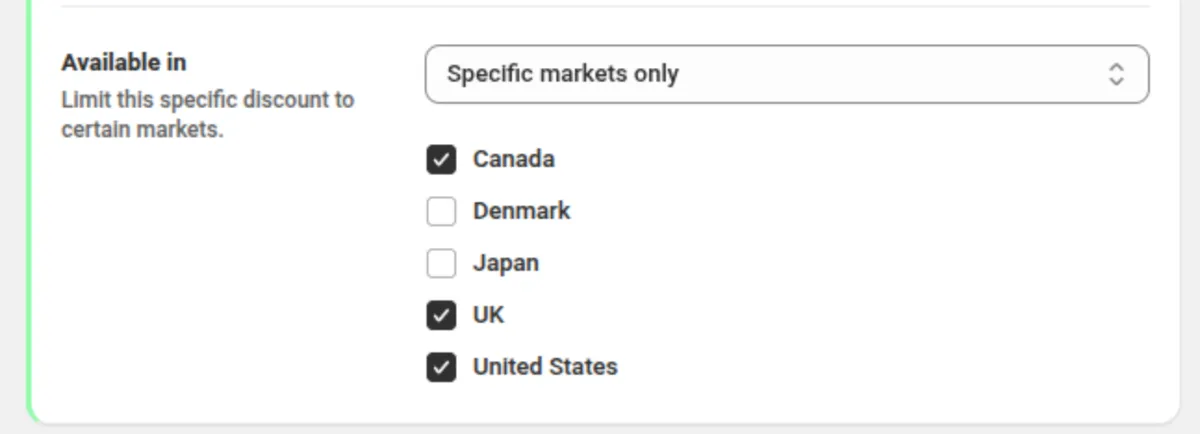
- Limit each offer to its market. On each offer card, set Available in to Specific markets only and tick that offer’s markets. Until you pick, the offer runs in every market of the discount.
- Decide how amounts behave in other currencies. Convert to customer’s currency sits under the Summary and is on by default for Multi-offer. On, a fixed amount and a money threshold keep their value in every currency. Off, each number is used as you typed it, which is how you give £8 off in the UK and ¥1,500 off in Japan from offers already limited to those markets.
- Save. The whole campaign uses one of Shopify’s 25 automatic slots.
Exact amounts per currency on an order discount
For a single order-wide discount, the DiscountOS Order discount lets you type the exact amount customers paying in a given currency get, while every other currency converts from your main amount.
Every market setting is explained in Markets and currency, and every Multi-offer setting in the Multi-offer docs.
Tips for discounts by market
- Name the discount in words, not money. “Global sale” reads well next to a saving in any currency. “€10 off” reads oddly next to a converted amount.
- Scope each bundle to its market. Two bundles for the same items with no market scope both run everywhere, and Shopify decides which applies.
- Keep your primary market in mind. When you pick specific markets without your primary one, DiscountOS warns you so the discount does not silently skip your main market.
- “Apply to all markets” includes future markets. A market you add to Shopify later is covered without editing the discount.
Running more than a few campaigns at once? How to have more than 25 automatic discounts on Shopify covers the slot limit in full. For a side-by-side of Shopify discount apps, read the best Shopify discount apps in 2026.
Questions merchants ask
Can a Shopify discount be limited to one country? Yes. The Shopify Help Center says that when you create or edit a discount, you can select which markets it applies to. Discounts can be assigned to B2B, country or region, and retail markets, but not to channel markets.
Can one Shopify discount give a different amount in each country? A native Shopify discount gives one value to every market it is assigned to, so a different offer per country means one discount per country. DiscountOS Multi-offer puts several offers inside one discount and limits each offer to its own markets, so 20% off in the US and 15% off in Canada live in one discount.
How are fixed-amount discounts converted into other currencies? The Shopify Help Center explains that a fixed amount is set in the store’s default currency and converted into the customer’s local currency at the current exchange rate. DiscountOS adds a Convert to customer’s currency switch, and on the Order discount you can type an exact amount for each currency you choose.
Can I choose which markets one DiscountOS discount runs in? Yes. On every DiscountOS discount type you keep Apply to all markets or choose Apply to specific markets and pick the markets you want. On a Multi-offer discount, each offer can also narrow to its own markets inside the ones the whole discount runs in.
Does it work for Buy X Get Y, bundles and quantity breaks? Yes. Every DiscountOS discount type has a Markets setting, including Buy X Get Y, Bundle, Price List, Quantity Break, Spend More Save More and Gift with Purchase. DiscountOS is free.
Sources
- Shopify Help Center, Discounts and gift cards in Markets: assigning discounts to markets, the market types that take them, and fixed-amount conversion. Read on 26 September 2026.
- Shopify developer changelog, Target discounts to specific markets, 8 May 2026: the discount types that take markets, and markets and customer segments as separate eligibility choices.
- Shopify Help Center, Discount combinations: “You can have a maximum of 25 active automatic discounts. This total includes app-based discounts.”
- DiscountOS on the Shopify App Store, listed as DiscountOS ‑ Market Discount, read on 26 September 2026: Built for Shopify, free.
- DiscountOS documentation: Markets and currency, Multi-offer, Order discount.