How to discount the most expensive item in the cart on Shopify
How to discount the most expensive item in a Shopify cart, including buy 3 pay for 2 with the priciest item free, using buy X get Y or a product discount.
DiscountOS is a Built for Shopify discount app that runs multiple offers inside a single automatic discount, including market-specific and tiered discounts.
Can you discount the most expensive item in a Shopify cart?
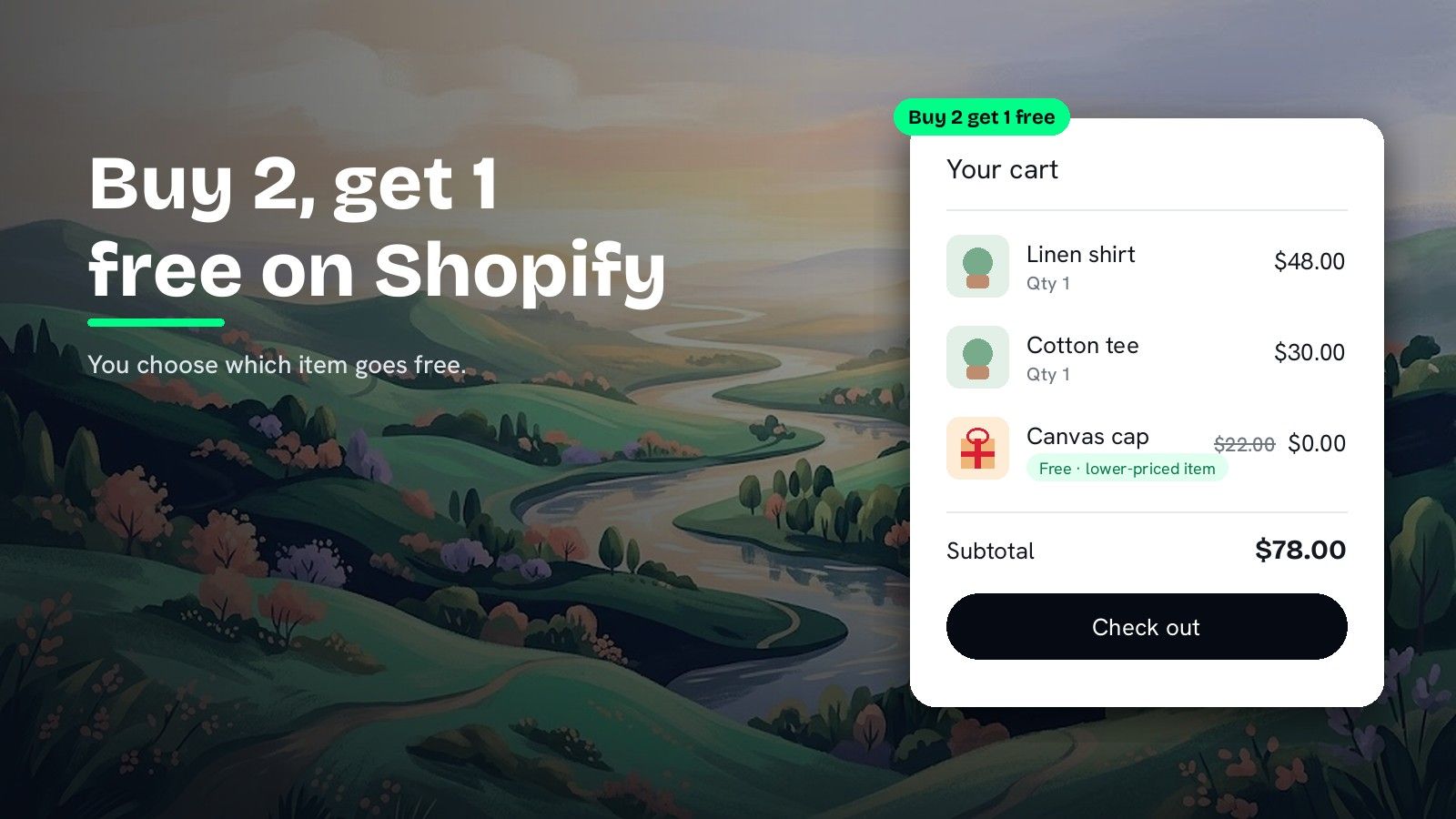
Yes. Which item gets the saving depends on how the discount orders the qualifying items. Shopify’s native Buy X get Y discount decides for you: when the product or collection in Customer gets is the same as in Customer buys, the Shopify Help Center says “the lower-priced item that the customer chooses is the item that the customer gets at a discount.” So a native buy 3 pay for 2 on one collection gives away the lower-priced item the shopper chooses. The Help Center page on Buy X get Y discounts describes no setting that flips this to the higher-priced item. DiscountOS adds that choice in three discount types. Buy X Get Y has Sort get items for discount, with Higher-priced items first as the default. Product discount has Sort Products for Discount with an item limit. Multi-offer has Limit discounted items and Overall item limit, both with Highest-value items first. Set high to low, each of them gives the saving to the most expensive qualifying item.
Cheapest item free or most expensive item free?
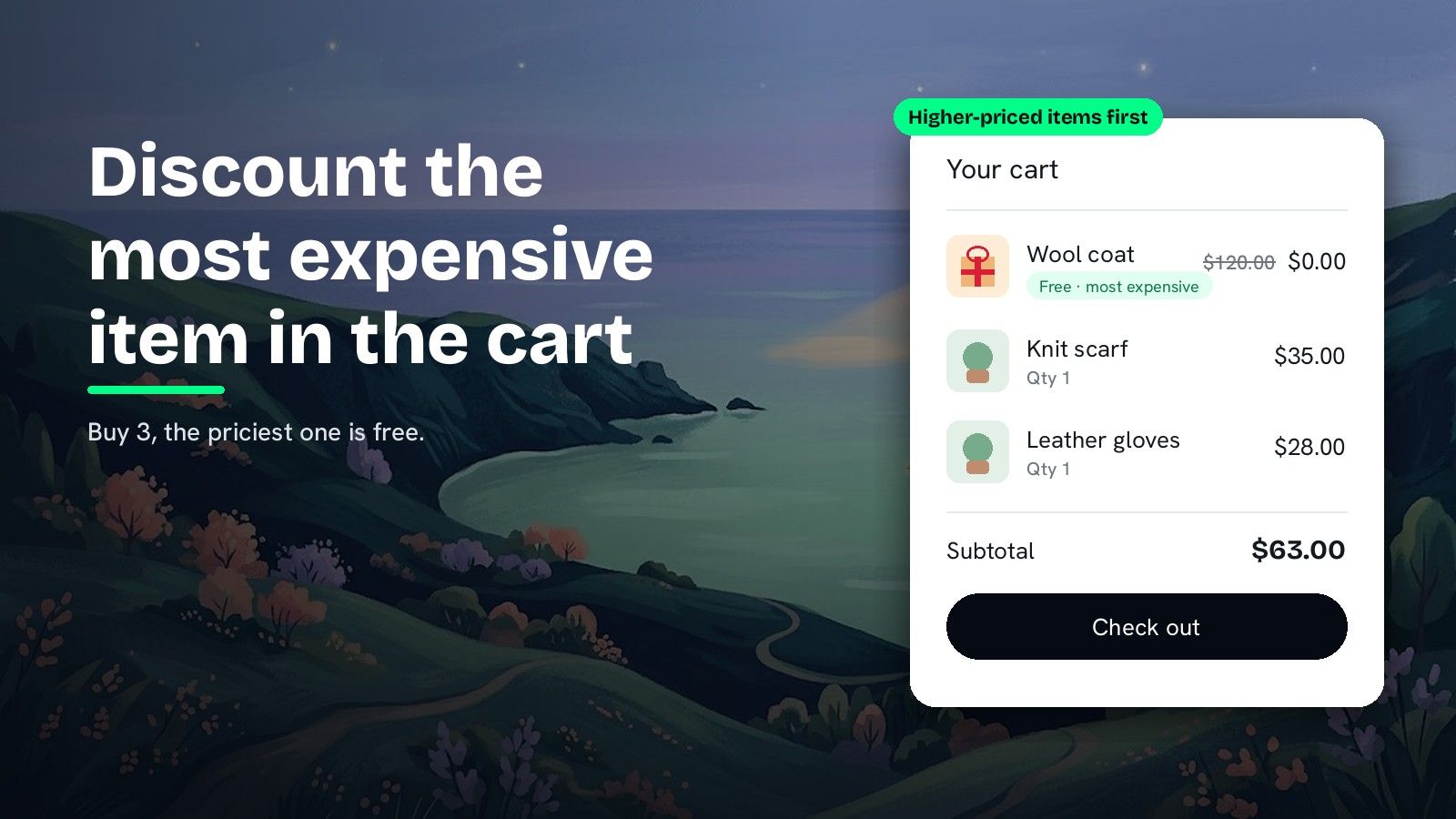
The same cart, set up three ways: a $120 wool coat, a $35 scarf and $28 gloves, all in one collection.
| Setup | Item discounted | Shopper pays |
|---|---|---|
| Shopify Buy X get Y, buy 2 get 1 free, same collection | $28 gloves (lower-priced, per the Help Center) | $155 |
| DiscountOS Buy X Get Y, minimum 3, gets 1 free, Higher-priced items first | $120 coat | $63 |
| DiscountOS Product discount, 25% off, Higher-priced items first, Maximum items 1 | $120 coat at 25% off | $153 |
Making the priciest item free is the bigger offer: $120 off instead of $28. The break-even guide shows what that does to margin before you launch it.
Which DiscountOS setup should you use?
| Your offer | DiscountOS type | Key settings |
|---|---|---|
| Buy 3, the most expensive is free, again for every 3 | Buy X Get Y | Minimum 3 · gets 1 · Free · Maximum uses per order: Unlimited · Higher-priced items first |
| Buy 3, the most expensive is free, once per order | Buy X Get Y | Same, with Maximum uses per order: Limited · Maximum number of uses: 1 |
| 25% off the most expensive item in a collection | Product discount | Percentage off 25 · Higher-priced items first · Maximum items 1 |
| The most expensive item free once 3 from a collection are in the cart, next to other offers | Multi-offer | Percentage off 100 · requirement Quantity (sum) of 3 · Limit discounted items: Highest-value items first, 1 |
| A cap on discounted items across every offer | Multi-offer | Overall item limit: Highest-value items first |
How to set up buy 3 pay for 2 with the most expensive item free
- Open DiscountOS, click Create discount, and choose Buy X Get Y. It sits in the Discounts section of the create menu.
- Choose Automatic and type a Title, for example “Buy 3, pay for 2”.
- Set Customer Buys. Click Add your first rule and pick Specific collections · is one of · Outerwear. Set Minimum quantity of items customer must buy to 3. When the buy and get items are the same, the free item counts toward this minimum, so 3 is the whole set.
- Set Customer Gets to the same Specific collections · is one of · Outerwear.
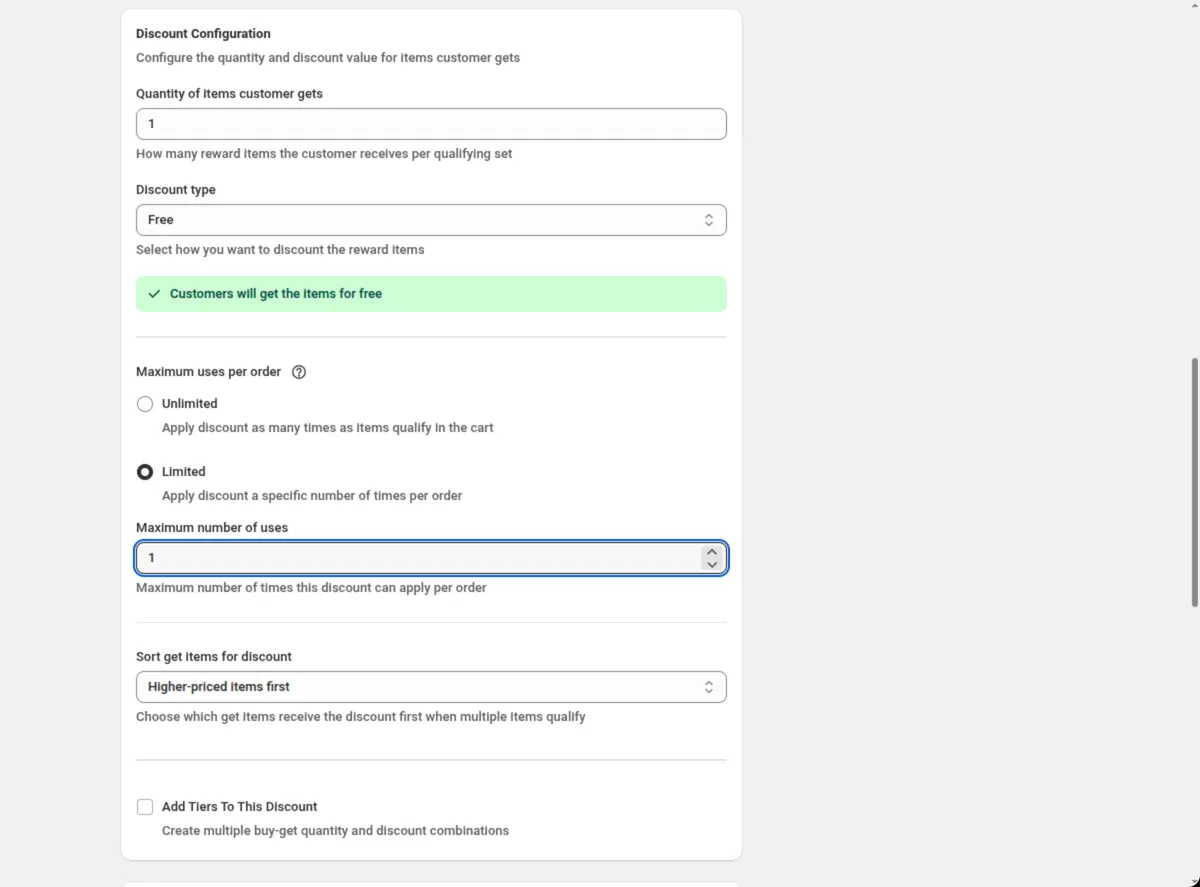
- Set Quantity of items customer gets to 1 and Discount type to Free.
- Set Maximum uses per order. Unlimited gives one free item for every 3 in the cart. Limited with Maximum number of uses set to 1 gives one free item per order.
- Set Sort get items for discount to Higher-priced items first. It is the default.
- Set combinations, markets and dates, then save.
The shopper adds the three items to the cart, and the free one is the most expensive of them. Every field is explained in the Buy X Get Y docs, and the minimum is covered in depth in how to do buy 2 get 1 free on Shopify.
How to take a percentage off the most expensive item
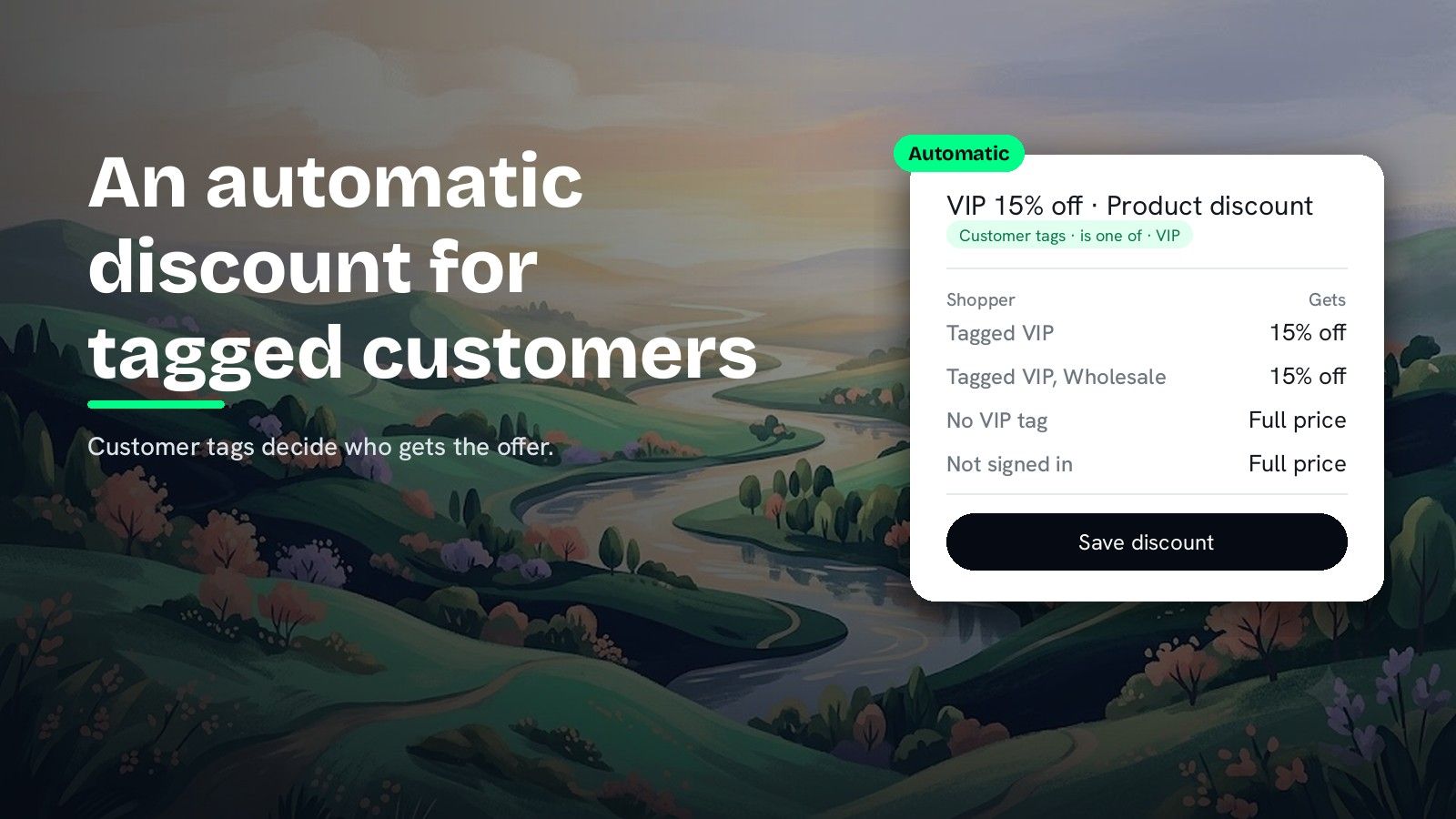
A DiscountOS Product discount can discount one item, the priciest, with no buy-and-get setup.
- Open DiscountOS, click Create discount, and choose Product Discounts.
- Choose Automatic and type a Title, for example “25% off your top pick”.
- Add the qualifying items. Click Add your first rule and pick Specific collections · is one of · Outerwear. To require a cart size first, add Cart quantity · is greater than or equal to · 3 in the same group with Between conditions on AND. Cart quantity counts every item in the cart.
- Set Discount Type to Percentage off and enter the Percentage, for example 25.
- Set Sort Products for Discount to Higher-priced items first. It decides which qualifying items are discounted first.
- Tick Limit number of items that get discount and enter 1 in Maximum items.
- Set combinations, markets and dates, then save.
Every field is explained in the Product discount docs.
How to do it inside a Multi-offer discount
A DiscountOS Multi-offer discount holds several offers in one automatic discount. Use it when the most-expensive-item offer runs next to other offers, or needs a requirement measured on one group of items.
- Open DiscountOS, click Create discount, and choose Multi-offer Discount. It sits under Advanced.
- Under What does this discount give?, switch on Product discount.
- Set the Discount. Discount type: Percentage off, Percentage: 100 for a free item, or a lower number.
- Name the items in Qualifying items, for example a group called “Outerwear” with Specific collections · is one of · Outerwear.
- Add a Requirement. Measure the “Outerwear” group with Quantity (sum) and a value of 3, so the offer starts at 3 items from that group.
- Under Applies to, pick the group in Discount these items, then set Limit discounted items to Highest-value items first with a quantity of 1.
- Add other offers, set the overlap rule and dates, then save.
To cap discounted items across every offer in the discount, use Overall item limit with Highest-value items first. It overrides the per-offer limits. The Multi-offer docs cover every setting, and how to have more than 25 automatic discounts on Shopify explains why several offers in one discount save slots.
Tips before you launch
- Most expensive or cheapest is a margin decision. Higher-priced first is generous; lower-priced first protects margin. Pick on purpose.
- Test a cart with two items of the same price. When prices tie, check which line the discount lands on.
- Combinations are Shopify’s call. Ticking a box in Discount can be combined with tells Shopify this discount may run alongside that kind; Shopify decides what applies.
- Two product discounts on one item follow Shopify’s plan rule. The Shopify Help Center says: “To combine multiple product discounts on the same line item, your store must be on the Shopify Plus plan.” It applies to every discount, from Shopify admin or any app.
For a set price instead of a free item, read how to create a mix and match bundle discount on Shopify. For a side-by-side of Shopify discount apps, read the best Shopify discount apps in 2026.
Questions merchants ask
Can customers get the most expensive product free with a buy 3 pay for 2 discount? Yes, with DiscountOS Buy X Get Y. Point Customer Buys and Customer Gets at the same collection, set the minimum to 3 and the reward to 1 item, choose Free, and set Sort get items for discount to Higher-priced items first. With Maximum uses per order on Unlimited, every set of 3 gives the most expensive remaining item free.
Which item does a Shopify Buy X get Y discount make free? When the buy and get items are the same product or collection, the Shopify Help Center says “the lower-priced item that the customer chooses is the item that the customer gets at a discount.” The Help Center page on Buy X get Y discounts describes no setting to make the higher-priced item the free one.
How do I take a percentage off the single most expensive item? Use a DiscountOS Product discount. Set the percentage, set Sort Products for Discount to Higher-priced items first, tick Limit number of items that get discount and enter 1 in Maximum items. Add a Cart quantity or Cart subtotal rule if the cart has to reach a size first.
What is the difference between Limit discounted items and Overall item limit? Both are DiscountOS Multi-offer settings. Limit discounted items sits on one product offer and caps how many items that offer discounts. Overall item limit caps how many items get discounted across the whole cart and overrides the per-offer limits. Both can rank by Highest-value items first.
Is DiscountOS free? Yes. DiscountOS is free to install and use, and Buy X Get Y, Product discount and Multi-offer are included. DiscountOS carries the Built for Shopify badge on the Shopify App Store.
Sources
- Shopify Help Center, Buy X get Y discounts: “If the product or collection is the same as the one set in the Customer buys section, then the lower-priced item that the customer chooses is the item that the customer gets at a discount.” “Customers must add all items to their cart manually.” Read on 26 September 2026.
- Shopify Help Center, Discount combinations: “You can have a maximum of 25 active automatic discounts. This total includes app-based discounts.” “To combine multiple product discounts on the same line item, your store must be on the Shopify Plus plan.” Read on 26 September 2026.
- DiscountOS on the Shopify App Store, listed as DiscountOS ‑ Market Discount, read on 26 September 2026: Built for Shopify, free.
- DiscountOS documentation: Buy X Get Y, Product discount, Multi-offer, Conditions.