
Multi-offer
Multi-offer(複数オファーのディスカウント)は、1 つのディスカウントの中に複数のオファーを持ちます。 商品オファー、注文オファー、配送オファーをまとめて扱い、それぞれが独自の値、独自の対象商品、 独自の条件、独自のマーケットを持ちます。加えて、2 つが同じ商品に当たったときの動作を決めるルールが 1 つあります。
-
Discounts を開き、Create discount をクリックして Multi-offer Discount を選びます。
作成メニューの Advanced セクションにあり、New のバッジが付いていて、“Multiple offers and conditions in a single discount” という例が添えられています。
-
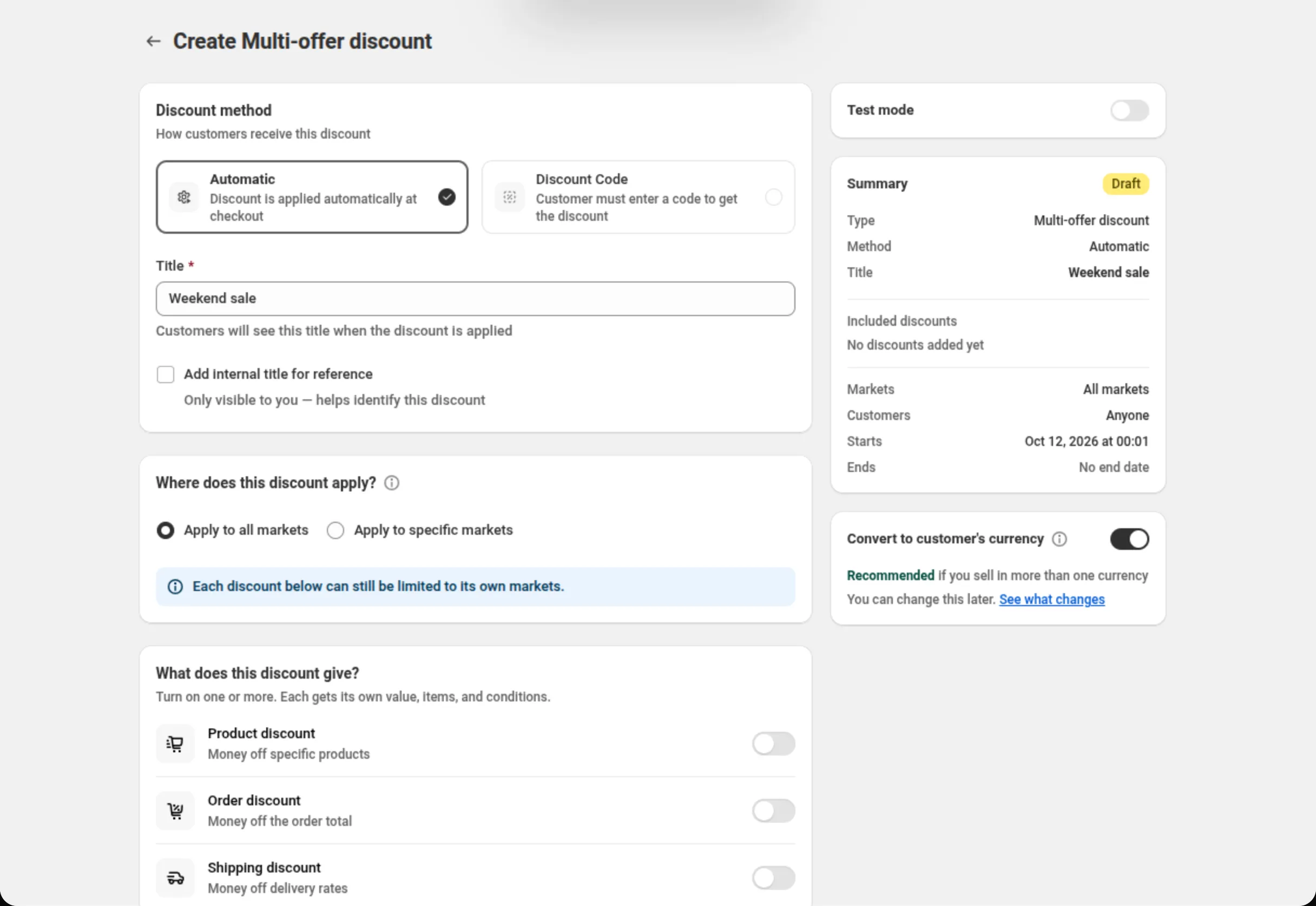
ディスカウントの方式を選び、ディスカウントに名前を付けます。
Automatic(自動)または Discount Code(ディスカウントコード)を選び、Title(自動の 場合)または Discount Code(コードの場合)を入力します。
-
ディスカウント全体をどこに適用するかを設定します。
Where does this discount apply?(このディスカウントを適用する範囲)が外側の境界です。 Apply to all markets にするか、Apply to specific markets で最大 20 件まで選びます。 下にあるすべてのオファーは、この選択の内側にとどまります。
-
このディスカウントが与える種類をオンにします。
What does this discount give? で、Product discount、Order discount、Shipping discount のいずれか、または任意の組み合わせをオンにします。オンにするとそれぞれ専用の セクションが開き、入力できるカードが 1 枚用意されます。Add another product discount (および対応する各ボタン)でカードを追加できます。
-
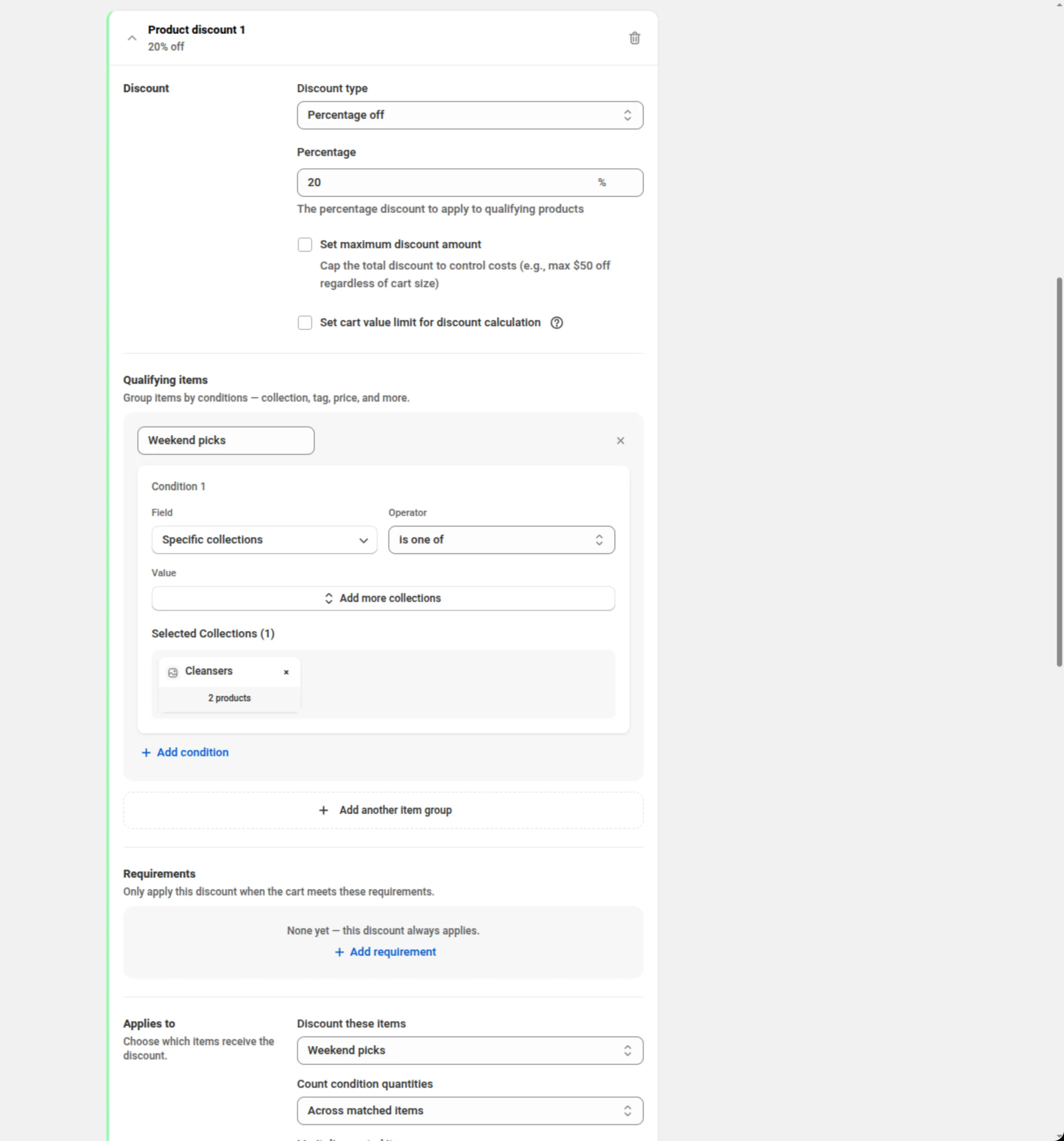
各ディスカウントカードを入力します。
カードには Discount(種類と値)、Qualifying items、Requirements、Applies to、Available in があります。注文カードにはさらに Minimum after product discounts と Item exclusions があります。入力が終わったら、カードのヘッダーをクリックして折りたためます。
注文カードを Percentage off に設定すると、右側の列の Convert to customer’s currency の下に Calculate after product discounts カードが表示されます。新しいディスカウントではオンです。
-
利用できる顧客、ディスカウントが重なったときの動作、期間を設定して保存します。
Who can use this discount で、特定の顧客に限定できます。Discount rules & limits では、 重なったときのルールと、任意の全体商品数の上限を選びます。続いて組み合わせ、購入タイプ、期間を 設定し、ページ上部のバーから保存します。
Discount method
Section titled “Discount method”Automatic はコードが不要で、カートが条件に合った時点で Shopify がディスカウントを適用します。 Discount Code の場合は、設定したコードを購入者が入力する必要があります。方式はディスカウントの 作成時に選びます。ディスカウントができあがると、この選択欄は操作できなくなります。
Title / Discount Code
Section titled “Title / Discount Code”自動ディスカウントでは、Title はディスカウントが適用されたときに購入者に見える名前です。 コードディスカウントでは、このフィールドが Discount Code に変わります。
Add internal title for reference
Section titled “Add internal title for reference”自分だけに見える 2 つ目の名前を追加します。似たディスカウントを見分けるために使います。
Where does this discount apply?
Section titled “Where does this discount apply?”ディスカウント全体が動作するマーケットです。Apply to all markets にするか、Apply to specific markets で最大 20 件を選びます。これは下にあるすべてのオファーの境界です。オファーはこれを 狭めることはできますが、広げることはできません。ここでマーケットを削除すると、それを使っていた オファーからも削除されます。
What does this discount give?
Section titled “What does this discount give?”3 つのスイッチです。Product discount(特定の商品からの値引き)、Order discount(注文合計 からの値引き)、Shipping discount(配送料からの値引き)です。必要な数だけオンにしてください。 保存するにはオファーが最低 1 つ必要です。スイッチをオフにするとそのセクションは非表示になりますが、 入力内容は保持されるため、オンに戻すと復元されます。
Discount(種類と値)
Section titled “Discount(種類と値)”各カードは、それぞれの Discount type と値から始まります。
- Product discount — Percentage off、Fixed amount off、Fixed amount off per item、 Percentage off compare-at price。
- Order discount — Percentage off または Fixed amount off。
- Shipping discount — Percentage off、Fixed amount off、Free shipping、Flat rate。
パーセントは 0 より大きく、100 以下である必要があります。商品オファーと注文オファーの Percentage off では、Set maximum discount amount と Set cart value limit for discount calculation にチェックを付けることもできます。
チェックを付けたボックスには、0 より大きい金額が必要です。空、0、負の値の場合は保存がブロック されます。フィールドには “Please enter a maximum discount amount” または “Please enter a maximum cart value”(あるいは “Please enter a valid amount greater than 0”)と表示され、ページ上部の バナーにはカード名が示されます。例: “Enter a maximum discount amount for Order discount 1.”
Percentage off compare-at price は、Compare-at price から指定したパーセントを引いた金額を 請求します。Compare-at price がない商品や、現在価格より低い Compare-at price の商品は対象外です。 現在価格のほうがすでに低い商品は、その価格のままです。この種類には上限もカート金額の上限も 設定できません。
Minimum after product discounts
Section titled “Minimum after product discounts”注文カードのみです。Require a minimum order amount after product discounts は、商品ディスカウント を差し引いた残りの注文合計に対して Shopify が確認する下限を求めます。Cart subtotal の条件は これとは異なり、値引き前の金額を確認します。金額は 0 より大きい必要があります。
次の 3 つの場合、最低金額は使えません。
- 同じディスカウントに商品ディスカウントがある。 チェックボックスの代わりに “Not available while this discount has a product discount.” と、このセクションへの Learn more リンクが表示されます。 両方が必要な場合は、商品ディスカウントを別のディスカウントに分け、こちらで最低金額をオンにして ください。以前に両方を設定して保存したディスカウントではチェックボックスが残り、“Can’t be used while this discount has a product discount. Turn it off, or move the product discount to a separate discount.” と表示されます。どちらかを行うまで保存できません。
- When discounts overlap が Apply all matching discounts に設定されている。 カードには “Not available when order discounts apply together (“all”). Choose “first” or “maximum” to use this.” と表示されます。
- 注文カードで Set maximum discount amount または Set cart value limit for discount calculation にチェックが付いている。 エラーは “Can’t be combined with a maximum discount cap or cart value limit. Turn one of them off to save.” です。
最低金額がオンのときは、Calculate after product discounts スイッチの設定にかかわらず、注文の パーセントは商品ディスカウント適用後に計算されます。
Item exclusions
Section titled “Item exclusions”注文カードのみです。Don’t apply this discount to specific items は、選んだ商品とコレクションを 計算から外します。それらはカート内に定価のまま残ります。商品は最大 20 件、コレクションは最大 10 件です。その下の選択肢が、除外した商品を条件のカウントに含めるかどうかを決めます。Count excluded items toward requirements か、Ignore excluded items everywhere です。When discounts overlap が Apply all matching discounts に設定されている間は、Item exclusions は使えません。
Qualifying items
Section titled “Qualifying items”カート商品の名前付きグループです。それぞれが条件のリストで、独自の Match all / any of these conditions を持ちます。グループは互いに独立していて、組み合わさることはありません。カードの 残りの部分が名前で参照するための選択です。グループが 1 つもない場合は、すべての商品が対象になります。
商品カードと注文カードでは、商品・カート・顧客の条件に加えて Compare-at price が使えます。 配送カードでは、カートと顧客の条件、Specific collections、Line quantity、Line subtotal、そして配送先と配送方法の条件(Country code、Province / State code、Shipping city、Postal code、Shipping type、Shipping method)が使えます。
Requirements
Section titled “Requirements”このオファーが適用される前に成立している必要がある、カートに対する条件です。各条件は 1 つの グループ(All items か、自分で名前を付けたグループ)を、Subtotal、Quantity (sum)、 Number of line items、Unique products、Unique variants、Compare-at subtotal の いずれかで測り、演算子と値を指定します。条件が複数ある場合は Match all / any of these requirements の選択肢が出ます。条件が 1 つもなければ、オファーは常に適用されます。
Compare-at subtotal は Compare-at price × 数量を合計します。Compare-at price がない商品は 現在価格でカウントされます。配送カードでは提供されません。
Applies to
Section titled “Applies to”このオファーを実際に受け取る商品です。注文オファーは注文全体に適用されます。商品オファーは Discount these items でグループを選びます。配送オファーは Rate to discount で All shipping rates、Rate by name、Rate by price、No rate (disable) から選び、中央の 2 つには一致演算子と値を指定します。
商品オファーには、さらに次の設定があります。
- Count condition quantities — Across matched items(初期値)、Per product、Per variant。後ろの 2 つには Percentage off または Percentage off compare-at price が必要で、 Set maximum discount amount、Set cart value limit for discount calculation、Unique products や Unique variants の条件とは併用できません。どちらかのボックスにチェックが付いて いる間は、この選択欄は非表示になります。ボックスにチェックを付けた時点でカウントがすでに Per product か Per variant になっている場合、選択欄は表示されたままで “Per-product or per-variant counting can’t be used with a maximum discount or a cart value limit. Untick them, or set counting back to Across matched items” というエラーが出て、保存がブロックされます。
- Limit discounted items — No limit、Highest-value items first、Lowest-value items first、First items in cart。数量は 1 以上です。
Available in
Section titled “Available in”このオファー 1 つに対するマーケットで、ディスカウント自体の選択の内側にあります。All markets (または All selected markets)か、最大 20 件までの絞り込んだ一覧です。このオファーが頼って いるマーケットがページ上部で削除されると、カードにその旨が表示され、使えるマーケットが残らない オファーは保存を妨げます。
Who can use this discount
Section titled “Who can use this discount”ディスカウント全体に対する、任意の顧客条件です。Customer tags、Customer logged in、 Customer is B2B、Customer orders count があり、Match all / any of these conditions の 選択肢が付きます。空のままにすれば、誰でもこのディスカウントを利用できます。
同じカードに Limit to certain customers スイッチがあります。オンにすると、Match by で Customer segments(自動ディスカウントでは最大 5 件、コードでは最大 20 件)または Specific customers(最大 100 人)を選びます。Shopify はディスカウントが動作する前に購入者を確認し、その うえであなたの条件も適用されます。顧客の対象条件 を参照して ください。
When discounts overlap
Section titled “When discounts overlap”2 つのオファーが同じ商品に当たったときの動作です。
- Apply the first matching discount — 一覧の先頭にあるものを使います。
- Apply the discount that saves the most — 商品ごとに、値引き額が大きいほうを選びます。
- Apply all matching discounts — 重ねて適用します。ヘルプテキストには “Stack matching discounts on the item. Two product discounts on the same item only combine on Shopify Plus; otherwise Shopify applies the best one.” と書かれています。
Overall item limit
Section titled “Overall item limit”カート全体で何点(数量ベース)まで値引きするかの上限で、オファーごとの上限より優先されます。 No overall limit か、Highest-value items first、Lowest-value items first、First items in cart に数量 1 以上を指定します。
Discount can be combined with:
Section titled “Discount can be combined with:”Product discounts、Order discounts、Shipping discounts のチェックボックスです。つまり、 このディスカウントの外にある他のディスカウントのことです。チェックを付けなければ、このディスカウント は単独で動作します。
同じカードの Tags で、ディスカウントにラベルを付けます。最大 20 個です。タグは Shopify 上の ディスカウントに保存されます。Shopify Plus では、Product discounts にチェックを付けると Stack with product discounts tagged も表示されます。組み合わせ を参照してください。
Maximum discount usage
Section titled “Maximum discount usage”ディスカウントコードの場合にのみ表示されます。Limit number of times this discount can be used in total を選ぶと Maximum discount uses フィールド(0 より大きい整数)が追加され、Limit to one use per customer は購入者 1 人あたりの上限になります。
Restrict to a delivery method
Section titled “Restrict to a delivery method”ディスカウントコードの場合にのみ表示されます。Restrict this discount to specific delivery methods を使うと、コードを Pickup、Shipping、Local delivery、Pickup point の いずれかに限定できます。コードが許可していない配送方法を顧客が選んだ場合、Shopify はそれを止めて、 Message when checkout is blocked(最大 140 文字)に入力したテキストを表示します。これを実施 するのはディスカウント自体ではなく、アプリ独自の checkout validation function です。カードには、 そのメッセージが顧客にどう見えるかのプレビューが表示されます。
Purchase type
Section titled “Purchase type”One-time purchases、Subscription products、またはその両方です。最低 1 つが必要です。 サブスクリプションにチェックを付けると、First payment only、Limited number of payments (最大 100)、All recurring payments の選択肢が追加されます。
Active Dates
Section titled “Active Dates”Start Date と Start Time がディスカウントの開始時点を、Set End Date が終了時点を 指定します。時刻はすべてストアのタイムゾーンで、カードが画面上にその名前を表示します。
Convert to customer’s currency
Section titled “Convert to customer’s currency”Summary の下にあり、Multi-offer ディスカウントでは初期状態で オン です。オンの場合、 すべてのオファーの固定金額、上限、金額条件が、顧客の支払い通貨に換算されます。そのため「10 off」は 顧客にとっても 10 の価値になります。オフの場合、入力した数値がどの通貨でもそのまま使われます。 パーセントと商品点数はどちらの場合も変わらず、単一通貨のストアではこの設定に違いはありません。 あとから変更でき、切り替えが有効になる前にカードが何が変わるかを説明します。
Calculate after product discounts
Section titled “Calculate after product discounts”右側の列で、Convert to customer’s currency の下にあるスイッチです。注文カードが Percentage off に設定されている間だけ表示され、ディスカウント内のすべての注文パーセントに適用されます。 カードには現在の設定が表示されます。
- オン: “The percentage comes off the cart total after product discounts.” (商品ディスカウント適用後のカート合計からパーセントを引きます)。Shopify 自身の注文ディスカウントと 同じ動きです。
- オフ: “The percentage comes off the full cart total, even when a product discount also applies.” (商品ディスカウントも適用される場合でも、カート合計全体からパーセントを計算します)。
新しい Multi-offer ディスカウントはスイッチが オン の状態で始まります。2026年10月11日より前に 作成したディスカウントは オフ の状態で開き、オンにするまで何も変わりません。複製したディスカウント は、複製元のスイッチの設定を引き継ぎます。
既存のディスカウントでスイッチを切り替えると、先に確認画面が開きます (“This is a live discount. The change takes effect for customers as soon as you save.”)。Cancel を押すと元のままです。
このスイッチは、次の設定と同時にオンにできません。
-
Percentage off の注文カードの Set maximum discount amount または Set cart value limit for discount calculation。スイッチとチェックを付けたボックスの両方に、次のエラーが表示されます。
“Calculate after product discounts” can’t be on while Order discount 1 uses “Set maximum discount amount” or “Set cart value limit for discount calculation”. Shopify can’t cap a percentage it calculates. Turn off the switch, or untick those boxes, to save.
-
注文カードが 2 枚以上あるディスカウントでの Apply all matching discounts。スイッチと When discounts overlap の下の両方に、次のエラーが表示されます。
“Calculate after product discounts” can’t be on when “Apply all matching discounts” is chosen and this discount has more than one order discount. With that option the app adds the order discounts together on the full cart total. Turn off the switch, choose another option under “When discounts overlap”, or keep one order discount.
注文カードの Fixed amount off は、このスイッチの影響を受けません。
商品ディスカウントも適用される場合、注文のパーセントはどう計算されますか?
Section titled “商品ディスカウントも適用される場合、注文のパーセントはどう計算されますか?”カートに商品ディスカウントと注文のパーセントディスカウントの両方が適用されるとき、結果は Calculate after product discounts スイッチで決まります。ここでの商品ディスカウントは、この ディスカウント内の商品カードの場合も、併用が許可された別のディスカウントの場合もあります。
スイッチがオン: 商品ディスカウントを差し引いたあとのカートの金額からパーセントを引きます。
スイッチがオフ: 商品ディスカウントを差し引く前の、カート合計全体でパーセントを計算します。 商品ディスカウントも適用されるカートでは、顧客は設定したパーセントより多く節約することになります。
計算例。 1 つのディスカウントで、Product discount 1 がすべての商品の 20% off、Order discount 1 が 15% off です。カート合計は 80.00 で、商品カードにより 64.00 になります。
スイッチ オン: 64.00 の 15% = 9.60 off → 顧客の支払額 54.40スイッチ オフ: 80.00 の 15% = 12.00 off → 顧客の支払額 52.00商品ディスカウントのないカート は、どちらの設定でも同じ金額になります。違いは端数処理だけです。 オンのときは Shopify が、オフのときはアプリが端数を丸めるため、差は最大 1 セントです。
アプリでの表示:
- 概要 (Summary) には、注文パーセントごとにその下に 1 行、“Calculated after product discounts” または “Calculated before product discounts” と表示されます。Minimum after product discounts がオンの場合、そのカードには常に “Calculated after product discounts” と表示されます。
- スイッチがオフ、最低金額もオフで、同じカートに商品ディスカウントが適用されうる場合、 Percentage の下に青い注記が表示され、15% なら “15% is calculated on the cart total before product discounts are applied.” と表示されます。ツールチップの最後に変更方法が書かれています。
Test mode
Section titled “Test mode”Summary の上にある専用カードのスイッチです。オンにすると、このディスカウントは、アカウントに
タグ dos-test が付いたログイン中の顧客にだけ適用されます。それ以外の購入者には、このディスカウントが
存在しないのと同じです。新しいディスカウントでは、スイッチの状態がディスカウントと一緒に保存されます。
保存済みのディスカウントでは、Save を押さなくてもすぐに反映されます。テストモード
を参照してください。
コレクションの 20% off と送料無料を、1 つの自動ディスカウントで
Discount method: AutomaticTitle: Weekend saleWhere does this discount apply?: Apply to all marketsWhat does this discount give?: Product discount + Shipping discountProduct discount 1 → Discount type: Percentage off · Percentage: 20Product discount 1 → Qualifying items → Group 1: Specific collections · is one of · Weekend picksProduct discount 1 → Applies to → Discount these items: Group 1Shipping discount 1 → Discount type: Free shippingShipping discount 1 → Applies to → Rate to discount: All shipping ratesWhen discounts overlap: Apply the discount that saves the most注文の 10% off と、一定金額以上で定額配送料になるコード
Discount method: Discount CodeDiscount Code: WEEKEND10What does this discount give?: Order discount + Shipping discountOrder discount 1 → Discount type: Percentage off · Percentage: 10Order discount 1 → Set maximum discount amount: ticked · Maximum Discount Amount: 40Shipping discount 1 → Discount type: Flat rate · Flat Rate Amount: 5Shipping discount 1 → Requirements → All items · Subtotal · is greater than or equal to · 75Limit to one use per customer: tickedCalculate after product discounts: off注文のパーセントに最大ディスカウント額を設定しているため、ここではスイッチをオフにする必要があります。
すべての商品の 20% off と注文の 15% off を、商品ディスカウント適用後に計算
Discount method: AutomaticTitle: Autumn home saleWhat does this discount give?: Product discount + Order discountProduct discount 1 → Discount type: Percentage off · Percentage: 20Order discount 1 → Discount type: Percentage off · Percentage: 15When discounts overlap: Apply the first matching discountCalculate after product discounts: on80.00 のカートは商品カードで 16.00 引かれ、次に 64.00 の 15% = 9.60 が注文から引かれます。顧客の 支払額は 54.40 です。
1 つのコレクションに compare-at 価格、対象は 3 点まで
Discount method: AutomaticTitle: Compare-at pricing · OutletWhat does this discount give?: Product discountProduct discount 1 → Discount type: Percentage off compare-at price · Percentage: 30Product discount 1 → Qualifying items → Group 1: Specific collections · is one of · OutletProduct discount 1 → Applies to → Discount these items: Group 1Overall item limit: Highest-value items first · Quantity: 32 つの商品オファー、値引きが大きいほうが勝つ
Discount method: AutomaticTitle: Mix and matchWhat does this discount give?: Product discountProduct discount 1 → Discount type: Percentage off · Percentage: 15Product discount 1 → Qualifying items → Group 1: Product tags · is one of · summerProduct discount 1 → Applies to → Discount these items: Group 1Product discount 2 → Discount type: Fixed amount off per item · Amount: 10Product discount 2 → Qualifying items → Group 1: Specific collections · is one of · DressesProduct discount 2 → Applies to → Discount these items: Group 1When discounts overlap: Apply the discount that saves the most購入者への表示
Section titled “購入者への表示”自動の Multi-offer ディスカウントでは、購入者側の操作は不要です。Shopify が条件に合ったオファーを カート上で適用し、入力した Title を値引き額の横に表示します。コードディスカウントは、設定した コードを購入者が入力すると適用されます。
ディスカウント内のすべてのオファーは、その 1 つの名前のもとで動作します。そのため、単一の数値を 説明する名前より、キャンペーンを説明する名前(“Weekend sale” など)のほうが読みやすくなります。
上限と注意点
Section titled “上限と注意点”- オファーは最低 1 つ必要です。 すべてのスイッチがオフの Multi-offer ディスカウントは保存 できません。
- パーセント: どのオファーでも 0 より大きく、最大 100 です。
- マーケット: ディスカウント全体で最大 20 件、1 つのオファーでも最大 20 件です。
- 注文オファーで除外する商品: 商品は最大 20 件、コレクションは最大 10 件です。
- 商品数の上限: オファーごとの上限も全体の上限も、数量は 1 以上です。
- 配送のメッセージ: 最大 140 文字です。
- サブスクリプション: 回数を制限する場合、定期支払いは最大 100 回です。
- カート属性のキー: 商品オファーと注文オファーはディスカウントごとにキーを 1 つ読みます。配送オファーは 2 つまで読めます。ほかのキーを使う条件は保存時に拒否され、その条件に理由が表示されます。
- チェックを付けたボックスには金額が必要です。 Set maximum discount amount と Set cart value limit for discount calculation は、チェックを付けたら 0 より大きい金額が必要です。
- 組み合わせられない設定があります。 いずれも入力時に拒否され、サーバー側でも再度拒否されます。
- Calculate after product discounts と、注文パーセントの最大ディスカウント額またはカート 金額の上限。あるいは Apply all matching discounts と 2 枚以上の注文カード。
- Minimum after product discounts と、同じディスカウント内の商品カード、最大ディスカウント額 またはカート金額の上限、あるいは Apply all matching discounts。
- Item exclusions と Apply all matching discounts。
- Percentage off compare-at price と、最大ディスカウント額またはカート金額の上限。
- Per product または Per variant のカウントと、最大ディスカウント額、カート金額の上限、 ユニーク商品数またはユニークバリエーション数の条件。パーセント以外の種類とも併用できません。
- 顧客: 顧客セグメントは自動ディスカウントで最大 5 件、コードで最大 20 件。または特定の顧客を 最大 100 人。
- オファーはディスカウントのマーケットの内側にとどまります。 オファーはマーケットの選択を 狭めることはできますが、広げることはできません。
- 組み合わせを決めるのは Shopify です。 Discount can be combined with は、このディスカウントの 外にある他のディスカウントについての設定です。カートに実際に何が適用されるかは Shopify が判断します。
- 方式は作成後に固定されます。 すでに存在するディスカウントで Automatic と Discount Code を 入れ替えることはできません。代わりに複製してください。
よくある質問
Section titled “よくある質問”注文のパーセントは商品ディスカウントの前と後、どちらで計算されますか。 Calculate after product discounts スイッチによって決まります。オンのときは、Shopify 自身の注文 ディスカウントと同じように、商品ディスカウント適用後のカート合計からパーセントを引きます。オフの ときは、カート合計全体で計算します。新しい Multi-offer ディスカウントはスイッチがオンの状態で 始まります。2026年10月11日より前に作成したディスカウントはオフの状態で開きます。
Minimum after product discounts が使えないのはなぜですか。 同じディスカウントに商品ディスカウントがある間は、最低金額を使えません。商品ディスカウントを別の ディスカウントに分けてから、最低金額をオンにしてください。When discounts overlap が Apply all matching discounts に設定されている間も使えません。
最大ディスカウント額と一緒に Per product のカウントを使えないのはなぜですか。 Per product と Per variant のカウントは、Set maximum discount amount や Set cart value limit for discount calculation と一緒には使えません。それらのチェックを外すか、Count condition quantities を Across matched items に戻してください。
Qualifying items と Applies to の違いは何ですか。 Qualifying items は、そのオファーが把握しているカート商品の名前付きグループです。Applies to は、どのグループが実際にディスカウントを受けるかを指定します。つまり、あるグループを条件にしつつ、 別のグループを値引きできます。
「Apply all matching discounts」はどんなときに使いますか。 2 つのオファーを同じ商品に重ねたいときです。ヘルプテキストには “Stack matching discounts on the item. Two product discounts on the same item only combine on Shopify Plus; otherwise Shopify applies the best one.” と書かれています。1 つに絞って結果を予測できるようにしたい場合は、 Apply the discount that saves the most を使ってください。
compare-at のパーセントに最大ディスカウント額を設定できないのはなぜですか。 この種類は、商品自身の Compare-at price から明細ごとに計算されます。そのため、上限やカート金額の 上限は決して守られません。アプリは、ディスカウントが果たせない約束を保存するのではなく、この 組み合わせを拒否します。
オファーに「ページ上部でマーケットが削除された」と表示されます。何が起きたのですか。 オファーは、ディスカウント全体が動作するマーケットの中でしか動作しません。上部でマーケットを削除 すると、それを使っていたオファーからも削除されます。使えるマーケットが 1 つも残らなかったオファー には印が付き、別のマーケットを選ぶかマーケットを戻すまで保存できなくなります。
- 商品ディスカウント — 商品オファーを単独で使う場合。
- 注文ディスカウント — 注文オファーを単独で使う場合。
- 配送ディスカウント — 配送オファーを単独で使う場合。
- ディスカウントが表示される場所 — 自動ディスカウントと ディスカウントコードの違い。