
Custom Discount
Deze inhoud is nog niet vertaald.
A Custom Discount holds product, order and shipping offers in one discount, and lets each offer read its value from a metafield you already own. Instead of typing a price for every product, you keep the numbers on your variants — where your ERP, your spreadsheet or your supplier feed already puts them — and the discount looks them up as the cart is priced.
Use it when the numbers belong to the products rather than to the promotion: wholesale price lists, per-item contract pricing, case prices that differ by SKU. If the same value applies to everything in the promotion, Multi-offer is simpler.
Three pages cover this discount type. This one is the reference. Set up the price metafield walks through creating the metafield in Shopify from nothing. Custom Discount examples has sixteen complete setups to copy.
-
Open Discounts, click Create discount, and choose Custom Discount.
It sits under Advanced, marked Beta, with the example “Rules and conditions, with prices read from your product data”.
-
Choose the discount method and name the discount.
Automatic applies on its own. Discount code asks the customer to enter a code. The title is what the customer sees; tick Add internal title for reference if you want a private name as well.
-
Choose where the discount applies.
All markets, or only the markets you pick. Each offer below can narrow this further.
-
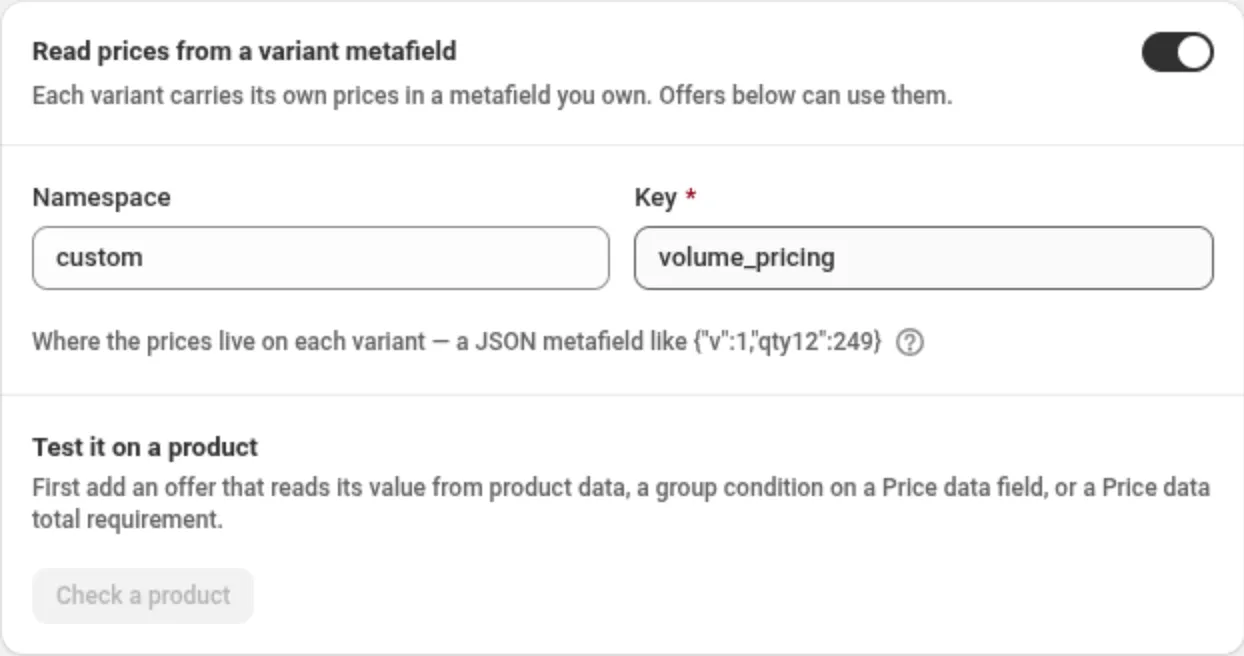
Turn on Read prices from a variant metafield, if your prices live in your own data.
Enter the namespace and key of the metafield that holds them. This address applies to the whole discount — one metafield per discount, read from every variant in the cart.
-
Add cart groups to describe which items you mean.
A cart group is a named selection of items — “Case packs”, “Spring range” — built from conditions. Groups are defined once and reused by any offer. All items is built in.
-
Turn on the offers you need, and point each one at a group.
Product, order and shipping offers each have their own value and their own requirements. A product offer picks the items it discounts; an order offer discounts the order total and can leave chosen items out with Don’t apply this discount to specific items.
-
Set requirements, overlap handling, combinations, markets and dates, then save.
Reading prices from a product metafield
Section titled “Reading prices from a product metafield”Where the value lives
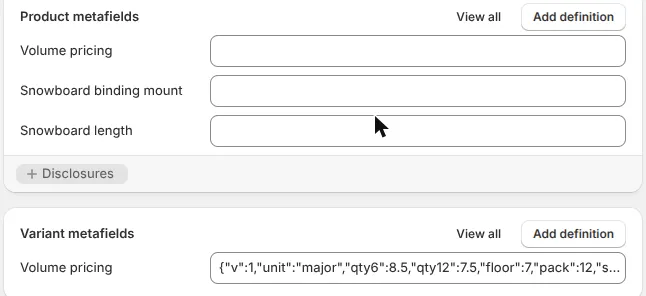
Section titled “Where the value lives”The discount reads a variant metafield. Shopify shows product metafields and variant metafields on the same page, and only the variant one is read.
What the value looks like
Section titled “What the value looks like”The metafield is a JSON object of flat name-and-value pairs. You choose the names.
{ "v": 1, "qty6": 850, "qty12": 750, "floor": 700, "pack": 12, "season": "ss26" }"v": 1is required. It is the format version, and it lets the shape grow later without changing what today’s values mean. A metafield without it, or with any other value, is ignored.- Numbers are amounts, or values a condition can compare.
850and12above. - Text is for selecting items, never for money.
"ss26"above. - Anything else —
true, a nested object, a list — is ignored. - Two names are reserved:
vandunit. Every other name is yours.
Field names use letters, digits, _ and -, and start with a letter or _.
Whole minor units, or plain prices
Section titled “Whole minor units, or plain prices”By default a number is a whole minor unit of your store currency, so 850 means 8.50 and 249
means 2.49. This is the format most ERP exports already use, and it cannot be misread.
If you would rather write prices the way you say them, add "unit": "major":
{ "v": 1, "unit": "major", "qty6": 8.50, "qty12": 7.50, "floor": 7 }Both files above mean the same thing. Some rules to know:
- The setting applies to the whole metafield, not to one field. Pick one style per variant.
- Under
"major", an amount with more decimals than your currency has is ignored —1.999in a two-decimal currency,15.5in yen. The app will not round it into money. "unit"must be exactlyminorormajor. Any other word and the whole metafield is ignored, so a typo cannot quietly change what your prices mean.- A percentage is never affected by this setting. It is always read as written, so
10is 10% in both styles, and12.5is 12.5%.
Pointing an offer at a field
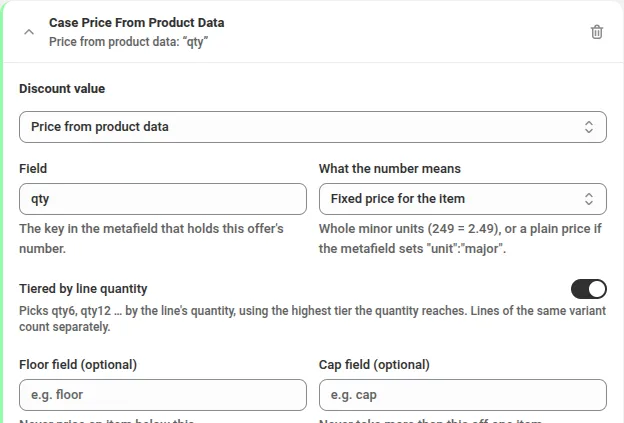
Section titled “Pointing an offer at a field”Set a product offer’s Discount value to Price from product data.
| Setting | What it does |
|---|---|
| Field | The name in the metafield that holds this offer’s number. |
| What the number means | Fixed price for the item — the item is sold at that price. Amount off each item — that much comes off each unit. Percentage off — that percentage comes off. |
| Tiered by line quantity | Reads qty6, qty12 and so on, using the highest tier the line’s quantity reaches. |
| Floor field (optional) | Names a field holding the lowest price the item may reach. |
| Cap field (optional) | Names a field holding the most that may come off one unit. |
Three things that are easy to miss:
- Tiers are per line. Six of a variant in one line reaches tier 6. Three plus three in two separate lines does not.
- A field name used for tiers must not end in a digit, because the tier number is added to the
end of it.
price_1with tiers on would readprice_12as tier 2. The app refuses that combination when you save. - A floor or cap you name must be readable on the variant. If you point an offer at a
capfield and a variant has no usablecap, that item gets no discount — the limit is never dropped silently.
An item gets no discount, rather than a wrong one, whenever the number is missing, zero, negative, text, or not a usable amount. That is deliberate: a discount that cannot be computed exactly does not run.
Validating the metafield in Shopify
Section titled “Validating the metafield in Shopify”Give the metafield a definition with a JSON schema and Shopify refuses a broken value at the moment someone saves it — in the admin, in the bulk editor and through the API. Create the definition under Settings → Metafields and metaobjects → Variants, choose the JSON type, and paste this as the schema:
{ "$schema": "http://json-schema.org/draft-07/schema#", "type": "object", "required": ["v"], "minProperties": 2, "maxProperties": 40, "properties": { "v": { "type": "integer", "enum": [1] }, "unit": { "type": "string", "enum": ["minor", "major"] }, "label": { "type": "string", "maxLength": 40 } }, "patternProperties": { "^(qty|price|wholesale|floor|cap|min|max)[0-9]*$": { "type": "number", "minimum": 0, "maximum": 100000000 } }, "additionalProperties": { "type": ["number", "string", "boolean"] }}That schema refuses a wrong version, a list instead of an object, a nested object, a negative
amount, and a misspelled unit. Shopify does not enforce field-name patterns on a metafield
schema, so field names are checked by the app instead, when you type one into an offer or a
condition.
Selecting items with cart groups
Section titled “Selecting items with cart groups”A cart group is a named selection of cart items. Offers refer to groups by name, so one group can target one offer and gate another.
Each group matches all, any or none of its conditions. “None” is the complement: the group holds every item that matches none of the conditions.
Conditions available on a Custom Discount:
| Group | Conditions |
|---|---|
| Item | Specific products, specific variants, specific collections, line quantity, line subtotal, line attribute, compare-at price, has selling plan — on product and order offers. Shipping offers have specific collections, line quantity and line subtotal only |
| Price data | Price data field, Price data number — shown only while Read prices from a variant metafield is on, and only on product offers |
| Cart | Cart subtotal, cart quantity, cart attribute, retail location |
| Customer | Customer tags, customer logged in, customer is B2B, company |
Product tags and customer order count are not available on this discount type.
The cart groups editor has no shipping conditions. A shipping offer chooses its rates under Which shipping rates: Rate to discount is All shipping rates, Rate by name, Rate by price or No rate (disable), and by name or price you set Match and the Rate name or Rate price. To limit delivery by country, province or state, city, postal code, shipping type or shipping method, use a Shipping discount or a shipping offer in a Multi-offer discount.
Price data conditions
Section titled “Price data conditions”Price data field selects items by a piece of text in the metafield — a season code, a supplier, a contract tier. Price data number selects them by a number in it.
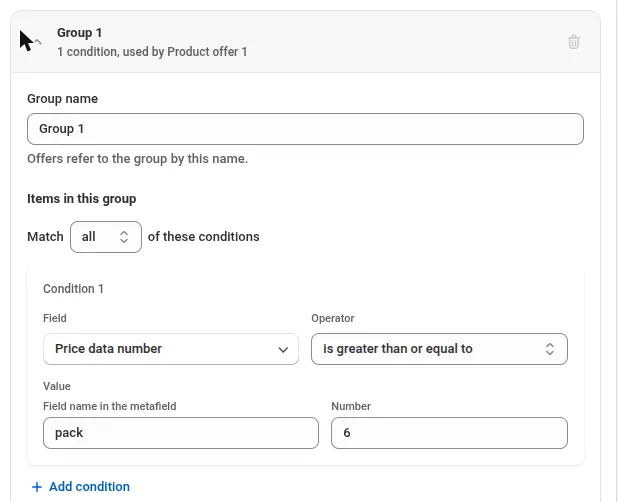
A number condition offers equals, is greater than or equal to, is less than or equal to, and is
between. It reads the number exactly as written, so it is unaffected by the unit setting — pack
of 12 is twelve whether your amounts are in minor or major units.
What happens when an item has no price data, or not that field:
- A positive condition does not match it.
- A negative text condition — is not one of, does not contain — does match it. The field genuinely is not there.
- A number condition never matches it, whichever comparison you chose. “Less than or equal to 6” does not match an item with no number to compare.
- A group set to none therefore includes items with no price data, which is usually what you want from “everything except the case packs”.
Requirements
Section titled “Requirements”Requirements gate an offer on a whole group rather than on each item. Choose a group, a measure and a comparison.
| Measure | What it counts |
|---|---|
| Subtotal, compare-at subtotal | Money in the group |
| Quantity | Units in the group |
| Lines, products, variants | How many of each are in the group |
| Groups matched | How many of several named groups the cart has items from |
| Price data total | A number from each item’s price data, times its quantity, added up — grams, litres, servings |
Comparisons are equals, is greater than or equal to, is less than or equal to and is divisible by. Divisible by works on the whole number measures — quantity, lines, products, variants, groups matched — and is how you express “every third item” or “sold in pairs”.
Adding up a number from your product data
Section titled “Adding up a number from your product data”Price data total lets a deal depend on something other than money or item count — a coffee deal
once the cart holds 1 kg, a drinks deal at 10 litres. Add the number to each variant’s price data
under a name you choose, for example {"v":1,"g":250} on a 250 g bag. Then add a requirement:
choose the group, choose Price data total, type the name (g) in Number name, and set the
amount.
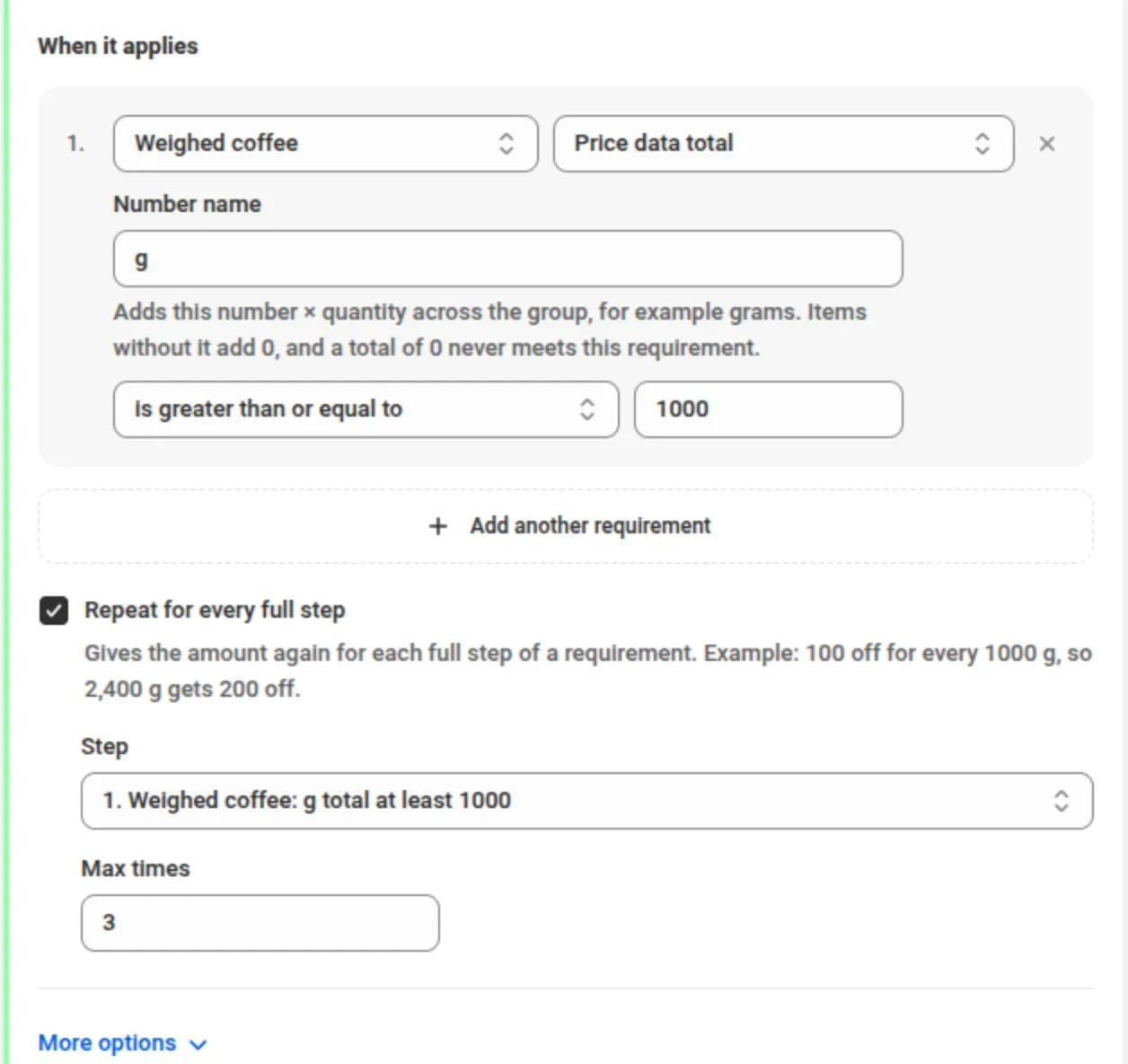
- Each item adds its number times its quantity. Two 250 g bags and one 500 g bag add up to 1000.
- An item without the number adds 0. A cart that adds up to 0 never meets the requirement, even with is less than or equal to.
- One number name per offer. Use the same name twice to set a range, for example at least 1000 and at most 2000.
- It needs Read prices from a variant metafield turned on, works on product offers, and can’t be combined with per-product or per-variant counting.
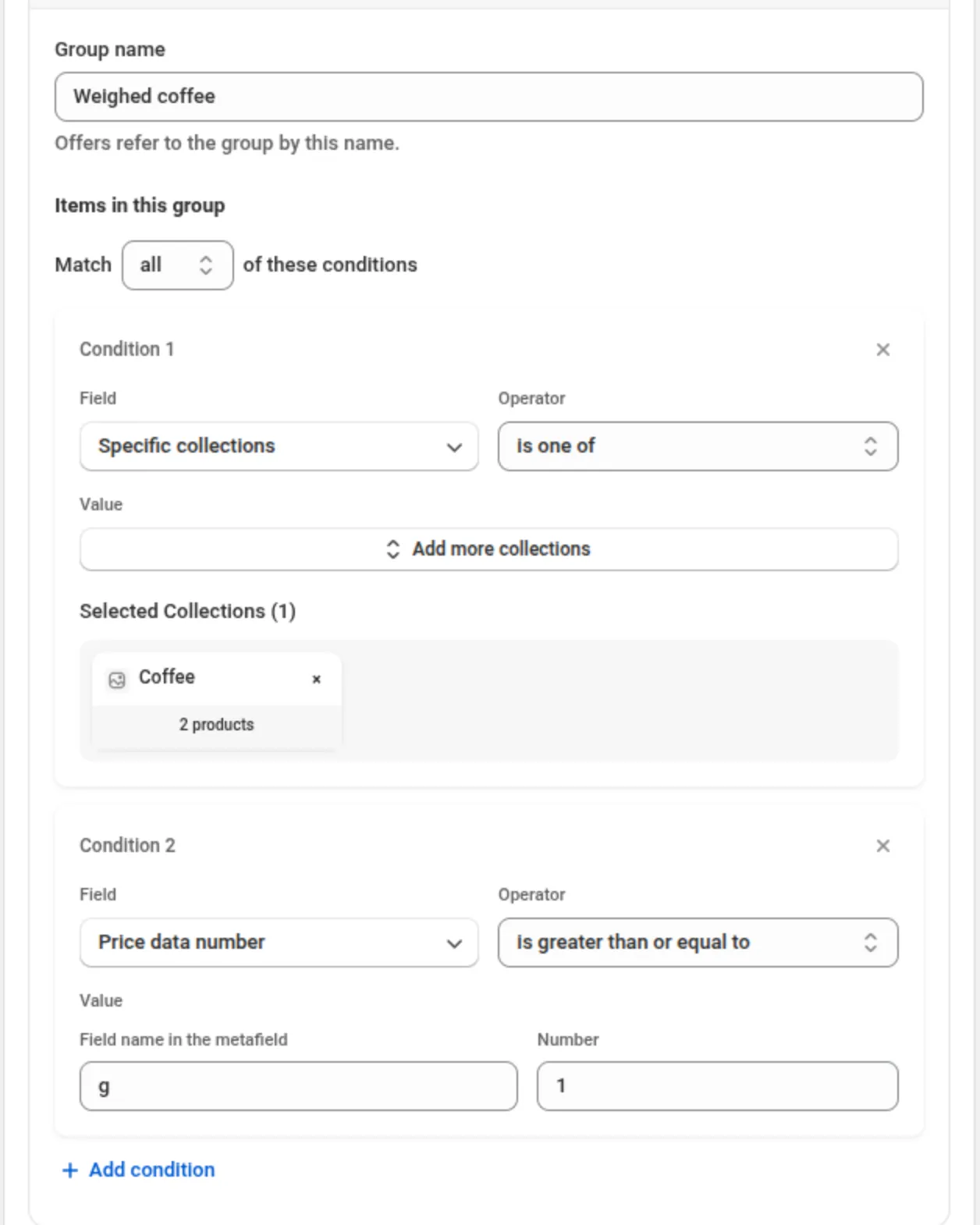
The offer discounts every item in its group, including items that add 0. To keep items without the
number out of the deal — a mug in the same collection as the coffee — add a Price data number
condition to the group, for example g is greater than or equal to 1.
Repeat for every full step
Section titled “Repeat for every full step”With Fixed amount off you can give the amount again for each full step of a requirement — 5 off for every full kilo, or 50 off for every 500 spent. Tick Repeat for every full step, pick the requirement in Step, and optionally set Max times.
- The step is the requirement’s own amount. With a step of 1000 g, 2,400 g counts as two full steps and 950 g as none.
- Max times caps how often the amount is given. Leave it empty for no limit.
- The discount never goes above the price of the items it applies to.
- The step can be a Quantity, Subtotal or Price data total requirement that uses is greater than or equal to.
- Repeat works with Fixed amount off on product and order offers. It needs Match set to all, and can’t be used with an item limit or per-product counting.
How an order percentage is calculated
Section titled “How an order percentage is calculated”An order offer with Percentage off comes off the cart total after product discounts — the same way Shopify’s own order discounts work. There is no switch for this on a Custom Discount. A product discount here can be a product offer in this same discount, or another discount that is allowed to combine with it.
Worked example. One discount: a product offer of 20% off every item and an order offer of 15% off. The cart totals 80.00, and the product offer brings it down to 64.00. The order offer takes 15% of 64.00 = 9.60 off, and the customer pays 54.40.
The order percentage is calculated on the full cart total, before product discounts, in two cases:
- The order offer has Cap the total discount or Only discount the cart up to a value ticked. Shopify can’t cap a percentage it calculates, so the app works out the amount itself.
- When offers overlap is set to Apply all matching discounts and the discount has more than one order offer. The app then adds the order offers together on the full cart total.
In either case, when a product discount can apply to the same cart, a blue note under the percentage says, for 15%: “15% is calculated on the cart total before product discounts are applied.” Its tooltip shows what to change: “To calculate it on 80 instead, turn off the maximum discount and the cart value limit.” or the overlap option to choose.
Also good to know:
- Fixed amount off on an order offer is a fixed amount, with or without product discounts.
- A Subtotal requirement still checks the cart before discounts.
- Rounding. Shopify rounds the amount down to your currency’s smallest unit. On a cart with no product discount this can be 1 cent less than the exact percentage: 5% of 59.99 gave 2.99 off on our test store.
Maximum discount, cart value limit and counting
Section titled “Maximum discount, cart value limit and counting”A Percentage off product or order offer can tick:
- Cap the total discount, then enter Maximum discount — the most the offer takes off.
- Only discount the cart up to a value, then enter Cart value limit. Above that value the rest of the cart is not discounted.
A ticked box needs an amount greater than 0. If it is empty, 0 or negative, the save is blocked: the field shows “Please enter a maximum discount amount” or “Please enter a maximum cart value” (or “Please enter a valid amount greater than 0”), and the banner at the top names the offer, for example “Enter a maximum discount amount for Product offer 1.”
Product offers have Count condition quantities under More options: Across matched items (the default), Per product or Per variant. The last two:
- need Percentage off or Percentage off compare-at price — otherwise the error reads “Per-product or per-variant counting needs a percentage discount — change the value type or set counting back to Across matched items”;
- can’t be used with Cap the total discount or Only discount the cart up to a value. While either box is ticked the select is hidden; if counting was already set, it stays visible with “Per-product or per-variant counting can’t be used with a maximum discount or a cart value limit. Untick them, or set counting back to Across matched items”;
- can’t be used with Repeat for every full step or a Price data total requirement, and are not offered on an offer that reads prices from product data.
Overlaps, limits and combinations
Section titled “Overlaps, limits and combinations”- When offers overlap, choose to apply the first matching offer, the one that saves the most, or all of them. Applying all is unavailable while an offer reads prices from product data.
- An overall item limit caps how many units the whole discount may touch, taking the highest-value, lowest-value or first items in the cart.
- Combinations decide whether this discount runs alongside product, order and shipping discounts. See Combinations.
- Tags label the discount, up to 20. On Shopify Plus, Stack with product discounts tagged lets two product discounts apply to the same item. See Combinations.
- Usage limits and scheduling work as they do everywhere else. See Usage limits and scheduling.
Markets and currency
Section titled “Markets and currency”Amounts in the metafield are in your store currency. With Convert to customer’s currency on, they are converted at Shopify’s rate for the customer’s currency. With it off, an offer that reads prices from product data applies only to customers paying in your store currency — it will not treat your number as though it were the customer’s currency. Percentages are unaffected either way. See Markets and currency.
Who can use the discount
Section titled “Who can use the discount”The Who can use this discount card takes customer conditions — customer tags, customer logged in, customer is B2B, retail location and company. Its Limit to certain customers switch adds a gate Shopify checks before the discount runs: Match by Customer segments (up to 5 on an automatic discount, up to 20 on a code) or Specific customers (up to 100). See Customer eligibility.
Test mode
Section titled “Test mode”Test mode makes the discount apply only to a signed-in customer whose customer account has the
tag dos-test. Everyone else shops as if the discount did not exist. It is the safe way to try
pricing on a live store before anyone else sees it: turn it on, add the tag to your own customer
account, check the cart, then turn it off. The switch is on its own card above the Summary. See
Test mode.
Check a product
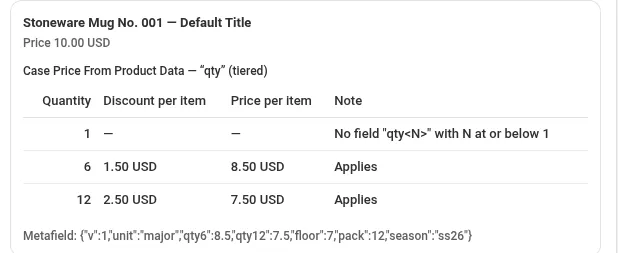
Section titled “Check a product”Check a product answers “what would this discount do to this item?” without touching a cart. Pick a product and a variant, and the app reads that variant’s real metafield and runs the same arithmetic the discount uses.
For an offer that reads prices, you get a row per quantity — quantity 1 and every tier present — with the discount per item, the resulting price, and a plain reason when nothing applies.
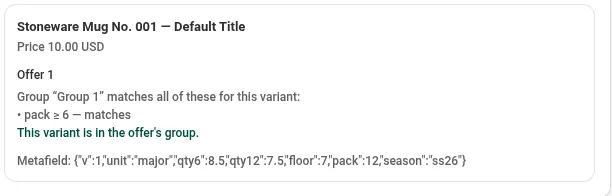
For an offer whose group uses Price data conditions, you get the conditions instead, each with what the engine decides for that variant, and a verdict.
For an offer with a Price data total requirement, it shows what this variant adds to the total — for example adds 250 per item — or that it counts 0 and why.
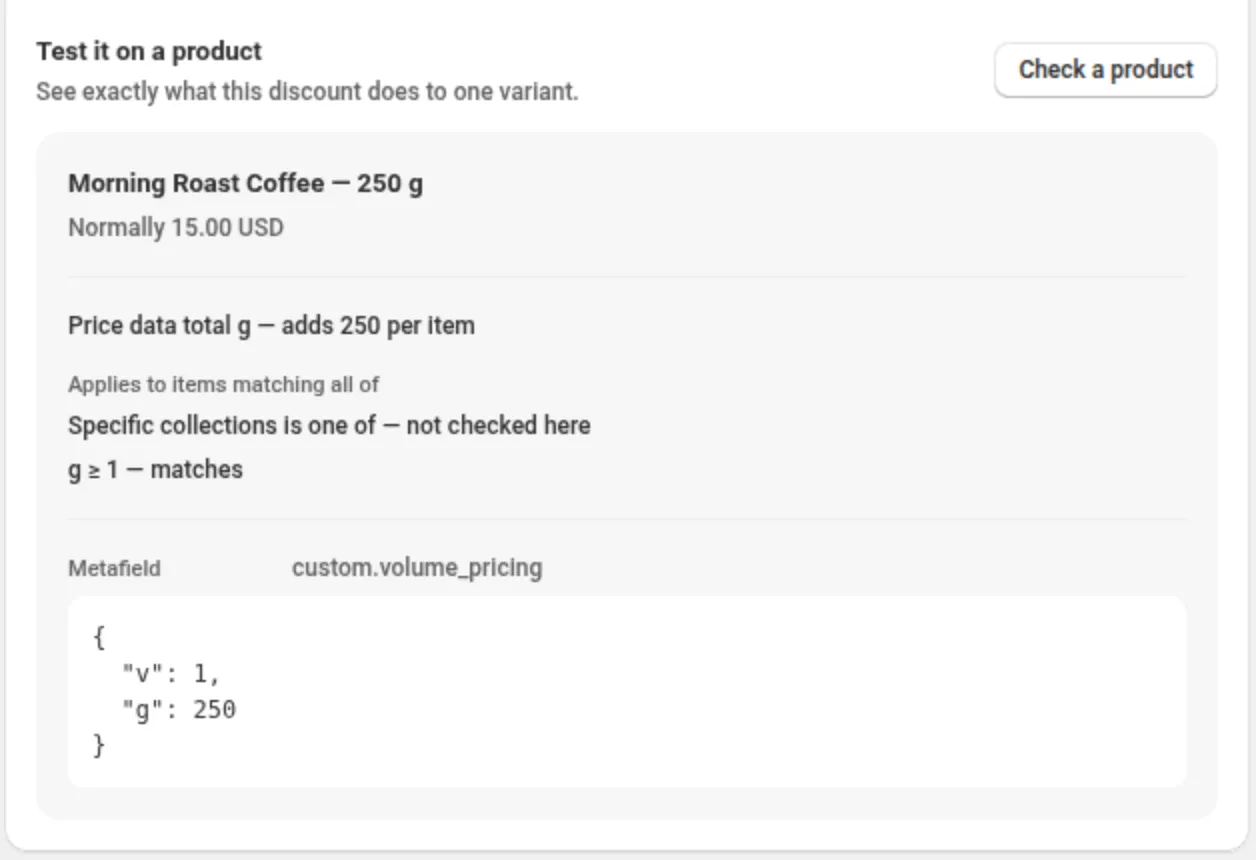
Use it whenever a discount is not behaving: it tells you whether the data or the discount is at fault, and names the field when the data is.
Keeping the metafield up to date
Section titled “Keeping the metafield up to date”You rarely want to edit these by hand. In rough order of how many variants you have:
A few variants — the product page. Open the product, find Variant metafields, edit the value. Good for a correction, painful past a handful.
Tens to hundreds — Shopify’s bulk editor. The bulk editor can show the variant metafield as a column, so you can fill or paste a whole column in one pass. Reach it from a product’s variant list or from the products list, and use Columns to add the field. Shopify’s bulk editing guide has the current navigation.
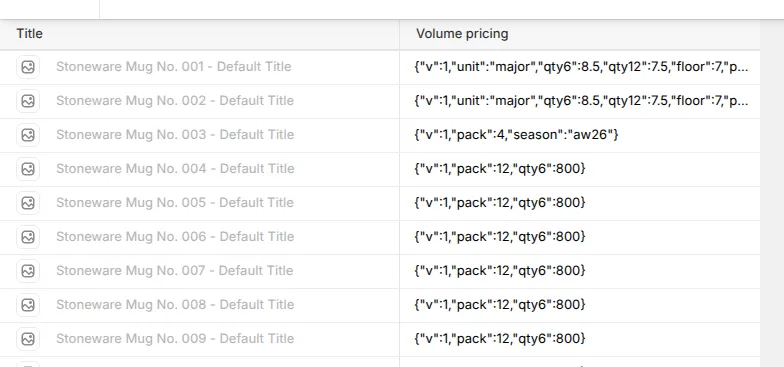
Make sure you are editing variants, not products. The product-level column of the same name is a different field, and nothing reads it.
Hundreds to thousands — a spreadsheet. Build the JSON in a spreadsheet so every row has an
identical shape, then paste the column into the bulk editor. A formula like
="{""v"":1,""qty6"":"&B2&",""qty12"":"&C2&"}" keeps the punctuation right. If your export tool
supports metafield columns in a CSV, the same column works there — check
Shopify’s import and export guide
for what your plan supports.
On a schedule, or from another system — the API. The
metafieldsSet
mutation writes metafields in batches and is the right tool for a nightly sync from an ERP. If your
source already emits JSON, write it straight through — the app reads 79, 79.0 and 7.9e1 as
the same amount, so you do not need to reformat your exporter’s numbers.
Without code — Shopify Flow. A workflow can write a metafield when something changes, which covers rules like “copy the supplier price into the wholesale field” without a developer.
Examples
Section titled “Examples”Sixteen complete setups live on their own page, from a plain 20% off a collection to per-account contract pricing read from your data: Custom Discount examples.
A few of them:
| Example | Needs a metafield? |
|---|---|
| A plain percentage off a collection | No |
| A product discount and free shipping in one discount | No |
| Wholesale case pricing, a different price per SKU at 6 and at 12 | Yes |
| A protected floor so a deep tier never sells below cost | Yes |
| Contract pricing for tagged customers only | Yes |
| Case packs only, chosen by a number in your data | Yes |
| Clearing a season by a text field | Yes |
Limits and what to expect
Section titled “Limits and what to expect”- Configuration size. A discount’s configuration is capped at 10 kB, shown live as you edit. Long lists of specific products are what fill it; collections and conditions are compact.
- Very large carts. Shopify gives a discount a fixed amount of work per cart. On our test store a discount with a Price data condition applied to carts of up to 172 different products and stopped applying beyond that; without such a condition the same discount reached 180. When the limit is passed the discount applies nothing — it never applies partially or wrongly.
- Quantities are not a constraint in the same way. A single line of 3,000 units prices correctly.
- Price data is for product offers only. Price data conditions and the Price from product data value are available on product offers; order and shipping offers do not read the metafield, and the app refuses that combination when you save.
- Percentages you type into an offer must be greater than 0 and no more than 100.
- Cart attribute keys. Product and order offers read one cart attribute key per discount; shipping offers can read two. A condition using another key is refused when you save, with the reason on that condition.
If something is not applying
Section titled “If something is not applying”Work through these in order.
- Check a product on a variant you expect to discount. It names the reason.
- Confirm the value is under Variant metafields, not product metafields.
- Confirm
"v": 1is present. - Confirm the units.
8.5without"unit": "major"is eight and a half minor units, not 8.50. - Confirm the field name in the offer matches the field name in the data, exactly.
- For tiers, confirm the line’s quantity reaches a tier, and that the field name does not end in a digit.
- If you named a floor or cap field, confirm every variant has a usable value in it.
Still stuck? See Discount not applying.