How to disable or restrict a discount code on Shopify, with your own message
Disable a Shopify discount code on every cart or on the carts you choose, and show shoppers your own message instead of an error.
DiscountOS is a Built for Shopify discount app that runs multiple offers inside a single automatic discount, including market-specific and tiered discounts.
How do you disable a discount code on Shopify?
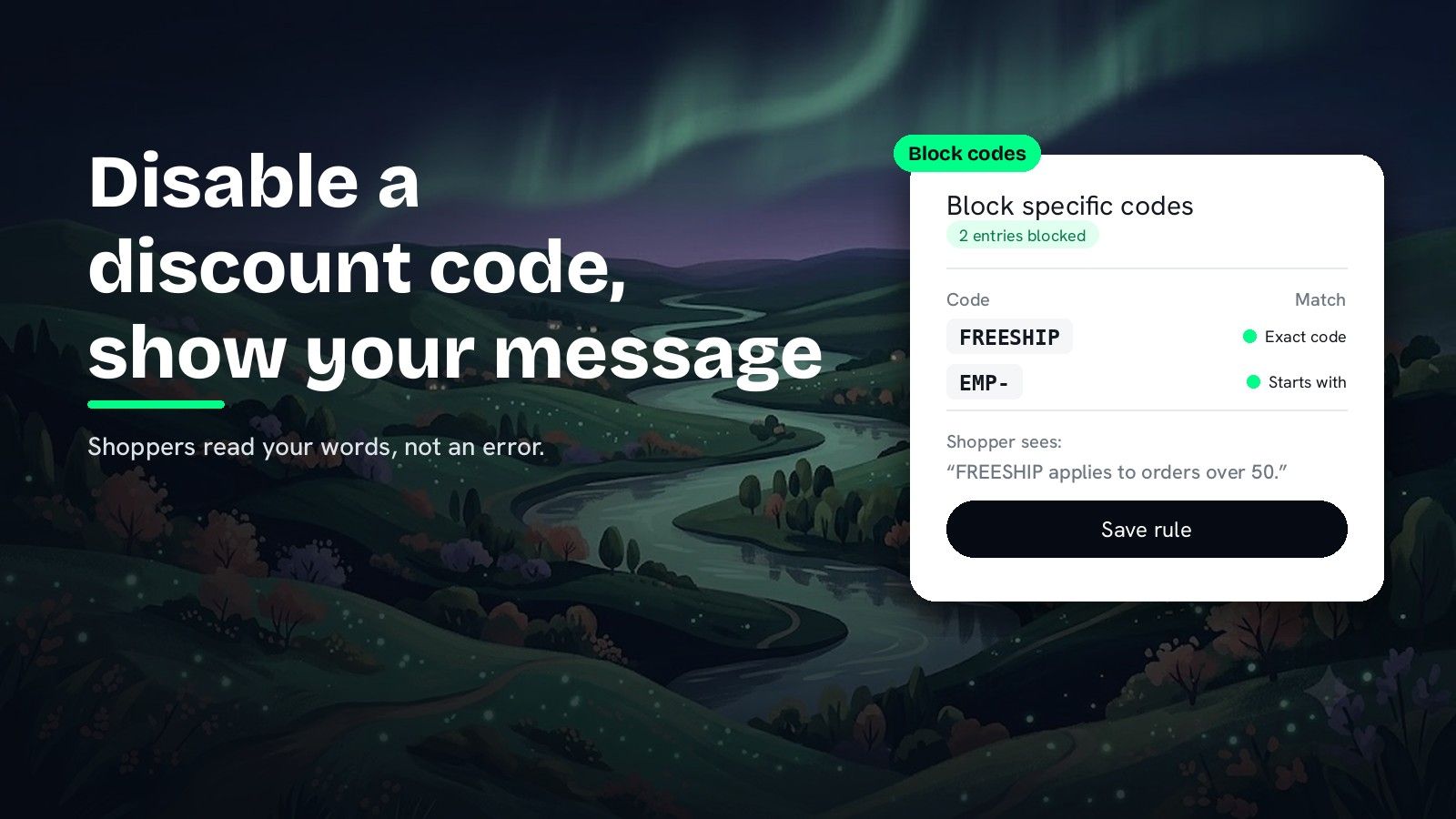
In Shopify admin you disable a code by deactivating it. The Shopify Help Center says a shopper who then applies it receives an error stating that your store is “Unable to find a valid discount matching the code entered”, and the page on managing discounts describes no setting for a custom message or for switching a code off on some carts and not others. Shopify’s Discount Function API has the mechanism developers use: an operation that “rejects entered discount codes with a custom message”, which “can only be used if the function is backed by an automatic discount.” DiscountOS puts that mechanism in a form, under Block codes. You choose Block specific codes or Pause all codes during a discount, list codes or patterns, add conditions such as cart total or customer tag, and type the Custom message shoppers read. The code keeps working on every cart your rule does not match.
Deactivate the code in Shopify, or restrict it with DiscountOS?
| What you need | Deactivate in Shopify admin | DiscountOS Block codes |
|---|---|---|
| Disable a code on every cart | Yes, deactivate it (Help Center) | Block specific codes with no conditions |
| Restrict a code to some carts | Not described on the Help Center page on managing discounts | Conditions on the rule: cart total, item count, past orders, customer tag and more |
| Message the shopper sees | “Unable to find a valid discount matching the code entered” (Help Center) | Your Custom message |
| Disable a family of codes | No pattern matching described on the Help Center page on managing discounts | Starts with, Ends with or Contains |
| Pause every code during a sale | Not described on the Help Center page on managing discounts | Pause all codes during a discount |
| Turn the code back on | Reactivate the code | Switch the rule off, or delete it |
How to disable a discount code with your own message in DiscountOS
- Open Block codes and click Create rule. Once you have rules, the button in the page header reads Add rule.
- Choose the rule type. Block specific codes blocks the codes and patterns you list. Pause all codes during a discount blocks every code while a discount you pick is active.
- List the codes. Under Which codes to block, pick Exact code, Starts with, Ends with or Contains from the dropdown, type the value and press Enter. Each entry becomes a chip. Entries take letters, numbers, underscores and hyphens.
- Add conditions to restrict the code to some carts. The Conditions card starts with “This rule always applies. Add a condition to limit when it refuses the code.” Click Add condition for a cart total, item count, past orders, customer tag, logged-in status, B2B order, a collection, a product tag or a subscription item. With two or more, choose all of these or any of these.
- Write the message. Type it in Custom message. The Preview card shows it where a shopper enters a discount code, and the Summary recaps the rule.
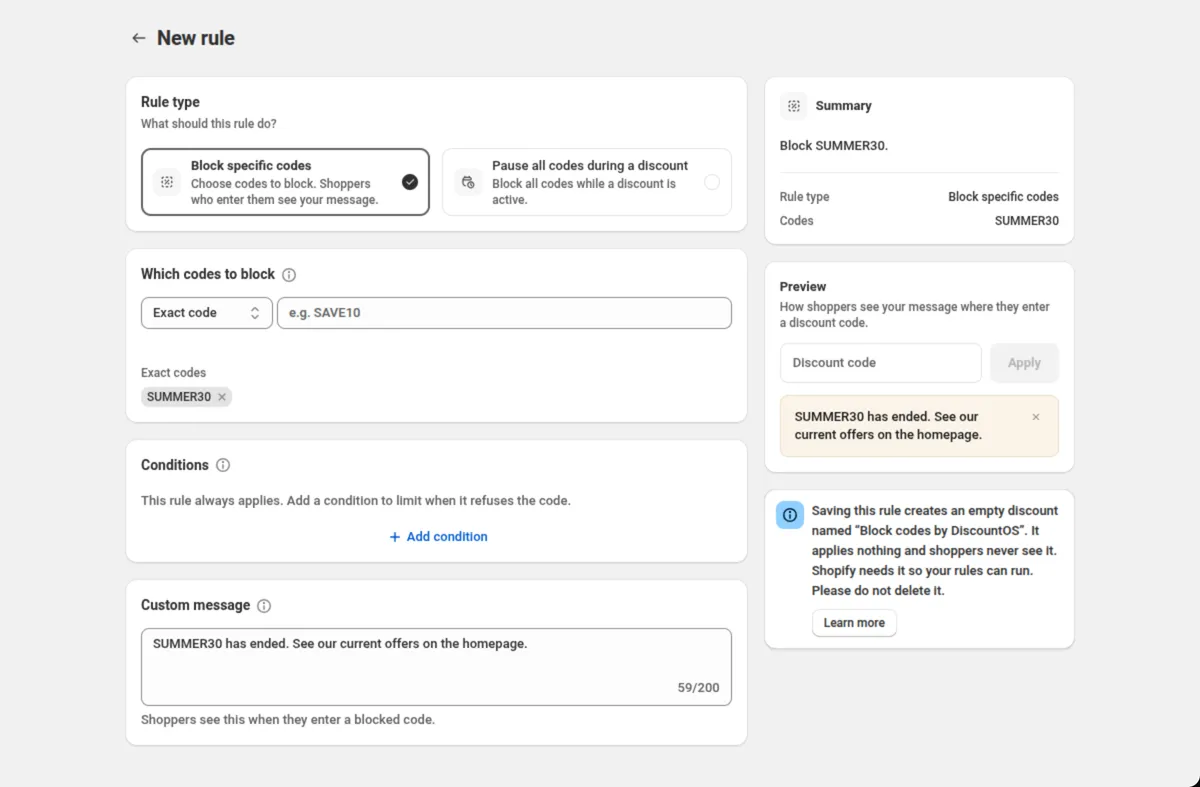
- Save the rule. Your first save creates an empty automatic discount named “Block codes by DiscountOS”. It holds no value and shoppers never see it. Keep it active so your rules run.
- Order your rules. Rules check top to bottom, and the first match decides the message. Use the arrows on each row to reorder them.
Every setting is explained in the Block codes docs, and each condition field in Conditions.
Setup values for common restrictions
| Goal | Rule type and codes | Condition | Custom message |
|---|---|---|---|
| Disable staff codes on this order | Starts with EMP- | none | Staff codes can’t be used on this order. |
| Free shipping code on orders over 50 | Exact code FREESHIP | Cart subtotal · is less than or equal to · 50 | FREESHIP applies to orders over 50. |
| No codes during the summer sale | Pause all codes during a discount, Which discount? Summer sale | none | Codes are paused right now. |
Tips for restricting discount codes
- Pause all codes follows the sale’s dates. Codes are paused from the chosen discount’s start date to its end date, and they work again once it ends.
- Deleting a rule turns its codes back on at once. The app says: “Codes it blocked will work again right away.”
- Switch a rule off to keep it for later. Each rule on the list has its own switch, and off leaves the rule saved.
- All your rules share one automatic slot. “Block codes by DiscountOS” is an automatic discount, and the Shopify Help Center says: “You can have a maximum of 25 active automatic discounts. This total includes app-based discounts.” How to have more than 25 automatic discounts on Shopify shows how to get more from each slot.
Disabling codes after Shopify Scripts
Some older threads disable codes with a Shopify Script. The Shopify Help Center page on Shopify Scripts now reads: “As of June 30, 2026, Shopify Scripts has been deprecated. Any Scripts that were still published on your store have been deactivated and no longer work.” A DiscountOS Block codes rule is set up in a form, with no code to write.
Want a discount that goes to certain customers in the first place? Read how to give an automatic discount to customers with a specific tag. For a side-by-side of Shopify discount apps, read the best Shopify discount apps in 2026.
Questions merchants ask
What does a shopper see when they enter a deactivated Shopify discount code? The Shopify Help Center says they receive an error stating that your store is “Unable to find a valid discount matching the code entered”. The page on managing discounts describes no setting to change that message.
Can I disable a Shopify discount code with my own message? Shopify’s Discount Function API has an operation that “rejects entered discount codes with a custom message”, and it “can only be used if the function is backed by an automatic discount.” That is developer territory. DiscountOS gives merchants the same result from a form (the feature is called Block codes), and shoppers read the message you write.
Can I restrict a discount code to some carts? Yes. A DiscountOS Block codes rule can check cart total, item count, past orders, customer tag, logged-in status, a collection or a product tag before it refuses the code. For example, block FREESHIP when the cart subtotal is less than or equal to 50, and the code keeps working on bigger carts.
Can I stop every discount code during a sale? Yes. The DiscountOS rule type Pause all codes during a discount blocks every code while the discount you pick is active, measured by its start and end dates. Codes work again once that discount ends.
Does disabling codes with DiscountOS use one of my 25 automatic discount slots? Saving your first DiscountOS Block codes rule creates one empty automatic discount named Block codes by DiscountOS, and the Shopify Help Center counts app-based discounts toward the 25 active automatic discounts. All your rules share that one discount. DiscountOS is free.
Sources
- Shopify Help Center, Managing and editing your discounts: deactivating a discount, and the error “Unable to find a valid discount matching the code entered”. Read on 26 September 2026.
- Shopify developer documentation, Discount Function API: EnteredDiscountCodesRejectOperation, “An operation that rejects entered discount codes with a custom message.” and “This operation can only be used if the function is backed by an automatic discount.” Read on 26 September 2026.
- Shopify Help Center, Discount combinations: “You can have a maximum of 25 active automatic discounts. This total includes app-based discounts.” Read on 26 September 2026.
- Shopify Help Center, Shopify Scripts and the Script Editor app: “As of June 30, 2026, Shopify Scripts has been deprecated.” Read on 26 September 2026.
- DiscountOS on the Shopify App Store, listed as DiscountOS ‑ Market Discount, read on 26 September 2026: Built for Shopify, free.
- DiscountOS documentation: Block codes, Conditions.