How to create bulk discount codes on Shopify for free (2026)
Create thousands of unique Shopify discount codes for free with CodeOS: set a pattern, add the codes to a discount and export a CSV for email and SMS.
Why one shared code is a problem
A single code such as SAVE20 works until it leaves your control. It gets posted on coupon sites, shared in group chats and used by people who were never meant to have it. You cannot tell which email, influencer or campaign brought the order, and you cannot stop the leak without killing the whole promotion. (If a code has already leaked, the guide on how to disable or restrict a Shopify discount code covers blocking just that code with your own message.)
Unique codes fix all of that. Each customer gets their own code, each code works once, and the code itself tells you where the sale came from. Email tools like Klaviyo, SMS tools and loyalty programs are built to hand out one code per person, and they need a list of codes to draw from.
The catch is that the Shopify admin has no way to make that list. The discount form takes one code. Shopify does allow apps to add codes to a discount in bulk through its Admin API, and the Help Center points merchants to discount apps for anything beyond the basics. So you need an app, and most of them charge for it.
What you need
- A Shopify store on any plan.
- CodeOS - Bulk Discount Codes, free on the App Store. There is no plan to choose and no card to add.
- Five minutes.
Step 1: Create the discount
Bulk codes attach to an existing code discount and inherit everything it does: the value, the products it applies to, the minimum purchase, the dates and the combination settings. You can use a discount you already have, or create one inside CodeOS.
To create one in the app, open CodeOS, click Create codes, then Or create a new discount for these codes. Fill in:
- Discount type: Percentage off products, Fixed amount off products, Free shipping or Buy X get Y.
- Title: what customers see at checkout, for example “Newsletter welcome · 10% off”.
- Primary code: the discount’s first code, for example WELCOME10. Your bulk codes join it next.
- Value and Applies to: 10% off all products in this example.
- Minimum purchase requirement: none, an amount or a quantity.
- Usage & combinations: keep Limit uses per code at 1 to make every code single-use, and One use per customer ticked.
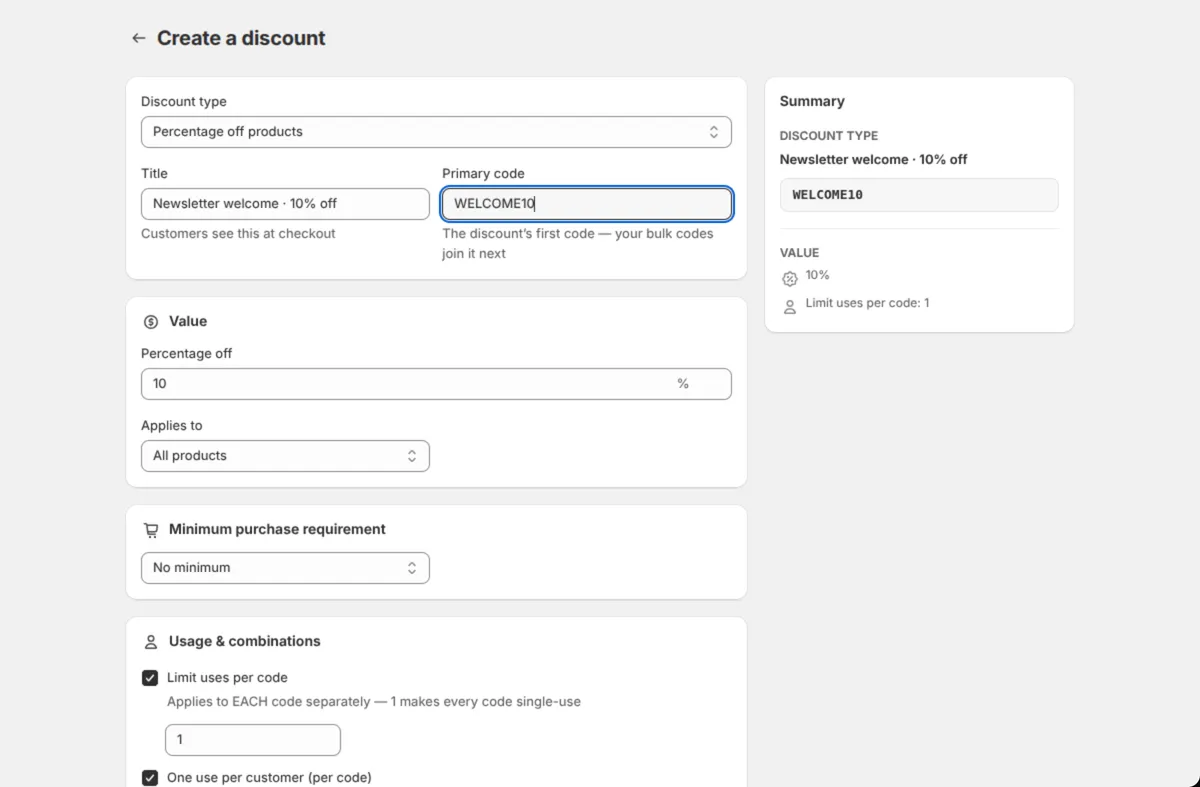
Click Save in the bar at the top. The discount is created in Shopify and CodeOS takes you straight to the code wizard with it selected.
If you would rather create the discount in the Shopify admin, do that first under Discounts, then pick it in the next step.
Step 2: Set the code pattern
The wizard has two parts. 1. Discount shows the discount you picked, with a Change link if you want another one. 2. Code pattern is where you design the codes.
- Number of codes: how many codes this batch creates. 500 in this example.
- Random part length: how many random characters each code gets. 8 is a good default. Short random parts run out of combinations at high counts, so keep 8 or more for big batches.
- Characters: letters and numbers, letters only, or numbers only.
- Prefix and Suffix: text added to every code, such as WELCOME- or -2026. This is what makes a code readable and tells you which campaign it came from.
- Skip look-alike characters: leaves out 0, O, 1, I and L so nobody mistypes a code from a printed card.
- Group with dashes every 4 characters: turns AB12CD34 into AB12-CD34.
- Add a Uniqueness Stamp: marks every code in the set so codes can never repeat across your sets, even with the same pattern.
The Preview on the right shows sample codes as you type, and the Summary shows how many codes the discount will have after this batch and how long the run will take.
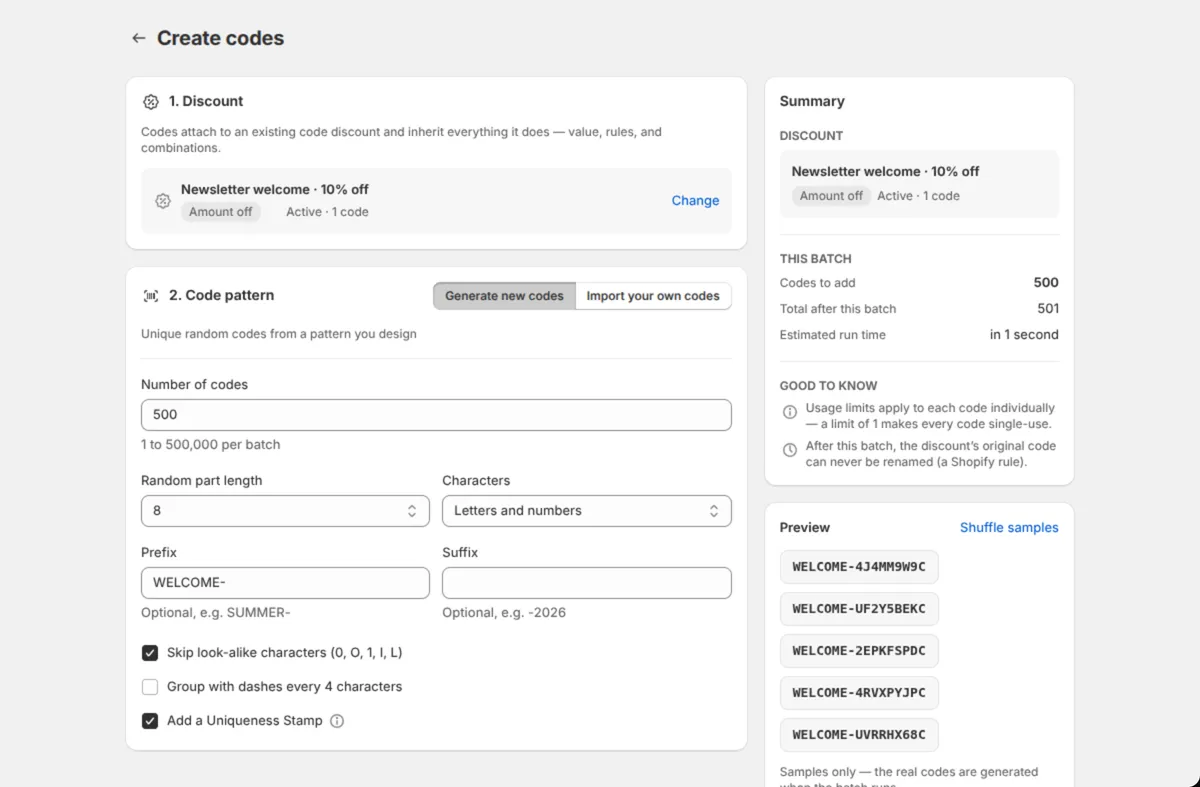
Two things the summary reminds you of, both Shopify rules rather than app rules:
- Usage limits apply to each code individually. A limit of 1 makes every code single-use.
- After the batch, the discount’s original code can never be renamed.
Step 3: Add the codes
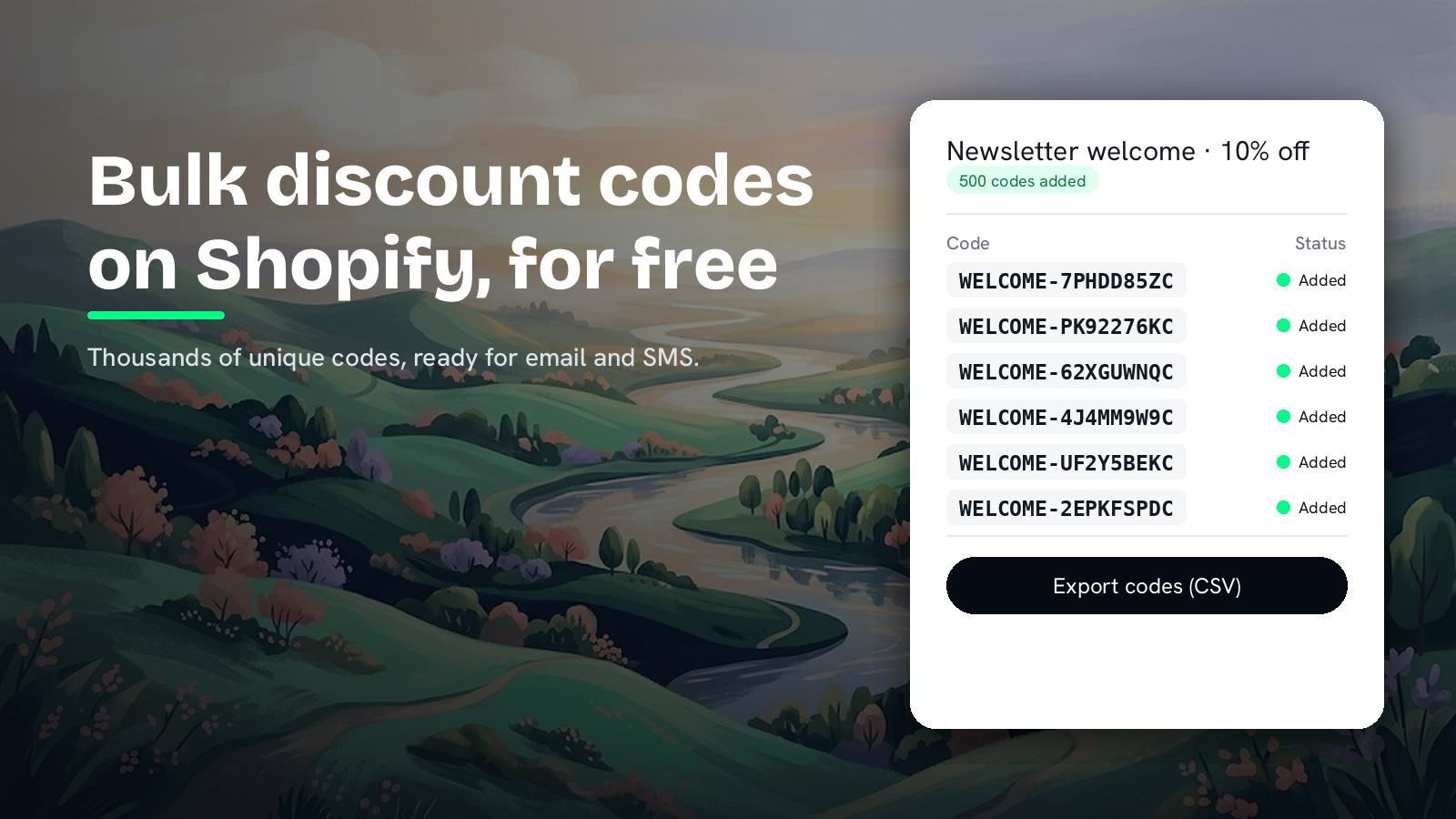
Click Save in the top bar. CodeOS generates the codes and adds them to the discount in Shopify. A batch of 500 takes a few seconds; large batches show a progress bar with the number added so far and the time left. You can leave the page and come back.
When the set is complete you get a report: how many codes were added, how many already existed on the discount, and how many failed, with a downloadable list of any failed rows. Every code in the set is listed on the page with its status, and you can search the list.
Step 4: Export the codes
Open the discount in CodeOS and choose Export codes (CSV) from the set’s Actions menu. The file lists every code in the set. Upload it to Klaviyo, Mailchimp, your SMS tool or your loyalty program, which then hands one code to each customer. For print, the same file goes to your printer.
You can also open the discount in the Shopify admin from the same page to see redemptions and usage per code.
Import codes you already have
If another tool has already generated your codes, or you are moving from another app, choose Import your own codes in step 2 instead of Generate new codes. Add a CSV or text file with one code per line, or a column called code. To make a list first, the free discount code generator creates thousands of unique codes in your browser in one go and downloads them as a CSV that CodeOS imports. It lives on our free tools page for Shopify merchants.
Nothing is added yet at this point. CodeOS reads the file first and shows a check: how many rows it found, how many are ready to add, how many are duplicates inside the file, and how many were rejected. The rejected rows come as a download, so you can fix them. Then you confirm, and the codes go onto the discount.
Seven ways merchants use bulk codes
- Welcome series. One single-use code per new subscriber, sent by your email tool, instead of a WELCOME10 that ends up on a coupon site.
- Win-back. A code for customers who have not ordered in 90 days, so the discount reaches only them.
- Influencers and affiliates. A batch per partner with their name as the prefix, such as ANNA-XXXXXXXX. Redemptions show exactly who sent the order.
- Loyalty rewards. Points redeemed for a code the customer can use once.
- Print. Codes on packaging inserts, receipts or event cards. Skip look-alike characters and group with dashes so they are easy to type.
- Apologies and service recovery. Support hands out one code per case, so a goodwill discount cannot be reused or shared.
- Giveaways and partnerships. A fixed number of codes for a partner’s audience, which caps how much the promotion can cost.
What it costs, compared
Every figure below was read from the app’s Shopify App Store listing on 8 September 2026 and links to it. Prices are regular monthly prices.
| App | Rating (reviews) | Free tier | Paid from |
|---|---|---|---|
| CodeOS | 5.0 (1) | Free, no code limit | No paid plan |
| Cody | 5.0 (5) | Free | No paid plan listed |
| Bulk Discount Code Bot | 4.9 (274) | 3 discount sets | $19/mo (not for Plus), $99/mo |
| Code Bulk Discounts | 4.9 (40) | 500 codes, lifetime | $14.99/mo |
| BulkBunny | 4.8 (6) | 10,000 codes in 3 sets | $14.99/mo, $34.99/mo on Plus |
| MyBulk | 4.4 (155) | Free to install | $1 per set up to 10,000 codes, $3 up to 100,000, $5 up to 250,000 |
| Bulk Discount Codes Generator | 5.0 (62) | Trial only | $9.85/mo |
| Amai Bulk Discount Codes | 4.2 (11) | None listed | $6.95/mo |
CodeOS is new, launched in July 2026, which is why the review count is small. It is built by the team behind DiscountOS, a Built for Shopify discount app with a 5.0 rating. CodeOS itself is free, with no cap on codes.
Shopify rules for bulk discount codes
- Codes: up to 20,000,000 unique discount codes per store in total, across all discounts (Help Center). Run as many batches as you need within that.
- Per code: upper and lower case count as the same code, so SAVE10 and save10 are one code (Shopify developer docs). Shopify advises avoiding special characters so codes work in checkout links; letters, numbers, dashes and underscores are always safe.
- Per order: Shopify applies at most 5 discount codes to one order, whatever app made them (Help Center).
- Renaming: once bulk codes are on a discount, Shopify no longer lets you rename the discount’s original code.
- Deleting the discount: codes belong to the discount. They stop working when it expires and are gone if it is deleted.
- Removing codes: a set can be removed from the discount from inside CodeOS if you added the wrong file or want to end a campaign early.
Questions merchants ask
Can Shopify create bulk discount codes on its own? No. The discount form in the Shopify admin takes one code per discount. Shopify does let apps add more codes to a discount through its Admin API, which is how a bulk code app works. CodeOS does this for free.
How many discount codes can I create with CodeOS? As many as you need. There is no monthly limit, no cap on codes and no paid plan. Set the number of codes for each batch and run as many batches as you want.
How do I make every code single-use? Set the usage limit on the discount to 1. In Shopify, usage limits apply to each code separately, so a limit of 1 makes every code in the batch single-use. CodeOS shows this option when you create the discount inside the app.
Can I import discount codes I already have into Shopify? Yes. In CodeOS choose Import your own codes, add a CSV or text file with one code per line, and the app checks the file first, then adds the codes to the discount you picked.
How do I get the codes into Klaviyo, my SMS tool or a print run? Open the discount in CodeOS and choose Export codes (CSV). The file lists every code in the set, ready to upload to Klaviyo, Mailchimp, an SMS tool or a printer.
Do bulk codes work with discounts made by other apps? Codes attach to any code discount in your store, including discounts created by DiscountOS and most other discount apps. They inherit everything the discount does: the value, the rules and the combination settings.
Related reading
- The 8 best Shopify discount apps in 2026
- Free gift with purchase on Shopify
- The break-even maths: discounting without losing your margin
Sources
- Shopify App Store listings, read on 8 September 2026: CodeOS, Cody, Bulk Discount Code Bot, Code Bulk Discounts, BulkBunny, MyBulk, Bulk Discount Codes Generator, Amai Bulk Discount Codes.
- Shopify Help Center: Discount types and Managing and editing your discounts.
- Shopify developer docs: discountRedeemCodeBulkAdd, the API that adds codes to a discount in bulk.