Layout notes
תוכן זה אינו זמין עדיין בשפה שלך.
Examples has the Liquid. This page describes how the example screens are laid out and which data each part reads. Everything here is Liquid plus a few lines of JavaScript for switching variants. None of it makes a network request.
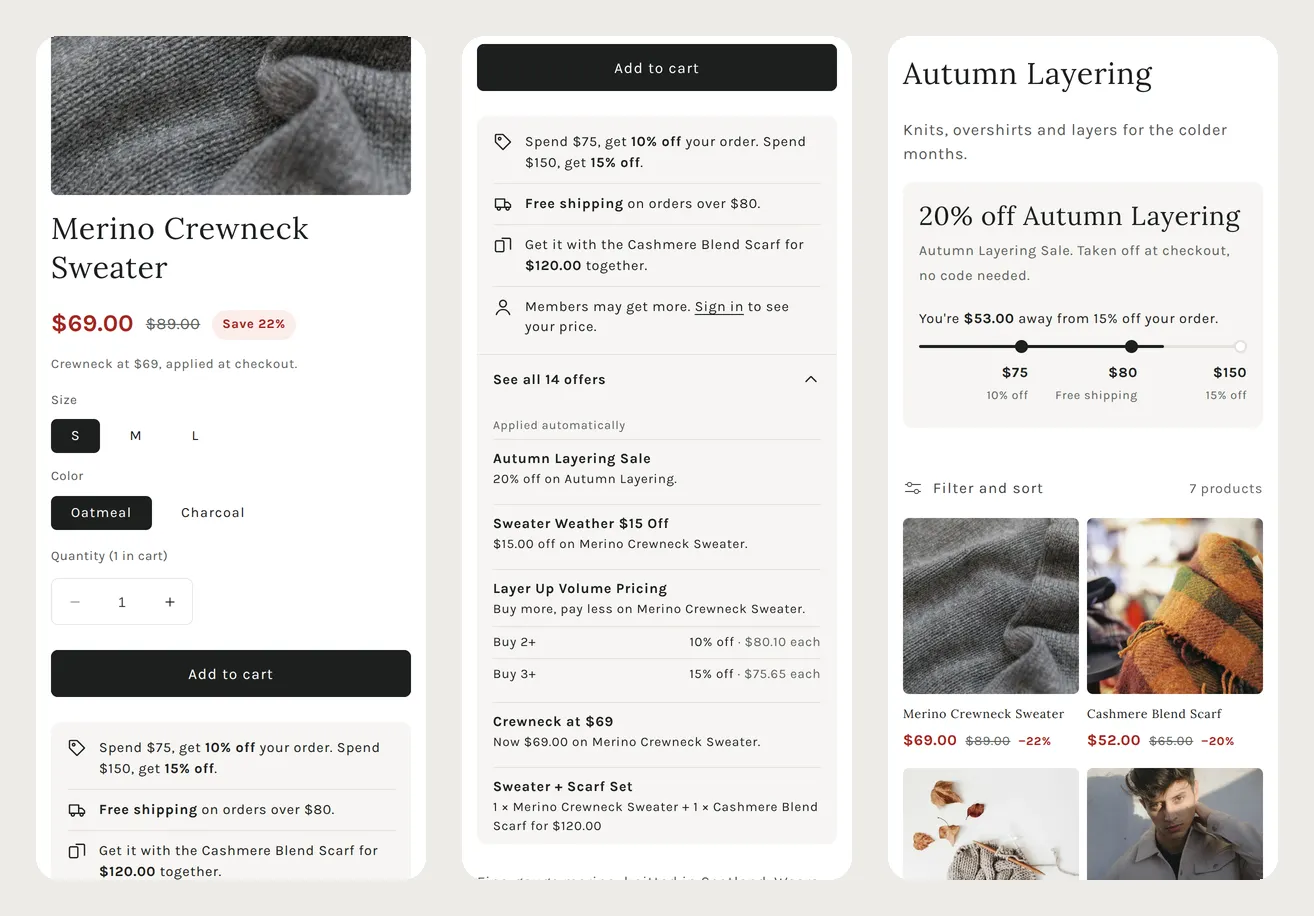
The price line
Section titled “The price line”Under the title: the price after the automatic discount, the original price struck through, and the saving. One line under it names the discount that gives that price.
- Show the lowest price that one discount gives. Do not add discounts together: Shopify applies one product discount per cart line, so a sum would show a price the cart will not charge.
- Hide your theme’s own price block, so the page shows one price.
- Use the same calculation on the product cards, so the card and the product page show the same saving.
The offers box under Add to cart
Section titled “The offers box under Add to cart”The example puts a box of at most four one-line rows under the button. A row is shown only when that offer can lower the price below the price line. On the test store, the quantity break and the code were left out because the price line was already lower:
| Row | Shown when |
|---|---|
| Spend $75, get 10% off your order | An ORDER_GOAL every shopper gets, with a percentage |
| Free shipping on orders over $80 | The lowest FREE_SHIPPING threshold every shopper gets |
| Get it with the Cashmere Blend Scarf for $120.00 together | A bundle with this product and a set price |
| Buy 3, pay $X each | A quantity break, only for steps cheaper than the price already shown |
| Use code CODE to pay $X | A code, only when it is cheaper than the price already shown |
| Members may get more. Sign in to see your price. | The product has an offer with a customer condition and nobody is signed in |
The remaining offers are listed behind “See all N offers”, a <details> element.
The collection strip
Section titled “The collection strip”One row above the product grid: the collection’s best offer on the left and the spend steps on the right. It uses the theme’s own colours.

| Part | Data |
|---|---|
| ”20% off Autumn Layering” | collection.metafields[ns].max_reward_percent (or max_reward_cents) and the collection title |
| ”Autumn Layering Sale” | collection.metafields[ns].max_reward_discount.value.discount_title |
| The steps | From shop.metafields[ns].discounts: each step of every order goal (ORDER_GOAL), plus the lowest free-shipping threshold |
| ”You’re $53.00 away” | cart.items_subtotal_price compared with the steps |
Only steps that every shopper can reach with the cart alone are shown: the entry must be
universal, and must have no cart_attribute_key.
Build the steps as text so Liquid can sort them. Pad the amount to a fixed width first, because
sort compares text:
{%- assign stops = '' -%}{%- for d in shop.metafields[ns].discounts.value -%}  {%- if d.universal.value and d.cart_attribute_key.value == blank -%}    {%- if d.discount_type.value == 'ORDER_GOAL' and d.reward_type.value == 'PERCENTAGE' -%}      {%- assign vals = d.reward_values.value -%}      {%- for t in d.thresholds.value -%}        {%- assign key = t | plus: 1000000000 -%}        {%- capture label -%}{{ vals[forloop.index0] | round }}% off your order{%- endcapture -%}        {%- assign stops = stops | append: key | append: '|' | append: label | append: '^^' -%}      {%- endfor -%}    {%- endif -%}  {%- endif -%}{%- endfor -%}{%- assign ladder = stops | split: '^^' | uniq | sort -%}
<ol class="ladder">  {%- for s in ladder -%}    {%- assign parts = s | split: '|' -%}    {%- assign amount = parts[0] | minus: 1000000000 -%}    <li class="{% if cart.items_subtotal_price >= amount %}is-reached{% endif %}">      <span>{{ amount | money }}</span> <span>{{ parts[1] }}</span>    </li>  {%- endfor -%}</ol>
Add free-shipping steps the same way: an entry with discount_type FREE_SHIPPING, its amount in
minimum_threshold_value. Keep only the lowest one.
The steps are spaced evenly rather than by amount, as in the screenshot. Amounts that sit close together, such as $75 and $80, would otherwise overlap. The fill moves step by step: full segments for each step reached, and a part of the next segment for the progress towards it.
Switching variants
Section titled “Switching variants”The price line is rendered once for each variant (up to 50) when the page loads. Only the selected one is visible. When the shopper picks another size or colour, a few lines of JavaScript show the matching line.
{%- for v in product.variants limit: 50 -%} <div data-variant="{{ v.id }}"{% if v.id != product.selected_or_first_available_variant.id %} hidden{% endif %}> … the price drop for v, from Examples … </div>{%- endfor -%}function showVariant(id) { id = String(id); document.querySelectorAll('[data-variant]').forEach((el) => { el.hidden = el.dataset.variant !== id; });}// Dawn publishes variant changessubscribe(PUB_SUB_EVENTS.variantChange, (e) => showVariant(e.data.variant.id));On a phone
Section titled “On a phone”The same parts, stacked: the price line under the title, the offers box under Add to cart, and the spend steps under the collection offer.